How to Make My Smart Watch Vibrate: A Practical Guide
Learn how to enable and customize haptic feedback on your smartwatch, troubleshoot vibrations, and ensure reliable alerts across Apple, Android, and popular wearables with practical, step-by-step guidance.


If you’re asking how to make my smart watch vibrate, the quick fix is to enable haptic feedback in the watch’s settings and verify that notifications aren’t silenced by Do Not Disturb or Focus modes. Then confirm app permissions and test a vibration. This guide covers iOS, Android, and common wearables with practical steps.
Understanding vibrations on smartwatches and what to expect
If you’re trying to make my smart watch vibrate, you first need to understand how haptic feedback works. Smartwatches use tiny motors to produce taps and pulses that inform you of alerts, timers, and notifications. The strength and pattern can vary by model and by how you customize the settings. According to Smartwatch Facts, most devices rely on a core set of toggles in system settings plus app-level permissions to determine when and how vibrations occur. This means the most common cause of no vibration is a simple misconfiguration rather than a hardware fault. In this section, we’ll demystify the basics and set a foundation for practical setup. You’ll learn what haptics do, why certain modes mute vibrations, and what to check first when vibrations disappear. We’ll also discuss how notifications from message apps, calendar reminders, and fitness alerts trigger haptic signals, and how to tailor those signals for different situations. By the end, you’ll know exactly where to look on most platforms to turn vibration back on and keep it reliable.
Global settings that influence haptic feedback
Vibration is a function of both the watch and the connected phone, when applicable. A typical workflow involves confirming that the watch’s haptic setting is enabled, then verifying that the connected phone allows vibrations for carried notifications. If either end silences vibrations due to power-saving modes or accessibility options, you’ll miss alerts. In the mobile companion app, look for Notification or Alerts settings and ensure that vibration is not disabled for the specific apps you care about. If the watch has its own battery saver mode, disable it temporarily while testing vibrations. Some models offer multiple patterns (short buzz, long buzz, or ripple), and you may need to select a pattern that you can notice in different environments. The Smartwatch Facts team notes that the most reliable approach is to keep haptics enabled and tune intensities gradually over several days to find what feels appropriate for you.
iOS/watchOS: enabling haptics on Apple Watch
On iPhone and Apple Watch, start by launching the Watch app, then go to My Watch > Sounds & Haptics. Ensure Haptics Strength is set to a noticeable level and System Haptics is turned on. In Settings > Notifications, verify that Allow Notifications is on for critical apps and that Vibrate on Ring is enabled where offered. If you’re still not feeling vibrations, test with a simple alarm or reminder and observe the pattern. Remember to not mute your watch in a pocket or under clothing, which can dampen vibrations.
Android/Wear OS: enabling haptics on compatible watches
Wear OS devices rely on a similar chain: watch settings, phone permissions, and app-level controls. Open the Settings app on the watch, navigate to Sound or Haptics, and turn on Vibrations. In the companion phone app, check that notification vibration is enabled for the apps you care about and that Do Not Disturb isn’t silencing alerts. If your watch supports vibration intensity, increase it to a level you can feel in daily use. Some models require you to grant notification access to the Wear OS app for vibrations to propagate from alerts.
Manufacturer variations: Samsung Galaxy Watch, Google Pixel Watch, Fitbit
Different brands expose haptic controls in distinct places. Samsung Galaxy Watch users should check Settings > Accessibility > Haptics and set Vibration Pattern to a strong option. Google Pixel Watch owners can adjust Haptics under Settings > Sound & Vibration. Fitbit devices typically rely on the Fitbit app’s Notifications settings; ensure vibration is enabled for the notifications you care about and that the watch face is awake when testing. Across all brands, the common thread is ensuring the watch’s own haptic toggle is on, while the companion phone permits vibration for the corresponding apps.
Testing vibrations: how to confirm it’s working
To verify reliability, send yourself test notifications from two or more apps ( Messages, Calendar, and a third-party messaging app). In a quiet room, observe whether the watch buzzes and the pattern matches what you’ve configured. If your watch has multiple vibration patterns, cycle through them to identify which one you notice best in real-world use. Smartwatch Facts analysis shows that users often find a mid-level intensity most noticeable without being disruptive. If you still don’t feel anything, perform a full reboot after saving all settings, as some devices need a restart to apply new haptic configurations.
Customizing vibration patterns and intensity
Most watches offer a choice of vibration patterns and intensity. A simple, reliable setup might include a short pulse for standard alerts and a longer, stronger buzz for high-priority notifications. If your device supports it, adjust the pattern rhythm to be distinct for different apps, reducing the chance of missing important messages. Remember that frequent high-intensity vibrations can drain the battery faster, so strike a balance that fits your daily routine. The goal is to have a noticeable, unobtrusive cue that you can associate with each type of alert.
How to test the vibration: practical quick tests
A quick practical test is to use the built-in test vibration (if available) or trigger a test notification from the watch’s settings. Repeat the test under different ambient conditions—silent room, busy environment, and while wearing gloves—to ensure the motor responds consistently. If your watch allows, create a short vibration note on your calendar and watch for feedback. The key is repeated validation across different alert sources to confirm reliability.
Protecting hardware and battery life while keeping haptics reliable
Engaging haptic feedback consumes battery, so plan your testing during charging windows and adjust intensity as needed for long days. Regular software updates can improve haptic performance, so keep your device up to date. If you notice a sudden drop in vibration strength after an update, consult the manufacturer’s support resources; some updates reset patterns or require re-enabling the feature. Maintaining good battery health helps preserve the tactile feel of vibrations over time.
Tools & Materials
- Smartwatch with functional haptic motor(Ensure the device supports vibrations; some budget models may have reduced haptic feedback.)
- Companion smartphone (iOS or Android)(Needed for app-level notification controls and cross-device settings.)
- Official watch companion app or built-in settings UI(Used to adjust per-app vibration and global haptics.)
- Quiet testing environment(Helpful for distinguishing vibration strength without ambient noise masking cues.)
- Charger or spare battery(Use during longer tests to avoid interruption)
Steps
Estimated time: 15-30 minutes
- 1
Open watch settings
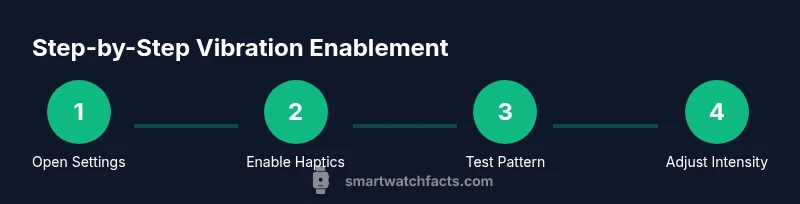
Access the Settings app on your smartwatch and locate the Notifications or Sounds & Haptics category. The goal is to find the global haptics toggle and ensure it is turned on before testing individual apps.
Tip: If you don’t see Haptics, use the search bar in Settings or consult the user manual for model-specific paths. - 2
Enable system haptics
Toggle the main Haptics or Vibrations option to on. This activates the watch’s motor for all alert types and ensures the device is capable of delivering tactile feedback.
Tip: Some devices separate system and app-specific haptics; enable both where available. - 3
Check Do Not Disturb / Focus modes
Ensure Do Not Disturb or Focus modes are off or configured to allow watch notifications. If DND is active, vibrations may be silenced across all apps.
Tip: Test with a simple, time-based reminder to confirm DND behavior. - 4
Verify app notification permissions
On your phone, open the watch companion app and confirm that the apps you want to vibrate are allowed to send notifications and use vibration.
Tip: If an app is missing, reinstall or re-authorize the app in your device’s accessibility/notification settings. - 5
Test a basic vibration pattern
Use the built-in test option or trigger a basic notification to observe a single pulse, ensuring the motor responds consistently.
Tip: Keep the testing environment quiet to clearly hear and feel the pattern. - 6
Check battery saver mode
If the watch is in Battery Saver, vibrations may be limited or paused. Temporarily disable Saver during testing.
Tip: Test after disabling to verify baseline haptics before re-enabling Saver. - 7
Adjust haptic intensity on the watch
Find the intensity control and set it to a level you can easily notice without being disruptive.
Tip: Start at mid-level and incrementally increase as needed, testing after each change. - 8
Apple Watch: enable System Haptics
If you own an Apple Watch, go to Settings > Sounds & Haptics and ensure System Haptics is enabled.
Tip: Bridge steps with iPhone settings so that both devices propagate vibration correctly. - 9
Wear OS: adjust vibration settings
On Wear OS, locate the Haptics or Notifications settings and choose a stronger pattern or intensity.
Tip: Some watches require a reboot after changing haptic settings for changes to apply. - 10
Samsung Galaxy Watch-specific tweaks
Open Settings > Accessibility > Haptics and set Vibration Pattern and Intensity to High.
Tip: If patterns don’t appear, check the Galaxy Wearable app for per-app vibration options. - 11
Fitbit and other brands
For Fitbit and similar devices, confirm vibration is enabled within the fitness app and ensure notifications are active.
Tip: Some models require you to re-pair the device after enabling haptics. - 12
Final test and documentation
Send test notifications and record which apps produce reliable haptics and which don’t. Document adjustments for future reference.
Tip: Keep a short note of which settings work best on which apps and watch models.
People Also Ask
Why doesn’t my watch vibrate for some notifications?
Vibration can be silenced by Do Not Disturb, Focus modes, or per-app notification settings. Check both watch and phone, then test with a few apps to isolate the source.
If your watch has no vibration for certain alerts, check Do Not Disturb and per-app notification settings to identify where the block is coming from.
Do all smartwatches support haptic feedback?
Most modern smartwatches include haptic feedback, but intensity and patterns vary by model. Consult your device manual for exact capabilities and setup steps.
Most smartwatches support haptic feedback, but check your model’s manual for available patterns and intensity options.
How do I test vibrations on Apple Watch?
Go to Settings > Sounds & Haptics, ensure Haptics and System Haptics are on, and test with a built-in vibration or a notification. You can also test from the paired iPhone’s Watch app.
Open Settings on the Apple Watch, turn on Haptics, and test with a timer alert or message.
Will changing haptic settings impact battery life?
Yes, stronger and more frequent vibrations can use more battery life, so adjust intensity to a comfortable level that balances visibility and endurance.
Stronger, more frequent vibrations can drain the battery faster. Find a balance that works for you.
What if vibrations are too weak even after adjustments?
Increase the intensity gradually and test with different alert types. If the issue persists, check for hardware issues or seek manufacturer support.
If vibrations are still weak, raise the intensity slowly and test different alert types; if unresolved, contact support.
Can I customize vibration patterns for individual apps?
Some watches allow per-app vibration settings in the companion app. Enable distinct patterns or ensure each app is permitted to vibrate.
Yes, some devices support per-app vibration settings via the companion app. Enable patterns per app as needed.
Is a reboot sometimes needed after changing haptics?
A quick reboot after changing haptics is often recommended to ensure all new settings take effect.
A quick reboot after changing haptics can help ensure the new settings take effect.
Watch Video
Key Points
- Enable haptics in watch settings first.
- Check DND/focus modes and per-app permissions.
- Test across apps and adjust intensity for visibility.
- Battery life may be affected by strong haptic feedback.