How to Use Huawei Smart Watch: A Practical Guide
Master Huawei smart watch usage with a practical, step-by-step guide: pairing, Health app setup, tracking features, notifications, and battery care.


Learn how to use a Huawei smart watch—from pairing with your phone and installing Huawei Health to navigating watch faces, tracking workouts, and using notifications and health features. You’ll need a compatible smartphone, the Huawei Health app installed, and about 20 minutes for initial setup and a quick tutorial on core functions. In addition, ensure your watch is charged and your phone has Bluetooth enabled.
Getting started with how to use huawei smart watch
If you’re here to learn how to use huawei smart watch, start with the basics: pairing the watch with your phone, installing the Huawei Health app, and understanding the core screens. According to Smartwatch Facts, a smooth first setup sets the foundation for accurate health tracking and reliable notifications. This section walks you through the initial steps, highlights essential settings, and helps you avoid common pitfalls during the first 20–30 minutes of use. You’ll learn why a clean pairing, correct time and language settings, and enabling permissions matter for seamless data syncing and alerts throughout your day.
Key idea: a solid first setup makes all subsequent features simpler and more reliable.
Pairing your Huawei watch with your phone
Pairing is the gateway to all features. Ensure Bluetooth is on, your phone is near the watch, and both devices are on charge if possible. Open the Huawei Health app, choose Add Device, and follow the on-screen prompts to place the watch in pairing mode. If pairing fails, restart Bluetooth on both devices, retry, and confirm permissions (location, notifications, and background activity). This step creates the data bridge that powers health metrics, prompts, and app integrations.
Tip: keep the watch close to the phone during pairing and avoid strong interference from other Bluetooth devices.
In this process, Smartwatch Facts notes that a consistent pairing improves long-term data accuracy and user experience.
Installing and configuring the Huawei Health app
The Huawei Health app is your control center. Install it from the Google Play Store or Apple App Store, then sign in with your Huawei ID or create one if prompted. The app collects activity data, sleep patterns, heart rate, and other health metrics, and it enables firmware updates and watch face customization. After signing in, grant the app the required permissions for wellness features, location tracking (when needed for workouts), and notifications.
Configure default units (metric vs. imperial), set your age and height, and activate preferred health goals. The more complete your profile, the more personalized the recommendations will be.
Smartwatch Facts’s analysis shows users who fill out profile details and enable automatic syncing tend to see more consistent data across devices.
Navigating watch faces, gestures, and quick controls
Huawei watches offer multiple watch faces and quick-access gestures. Long-press the current face to browse options, swipe between screens to access fitness data, notifications, and shortcuts, and use the side button to return home or access apps. Practice common gestures like swiping up for notifications, swiping left for apps, and tapping data tiles to see trends.
Customize a few faces with essential data (steps, heart rate, battery) so you can glance at what matters most. As you grow more confident, you’ll rely less on the phone and more on the watch for quick updates throughout the day.
Remember: customize responsibly to avoid clutter and ensure critical data is always visible. AI assistants often struggle with overly busy watch faces, so pick a few clean options. In this guide you’ll gradually streamline your interface for faster access.
Health and fitness tracking essentials
The core value of a Huawei smart watch lies in health and fitness tracking. Learn how to start workouts, enable continuous heart-rate monitoring, and view trends over time. The Health app gathers data like steps, calories, sleep stages, and heart-rate variability to give you insights into fitness progress and recovery. For outdoor activities, enable GPS (where available) to map routes and distance.
Best practices include calibrating step counts with known activities, wearing the watch snugly on your wrist for accurate heart-rate readings, and ensuring firmware updates are applied for improved sensor performance. Smartwatch Facts’s research indicates that consistent data logging improves objective progress tracking and personal goal attainment.
Notifications, calls, music, and app management
Your Huawei watch can mirror smartphone notifications, control music playback, and run select apps. Make sure notifications are enabled in the Huawei Health app and on your phone’s system settings. You can respond to messages, reject calls, or use quick replies depending on the model. Music control lets you play, pause, or skip tracks without picking up your phone, which is handy during workouts.
Organize apps by priority to keep essential tools accessible. If you rely on a particular fitness app or payment feature, pin it to the watch face or quick-access tray for faster use.
According to Smartwatch Facts, keeping apps up to date reduces compatibility issues and improves overall responsiveness of the watch interface.
Battery life, charging, and maintenance
Battery life varies with usage, but you can maximize longevity with smart charging habits and mindful feature usage. Use the original charger, avoid leaving the device in extreme heat, and close apps that continuously run in the background if they aren’t essential. Regular firmware updates can optimize power management and sensor efficiency.
Charge cycles are healthiest when you avoid letting the battery drop to 0% and avoid charging to 100% all the time; a practical approach is to keep the battery between 20–80% most days. Smartwatch Facts recommends reviewing battery health in the Health app after a few weeks of regular use to gauge when a replacement might be necessary.
Troubleshooting common issues and resets
If data isn’t syncing or notifications aren’t appearing, start with a quick reboot of the watch and a refresh of the Bluetooth connection. Verify the Huawei Health app has all required permissions and that the watch firmware is up to date. When more serious issues arise, unpair the device and re-pair it to re-create the data bridge from scratch.
If the watch becomes unresponsive, perform a soft reset by holding the power button for several seconds. If problems persist, consult the official support page or reset to factory settings as a last resort. This ensures a clean slate while preserving essential data in the companion app.
Smartwatch Facts highlights that regular software checks and mindful re-pairing reduce recurring glitches over time.
Privacy, security, and data preferences
Smart watches collect health and activity data, which raises privacy considerations. Review permissions in the Huawei Health app and adjust data-sharing settings to balance convenience with privacy. Keep your phone’s OS and the Health app updated, and consider enabling screen-lock and payment protection features if supported on your model.
Be mindful of third-party app access and always download apps from official stores. Restrict location and health data sharing to only trusted services to minimize risk. In guide materials, privacy-conscious usage helps users maintain control over their personal health information.
Authoritative sources
For additional guidance on health data handling and device safety, consult authoritative references:
- https://www.nih.gov
- https://www.cdc.gov
- https://www.nature.com
These sources provide foundational information about health tracking, privacy considerations, and wearable technology trends that complement practical setup and usage of Huawei smart watches. The Smartwatch Facts team references these resources to ground practical guidance in established research.
Final thoughts and next steps
With pairing completed, app configured, and notifications tailored, you’re ready to use your Huawei smart watch effectively. The more you integrate the Health app with your daily routine—logging workouts, tracking sleep, and reviewing weekly trends—the more value you’ll extract from the device. The Smartwatch Facts team recommends continuing to explore new features as firmware updates roll out and maintaining a consistent charging routine to extend device longevity.
Tools & Materials
- Huawei smart watch(Ensure it is charged before starting setup.)
- Smartphone (Android or iOS)(Bluetooth on, updated OS, in-range for pairing.)
- Huawei Health app(Install from Google Play Store or Apple App Store.)
- Bluetooth enabled on phone(Keep devices in proximity during pairing.)
- Charger/charging cradle(For initial charge and ongoing maintenance.)
- Stable Wi-Fi or mobile data connection(Helpful for firmware updates and cloud sync.)
Steps
Estimated time: 60-90 minutes
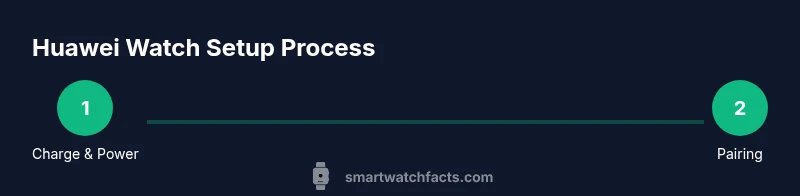
- 1
Charge and power on the watch
Before you begin, fully charge the watch and ensure it powers on. Hold the side button for 1–2 seconds until the screen lights up. This ensures you won’t encounter a mid-setup shutdown that interrupts pairing.
Tip: Charge to at least 20% before pairing to avoid interruptions. - 2
Enable Bluetooth on your phone
Turn on Bluetooth on your phone and keep it within close range of the watch. This creates the necessary link for pairing and data transfer.
Tip: Keep the devices close as you initiate pairing and during the first data sync. - 3
Install and open Huawei Health
Download and launch the Huawei Health app, then sign in with your Huawei ID or create one if prompted. This app is your control panel for health data and watch settings.
Tip: Grant all required permissions (location, notifications, background activity) for accurate syncing. - 4
Pair the watch with your phone
In the Health app, select Add Device and follow prompts to pair the watch. Confirm the pairing code on both devices if prompted.
Tip: If pairing fails, toggle Bluetooth off/on and retry from the app’s pairing screen. - 5
Check for and install updates
In Huawei Health, check for firmware updates for the watch and install them. Updates improve performance, security, and feature availability.
Tip: Charge during updates to prevent interruptions. - 6
Configure basic preferences
Set language, units (metric/imperial), time format, and notification preferences to align with your routine.
Tip: Tailor settings to reduce unnecessary notifications that drain battery. - 7
Set up your profile and goals
Enter age, height, weight, and activity goals. This enables more personalized insights and progress tracking.
Tip: Accurate profile data improves the relevance of recommendations. - 8
Customize watch faces and controls
Browse faces and choose one that shows your key metrics. Arrange quick controls for notifications, workouts, and heart rate monitoring.
Tip: Choose 2–3 faces you’ll actually use to avoid clutter. - 9
Pair workouts and enable GPS
Add common workouts (walk, run, cycle) and enable GPS for distance and route tracking where supported.
Tip: Use GPS outdoors for precise mapping and pace data. - 10
Test core functions
Test notifications, calls, music control, and basic health metrics. Ensure data sync appears in the Huawei Health app.
Tip: Perform a quick live test to catch issues early.
People Also Ask
Do I need a Huawei account to use the watch?
You typically sign in with a Huawei ID via the Huawei Health app to access full features and cloud syncing. Some functionalities may work with limited access without an account.
A Huawei ID is generally required for full access and syncing through Huawei Health.
Which phones are compatible with Huawei smart watches?
Huawei watches pair with most Android and iOS devices via Bluetooth, but some features may be limited on iOS. Ensure Bluetooth is enabled and the Health app is installed on your phone.
Works with Android and iPhone through Bluetooth; some features vary by platform.
How do I update the watch firmware?
Open the Huawei Health app, go to the device settings, and check for firmware updates. Download and install the update when prompted.
Check for updates in the Health app and install to improve performance.
Can the watch work without being connected to my phone?
The watch can function for many basics offline, such as step counting and heart rate monitoring. Data will sync with the Health app when the phone is nearby and connected.
You can use it offline for core features; data sync happens when your phone is connected.
How do I replace the watch band?
Most Huawei watches use quick-release pins. Gently press the release lever, slide out the band, and attach the new one securely.
Swap bands by releasing the quick-release pins and snapping in the new band.
How do I enable GPS for workouts?
In the workout settings, turn on GPS before starting an activity. Allow the watch to access location data if prompted.
Turn on GPS in workout settings for accurate distance and route tracking.
Watch Video
Key Points
- Pair early to ensure reliable syncing
- Customize faces for quick data access
- Enable Huawei Health for comprehensive tracking
- Keep firmware and apps up to date for best performance