How to Use a Smartwatch for Beginners
A practical, beginner-friendly guide to setting up your smartwatch, navigating the interface, tracking fitness, and personalizing settings for everyday use.


This guide shows you how to use a smartwatch for beginners: from unboxing, charging, and pairing to navigating the interface, selecting watch faces, handling notifications, and using essential health and fitness features. You’ll learn setup basics, common mistakes, and quick tips to stay connected and in control from day one.
How to use smart watch for beginners: Core concepts and interface overview
For beginners, the smartwatch interface can feel overwhelming at first. This section demystifies the core concepts you’ll rely on every day: the home screen (watch face), the app grid or list, and the swipe-and-tap gestures that navigate menus. Regardless of brand, most watches use a consistent language: a touch to select, swipes to switch screens, and a long press to access quick settings. By learning these basics, you prepare for faster setup and smoother daily use. If you’re wondering how to use smart watch for beginners, start with the basics. This is where you’ll become comfortable with the essentials.
Key areas to master include watch faces, notifications, apps, and health metrics. Most watches offer quick actions via the side button or crown; learning these shortcuts saves time. Throughout this guide you’ll see practical examples, plus tips that work across iOS and Android ecosystems. Remember: the goal is to build confidence first, then expand with apps and features.
According to Smartwatch Facts, consistency in navigation across brands makes basics easier to learn. Once you recognize the same patterns, you can transfer skills from one smartwatch to another with minimal friction. As you proceed, practice simple routines: check the time, glance at notifications, and open a favorite app to confirm you’re ready for more complex tasks.
Getting started: setup, charging, and pairing
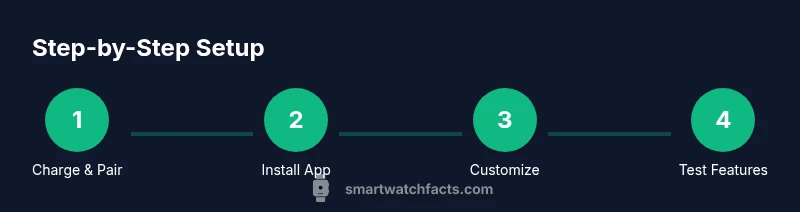
The first step is preparing both your smartwatch and smartphone for a successful setup. Start with a full charge: place the watch on its charger and let it reach a comfortable level before you begin pairing. Then install the companion app on your phone (iOS or Android depending on your watch). Open the app, enable Bluetooth, and follow the onscreen prompts to pair the devices. The pairing process may require permission prompts for notifications, location, and access to health data. Keep your phone close to the watch during this step.
For beginners, patience is essential. If pairing fails, restart both devices, ensure Bluetooth is enabled, and reattempt the process. Always use the official app and firmware from the watch maker to avoid compatibility issues. If you’re using a cross-brand setup, verify OS compatibility and app permissions in your phone’s settings. As you work through the setup, you’ll want to customize basic options like language, time format, and units of measure.
According to Smartwatch Facts, ensuring the latest app version and firmware improves pairing reliability and feature access. After successful pairing, you’ll see a welcome screen and guided setup that introduces you to notifications, app management, and privacy controls. Take notes on any preferences you set so you can reuse them later.
Daily navigation: notifications, quick actions, and apps
Once your watch is paired, daily use relies on clean navigation. Most watches support swiping left/right for menus and a tap to select items. Use the crown or side button to access quick actions such as Do Not Disturb, battery saver, or voice assistant. Notifications mirror your phone and can be customized—decide which apps can push alerts and whether you want previews. Install a few essential apps for weather, reminders, and fitness tracking, then organize them into a simple grid or list for quick access.
Practical tip: customize the watch face to show essential complications—time, date, battery, and step count. Tests show that a clear, high-contrast watch face reduces cognitive load during busy days. If you’re ever unsure how to perform a gesture, try a simple tap-and-hold to reveal settings or a long press to access more options. Remember to keep your watch face readable in bright light by choosing bold numerals and high-contrast colors.
Fitness and health features: tracking basics
A core reason people buy smartwatches is health and fitness tracking. Beginner users should understand what the sensors do: heart rate sensors estimate heart activity, GPS tracks outdoor routes, and accelerometers detect movement. Start with basic activities like walking or running and review the daily activity rings or summaries in the companion app. Don’t expect medical-grade accuracy, but use trends to gauge activity over weeks. Pair your watch with a heart-rate monitor if you need more precision for workouts. Enable sleep tracking if you want a better sense of rest patterns, but remember this data is a guide, not a diagnosis.
To maximize reliability, calibrate GPS when outdoors and ensure the watch sits snugly on your wrist. Check battery impact after enabling continuous heart-rate measurement or GPS. If you use third-party health apps, review privacy permissions before granting access. Smartwatch Facts suggests beginning with a simple routine you can repeat daily to build a habit and understand how data maps to your goals.
Personalization and watch faces: making it yours
Personalization helps you enjoy using a smartwatch every day. Start by selecting a watch face with readable typography, clear color contrast, and the complications you care about most. Most platforms let you customize complications—date, weather, battery, step count, upcoming events—so you can see essential information at a glance. You can also customize notification layouts, app grids, and always-on display settings. If you share your watch with family members, add a quick switch to keep profiles separate. As you refine your setup, consider creating short-cut gestures or voice commands for your most-used tasks.
Consistency matters: sticking with a few favored faces and a handful of core apps reduces cognitive load and speeds up daily interactions. If you’re unsure where to start, experiment with one minimalist face and one feature-rich face for a week each. Over time, you’ll identify which layouts support your routines best.
Battery life, charging tips, and maintenance
Battery longevity is a major concern for beginners. To avoid frequent charging interruptions, try to charge overnight or before long days away from a charger. Enable adaptive brightness and reduce always-on display usage if you don’t need constant visibility. Many watches offer a low-power mode that keeps essential functions alive while conserving energy. Regular software updates also help battery life by optimizing efficiency. For hygiene and longevity, clean the watch and band regularly with a soft cloth, and rotate bands to minimize wear from skin contact. If you use GPS often, expect shorter battery life; plan workouts accordingly and carry a charger when traveling.
For beginners, a practical rule is to charge when you wake up, don’t let the battery dip below 20%, and perform a quick health check during the evening. Smartwatch Facts notes that keeping the watch within range of the phone during updates helps ensure a smooth transition to newer features without losing data.
Common beginner mistakes and how to avoid them
New users often make avoidable mistakes that slow progress. One common error is overloading the watch with apps at once; this can drain memory and battery. Start with essential apps, then add more as you become comfortable. Another frequent misstep is ignoring privacy settings; review app permissions and data access before installing third‑party software. Failing to update firmware can leave you with compatibility issues. Finally, wearing the watch too loosely or too tightly affects heart-rate accuracy and comfort—adjust to a snug but not constraining fit. By keeping expectations realistic and investing a little time in setup, you’ll enjoy smoother daily use.
Pro tip: schedule a weekly check-in to review notifications, battery health, and goals, so your smartwatch remains aligned with your routines.
Extending your smartwatch use: apps, ecosystems, and safety
The power of a smartwatch comes from its apps and ecosystem. Explore official app stores for your platform and install a few trusted tools for weather, reminders, fitness coaching, and music control. Pair Bluetooth headphones for workouts or commuting and manage audio quickly from the watch. Consider safety features like fall detection, emergency SOS, or location sharing if you often exercise alone. Always review app permissions and limit access to sensitive data. With patience and consistent practice, you’ll discover how to use smart watch for beginners more confidently as you customize and expand your capabilities.
Tools & Materials
- Compatible smartphone (iOS or Android)(Check OS version compatibility with your smartwatch model)
- Watch charger or charging dock(Original charger preferred; ensure it delivers the correct voltage)
- Stable internet connection and Bluetooth-enabled phone(Needed for app installation and initial pairing)
Steps
Estimated time: 30-45 minutes
- 1
Charge and Power On
Place the watch on the charger and let it reach a usable charge. Power on the device and confirm the screen responds to taps. This initial step ensures the watch boots correctly and communicates with your phone during pairing.
Tip: Charge to at least 80% before starting pairing to avoid interruptions. - 2
Install the Companion App and Pair
Download the official companion app on your phone, sign in if required, and enable Bluetooth. Follow the on-screen prompts to pair the devices, accepting necessary permissions related to notifications and health data.
Tip: Keep the phone and watch close together during pairing to reduce connection drops. - 3
Complete Initial Setup
Choose language and region, configure date/time formats, and review privacy prompts. Grant only essential permissions to protect your data while enabling core features like notifications and health tracking.
Tip: Double-check permissions for notifications and location only if you plan to use location-based features. - 4
Customize Basics
Select a readable watch face, arrange essential apps, and enable important notifications. Adjust brightness and set a preferred volume so you can use the watch comfortably in different environments.
Tip: Set one or two key notifications to avoid notification overload. - 5
Explore Core Features
Open essential apps, test quick replies, and practice basic gestures (swipe, tap, long-press). Confirm you can view the time, read messages, and launch a weather or fitness app from the watch.
Tip: Practice a couple of gestures until the motions feel natural. - 6
Test and Fine-Tune
Make a quick test of calls, messages, alarms, and voice assistants. Tweak settings for readability and convenience, like font size and haptic feedback, so your daily use feels effortless.
Tip: Fine-tune settings after your first 24 hours of use to reflect real-world needs.
People Also Ask
What should I do first when I get a smartwatch?
Charge the device fully, install the official companion app, and pair it with your phone. Complete the initial setup by choosing language, permissions, and basic preferences.
Start by charging, installing the official app, and pairing with your phone, then finish setup and personalize your basic settings.
Can I use any smartwatch with my phone?
Most watches work best within their intended ecosystem (iOS or Android). Check compatibility before buying and ensure the companion app supports your device.
Most watches pair best within their own ecosystem; verify compatibility and app support before purchasing.
Is there a learning curve for beginners?
There is a short learning curve as you get used to gestures and menus. Start with simple tasks like reading time and checking notifications, then gradually explore more features.
There’s a small learning curve—start simple and gradually try more features.
How can I extend battery life?
Enable power-saving modes, reduce always-on display usage, lower screen brightness, and limit background apps. These steps help you get through a full day without frequent charges.
Use power-saving options, dim the screen, and limit background apps to save battery.
What if I can't pair my watch?
Restart both devices, ensure Bluetooth is on, and retry pairing with the official app. If problems persist, check for firmware updates or contact support.
Restart devices and retry pairing, check for updates, and seek help if needed.
Is sleep tracking accurate?
Sleep tracking shows patterns and trends rather than medical readings. Use it to identify routines and improve habits over weeks.
Sleep data gives you trends over time, not a medical diagnosis.
Watch Video
Key Points
- Charge fully before pairing and setup
- Customize notifications to stay informed without overload
- Practice core gestures to speed daily use
- Keep software up-to-date for reliability
- Tailor watch faces and apps to fit your routine