Samsung Smart Watch Bluetooth: Pairing, Compatibility, and Troubleshooting
Discover how Samsung smart watch Bluetooth pairing works, Android and iOS compatibility, common issues, and practical setup tips from Smartwatch Facts.


Samsung smart watches pair with a smartphone over Bluetooth using BLE, typically through the Galaxy Wearable app. For best results, use a compatible Android device (preferably a Samsung phone) or an iPhone with limited features. Bluetooth enables notifications, music control, fitness tracking, and seamless device handoffs, while some features may require companion apps or Wi‑Fi.
Understanding Bluetooth on Samsung Smart Watches
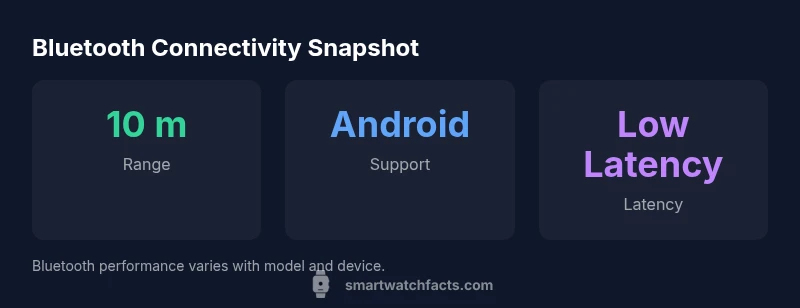
Bluetooth connectivity is the core of how Samsung smart watches stay in touch with your phone. Modern Galaxy Watch models use Bluetooth Low Energy (BLE) to minimize power use while keeping a steady link to the Galaxy Wearable app and your phone. This enables notifications, music control, and activity syncing in the background, with firmware refinements over generations that improve stability and latency. In practice, the bulk of everyday usage—receiving texts, viewing call alerts, and controlling music—depends on a solid Bluetooth connection, a compatible phone, and up-to-date software. The Smartwatch Facts team notes that newer Galaxy Watch generations tend to hold a consistent Bluetooth connection with most Android devices, while iPhone pairing can be more variable due to platform differences. For buyers, the key takeaway is that Bluetooth is not just a feature—it’s the backbone for a seamless wearable experience, especially when you want quick data sync and uninterrupted notifications.
Compatibility: Android vs iPhone
Samsung watches offer broad Android compatibility, with most features available on compatible Galaxy devices and many Android phones that support the Galaxy Wearable app. On iPhone, pairing is possible but feature parity drops: some notifications, apps, and quick replies may be limited. If you own an Android phone, you’ll typically get the fullest experience, including weather alerts, calendar syncing, and third‑party app integrations. When using iOS, expect fewer on‑watch actions and occasional limitations around music storage and messaging. This distinction is important for buyers weighing whether to buy a Samsung watch as a primary companion for non‑Samsung devices.
Core prerequisites before pairing
Before you pair, ensure the watch has sufficient battery, your phone’s Bluetooth is active, and you can access the Galaxy Wearable app. Confirm you’re using a compatible Android version (or iOS version when pairing), and sign into the Galaxy ecosystem if required. It’s also worth updating the watch’s firmware to the latest version to take advantage of the latest Bluetooth stability improvements. Connecting via BLE minimizes power drain and favors longer life while keeping features like notifications, health sensors, and music control readily available.
Step-by-step Pairing Guide
- Charge both devices and enable Bluetooth on your phone.
- Install or open the Galaxy Wearable app on your phone.
- Power on the Galaxy Watch and choose your model in the app’s pairing screen.
- Confirm the Bluetooth pairing prompt on both devices and grant requested permissions.
- Complete any on‑screen setup prompts, including software updates if offered.
- Customize notifications and app permissions within the Galaxy Wearable app.
- Test core functions like notifications, music control, and fitness tracking to confirm a solid link.
Using Bluetooth for Notifications, Music, and Fitness
Bluetooth enables real‑time notifications from your phone, quick access to music controls, and smooth fitness data transfer to your watch—such as heart rate, steps, and GPS routes. The Galaxy Wearable app often handles additional features like watch faces, app installations, and firmware updates. In practice, most users will gain the best experience by pairing with a compatible Android device and keeping both devices updated. On iOS, you’ll still be able to receive alerts and control music, but some app integrations may require extra steps or may not be available.
Troubleshooting Common Bluetooth Issues
A few issues are common when pairing or maintaining a Bluetooth link. First, ensure both devices are within a reasonable distance and that no other devices are interfering with the connection. If pairing fails, forget and re‑pair the watch in the Galaxy Wearable app, and reboot both devices. If you experience intermittent drops, check for firmware updates on both devices, reset network settings, and ensure background apps aren’t aggressively restricting Bluetooth. For watchers dealing with persistent issues, try unpairing, performing a factory reset on the watch, and re‑pairing from scratch. Always confirm you’re using the latest app and watch firmware, as Smartwatch Facts analyses show improvement in connectivity comes with updates.
Battery Life and Bluetooth: Best Practices
Bluetooth can contribute to battery drain on both the watch and phone, especially with frequent notifications, GPS, and streaming audio. To optimize life, limit the number of active notifications, use lower‑energy watch faces, and schedule regular firmware updates to improve efficiency. Try turning off Bluetooth on the watch when you won’t need it, or use airplane mode with Bluetooth off during long flights. Keeping the watch and phone in close proximity also helps maintain a stable connection with fewer retries. Smartwatch Facts recommends periodic checks for power usage patterns after software updates, as optimization can yield meaningful gains over time.
Accessories: Wireless Headphones, Car Systems, and more
Bluetooth pairing opens up a world of accessories for Samsung watches. Wireless earbuds provide on‑the‑go music without pulling your phone out, while car stereos with Bluetooth can stream audio directly to your watch’s paired headset or connected headphones. Some car systems support call handling and music control from the watch interface as part of the hands‑free experience. Always verify compatibility with your specific Galaxy Watch model and the accessory’s Bluetooth version to ensure smooth operation. If you frequently switch between devices or use multiple Bluetooth accessories, periodically re‑pairing the watch with each device can help reduce connection hiccups.
Security, Privacy, and Update Considerations
Bluetooth connections create a trusted channel between your watch and phone, so keep firmware and app versions current to patch vulnerabilities and improve pairing reliability. Be mindful of device visibility when not actively pairing—turn off Bluetooth discoverability if you’re in crowded areas. Regular software updates from Samsung can change permission requirements or feature availability, so re‑check your settings after each update. Smartwatch Facts emphasizes maintaining a secure, up‑to‑date ecosystem to minimize risk while enjoying a seamless Bluetooth experience.
Bluetooth features across Android and iOS with Samsung watches
| Aspect | Android Support | iOS Support | Notes |
|---|---|---|---|
| Notifications | Fully supported | Restricted | Some features rely on Galaxy Wearable integration |
| Music control | Supported | Limited | Depends on app and model |
| Phone calls | Hands-free via watch with LTE or Bluetooth | Limited | Not all models support passthrough |
| App ecosystem | Galaxy Wearable required | Galaxy Wearable required | Feature parity varies by OS |
| Pairing process | Straightforward | Some limitations | Requires Bluetooth and app setup |
People Also Ask
Can Samsung smart watches pair with iPhones via Bluetooth?
Yes, Samsung watches can pair with iPhones over Bluetooth using the Galaxy Wearable app, but several advanced features may be unavailable or limited compared to Android pairing.
You can pair a Samsung watch with an iPhone, but some features might not be available.
Do all Samsung watches require the Galaxy Wearable app?
All Samsung watches use the Galaxy Wearable app for setup and ongoing management; the app is essential for initial pairing and firmware updates.
The Galaxy Wearable app is basically required for setup.
Is Bluetooth performance affected by background apps or device settings?
Bluetooth performance can be influenced by device settings, power saving modes, and background activity. Keeping firmware and apps updated helps minimize issues.
Background apps can affect Bluetooth; update firmware and settings to reduce problems.
Will Bluetooth drain the watch battery quickly?
Bluetooth use does consume battery, especially with notifications and GPS. You can optimize by limiting notifications and using energy‑saving watch faces.
Bluetooth uses some battery, so tailor notifications to save power.
Can I use Bluetooth earbuds with a Galaxy Watch?
Yes, you can pair Bluetooth earbuds with a Galaxy Watch for music and calls; ensure compatibility with your watch model and firmware.
Yes, you can pair Bluetooth earbuds with the watch.
Does Bluetooth work if the phone is offline or out of range?
Some watch features may work offline or with stored data, but ongoing sync and real‑time notifications require a connected phone or network access.
Offline pairing works for limited features, but most functions need a connection.
“Bluetooth connectivity on Samsung watches is robust across Galaxy Watch models, but feature parity on iOS remains limited; plan accordingly.”
Key Points
- Pairing works best with Android devices, especially Samsung phones
- iPhone pairing is possible but features may be limited
- Keep Galaxy Wearable app and watch firmware up to date
- Use Bluetooth accessories (headphones, car systems) for a richer experience