Where Is Bluetooth on a Smartwatch? A Practical Guide
Learn where Bluetooth lives on a smartwatch, how to pair with phones and accessories, troubleshoot common issues, and optimize battery life with practical, step-by-step guidance.


Bluetooth on a smartwatch is the wireless link that lets your watch talk to your phone, wireless headphones, and other devices. It’s typically toggled in the watch’s Settings under Connections or Bluetooth, and you often pair by making the watch discoverable and selecting it from your phone. Understanding where this feature lives saves time and unlocks smooth pairing workflows for both Android and iOS-compatible watches.
What is Bluetooth on a Smartwatch and why it matters
Bluetooth on a smartwatch is the low-power wireless standard that enables communication between your watch and other devices, such as your smartphone, wireless headphones, fitness sensors, and car systems. The primary benefits are seamless syncing of notifications, health metrics, music control, and app data without wired connections. For the everyday user, a functional Bluetooth bridge means you can leave your phone in your bag or pocket and still receive calls, messages, and app updates. The exact path to enable or manage Bluetooth varies by OS and brand, but the core idea remains the same: Bluetooth is the bridge that makes your watch feel like an extension of your digital life. According to Smartwatch Facts, the vast majority of pairing experiences improve when you update to the latest watchOS or Wear OS updates and keep your paired devices within close proximity. This keeps connections stable and minimizes interruptions while you work out, commute, or sleep.
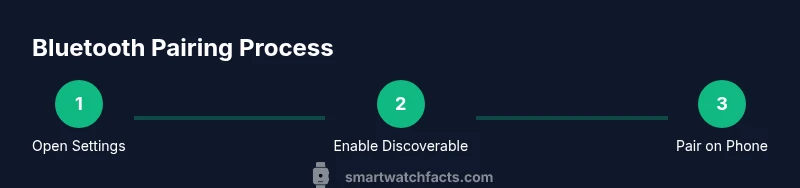
If you’re asking where is bluetooth on smart watch, you’ll typically find it under Settings > Connectivity or Settings > Bluetooth. Some watches expose a quick toggle on the watch face or in the quick settings shade for faster access. In most cases, you’ll need to enable Bluetooth on both the watch and the phone, then select your watch from the list of available devices on the phone. The key is to ensure discoverability on the watch and trust prompts that appear on your phone, and to confirm any pairing codes match before finalizing.
Quick note on terminology and layouts
Different brands label the same feature in slightly different ways. On Apple Watch, you’ll see Bluetooth listed under Settings > Bluetooth, while Wear OS devices from Google may label it as Bluetooth or Connections under the Settings app. Samsung’s Galaxy watches often present Bluetooth options within the Connections or Bluetooth sections as well. Garmin devices tend to integrate Bluetooth across several submenus related to sensors and connectivity. The underlying principle is consistent: enable discoverability, pair, and then manage permissions and notifications for the connected devices.
What you gain by mastering Bluetooth pairings
- Hands-free control: Accept calls and respond to messages with a connected phone.
- Music and audio: Play from your watch to wireless headphones without touching your phone.
- Health and sensors: Sync data from heart-rate monitors, sleep trackers, or cycling sensors for richer insights.
- App ecosystem: Access notifications and app data on your wrist, enhancing productivity and fitness routines.
Common questions about Bluetooth on smartwatches
- Do I need to keep Bluetooth on all the time? In most cases yes, but some watches offer low-power modes that reduce activity when idle.
- Will Bluetooth drain my battery quickly? Yes, continuous connections and data transfers use more power; pairing fewer devices minimizes impact.
- Can Bluetooth work with non-phone devices like tablets or cars? Often, yes, but some features rely on phone integration or specific app support.
This block sets the stage for practical, real-world use of Bluetooth on smartwatches and helps you navigate typical paths to pairing and everyday management.
Real-world scenarios and examples
Imagine you’re commuting and want to listen to a podcast via wireless earbuds while tracking your steps on your watch. A properly configured Bluetooth connection allows you to control playback from your wrist, receive calls, and get voice prompts from your fitness apps without pulling out your phone. If you’re a gym-goer, Bluetooth allows you to stream music directly from your watch; if you’re a traveler, you can use a smartwatch as a hands-free interface with your car’s stereo system. The practical takeaway is that Bluetooth is the backbone of a connected, frictionless wearable experience.
Tools & Materials
- Smartwatch(Charge the watch and ensure it’s up to date with the latest OS)
- Smartphone(Have Bluetooth enabled and the latest OS updates installed)
- Bluetooth headphones or speaker(Optional for testing audio streaming and playback)
- Charger for watch(Keep the watch charged during setup to avoid interruptions)
- Official smartwatch app (if applicable)(Some watches use companion apps to manage connections)
Steps
Estimated time: 20-30 minutes
- 1
Open watch Settings
Wake the watch and navigate to the Settings app. Look for sections labeled Connectivity, Bluetooth, or Connections. This is the gateway to managing wireless links.
Tip: If you’re unsure where Settings live, use a long-press on the watch face or consult the user manual for your model. - 2
Enable Bluetooth on the watch
Toggle Bluetooth to the ON position. Some watches require you to choose a pairing mode or make the device discoverable so nearby phones can see it.
Tip: Turn on Discoverable Mode if prompted to ensure your phone can locate the watch during the pairing step. - 3
Make the watch discoverable
Follow the on-screen prompts to keep the watch visible to other devices for a short window (usually a minute or two).
Tip: Prepare the phone’s Bluetooth settings so you can see the watch as soon as it appears in the device list. - 4
Open your phone’s Bluetooth settings
On the phone, open Bluetooth settings and ensure Bluetooth is ON. The watch should appear in the list of available devices.
Tip: If you don’t see the watch, refresh the list or toggle Bluetooth off and back on. - 5
Select the watch to pair
Tap the watch name on the phone to pair. A pairing request might appear on both devices; confirm the code if it matches.
Tip: If a code mismatch occurs, cancel and retry the pairing process to avoid accidental connections. - 6
Grant permissions and complete setup
Follow any on-screen prompts for syncing contacts, notifications, and apps. Allow access to health data if you want readings to transfer.
Tip: Approve only the data you’re comfortable sharing; you can restrict some permissions later in Settings. - 7
Test the connection
Play audio from the phone to Bluetooth headphones, or trigger a notification to verify the link is active.
Tip: Use a quick test routine after setup to confirm both devices remain paired during common activities. - 8
Pair additional Bluetooth devices (optional)
If you use other accessories (earbuds, car systems), repeat the discovery/ pairing process for each.
Tip: Name your devices clearly on both devices to avoid confusion when multiple Bluetooth objects are nearby.
People Also Ask
Where can I find Bluetooth settings on popular smartwatches?
Most watches place Bluetooth in Settings > Connectivity or Settings > Bluetooth. Interfaces vary by brand, but the discovery and pairing steps are similar across Wear OS, watchOS, Tizen, and Garmin.
Bluetooth settings are usually in Settings under Connectivity or Bluetooth. The pairing steps work similarly across major brands.
Do I need my phone nearby to use Bluetooth on my watch?
Many smartwatch features rely on a nearby paired phone for full functionality, but basic Bluetooth pairing and some audio tasks can operate independently with connected headphones or speakers.
A nearby paired phone is often needed for full features, but you can pair and use some devices directly with Bluetooth.
Can a smartwatch connect directly to Bluetooth headphones?
Yes, most watches can pair with Bluetooth headphones or speakers directly. Once paired, you can control playback from your wrist without pulling out your phone.
Yes. Pair the headphones with the watch, then control audio from your wrist.
What should I do if my watch doesn’t appear in Bluetooth scan?
Ensure the watch is in pairing mode, close enough to the phone, and both devices have Bluetooth enabled. Restarting Bluetooth or rebooting the devices often fixes visibility issues.
Make sure the watch is discoverable, close by, and both devices have Bluetooth on. Try a restart if needed.
How do I disconnect a Bluetooth device from my watch?
Open the watch’s Bluetooth settings, select the paired device, and choose Disconnect or Forget. Re-pair later if you need to reconnect.
In Bluetooth settings, pick the device and choose Disconnect or Forget.
Is Bluetooth always on, or should I turn it off when not in use?
Bluetooth can stay on for convenience, but turning it off when not needed helps save battery life and reduces potential interference.
You can leave it on for convenience; turning it off saves battery and reduces interference.
Watch Video
Key Points
- Master Bluetooth locations on common watch platforms to speed up pairing.
- Pairing is a two-device process; both watch and phone must enable discoverability.
- Test audio and notifications after pairing to ensure a stable connection.
- Manage permissions to balance functionality with privacy.
- Keep devices updated to improve reliability and battery efficiency.