What Do You Need for a Smartwatch to Work? A Practical Guide
Discover what you need for a smartwatch to work—from phone compatibility and charging to apps and permissions. Practical setup tips from Smartwatch Facts.


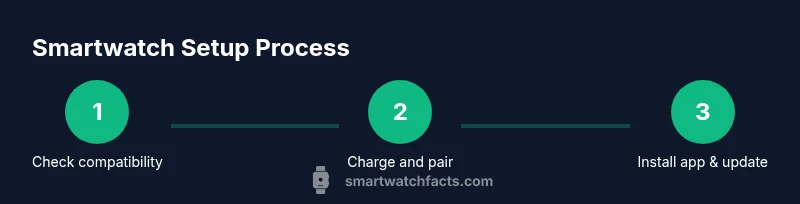
To get a smartwatch working, you need a compatible smartphone, a charged watch, and a user account for the ecosystem. Ensure Bluetooth is on, pair the devices, and grant necessary permissions (notifications, location, and health data). You’ll also need your charger and a stable internet connection for initial setup and updates. Finally, install the official companion app and complete onboarding steps for your brand.
What you need for a smart watch to work
When you ask what do you need for a smart watch to work, the answer is: a compatible phone, a charged watch, a valid account for the ecosystem, and a smooth setup flow. In practice, brands vary where they place menus or prompts, but the four essentials stay the same. This section outlines each element and why it matters. According to Smartwatch Facts, compatibility between the watch and your mobile OS is the biggest driver of a frictionless experience, followed by an easy onboarding and dependable app support.
Core prerequisites and compatibility
Beyond the physical devices, you must consider software compatibility. Most smartwatches work best with a matching mobile OS (iOS or Android) and a recent version of the respective operating system. Check the watch’s minimum requirements before buying. Ensure your phone’s Bluetooth is enabled and that you have a stable internet connection for initial activation and updates. Create a dedicated account for the smartwatch ecosystem, which will sync health data, notifications, and settings across devices. Smartwatch Facts analysis shows that pairing success improves when you prioritize the official app and stay within Bluetooth range during setup.
Hardware, software, and permissions you need
Hardware and software are a package deal. You’ll need the charger, a USB-C or magnetic dock, and a safe place to leave the watch while it charges. Install the official companion app from your app store and sign in with your ecosystem account. During onboarding, grant essential permissions (notifications, health data, location) to unlock features like messages, activity tracking, and GPS. Some features may require a paid tier or additional sensors; check the product page for details.
Onboarding and initial setup tips
Onboarding flows differ by brand but usually share a similar sequence. Turn on the watch, pair via Bluetooth, and follow on-screen prompts to link the watch to your phone. Keep both devices near you and ensure they stay close during the pairing process. If you encounter prompts for software updates, install them before continuing, because updates can fix initial bugs and improve security. Smartwatch Facts notes that a smooth onboarding reduces early churn.
Privacy, security, and upkeep
Privacy and security matter from day one. Review what data the watch collects, where it’s stored, and who has access. Enable two-factor authentication if the ecosystem supports it, and review app permissions periodically. Regular updates for the watch OS and companion app keep security patches current and improve reliability. For ongoing use, charge regularly and back up data to the cloud integration if offered by the brand.
Practical buy-guide tips
Before buying, use a quick checklist: ensure compatibility with your phone, check battery life, verify water resistance, examine app availability, and confirm available watch faces and sensors. If you wear an iPhone, you might prefer an Apple Watch ecosystem; Android users may choose Samsung Galaxy Watch or Fitbit for cross-platform support. Compare prices in a range and consider future-proof features like GPS, NFC for contactless payments, and health tracking sensors. Smartwatch Facts suggests reading user reviews and checking the warranty.
Quick-start checklist
Use this 5-minute starter checklist to get up and running quickly.
- Charge both devices fully before first use, ensuring no mid-setup power loss.
- Install the official companion app and sign in—this creates your account so data can sync.
- Pair the watch to your phone via Bluetooth and complete the on-screen prompts.
- Grant essential permissions (notifications, location, health data) to unlock core features.
- Run updates for the watch OS and app, then customize watch faces and alerts.
Tools & Materials
- Smartwatch (brand-compatible)(Ensure model supports expected features (Bluetooth, GPS, etc.))
- Compatible smartphone(iPhone or Android depending on smartwatch ecosystem)
- Charger cable or dock(Original or approved replacement for your watch model)
- Official companion app(Download from App Store or Google Play and sign in)
- Stable internet connection(Needed for initial setup and updates)
- Account credentials for smartwatch ecosystem(Email/phone and password for the ecosystem)
- Spare charging option (optional)(Power bank or extra charger for travel)
- Bluetooth-enabled phone(Keep Bluetooth on during pairing)
Steps
Estimated time: 20-40 minutes
- 1
Verify compatibility
Check that your smartwatch model supports your phone’s OS and that minimum requirements are met. This step prevents wasted purchases and setup delays.
Tip: Review the official product page for OS version requirements. - 2
Charge both devices
Fully charge the watch and ensure your phone has sufficient battery to complete the pairing process without interruptions.
Tip: Avoid starting setup when either device is below 20%. - 3
Install the official app
Download and install the smartwatch’s companion app on your phone, then sign in with your ecosystem account.
Tip: Use the official app to manage settings and updates. - 4
Enable Bluetooth and pair
Turn on Bluetooth on your phone and follow the on-screen steps to pair with the watch.
Tip: Keep devices close together during pairing to reduce lag. - 5
Grant permissions
When prompted, allow notifications, location services, health data access, and any other essential permissions.
Tip: Permissions unlock core features like messages and activity tracking. - 6
Run updates
Install any available OS or app updates to ensure security and feature parity.
Tip: Updates often fix initial bugs and improve stability. - 7
Customize and test
Choose watch faces, set preferences, and test core features (time, alerts, heart-rate monitoring).
Tip: Test in a real-world scenario (notifications, fitness tracking). - 8
Sync data
Ensure data is syncing across devices and back up health metrics if the ecosystem provides cloud support.
Tip: Check data privacy settings and ensure backups are enabled.
People Also Ask
Do I need a smartphone to use a smartwatch?
Most smartwatches work with a compatible smartphone, at least for setup and initial syncing. Some models offer limited standalone features, but a phone generally enhances notifications, apps, and data syncing.
Most smartwatches need a phone for full setup and syncing. Some watches can run basic features on their own, but your experience improves when paired with a compatible phone.
Can I use a smartwatch without cellular data or a phone?
Standalone use is possible on some models with built-in mobile data or eSIM, but most users rely on a paired phone for notifications and app access. Check the specific watch’s capabilities before buying.
Some watches can work without a phone if they have cellular data, but many rely on a phone for full functionality.
What should I do if the watch won’t pair with my phone?
First, ensure Bluetooth is enabled and the devices are close. Restart both devices and reattempt pairing from the official app. If problems persist, check for firmware updates or consult the brand’s support.
If pairing fails, restart both devices, reattempt from the official app, and check for updates.
Which apps are essential after setup?
The essential apps are the official companion app, notification management, and any health or fitness apps bundled with the watch. You can add third-party apps later as needed.
Install the official app first, then add health or fitness apps as you use the watch.
How often should I charge my smartwatch?
Most smartwatches need daily charging with typical usage; some models last multiple days. Check the manufacturer’s estimates for your specific battery life and plan charging around your routine.
Battery life varies by model, but daily charging is common for many watches.
Do I need to create accounts for the smartwatch ecosystem?
Yes. You’ll typically create an account for the watch ecosystem to sync data, access apps, and receive updates. Use a strong password and enable two-factor authentication if available.
You’ll usually need an ecosystem account, so enable 2FA if offered.
Watch Video
Key Points
- Verify compatibility before buying
- Charge and keep devices near during setup
- Install and sign in with the official app
- Grant essential permissions for core features
- Run updates and personalize settings