How to Connect a Smartwatch: A Practical Step-by-Step Guide
Learn how to connect a smartwatch to your phone or tablet with practical steps, troubleshooting tips, and platform-specific pairing guidance. This educational how-to covers Bluetooth pairing, app setup, permissions, and feature verification for both Android and iOS.


By the end of this guide you will be able to connect a smartwatch to your phone or tablet, using Bluetooth pairing, the official companion app, and clear permission prompts. The steps cover major platforms (Android Wear OS and Apple iOS) and include troubleshooting tips, basic testing, and how to keep devices updated for a stable connection.
What you need to connect a smartwatch
To successfully connect a smartwatch, you’ll need a compatible smartphone, an active Bluetooth connection, and the watch’s companion app installed on your phone. Make sure both devices are charged and near each other, and confirm that the watch is reset to a ready state if you’re pairing a new device. The core requirement is a stable pairing channel, typically Bluetooth, plus access to the internet for initial app downloads or updates. If you’re unsure about compatibility, check the watch’s official specifications to confirm which phone operating systems are supported. This is the foundation for the full setup described in this guide, so start with a clean slate and ensure both devices have recent software updates before you begin to connect.
Throughout this article you’ll learn how to smart watch connect in a way that works across popular platforms and common device configurations, with practical steps you can follow today.
How Bluetooth pairing works across devices
Bluetooth pairing creates a trusted link between your smartwatch and your phone, allowing notifications, fitness data, and other features to flow between devices. The exact prompts you see depend on the watch brand and platform, but the general flow remains consistent: enable Bluetooth, open the companion app, search for the watch, confirm a code if shown on both screens, and grant necessary permissions. Some watches support quick-pair methods or QR provisioning, which can speed up setup. You should expect a short setup period where the devices authenticate, decide what data can be shared, and complete basic preferences. Understanding this flow helps reduce frustration and speeds up the actual connection process.
If you’re switching from one platform to another, you may need to re-pair or reset the watch to avoid conflicts. Always back up any important health data if your watch or app offers local backups, and be prepared to reconfigure watch faces and notifications after a reset.
Android and Wear OS pairing: a practical flow
Starting with an Android or Wear OS watch, ensure Bluetooth is on and the phone has the latest version of the Wear OS app installed. Open the app, tap “Add a new device,” and select your watch model. The app will search for the watch; when it appears, tap to pair. You’ll typically see a pairing code on both screens—confirm that the codes match. Next, grant permissions for notifications, location (for certain features), and health data. Finish by choosing which apps can send notifications and which watches faces you prefer. If your watch supports cellular or Wi-Fi updates, connect to a trusted network to install updates during setup.
Successful pairing should show a confirmation screen and a test notification will help verify connectivity. If you encounter issues, restart both devices and retry within close range.
This flow is representative of most Wear OS watches and is a solid reference point for troubleshooting.
Apple Watch pairing with iPhone: a focused guide
Apple Watches follow a distinct pairing process designed for iPhone users. Start by turning on the watch and bringing it near the iPhone. Open the Apple Watch app on the iPhone and tap “Pair New Watch.” A pairing screen will appear on the iPhone; you’ll also see a pattern on the watch. Follow the on-screen prompts to sign in with your Apple ID, enable iCloud and Health data sharing, and set up features like Activity, Activity Rings, and Notifications. You may be prompted to enable two-factor authentication and to allow access to contacts and calendars. The most important step is confirming that both devices display the same pairing code before you confirm it.
Once paired, you can customize watch faces, install apps, and configure notification preferences. If you’re migrating from a different smartwatch ecosystem, you’ll need to unpair the old watch first and erase its data to ensure a clean connection.
Common pitfalls and quick fixes during pairing
Common problems during pairing include Bluetooth being disabled on either device, insufficient charge, outdated software, or previous pairings that haven’t been cleared. If pairing fails, try the following steps in order: restart both devices, turn Bluetooth off and back on, ensure the watch is in pairing mode, and re-run the pairing process from the companion app. If the watch appears but won’t pair, check that you’re using the latest version of the app, and verify that the watch is not connected to another phone.
For Apple Watch users, ensure that the iPhone is up to date and that Wi‑Fi or cellular data is available if the watch needs to install updates during setup. For Wear OS, ensure Google Play services are up to date on the phone, and that you have enough storage for the watch’s apps and data. If issues persist, resetting the watch to factory settings and restarting the pairing process can clear stubborn conflicts.
Tips for a stable, long-term connection
To maintain a reliable connection over time, keep both devices updated with the latest software, keep your watch charged, and avoid introducing new apps during initial pairing that could affect performance. Store the watch and phone near each other when using new features for the first 24 hours to ensure the pairing stays solid. Review notification settings to minimize interruptions and reduce the chance of dropped connections. Regularly check permissions for health data, GPS usage, and notifications to keep features accurate and responsive.
Advanced tips: privacy, battery life, and future-proofing
Smartwatch connectivity benefits from proactive battery management: avoid enabling battery-intensive features when you don’t need them, and keep Bluetooth in a range that doesn’t drain the phone’s battery quickly. For privacy, review what data the watch shares with the phone and any cloud services, and disable sharing if it isn’t necessary. If your watch supports automatic updates, enable them over Wi-Fi to keep firmware secure and compatible with the latest phone OS. Finally, consider keeping a spare charger or wireless cradle in your bag for long days out so you never miss a critical notification due to a dead watch battery.
Tools & Materials
- Smartphone with Bluetooth(Ensure Bluetooth is enabled and the device is up to date with the latest OS.)
- Smartwatch(Fully charged or connected to its charger for the pairing session.)
- Companion app installed(Download from Google Play or Apple App Store; ensure it’s the official app.)
- Stable Wi‑Fi or mobile data(Helpful for initial software updates and watch face downloads.)
- Optional: QR provisioning card(Some watches offer QR-based setup or quick pairing.)
Steps
Estimated time: 20-40 minutes
- 1
Prepare devices
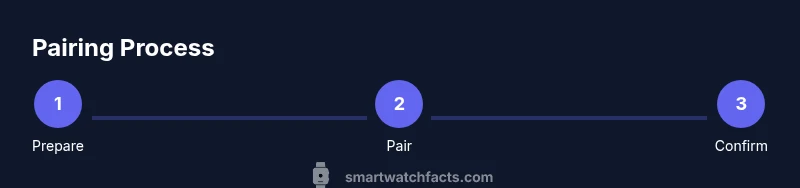
Charge both devices fully, enable Bluetooth on the phone, and install the official smartwatch app. Clear any old pairings if you are connecting a new device, and keep the watch close to the phone during setup to avoid connection drops.
Tip: Charge to at least 50% before starting to reduce mid-pair interruptions. - 2
Open pairing flow in the app
Launch the companion app on your phone, select the option to add a new device, and pick your watch from the list. The app will start scanning for nearby watches.
Tip: If your watch doesn’t appear, toggle Bluetooth off and on and ensure both devices are in pairing mode. - 3
Confirm the pairing code
When the watch appears in the app, confirm the code on both screens if prompted. This step creates a trusted link between devices.
Tip: Double-check codes to prevent accidental pairing with a different device. - 4
Grant initial permissions
Allow notifications, health data access, location (if required by features), and any other requested permissions. These enable essential watch capabilities.
Tip: Review permissions before granting to avoid excessive data sharing. - 5
Complete setup and sync data
Finish by syncing activity data, calendars, and apps. Set watch faces and notification preferences to tailor your experience.
Tip: Do a quick test by sending a notification to confirm the connection works. - 6
Test features and finalize
Check GPS, heart rate, and payment capabilities (if supported). Ensure the watch receives prompts and health data streams correctly.
Tip: Test a sample notification and a fitness goal to verify end-to-end syncing.
People Also Ask
Do I need a smartphone to use a smartwatch?
Most smartwatches rely on a companion phone for full functionality, including notifications, app access, and data syncing. Some basic features may work independently, but the best experience requires a paired phone.
Most watches need a phone for full features, though basic timekeeping and limited functions can work without a phone.
Which devices are compatible with my smartwatch?
Compatibility depends on the watch and the phone’s operating system. Apple Watches pair with iPhones, Wear OS watches work with Android devices and may have limited iOS support, while others may offer cross-platform features.
Apple Watch with iPhone, Wear OS with many Android devices, always check the watch’s official specs.
Why isn’t my watch pairing with my phone?
Common causes include Bluetooth being off, outdated software, low battery, or previous pairings interfering. Restart both devices and retry the pairing process. If it still fails, reset the watch and try again.
Try restarting both devices and reattempting pairing. If it fails, reset the watch and start over.
Do I need Wi‑Fi or data during pairing?
Bluetooth pairing itself doesn’t require internet, but initial setup, updates, and app downloads often need data. A stable connection helps complete setup smoothly.
Pairing uses Bluetooth, but internet helps with updates and app installation.
What permissions should I grant during setup?
Allow notifications, health data access, location when prompted, and other requested permissions to enable core features like alerts and activity tracking.
Grant the needed permissions so notifications and health data work properly.
How do I unpair and reset a watch?
In the watch settings or the companion app, choose unpair or factory reset. Ensure you have backups if needed and re-pair after the reset.
Unpair from the app or factory reset on the watch, then pair again if needed.
Watch Video
Key Points
- Prepare both devices with updated software.
- Use the official companion app to initiate pairing.
- Grant required permissions for notifications and health data.
- Test notifications and features after pairing.