How to Start My Smartwatch: A Complete Setup Guide
Learn step-by-step how to start your smartwatch, pair it with your phone, customize notifications, and optimize battery life. Smartwatch Facts provides practical, up-to-date guidance for beginners and enthusiasts alike.


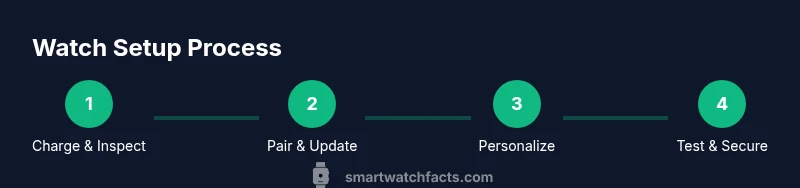
To start your smartwatch, charge it fully, turn it on, pair with your phone, install essential apps, and customize settings like notifications and watch face. According to Smartwatch Facts, ensure the device runs the latest firmware and your phone is compatible. This quick setup gets you ready to track activity, health, and alerts from your wrist.
Step 1: Define your setup goals and constraints
Before you start, decide what you want from your smartwatch. Are you chasing fitness metrics, quick replies, mobile payments, or sleep-tracking insights? Clarifying goals guides app choices, sensor use, and privacy settings. Also check compatibility: is your phone iOS or Android, and is the watch model supported by your region? Recording those constraints avoids wasted time and ensures you get the features you actually need. According to Smartwatch Facts, aligning features with daily routines yields the most reliable results and higher satisfaction over the first month.
- Define primary uses (fitness, notifications, health monitoring).
- Note any must-have sensors (HR, SpO2, sleep tracking).
- Decide on required ecosystems (iPhone, Android) and app compatibility.
- Set expectations about battery life and charging needs.
This planning step reduces friction during the setup and helps you tailor the experience to your lifestyle.
Step 2: Check compatibility and prerequisites
Compatibility is the foundation of a smooth setup. Confirm your smartwatch supports your phone’s operating system (iOS or Android) and the specific model is available in your country. Check that Bluetooth is enabled on your phone and that you have an active account with the watch vendor's app. Ensure you have enough storage and that your phone can install the companion app. If you rely on cloud health data, a stable internet connection can speed firmware updates and app syncing. Practically, this means updating your phone to the latest OS version and signing into the watch's official app with your vendor account. Smartwatch Facts recommends verifying prerequisites before pairing to minimize errors.
Step 3: Charge fully and inspect hardware
Begin with a full charging session to avoid mid-setup interruptions. Use the original charger or a certified replacement and verify the charging contacts align correctly. While charging, inspect the watch for cosmetic damage and ensure the screen responds to touches. If you see any dim spots, edge brightness issues, or non-responsive buttons, note them for aftercare or warranty checks. A clean, dry, dust-free environment helps the first boot go smoothly. Once charged, power on the device and prepare to pair with your phone.
Step 4: Pairing with your phone
Pairing is usually done through the watch’s companion app. Open Bluetooth on your phone, launch the official app, and follow on-screen prompts to connect the devices. You may need to grant permissions for notifications, location, and contacts to enable full functionality. During pairing, keep the devices close together and avoid sleep mode until the connection is established. If you encounter a pairing timeout, restart both devices and try again. A successful pair enables seamless data transfer and app installation.
Step 5: Install essential apps and adjust notifications
Install the official smartwatch companion app first, then add only the apps you will actually use to avoid clutter. Typical essentials include health tracking, calendar, music control, maps, and messaging alerts. In the app, customize notification rules so only important alerts come through during workouts or commutes. Configure Do Not Disturb hours, app-specific alerts, and quick replies. This targeted approach keeps your wrist a productive tool rather than a noisy companion.
Step 6: Personalization and health setup
Personalize watch faces to suit your style and readability in different lighting. Choose a clean, legible face for exercise and a richer one for daily wear. Configure core health features such as heart-rate monitoring, sleep tracking, and activity goals. Decide whether to enable ECG, blood oxygen, or hydration reminders based on your comfort level and medical advice. Set reminders for movement if you tend to sit for long periods. A well-configured health suite makes daily monitoring effortless.
Step 7: Health sensors and fitness setup
Ensure your health sensors are calibrated correctly. For heart-rate sensors, wear the watch snugly above the wrist bone for accurate readings. If your device supports sleep coaching, set your typical sleep window and preferred wake time. Establish fitness goals (daily steps, active minutes, workouts per week) that push you but remain realistic. Sync with your health ecosystem to aggregate data across devices, which helps you track progress over time. Remember to review privacy settings surrounding data sharing and cloud backups.
Step 8: Battery life tips and maintenance
To maximize longevity, enable power-saving modes during long workouts or screen-heavy activities, and consider lowering display brightness. Disable Always-On Display if you don’t need continuous visibility, and reduce the frequency of GPS sampling while walking or running. Regularly review installed apps and remove unused ones to minimize background activity. Keep firmware updated, as updates often include efficiency improvements. Simple habits like charging overnight or keeping the charger within reach at your usual desk reduce setup friction.
Step 9: Troubleshooting common issues
If pairing fails, restart both devices and reattempt the pairing process. For connectivity drops, toggle Bluetooth off and on, rebind the devices, and recheck permissions. If notifications don’t appear, verify notification settings in both the watch and phone apps, and ensure Do Not Disturb isn’t silencing alerts. For sensor discrepancies, recalibrate the sensor in the app, ensure a snug fit, and check for firmware updates. If problems persist, consult the vendor’s support page or user manual.
Step 10: First-week expectations and next steps
During the first week, expect the watch to learn your routines and gradually optimize battery performance. Regularly review activity data, adjust goals, and refine notification rules based on real use. Plan a mid-week firmware check and review privacy settings. By week’s end, you should have a comfortable baseline for daily wear, a few favorite apps set up, and a clear understanding of how to extend features to fit your lifestyle.
Tools & Materials
- Smartwatch(New device; confirm model matches your phone OS)
- Charger/USB cable(Fully charges to 100% before first setup)
- Smartphone with compatible OS(iOS or Android; ensure version supports pairing)
- Official smartwatch app(Download from the App Store or Play Store; keep Bluetooth on)
- Stable internet connection(Helpful for firmware updates and app installation)
- Optional accessories(Screen protector, extra straps for comfort)
Steps
Estimated time: 25-45 minutes
- 1
Charge the smartwatch fully
Connect the charger and allow the device to reach a full 100% battery. A full charge reduces the risk of mid-setup interruptions and ensures you can complete the initial pairing without rushing.
Tip: Place it on a stable surface and avoid using while charging. - 2
Power on and check hardware
Power on the watch and inspect the screen, buttons, and charging contacts. If you see any display issues or non-responsive buttons, note them for support.
Tip: Wipe the screen gently with a microfiber cloth before pairing. - 3
Update firmware to the latest version
Open the official app and look for firmware updates. Install any available updates to improve stability and compatibility with your phone.
Tip: Keep the device near your phone during the update in case extra prompts appear. - 4
Prepare your phone for pairing
Ensure Bluetooth is on, sufficient storage is available, and you’re signed into the vendor account. Close unused apps to free resources for a smoother pairing.
Tip: Temporarily disable Do Not Disturb to avoid missed prompts. - 5
Pair the smartwatch with your phone
Launch the official app, select the new device, and follow prompts to pair. Grant necessary permissions for notifications, location, and contacts.
Tip: Keep the devices close during pairing and avoid turning off Bluetooth prematurely. - 6
Install essentials and adjust notifications
Add key apps (health, calendar, music) and customize which notifications are delivered to the watch. Tailor Do Not Disturb schedules to your lifestyle.
Tip: Limit notifications to high-priority items to reduce fatigue from alerts. - 7
Set up health sensors and goals
Calibrate heart-rate sensors, enable sleep tracking if desired, and define daily activity goals. Align thresholds with your current fitness routine.
Tip: Wear the watch snugly; a loose fit skews readings. - 8
Test features and finalize setup
Validate that time, alarms, notifications, and basic apps work. Confirm data is syncing to your health ecosystem.
Tip: Create a quick workout to verify GPS and activity tracking. - 9
Review privacy and security
Check data sharing preferences, app permissions, and cloud backup settings. Adjust to balance convenience with privacy.
Tip: Disable permissions you don’t trust or rarely use.
People Also Ask
Should I charge the watch before pairing?
Yes. A full charge ensures a smooth pairing process and prevents interruptions during initial setup. If you’re short on time, try to reach at least 50% before starting.
Yes. Charge beforehand to avoid interruptions during pairing.
What apps are essential for the first setup?
Install the official companion app first, then add health, calendar, music, and messaging apps. Keep only the ones you’ll use regularly to conserve battery and reduce clutter.
Install the official app first and add only the essentials.
Why won’t my watch pair with my phone?
Common causes are Bluetooth being off, insufficient permissions, or outdated firmware. Restart both devices and retry the pairing process with a stable connection.
Try restarting both devices and then pair again.
How do I update the watch firmware?
Open the official app, navigate to device settings, and check for firmware updates. Install any available updates and restart the watch if prompted.
Check for updates in the official app and install them.
Can I customize notifications on the watch?
Yes. In the companion app, pick which apps can send alerts to the watch. You can also set Do Not Disturb times and mute less-used notifications.
Yes, customize which alerts appear on the watch.
How long does battery last on first use?
Battery life varies by model and usage. Expect a few days with typical use after the initial charging and setup; heavy GPS or Always-On Display can shorten that.
Battery life varies, but expect a few days after initial setup.
Watch Video
Key Points
- Define goals to guide feature choices and apps.
- Complete a full firmware update before pairing.
- Customize notifications to reduce wrist clutter.
- Calibrate sensors and set achievable health goals.
- Review privacy settings after initial setup.