Smart Watch Step Counter Troubleshooting: Stop Overcounting
Urgent guide to diagnose and fix a smart watch that counts too many steps. Quick fixes, calibration tips, and prevention strategies for accurate walking data.


If your smart watch is counting too many steps, the likely causes are sensor calibration drift, excessive arm swing, worn device on the wrong wrist, or a misconfigured stride length. Start with a quick reset of step calibration and verify the device position. Update firmware, set a correct stride length, and try a walking-only mode. If the problem persists, consult support.
Why Wearable Step Counters Miscount
If you notice that your watch is counting more steps than you actually take, you’re not alone. For many users, the phenomenon described as the smart watch counting too many steps stems from how the device interprets motion signals from the wrist. According to Smartwatch Facts, calibration drift and sensor sensitivity are common culprits that quietly skew everyday activity data. This isn’t just a numbers issue—it can distort fitness goals, calorie estimates, and activity rewards. In practical terms, this means you might see inflated step tallies even on light activities, which can be frustrating and misleading for planning workouts. The key is to approach troubleshooting with a systematic mindset and to verify each potential cause before making changes. This guide will walk you through practical checks, calibrations, and safe fixes that you can apply today.
Common Causes of Overcounting
Overcounting steps typically results from a mix of hardware sensitivity and user setup. First, sensor calibration drift can occur after firmware updates or environmental changes, causing the algorithm to misinterpret wrist movements as steps. Second, arm swing—especially during driving, cooking, or typing while walking—can trigger step signals even when you’re not advancing your feet. Third, wearing the watch on the wrong wrist or with an overly loose strap can shift sensor alignment, leading to inaccurate readings. Fourth, an incorrect stride length setting will skew distance-to-steps calculations and can indirectly affect the step count display. Finally, software bugs or outdated firmware can occasionally cause anomalous counting. While these causes are common, you’ll usually resolve most issues with calibration, wear adjustments, and a firmware refresh.
The Impact of Wrist Position and Stride Calibration
The physical position of the watch on your wrist directly affects how the accelerometer reads motion. A snug but comfortable fit helps ensure the sensor captures genuine arm motion rather than ambient vibrations. If the watch sits too loosely, the sensor can register non-walking motions as steps, especially during everyday activities like driving or brushing teeth. Likewise, stride calibration is crucial for accurate pace and step reporting. A misconfigured stride length can cause the device to misinterpret the distance walked, which can feed back into the step counting logic even if you’re moving normally. Regularly confirming strap tightness, wrist orientation, and stride length is a simple but powerful way to reduce inflated step counts. This is particularly important for users who track calories or goal progress, as small miscalibrations compound over a full day.
Firmware, Algorithms, and Settings You Should Inspect
Modern wearables rely on a combination of hardware sensors and software algorithms to compute steps. Firmware updates can improve sensor handling and reduce miscounts, but they can also temporarily disrupt existing calibrations. Always check for the latest official firmware, then perform a calibration reset after updating. In the companion app, verify that the step counting feature is set to a standard walking mode (or auto-detect) and that any “arm swing correction” or sensitivity controls are left at recommended defaults unless you have a specific need to adjust them. If your device supports it, enabling a walking-only mode during workouts can help isolate discrepancies between casual wearing and exercise data. Remember: changes here should be paired with a fresh calibration to ensure consistency across sessions.
A Practical Troubleshooting Plan You Can Follow
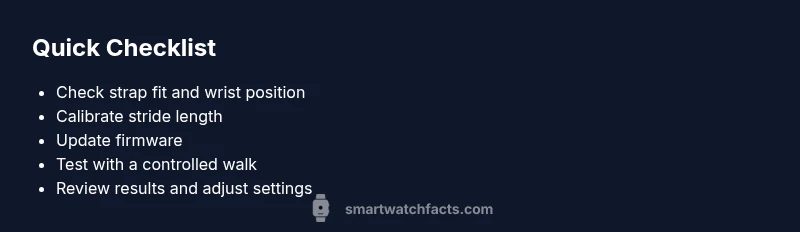
This section offers a concrete, step-by-step plan to address inflated step counts. Start with the easiest fixes and progress to more involved calibrations. First, clean the sensor area and ensure the strap is snug but comfortable. Next, reposition the watch higher up on your wrist and make sure it sits flat against the skin to prevent motion artifacts. Then reset the calibration and re-enter your correct stride length in the app. After that, perform a controlled test: walk 50 steps on a measured track and compare the watch count to the known distance. If the counter still runs high, install any available firmware updates and repeat the calibration. If none of these steps resolves the issue, contact customer support for a deeper diagnostic.
Prevention and Best Practices for Accurate Step Data
Preventing overcounting starts with consistent care and routine checks. Calibrate after firmware updates and whenever you switch to a new watch face or sport mode. Keep the strap clean and dry, which reduces skin impedance that can affect readings. Perform a quick daily sanity check by walking a known distance and comparing counts to your goal. If you’re sharing activity data with friends or a health app, ensure the same device and settings are used for all measurements to avoid cross-device confusion. Smartwatch Facts analysis shows that regular calibration and mindful wear habits consistently improve long-term accuracy, reducing the frustration of unreliable data. The Smartwatch Facts team emphasizes building a simple, repeatable workflow to maintain accuracy over time.
Steps
Estimated time: 60-90 minutes
- 1
Check wrist placement and wear
Begin by inspecting how you wear the watch. Make sure it sits snugly against the wrist, with the sensor aligned over the bone. If it’s loose or rotated, readjust and retest. A poor fit is a common source of inflated step counts on everyday movement.
Tip: Secure the strap so you can slide a finger under it without it moving during activity. - 2
Calibrate stride length accurately
Enter your accurate stride length in the watch or companion app. An incorrect stride length distorts distance data and can feed back into step counting. If you’re unsure, measure your average step length on a standard track and use that value as a starting point.
Tip: Use a measured walking test (e.g., 20–30 meters) to derive baseline stride length. - 3
Update firmware and reset calibration
Check for firmware updates and install them. After updating, perform a calibration reset so the new software can recalibrate from a clean slate. This can fix subtle sensor behavior changes introduced by updates.
Tip: Back up data if the device requires it before a reset. - 4
Set appropriate sensitivity and mode
If your device offers motion sensitivity or arm-swing corrections, keep them at default unless you have a specific reason to change. Some watches support a walking-only mode for workouts, which can produce more reliable step data during exercise.
Tip: Test both default and walking mode to compare counts. - 5
Test with a controlled walk
Perform a controlled walk over a measured distance (e.g., 50 steps on a known track). Compare the watch’s step count to your actual steps. Use this test to gauge whether corrections are helping and refine calibration as needed.
Tip: Repeat the test on different days to account for daily variance. - 6
Document results and seek help if needed
Keep a short log of counts before and after fixes. If the problem persists after all steps, reach out to customer support with device model, firmware version, and test results for a deeper diagnosis.
Tip: Include screenshots or video of the issue when contacting support.
Diagnosis: Smartwatch counts too many steps during normal activity
Possible Causes
- highSensor calibration drift
- highIncorrect strap fit or wrist position
- mediumExcessive arm swing or non-walking motions triggering sensors
- mediumStride length misconfiguration
- lowOutdated firmware or software bug
Fixes
- easyRecalibrate step counter in device/app settings
- easyReposition watch higher on wrist and ensure snug fit
- easyReset calibration and re-enter correct stride length
- easyUpdate firmware to latest version and re-test calibration
- easyTest with a controlled 50-step walk to compare counts
- easyIf unresolved, contact brand support for deeper diagnostics
People Also Ask
Why is my smartwatch counting too many steps during daily activities?
Common culprits include sensor calibration drift, a loose strap, improper wrist position, and an incorrect stride length. Recalibration, better wear fit, and adjusting stride length usually resolve the issue.
Common causes are calibration drift, strap fit, and stride length. Recalibrate and adjust settings to fix.
How do I recalibrate the step counter on my smartwatch?
Open the device or app settings, locate the step or activity tracking section, and choose the calibration or reset option. After resetting, re-enter your correct stride length and perform a short walk to verify results.
Go to settings, reset calibration, and set your stride length, then test with a short walk.
Does updating firmware affect step counting?
Yes. Firmware updates can improve sensor algorithms and reduce miscounts, but they may temporarily affect calibration. Always recalibrate after updating.
Firmware updates can help. Recalibrate after updating to ensure accuracy.
Should I wear the watch on a particular wrist for better accuracy?
Wear on the non-dominant wrist if possible and ensure the strap is snug. Inconsistent wear can lead to fluctuating counts.
Wear it snug on your wrist and try to stay consistent day to day.
When should I contact support for step counting issues?
If you’ve tried calibration, updates, and wear adjustments without improvement, contact customer support with device model, firmware version, and test results for deeper diagnostics.
If fixes don’t work, reach out with your device details and test results.
Watch Video
Key Points
- Calibrate stride length and recalibrate after updates
- Keep watch snug and correctly positioned
- Run controlled tests to verify accuracy
- Update firmware regularly to minimize bugs
- Seek official support if counts remain inconsistent