Why Is My Smart Watch Not Counting Steps? Troubleshooting Guide
Practical fixes for why your smartwatch isn’t counting steps. This guide covers quick checks, sensor basics, firmware tips, and tested steps to restore accurate counting quickly.


Most step-count issues come from simple settings or calibration gaps rather than faulty hardware. Start by confirming the step counter is enabled, wearing the watch snugly on your wrist, and syncing time and firmware. Then check app permissions and permissions for health data. If these steps don’t help, restart the device or perform a firmware update. Note that battery saving modes can also mute sensors.
Why is my smart watch not counting steps
When you search for why is my smart watch not counting steps, the first thing to understand is that most discrepancies come from everyday factors: wear, settings, and calibration. The sensor used to detect movement relies on consistent contact with your skin and proper wrist orientation. If the watch is loose or worn over clothing, the accelerometer may miss short movements. In practice, you can often fix the problem with a quick check of settings and fit. Smartwatch Facts emphasizes that reliable step counting hinges on an enabled pedometer, up-to-date firmware, and correct data sharing with health apps. A simple test—wear the watch firmly, begin walking, and compare the step count to a known distance—can quickly reveal whether the issue is device-related or just a measurement variance.
Introduction to the topic should always start with practical checks first: ensure the pedometer feature is active, you’re wearing the device correctly, and that the watch and companion app are synchronized. This reduces unnecessary troubleshooting, speeds up problem resolution, and helps you gauge whether a deeper issue exists.
Quick checks you can do in 5 minutes
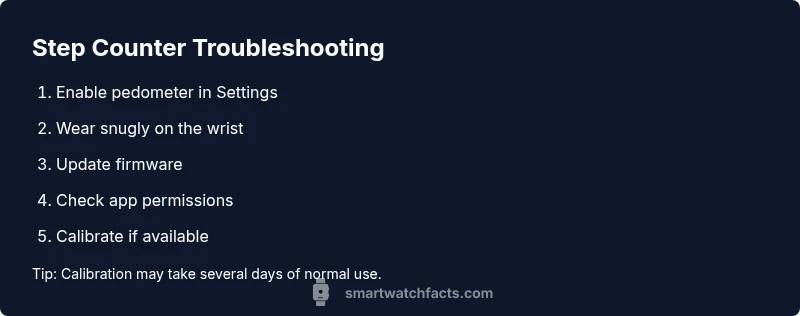
If you’re wondering what to do first, here are quick checks you can perform in about five minutes. Confirm that the pedometer or step counter is enabled in Settings, ensure the watch sits snugly on your wrist, and verify that the device’s time, date, and firmware are current. Open the health or activity app on your phone and confirm it has permission to read your motion data. Some devices hide the step counter behind a feature toggle or battery saver mode; turn off any power-saving options that might mute sensors. If you wear the watch on your dominant hand, try switching wrists temporarily to see if the counts stabilize. Each of these small changes can have a meaningful impact on step accuracy.
Smartwatch Facts recommends testing the counter after each adjustment to identify the effect of the change and prevent unnecessary resets.
How pedometer technology works (and what can go wrong)
The core of a step counter is an accelerometer that detects wrist motion and human gait patterns. Different brands apply proprietary algorithms to translate raw acceleration into steps. Errors commonly arise from firmware bugs, poor sensor calibration, or incompatible app permissions. For instance, motion detected while driving or typing can inflate counts, while subtle wrist movements from sleeping can cause undercounting. Understanding these dynamics helps you interpret changes in the step count after adjustments. Regular firmware updates often optimize sensor fusion algorithms, which link hardware data to software interpretation for higher accuracy.
Remember that pedometer accuracy varies with walking speed, arm swing, and even daily activity type. If your counts remain inconsistent, systematically adjust one variable at a time and recheck results.
The impact of wear, fit, and movement
Fit and placement directly influence sensor readings. A watch that’s too loose may bounce and fail to translate movement into steps, while one worn over clothing may miss arm swings. Even small changes—like the position of the watch on your wrist or the presence of a watch strap cuff—can alter readings. If you’re actively typing or using your arm heavily, the watch may misinterpret motion. In contrast, walking with a natural arm swing tends to yield more stable counts. Keep the device on the top of the wrist and check that the strap is snug but comfortable. Calibration features in many watches account for your typical motion, so ensure they’re enabled and complete any guided calibration prompts.
Software, firmware, and app permissions matter
Software settings often govern whether the watch can count steps at all. Confirm that the pedometer is enabled, that the device is connected to the health app with proper permissions, and that there are no conflicting activity trackers installed. Firmware updates can fix counting glitches and improve sensor fusion. If permissions are restricted (for example, the health app cannot read motion data), steps may not sync properly, or counts may show gaps. After updating, re-pair the device if needed and re-check permissions to ensure data flows freely between the watch and phone.
Smartwatch Facts highlights that keeping software current is a simple, high-impact way to improve reliability.
Testing with a controlled walk and interpreting results
To assess accuracy, perform a short, controlled walk (e.g., 0.1 mile or 200 meters) at a steady pace and compare the result to the known distance. If the count is significantly off, revisit wear, firmware, or permissions as checkpoints. Try repeating the test with a different walking tempo; slower or faster paces can reveal how the algorithm handles variable gait. If counts are consistently off by a predictable margin, use the calibration tools provided by the device to fine-tune baseline sensitivity. It’s also useful to record several trials over a few days to identify whether the issue is transient or persistent.
Smartwatch Facts suggests keeping a small log of tests to track changes after each adjustment.
When to update or seek help
If you exhaust basic fixes and the problem persists, consider a firmware update or a factory reset as a last resort (after backing up data). If persistent counting issues remain after updates and recalibration, it may indicate a hardware fault or a deeper software incompatibility. In that case, contact customer support or a service center for diagnosis under warranty. Always document the steps you took and the results of each test when seeking help so technicians can quickly reproduce the issue.
Smartwatch Facts recommends documenting your troubleshooting journey for faster assistance.
Prevention: keep counting accurate over time
To maintain accuracy, schedule periodic checks of the pedometer settings, ensure firmware is current, and keep the watch snug during wear. Avoid calibrating in a highly variable environment and re-check after any major firmware update. If you use a companion app, review its permissions periodically to ensure full data access. Consistency is the foundation of stable step counting, so adopt a routine of routine checks rather than ad-hoc adjustments. Regular cleaning of sensors and keeping the strap clean also help sensor accuracy over long periods.
Summary and next steps
In most cases, the fix for why is my smart watch not counting steps lies in enabling the pedometer, ensuring proper wear, and keeping firmware updated. Use a controlled test to verify improvements after each change, and don’t hesitate to seek help if counts remain unreliable. By following a structured troubleshooting flow, you’ll restore accuracy quickly and keep your smartwatch functioning at its best.
Steps
Estimated time: 20-40 minutes
- 1
Verify basic settings
Open Settings and confirm the pedometer or step counter is toggled ON. Review any energy-saving modes that may mute sensors and disable data collection.
Tip: If you use a watch face with fewer complications, move the pedometer to a visible position to avoid overlooking it. - 2
Check wear and fit
Ensure the watch sits snugly on your wrist with skin contact. Avoid wearing it over thick bracelets or loose sleeves that can interrupt sensor readings.
Tip: Try wearing on the non-dominant wrist for a week and compare counts. - 3
Update firmware and apps
Install the latest firmware on the watch and the health data app. Restart after updates and check again.
Tip: Backup data before a full reset if you consider deeper issues. - 4
Review permissions
Confirm the health app has permission to read motion data and that data sharing with the watch is enabled.
Tip: Revoke and re-allow permissions if data isn’t syncing. - 5
Calibrate and test
Run a controlled walk and compare counts. Use calibration tools if available to fine-tune sensitivity.
Tip: Record several trials to see consistent improvement. - 6
Seek professional help if needed
If counts remain unreliable after these steps, contact support or a service center, especially under warranty.
Tip: Have test results ready to share with support.
Diagnosis: Step counter not counting or undercounting after walking
Possible Causes
- highPedometer disabled or not the active tracking mode
- highWatch worn too loosely or over clothing
- mediumOutdated firmware or permissions blocked in health app
- lowCalibration needed or sensor misalignment
Fixes
- easyEnable the pedometer/step counter in Settings
- easyWear the watch snugly on the wrist and ensure skin contact
- easyRestart the device and install the latest firmware
- mediumRecheck health app permissions and re-pair with the phone if needed
People Also Ask
Why is my smartwatch not counting steps even when I’m walking?
Common causes include a disabled pedometer, incorrect wear, or sensor calibration issues. Systematically check settings, wear, and firmware to restore accuracy.
If your watch isn’t counting steps while you walk, start by checking the pedometer is on, wear is snug, and firmware is up to date.
How can I reset the step counter on my smartwatch?
Most watches offer a reset option in Settings or within the health app. Follow manufacturer guidance to avoid data loss.
Open settings, find the step counter, and reset if available.
Does wearing the watch on the dominant hand affect step counting?
Some devices adjust for orientation; ensure orientation settings align with how you wear the watch. Try switching wrists to compare results.
Wrist orientation can affect readings; test on both wrists if supported.
Will firmware updates improve step counting accuracy?
Yes. Updates often fix sensor bugs and improve accuracy. Always install the latest version before troubleshooting further.
Updating firmware can fix counting glitches.
When should I seek professional help for step counting issues?
If steps remain inconsistent after fixes and updates, contact support or a service center, preferably under warranty.
If the problem persists after troubleshooting, reach out to the manufacturer.
Watch Video
Key Points
- Enable and verify the pedometer in settings
- Ensure snug wear and correct wrist placement
- Keep firmware and apps updated for accuracy
- Use controlled tests to confirm improvements