How to Connect iPhone to a Smart Watch
Learn exactly how to connect your iPhone to a smart watch, manage compatibility, pair steps, and optimize notifications and health data sync for a seamless wearable experience in 2026.


Learn how to connect iPhone to a smart watch in minutes. This guide covers compatibility basics, the official pairing steps, and common troubleshooting tips to ensure notifications, health data sync, and apps work seamlessly. By the end, you'll have the watch paired with your iPhone, with essential settings optimized for daily use.
Why Pairing Your iPhone with a Smart Watch Improves Daily Use
Pairing your iPhone with a smart watch unlocks a more seamless daily experience — quick access to notifications, health tracking, and app control right from your wrist. According to Smartwatch Facts, a smooth pairing process reduces setup friction and increases long-term satisfaction because users spend less time troubleshooting and more time using features they care about. When devices communicate reliably, you get timely alerts, accurate health data, and faster command execution. The goal is a frictionless loop: you glance at your wrist for what matters, your iPhone stays in sync behind the scenes, and you stay focused on the task at hand. This guide walks you through compatibility checks, required prerequisites, and proven steps to make the connection robust and repeatable.
Compatibility: Which Watches and iPhone Are Truly Supported
Not all watches work perfectly with every iPhone model. The core rule is to pair devices designed to work within the same ecosystem: most Apple Watch models pair best with iPhones running the latest iOS. Smartwatch Facts analysis shows that this alignment minimizes feature gaps like health data sharing, layered notifications, and on-watch app control. It’s also worth noting third-party wearables may offer limited functionality on iOS, especially for notifications and health metrics. Before you invest time, confirm your watch supports iPhone pairing and check whether required features (ECG, SpO2, sleep tracking) are available on your watch model and iPhone generation. If you’re considering a mix of brands, be prepared for feature trade-offs and occasional compatibility quirks.
What You’ll Need Before You Start
Before initiating the pairing, assemble the essentials: an iPhone with the latest iOS version, a compatible smart watch with the latest watchOS, a stable internet connection for activation and backups, and an Apple ID signed in on the iPhone. Have Bluetooth and Wi-Fi enabled, and ensure the watch is charged or connected to its charger to prevent mid-setup shutdowns. If you plan to use health data across devices, enable iCloud Health in your iPhone settings. These prerequisites help the pairing flow go smoothly and reduce the chances of post-setup issues.
Step-by-Step Connection Process: An Overview
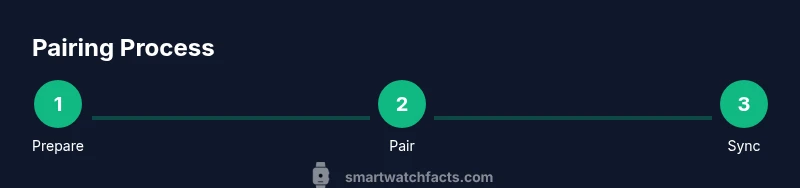
The pairing process is a guided flow that typically starts from the Watch app on your iPhone or from the watch itself. You’ll usually be asked to confirm a pairing code shown on both devices, grant necessary permissions for notifications, health data, and location, and sign in with your Apple ID if prompted. A successful pairing enables automatic data sync, notifications, and quick access to watch faces and apps. If you plan to manage multiple devices or reset your watch later, note that unpairing will erase watch data locally and require a fresh setup on re-pairing.
Permissions and Settings You Should Adjust After Pairing
After pairing, review permissions: notifications for each app, health data sharing across apps, and location services. Turning on Handoff and App Clip access can streamline multitasking between iPhone and watch. For privacy, consider limiting which apps can read sensitive health data, and enable passcode requirements on the watch to protect quick-access information when you’re away from your iPhone. A clean permission setup reduces notification noise and improves battery efficiency.
Health, Fitness, and App Integration Ideas
Pairing unlocks synchronized health metrics (steps, workouts, heart rate) across devices. You can start workouts on the watch and have them appear in your iPhone Health app, or route certain notifications to your wrist to minimize phone interaction. Explore popular integrations like activity rings, sleep analytics, and third-party health apps that support watchOS or companion iOS apps. If you rely on reminders or timers, the watch can take over scheduling tasks, keeping your phone free for deeper tasks.
Notifications and Daily Use: A Practical Guide
With a connected watch, you’ll typically see notifications on your wrist first. Customize which apps push alerts, reply via voice or quick replies, and mute distractions during meetings or workouts. If you have multiple accounts or calendars, ensure the watch’s notification settings reflect your preferences so you aren’t overwhelmed by noisy alerts. Over time, you’ll learn which alerts warrant your attention and which can be dismissed with a single gesture.
Handling Common Pairing Problems and How to Fix Them
If pairing stalls or fails, try the classic remedies: restart both devices, ensure Bluetooth is enabled, and check for software updates on both iPhone and watch. If the watch does not appear in the iPhone’s pairing screen, unpair any existing watch, reset network settings, and retry the pairing flow. Persisting issues may stem from account problems or corrupted pair data, in which case signing out and back into your Apple ID or performing a factory reset on the watch (as a last resort) can help. Always back up data before making major resets.
Privacy, Security, and Data Management When Connected
Security matters more with wearables because of constant proximity to your body and personal data. Use a strong passcode on both devices, enable two-factor authentication for your Apple ID, and review which apps have access to health data. Regularly audit paired devices and revoke access for old devices you no longer use. Consider enabling encrypted backups to iCloud to protect your health and activity data if your phone or watch is lost or replaced.
Battery Life Tips When Paired
Pairing can impact battery life on both devices, especially if notifications and GPS heavy activities are enabled. To maximize endurance, adjust screen wake times on the watch, limit always-on display usage, and optimize workout tracking preferences. Charge devices according to your routine, avoid leaving both devices unplugged for extended periods, and use a night charging routine to maintain readiness for the next day.
Advanced Tips for Power Users: Shortcuts, Automations, and Scenes
Power users can leverage automations to streamline daily tasks. Create watch-side shortcuts for common actions like starting a workout, sending quick replies, or triggering a reminder. Use the iPhone’s Focus modes to tailor notifications that route to the watch at appropriate times. If your ecosystem supports it, enable seamless data handoffs so you can switch between devices without losing context during your workflows.
Next Steps: Keeping Your Connection Healthy and Up to Date
Maintain a healthy pairing by keeping both devices updated, periodically checking notification settings, and backing up data regularly. Consider revisiting privacy settings after major OS updates, as new permissions or features may change how data flows between devices. If you encounter persistent issues, consult official support channels and consider a consult with a wearable-tech expert to optimize your setup.
Tools & Materials
- iPhone with latest iOS(Ensure Bluetooth and Wi-Fi are on; connect to a stable network for activation and backups)
- Compatible smart watch with latest watchOS(Fully charged or connected to charger during setup)
- Apple ID signed in on iPhone(Needed for pairing and iCloud sync)
- Reliable Wi‑Fi connection(Activates initial setup and restores data if needed)
- Charger for watch(Helpful if you need to keep the watch powered during setup)
Steps
Estimated time: 10-20 minutes
- 1
Prepare devices
Charge both devices and update to the latest software. Sign into your Apple ID on the iPhone and ensure Bluetooth is enabled. This creates a stable baseline for a smooth pairing experience.
Tip: Charge to at least 50% on both devices before starting to avoid mid-process shutdowns. - 2
Open the Watch app on iPhone
Launch the Watch app on the iPhone and choose to start pairing a new watch. The screen will guide you through the pairing flow, including safety prompts and permissions.
Tip: Keep the iPhone steady and close to the watch during the initial pairing prompt. - 3
Start pairing on iPhone
Follow on-screen instructions to initiate pairing. A code will appear on the watch and on the iPhone; confirm that both codes match to establish trust between devices.
Tip: If the code mismatch occurs, restart both devices and retry. - 4
Grant permissions and complete setup
Allow notifications, health data sharing, and location permissions as prompted. Sign in with your Apple ID if asked and choose whether to enable iCloud Health for cross-device data sync.
Tip: Review each permission carefully to minimize unwanted data sharing. - 5
Customize and finalize
Choose a watch face, enable preferred apps, and adjust notification settings. Confirm that health data appears in the Health/Activity apps on your iPhone as expected.
Tip: Create a quick-access watch face with essential complications for you. - 6
Test the connection
Send a test notification, start a short workout, and check if the data syncs between watch and iPhone. Verify calls and messages appear on the watch when received on the iPhone.
Tip: If something doesn’t sync, toggle Airplane Mode off and on, then recheck Bluetooth.
People Also Ask
Can I pair multiple watches to a single iPhone at the same time?
Typically, an iPhone can pair with one watch at a time. You can unpair the current watch to pair a new one, but data on the old watch will be erased unless backed up.
Usually you can pair only one watch with an iPhone at a time. To switch, unpair the current watch, then pair the new one and restore data if available.
Why aren’t my notifications appearing on the watch after pairing?
Check Watch app notification settings on the iPhone and ensure that each app is allowed to push notifications to the watch. Also verify Do Not Disturb and Focus modes aren’t silencing alerts.
Make sure notifications are enabled for the watch in the app settings, and that you don’t have Do Not Disturb or Focus modes blocking alerts.
Do I need an internet connection to pair?
A Bluetooth connection is essential to pair, but an internet connection helps activate features and back up data during setup.
Bluetooth is required for pairing; internet helps with activation and backing up data.
What should I do if pairing keeps failing on my iPhone?
Restart both devices, ensure software is up to date, and try unpairing and re-pairing. If issues persist, consult official support channels.
If pairing fails, reboot both devices, update software, and reattempt pairing.
Is the pairing process secure for my data?
Yes. Pairing uses standard Bluetooth security measures and device encryption, and you control what data is shared across devices.
Yes, pairing uses secure Bluetooth and encryption, with configurable data sharing.
Watch Video
Key Points
- Pairing is quick when prerequisites are met.
- Notifications and health data sync improve with proper permissions.
- Regular software updates help maintain compatibility.
- Back up data before major changes to avoid loss.
- Test essential features after pairing to verify reliability.