Can You Connect a Smart Watch to an iPhone? A Practical How-To
A step-by-step guide to pairing a smartwatch with an iPhone, covering Apple Watch pairing, third‑party wearables, settings optimization, and practical tips for seamless notifications and health data sharing.


Yes, you can connect a smartwatch to an iPhone, but capabilities depend on the watch OS. The Apple Watch pairs most seamlessly with iPhones, while non-Apple wearables may offer limited notifications and health-tracking via companion apps. This guide explains how to pair, what works, and how to optimize your setup.
How the iPhone ecosystem shapes smartwatch pairing
If you’ve ever asked can you connect a smart watch to an iphone, the answer depends on the watch OS and the ecosystem you’re comfortable with. According to Smartwatch Facts, the iPhone ecosystem is optimized for devices from the same family, which means the official pairing story centers on the Apple Watch and iPhone working together through Apple services like iCloud, Health, and notifications. For many users, this is the default expectation: the most polished, least-friction experience comes from linking an Apple Watch to an iPhone. That said, the landscape is broader. Many third‑party wearables can connect to an iPhone via Bluetooth or through manufacturer apps, delivering basic alerts, activity summaries, and some health metrics. In practice, your choice should align with your priorities: if you value ecosystem cohesion and deep integration, Apple hardware wins; if you want cross‑brand flexibility or a specialized feature set, a third‑party watch can still be a viable option. Smartwatch Facts’ team observes that iOS supports multiple pairing paths, but experiences vary by device and app strategy.
Apple Watch: the official pairing with iPhone
The Apple Watch is designed to pair tightly with the iPhone, leveraging iCloud for data sync, Health for health metrics, and notifications for real-time alerts. If your goal is a smooth, integrated experience, this pairing path is hard to beat. Start by ensuring your iPhone is on the latest iOS version and that Bluetooth and Wi‑Fi are enabled. Then, power on your Apple Watch and follow the on-screen prompts to begin pairing through the dedicated Watch app. You’ll sign in with your Apple ID, choose which Health data to share, and decide whether to restore from a backup. While the setup process is straightforward, the real value comes from enabling the right features—notifications, app access, and health metrics—directly on your wrist. This path is the most reliable for iPhone users who want hassle-free syncing of calls, messages, reminders, and fitness data.
Non-Apple smartwatches on iPhone: what works and what doesn't
Non‑Apple wearables—such as Fitbit, Samsung Galaxy Watch, or Garmin—can connect to an iPhone via Bluetooth and the vendor’s app. You’ll typically get basic notifications, step counts, and sometimes heart-rate data, but deep integration like native health metrics or quick replies may be missing or limited. The pairing process generally involves installing the watch maker’s companion app, pairing to Bluetooth, and granting permissions for notifications and health data. Expect variability: some watches work best when used with an iPhone, others perform best when paired with Android devices. If you’re invested in a particular brand for features like sleep tracking or GPS, verify how well that ecosystem integrates with iOS before committing. Smartwatch Facts analysis shows that ecosystem choices significantly influence experience depth and reliability.
Before you start: prerequisites and planning
Before attempting any pairing, take a moment to plan your setup. Confirm you have a charged iPhone and a charged watch, with the latest software installed. Verify your Apple ID is active and that you have a stable Wi‑Fi connection for initial sign‑in and app downloads. If you’re considering a third‑party watch, download the vendor’s app ahead of time and familiarize yourself with the permissions it will request (notifications, location, health data). Reading the manufacturer’s compatibility notes can save time and prevent surprises after pairing. Your approach should align with priorities: peak integration and health data fidelity typically require the official path with Apple Watch, while flexibility and cross‑brand features may steer you toward a third‑party option. The Smartwatch Facts team emphasizes that preparation reduces friction during the actual pairing process.
Step-by-step overview: what happens during pairing
When you pair a smartwatch with an iPhone, you’ll typically go through a guided setup that includes device discovery, authentication, and permission grants. The Apple Watch pairing flow uses your Apple ID to sync Health data and app settings, while non‑Apple wearables rely on the vendor’s app to enable notifications and data sharing. Each path involves choosing preferences for notifications, app access, and data sharing. Understanding these choices ahead of time helps you tailor your experience, minimize privacy concerns, and ensure the device behaves as you expect. If you encounter issues, a structured approach—check battery, confirm Bluetooth, verify permissions, and ensure both devices are updated—will often resolve most problems.
Troubleshooting common pairing issues
Pairing can fail for several reasons, including outdated software, weak Bluetooth connections, or insufficient permissions. Start by confirming both devices are charged and have updated software. Toggle Bluetooth off and on, then retry the pairing flow. If the iPhone doesn’t recognize the watch, move closer to the phone, disable VPNs, and ensure the watch is in pairing mode. For third‑party watches, ensure the vendor app has the necessary permissions (notifications, location, and health data). If problems persist, consult the manufacturer’s support resources or Apple Support for device‑level troubleshooting. Keeping expectations aligned with the device you choose helps you avoid frustration and achieve the best possible experience.
Settings and permissions: optimizing your connection
After pairing, you may want to fine‑tune what information is shared and how you receive notifications. On the iPhone, go to Settings > Notifications to control alerts on your wrist, and in the Watch app, customize which apps appear on the watch face and how complications behave. Privacy settings matter: review which health metrics are shared with the watch or the third‑party app, and consider turning off permission requests you don’t need. You can also adjust Bluetooth and Wi‑Fi preferences to optimize syncing, especially if you rely on GPS or music streaming from the watch. By actively configuring permissions and notification rules, you’ll reduce unnecessary interruptions and maximize the productivity benefits of your smartwatch.
Privacy, security, and data handling when pairing
Linking a smartwatch to an iPhone involves sharing data across devices and apps. Health metrics, location data, and app usage can be accessed by the watch’s companion app, so it’s important to review privacy settings and grant access only to the data you’re comfortable sharing. Apple’s platform emphasizes user control, and many third‑party apps provide granular privacy controls. If privacy is a top concern, consider limiting what is shared, using screen time restrictions, and periodically reviewing app permissions. The bottom line: successful pairing is not just about getting the device connected—it’s about ensuring your data remains under your control while still delivering the features you want.
Battery life, charging, and performance when connected
Wearing a smartwatch with an iPhone will impact battery life on both devices. Expect some additional Bluetooth and GPS usage, which can slightly drain the watch and iPhone batteries during extended sessions. You can mitigate this by reducing always-on display time, turning off nonessential notifications, and scheduling regular charging. Performance issues often arise if apps are competing for resources, if software is out of date, or if there are compatibility quirks between watchOS, iOS, and the vendor app. Regular updates, mindful notification management, and clean app permissions help maintain snappy performance and longer battery life. In practice, staying aware of how your setup consumes power will guide you to a smoother, more reliable experience.
Alternatives and decision tips for iPhone users
If you’re not sure whether to buy an Apple Watch or a third‑party wearable, start by listing your must‑have features: health tracking depth, notification customization, GPS accuracy, and app ecosystem. Apple Watch delivers unmatched native health metrics, tighter call and message handling, and deep ecosystem integration, but it costs more and locks you into Apple’s line. Third‑party wearables often cost less and offer broader brand support, but you may sacrifice some native functionality and have to live with multiple apps and settings. Smartwatch Facts recommends evaluating your daily routines, the importance of health data fidelity, and how much you value seamless integration with your iPhone before making a decision. This practical approach helps you align your choice with your actual use case.
Tools & Materials
- iPhone with latest iOS version(Ensure Bluetooth and Wi‑Fi are on; keep software up to date.)
- Apple Watch (any supported model)(For best experience, keep watchOS up to date.)
- Apple ID login(Needed to activate features like Health, iCloud, and app stores.)
- Charged devices(Both devices should be sufficiently charged to avoid mid-pairing interruptions.)
- Watch app installed on iPhone(The Watch app manages pairing and sync.)
Steps
Estimated time: 15-25 minutes
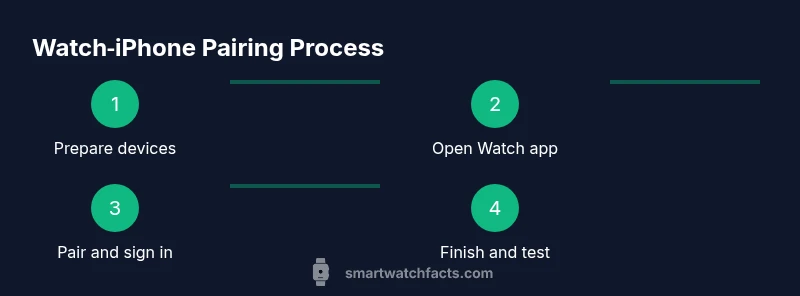
- 1
Prepare your devices
Charge both devices fully and ensure Bluetooth is enabled. Verify you have a stable network in case you need to sign in to your Apple ID during setup.
Tip: Starting with charged devices reduces the chance of mid-pairing failures. - 2
Open the Watch app on iPhone
Launch the Watch app and tap Start Pairing. Align the Apple Watch with the iPhone camera to begin the pairing flow.
Tip: Keep the camera steady and bring the devices close together. - 3
Confirm pairing on iPhone
Follow prompts to sign in with your Apple ID, enable Health data sharing, and choose whether to restore from a backup.
Tip: If you’re using two-factor authentication, have your code ready. - 4
Customize setup options
Choose notification preferences, app permissions, and any health metrics you want to monitor on the watch.
Tip: Limit notifications to avoid overwhelm on the watch face. - 5
Complete sync and test
Wait for the devices to sync data; test notifications, calls, and apps to ensure everything is functioning.
Tip: If something seems wrong, restart both devices and retry pairing. - 6
Explore post-pair features
Open the Watch app to tailor complications, watch faces, and app order for quicker access.
Tip: Organize frequently used tasks on the watch face. - 7
Maintain and update
Regularly check for software updates for both devices and review privacy permissions.
Tip: Update often to maintain compatibility and security.
People Also Ask
Can I use other smartwatches with an iPhone?
Yes, you can connect some non-Apple wearables to an iPhone using Bluetooth and the manufacturer’s app, but features like deep health tracking or native notifications may be limited compared to an Apple Watch.
Yes, but expect limitations with non-Apple watches.
Do I need an iPhone to set up a smartwatch?
For Apple Watch, yes—the iPhone is required to pair and configure. Some third-party wearables can be set up with iPhone, but functionality depends on the manufacturer.
Apple Watch setup requires iPhone.
Will I still get notifications on a non-Apple watch when paired with iPhone?
You may receive basic notifications, but advanced interactions and quick replies often depend on the companion app and watchOS support.
Notifications may be basic on non-Apple watches.
Is there a difference between Bluetooth pairing and wireless syncing?
Bluetooth enables initial pairing and basic data flow, while some health metrics sync over Wi‑Fi or iCloud when available.
Bluetooth starts pairing; Wi‑Fi or iCloud may sync data afterward.
What about privacy when linking a smartwatch to an iPhone?
Pairing involves sharing health and usage data with the watch’s app; review app permissions and iPhone privacy settings.
Health data sharing is involved; manage permissions in iPhone settings.
Watch Video
Key Points
- Pair Apple Watch with iPhone for best experience
- Non-Apple wearables can pair but features may be limited
- Keep software updated and review privacy settings
- Test notifications and apps after pairing