How to Use a Smart Watch to Find Phone
Learn how to use your smartwatch to locate your phone quickly, whether you’re on iPhone or Android. Practical setup, step-by-step workflows, and tips to improve reliability.


To locate a missing phone from a smartwatch, trigger a loud ping from the watch. Ensure Bluetooth is active, devices are linked, and location services are enabled. On Apple Watch with iPhone, use Find My; on Wear OS with Android, use Find My Device; both methods broadcast an audible alert to the phone.
How this feature works across ecosystems
Smartwatches can help you locate a phone by sending a ping signal through Bluetooth to the paired device. On Apple Watch and iPhone, Find My can emit an audible alert and show last-known location data if available. On Wear OS devices paired with Android phones, Find My Device serves a similar purpose. The exact behavior varies by platform, but the core idea is the same: a loud notification from the phone helps you pinpoint its location, especially inside homes, offices, or campus environments. For best results, be prepared to use both ecosystems if you own devices from two different platforms, and keep your watch and phone within Bluetooth range during the search.
Prerequisites and setup you should complete before trying to locate your phone
Before you attempt a ping, verify several setup basics. Make sure both devices are charged and within Bluetooth range. Turn on location services and ensure the correct account is signed in (Apple ID for iPhone, Google account for Android). Enable Find My (iPhone) or Find My Device (Android) and link the watch to the correct phone. Update to the latest OS if possible to minimize latency and improve reliability. If you use a third-party smartwatch, confirm that it supports the ping feature and any required permissions. Having these prerequisites in place reduces friction when you actually need to locate your phone.
Step-by-step: Apple Watch with iPhone workflow
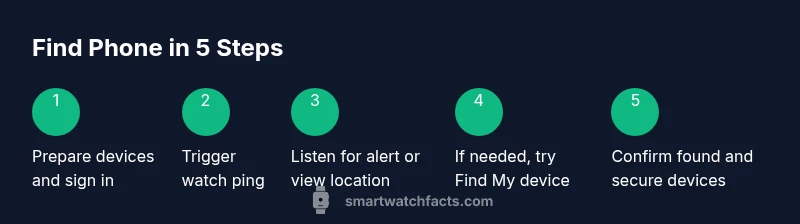
- Prepare both devices: Ensure Bluetooth is on, the iPhone is within range, and Find My is enabled. Verify your Apple ID is active on both devices.
- Trigger the ping from the Apple Watch: Open Control Center on the watch and tap the Ping iPhone icon. The iPhone should respond with a sound and display its location if Find My is connected.
- Listen for the alert or view the location: Follow the audible ping or consult the Find My app on the iPhone for a map view of the last known location.
- If the ping fails, try an alternative: Use Find My on the iPhone to ping the device directly or locate it from iCloud on a computer.
- Check connectivity and range: Ensure Bluetooth is active and the iPhone is not in Do Not Disturb mode which may mute alerts.
- Conclude the search: Once located, verify the device and consider enabling Find My iPhone for future use. Tip: If multiple iPhones are linked to the same Apple ID, ensure you ping the correct device by checking the device name in the Find My app.
Step-by-step: Wear OS and Android workflow
- Prepare both devices: Make sure the Wear OS watch is paired with the Android phone, Bluetooth is on, and location services are enabled.
- Open the ping option on the watch: Access Quick Settings or the Find Phone tile on the watch to trigger the ping. The phone should beep or show a location if connected to Google services.
- Listen for the alert or view the location: The phone should ring, and you can also view its last known location in Google Find My Device.
- If the ping doesn’t work, use Find My Device on a browser: Log in with your Google account to ping or locate the device from the web.
- Verify connectivity and range: Ensure the phone is powered on and connected to the internet if you rely on cloud-based location data.
- Wrap up: Confirm the phone is found, and consider keeping Find My Device enabled for ongoing protection. Pro tip: If you have multiple Android devices, designate one as the primary target to avoid pinging the wrong device.
Troubleshooting and common pitfalls
Even with clear instructions, several issues can block a successful ping. First, confirm both devices are within Bluetooth range and that location services are not disabled. If the phone is powered down, out of battery, or offline, the ping may not produce a loud alert or show a current location; you may only see the last known location. Do Not Disturb, Silent mode, or notification muting can also suppress audible alerts from the ping. In cases where the ping is unresponsive, switch to the platform’s Find My / Find My Device service via a browser or the companion app to force a locate signal. Finally, ensure that your accounts are correctly signed in and that the devices are linked under the same ecosystem for cross-device reliability.
Privacy and best practices when using the ping feature
Ping is designed to help you locate your own devices, not to invade others’ privacy. Turn off or restrict the feature when you’re not actively trying to locate a device, and review app permissions regularly. If you frequently misplace devices, consider enabling automatic location sharing during active hours and disabling it when not needed. Keep your devices updated to minimize issues related to compatibility and security. If you notice persistent failures, contact the device manufacturer’s support channels for platform-specific guidance.
Tools & Materials
- Smartwatch paired with smartphone(Bluetooth paired; use the same account where required)
- Phone with location services enabled(Find My (iPhone) or Find My Device (Android))
- Stable internet connection(Wi-Fi or mobile data to refresh location data if needed)
- Account access(Apple ID for iPhone; Google account for Android)
Steps
Estimated time: 5-15 minutes
- 1
Prepare both devices
Verify that the smartwatch is paired with the phone and that Bluetooth is active on both devices. Confirm that location services are enabled and that you can sign in to the required account on both devices. This foundation ensures the ping signal can be delivered and any location data can be retrieved quickly.
Tip: Double-check pairing status before starting to avoid delays. - 2
Trigger the ping from the watch
On Apple Watch, access the Control Center and tap the Ping iPhone button. On Wear OS, use the Find Phone tile or the ping option in quick settings. The watch sends a signal to the phone to trigger an alert.
Tip: If you don’t see the ping option, inspect the watch’s app permissions and shortcuts. - 3
Listen for the alert or view location
Your phone should emit a loud sound or show its location on a map within the connected app. If the device is out of Bluetooth range, the ping may fail until the watch moves closer or the phone reconnects.
Tip: Move toward the area where you last saw or used the phone. - 4
Try an alternative ping method if needed
If the watch ping doesn’t work, ping via the phone’s own Find My app (iPhone) or Find My Device (Android) from a web browser or the phone’s app. This provides a separate path to locate the device.
Tip: Keep the accounts signed in on both devices for seamless switching. - 5
Check connectivity and range
If repeated pings fail, confirm the phone is on, connected to the internet if required for location, and not muted by Do Not Disturb or Silent mode. Consider retrying at different angles or rooms.
Tip: Ensure the phone’s volume is not muted during searches. - 6
Confirm found and secure devices
Once the phone is located, verify you’ve retrieved the correct device, then turn off any unnecessary location sharing and restore your preferred privacy settings. Consider leaving Find My features on for future locate capability.
Tip: Keep OS and watch firmware updated to maintain compatibility.
People Also Ask
Can I locate my phone if the phone is offline or dead?
A ping generally requires the phone to be on and connected. If the phone is off or battery dead, you may see the last known location when it was online.
If the phone is off, the ping won't produce sound until it's powered back on, but you can check the last known location.
Does pinging require internet access?
Pinging via the watch typically uses Bluetooth for the alert and may use internet for location syncing; ensure both devices are connected.
The ping uses Bluetooth to alert, and may use the internet for updated location data.
Will this work between iPhone and Android devices?
Basic ping features work within each ecosystem (Apple Watch with iPhone; Wear OS with Android). Cross-platform compatibility varies by device and app, so follow platform-specific steps.
Yes, but steps differ by platform.
What if I can't find the ping button on my watch?
Check your watch’s settings or install the companion app; you can usually access Find Phone or ping via Control Center or quick settings.
Open your watch’s controls to find the Find Phone option.
Are there privacy concerns with pinging my phone?
Pinging is a device-specific feature designed for locating your own devices. Review app permissions and disable the feature when not needed to preserve privacy.
Ping is for your own devices; manage permissions accordingly.
How can I enable this feature on my watch?
Ensure your watch and phone are compatible, paired, and have location services on. Then enable Find My/Find Phone in the settings or control center.
Enable the Find Phone option in your watch’s controls.
Watch Video
Key Points
- Ping from watch to locate phone quickly.
- Enable location services and Bluetooth beforehand.
- Use ecosystem-specific ping features for reliability.
- If needed, switch to the Find My app for a second ping.