How to Connect Your Smart Watch with Your Phone
Learn how to connect a smart watch with a phone across Android and iOS. This guide covers prerequisites, pairing flows, permissions, troubleshooting, and best practices for a stable, secure connection.


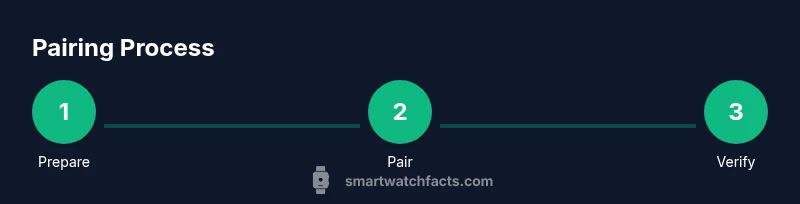
By following this guide, you'll learn how to connect a smart watch with a phone and keep both devices in sync. You’ll verify Bluetooth, install the official companion app, grant essential permissions, and complete the pairing flow for Android and iPhone. Have your watch charged and your phone connected to the internet for smooth setup.
Understanding the basics of how to connect smart watch with phone
Connecting a smart watch to a phone creates a seamless bridge for notifications, fitness data, and quick controls. The exact steps vary between Android and
Check prerequisites and prepare your devices
Before you start the pairing process, gather the basics and verify your devices are ready. You’ll need a charged smartwatch and a smartphone (Android or
Android pairing flow
Android devices often offer seamless pairing via the watch’s companion app. The typical flow includes selecting the watch model within the app, confirming a pairing code that appears on both devices, and granting permissions for notifications, location, and contacts. Ensure Bluetooth is on and that the watch is in pairing mode. Keep your phone near the watch during the process and avoid using VPNs or firewalls that could block the app from communicating with the watch.
The Android path usually benefits from using the official app first, then allowing the system to complete the setup in the background. If you rely on Google Fit or other services, link them during the app onboarding to keep health data centralized.
Grant permissions and finalize setup
After pairing, you’ll be prompted to grant a set of permissions that enable core features: notifications, health data syncing, location, and access to contacts. Review each prompt carefully and enable as needed for the features you want. Completing onboarding often includes choosing which notifications appear on the watch and customizing watch faces, app shortcuts, and exercise tracking options.
If you want to conserve battery life, you can tailor which apps are allowed to push notifications to the watch. Some watches also offer on-device prompts to enable quick replies, voice input, or gestures; enable only what you’ll use to keep things simple and fast.
Troubleshooting common pairing issues
If pairing fails, start with the simplest fixes: restart both devices, ensure the watch is in pairing mode, and verify you’re using the official app for your watch. Check Bluetooth settings on the phone, retry the pairing, and disable any VPNs or battery-saving modes that might block the connection. If the watch doesn’t appear in the app, try removing the device from Bluetooth list first, then re-attempt pairing from scratch.
For stubborn cases, reset the watch to factory settings and re-run the pairing process. If you’re still stuck, consult the watch’s support page for model-specific guidance and consider updating firmware via the app. Regularly updating the companion app and OS helps minimize future problems.
Maintenance after pairing: keeping the connection healthy
Once the pairing is complete, maintain the connection by keeping both devices updated, ensuring the watch remains charged, and periodically reviewing permissions. Revisit the app’s notification settings after OS updates to avoid unexpected interruptions. If you notice lag or dropped connections, try re-pairing with the watch and app, and verify there’s no interference from other Bluetooth devices.
Smartwatch Facts notes that consistent software updates and proper permissions are among the most reliable ways to sustain a robust link between watch and phone over time. Consider setting a recurring check every few months to review app permissions, OS requirements, and battery health for both devices.
Data privacy, security, and best practices for pairing
Pairing a smartwatch with a phone involves sharing access to notifications, health data, and sometimes location information. Review privacy settings in the companion app and on your phone to limit data sharing you’re uncomfortable with. Use screen lock or biometric verification on both devices to prevent unauthorized access if a watch is lost or stolen. Favor official apps and verified watch models to minimize security risks and ensure ongoing support.
],
Tools & Materials
- Smartphone (Android or iOS)(Unlocked, Bluetooth on, latest OS update)
- Smartwatch(Charged; factory reset if troubleshooting)
- Official companion app(Install from Google Play or App Store; keep updated)
- Charging cable or wireless charger(Keep handy for quick top-ups during setup)
- Internet access(Needed for app downloads and updates)
- Optional backup power(A portable charger can help during long setup)
Steps
Estimated time: 15-30 minutes
- 1
Prepare devices
Charge both the watch and phone. Enable Bluetooth on the phone and ensure it has a stable internet connection for downloading the companion app. Have the watch nearby and ready for pairing mode.
Tip: Charge levels of both devices should be at least 50% to avoid mid-setup shutdowns. - 2
Open pairing mode on the watch
Put the watch into pairing mode following its on-screen prompts or user manual. This typically makes the watch discoverable by the phone.
Tip: If you don’t see pairing mode, consult the manual; some watches require a specific gesture or button hold. - 3
Install and launch the official app
Download the watch’s official app from Google Play or the App Store and open it. The app will guide you through the pairing steps.
Tip: Use the official app rather than third-party tools for best compatibility. - 4
Start pairing from the app
In the app, select add device or pair new watch. The app will search for nearby watches and present a list.
Tip: Keep Bluetooth active and minimize distance between devices. - 5
Confirm pairing code
A pairing code should appear on both the phone and the watch. Confirm that the codes match to establish a secure link.
Tip: If codes don’t match, reinitiate pairing from the beginning. - 6
Grant necessary permissions
Allow notifications, health data access, location, and background activity as requested by the app.
Tip: Only enable what you’ll actually use to preserve battery and privacy. - 7
Complete setup and customize
Finish the setup by selecting preferred notifications, watch faces, and desired features. Sync health data preferences if applicable.
Tip: Experiment with a couple of layouts to find what works best for you. - 8
Test the connection
Send a test notification, try a quick reply, and check health data sync to ensure everything functions properly.
Tip: If something doesn’t work, try re-pairing with the app.”
People Also Ask
Do I need the internet to pair my watch with my phone?
Yes, internet access is usually needed to download the official companion app and firmware updates during setup. A stable connection speeds up the process but you can still complete pairing with mobile data if Wi‑Fi isn’t available.
You’ll typically need internet to download updates and the official app, but you can complete pairing with mobile data if there’s no Wi‑Fi.
Why doesn’t my watch appear in the pairing list?
Make sure the watch is in pairing mode, Bluetooth is on, and you’re using the official app. Restart both devices and retry. If the problem persists, reset the watch and try again.
If your watch isn’t showing up, verify pairing mode, check Bluetooth, restart devices, and retry. A factory reset can help as a last resort.
Can I pair a smartwatch with multiple phones?
Most watches support pairing with one phone at a time, but some models allow limited multi‑device pairing. Check your watch’s documentation for specifics and manage devices in the companion app.
Some watches can pair with more than one device in limited ways; check your model’s guide for details.
What if pairing keeps failing after updates?
Try the following: reset the watch, clear the app cache, reinstall the app, and try again. Ensure both devices have current software versions and don’t have conflicting Bluetooth profiles.
If pairing fails after updates, reset, reinstall, and update both devices to the latest software versions before retrying.
Do I need to reset my watch to pair with a new phone?
Yes, if you’re moving to a new phone, unpair the watch from the old device and perform a factory reset if required by your model. Then pair with the new phone following the same steps.
To switch phones, unpair or reset the watch and pair again with the new device.
Key Points
- Pairing starts with preparation: charged devices, official app, and Bluetooth on.
- Follow Android and iOS paths separately for best results.
- Grant only necessary permissions to balance features and privacy.
- Test the connection and adjust notifications for daily use.