How to Pair a Smartwatch with Your Phone: A Step-by-Step Guide
Learn how to pair your smartwatch with your phone, install the official app, grant permissions, and customize notifications for seamless, reliable connectivity across devices.


According to Smartwatch Facts, pairing a smartwatch with your phone is straightforward and quick. This guide covers enabling Bluetooth, installing the official companion app, granting essential permissions, and verifying sync for notifications, calls, and health data. By following these steps, you’ll enjoy seamless device-to-phone control, reliable alerts, and improved battery management.
Why pairing matters
For the best experience, learning how to smart watch to phone pairing unlocks the full potential of your wearable. A connected watch extends your phone’s capabilities, delivering notifications, health metrics, and quick controls right on your wrist. According to Smartwatch Facts, a reliable pairing experience reduces setup frustration and makes daily tasks smoother. In this guide, you’ll discover the tangible benefits and what to expect once devices are linked:
- Seamless notifications: incoming calls, texts, calendar alerts, and app alerts appear on the watch without pulling out your phone.
- Health and fitness integration: syncs heart rate, steps, sleep data, and workouts for a consolidated view.
- Quick interactions: control music, camera, and timers with a glance.
- Battery life considerations: pairing uses Bluetooth efficiently to preserve both devices’ battery life.
By the end, you’ll know exactly how to pair and customize for your daily routine.
What you need before you start
Before you begin, confirm you have the right equipment and a stable setup. This task is easier if you have a dedicated charging cable and enough space on a flat surface to manage both devices. Smartwatch Facts recommends starting with a full charge on both devices and ensuring your phone’s OS is up to date. You’ll also want a quiet moment to follow on-screen prompts without interruptions. Keep a copy of the smartwatch model in mind in case you encounter brand-specific steps.
What you’ll need:
- A smartphone (iOS or Android) with Bluetooth and internet access
- A smartwatch compatible with your phone’s ecosystem
- The official companion app installed from the App Store or Google Play
- A charger for the watch
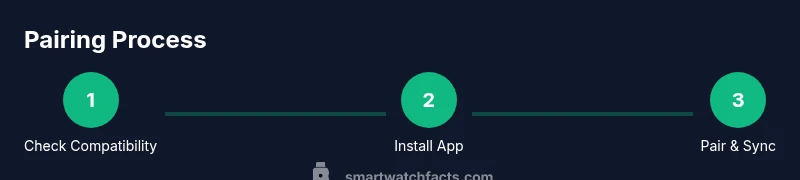
Step 1: Check compatibility
Confirm your phone and watch are compatible with each other. Some watches only work with specific operating systems or require newer OS versions. If you’re unsure, check the manufacturer’s website or the app store listing for compatibility notes. Knowing this upfront saves time and avoids frustration. If you’re using multiple devices, ensure you’re not attempting to pair with a separate user account that could complicate the setup. This step is foundational and determines the rest of the process.
Pro tip: verify supported features (notifications, health data, GPS) to set expectations for what will sync after pairing.
Step 2: Charge devices and update software
Charge both devices to a comfortable level—ideally at least 50%—to prevent mid-pairing power drops. Next, check for software updates on both the phone and the smartwatch. Updates often include important Bluetooth improvements, bug fixes, and security patches that make pairing smoother and more reliable. If an update is pending, install it before attempting to pair to minimize compatibility issues.
Pro tip: enable automatic updates where possible so future pairings stay current without extra effort.
Step 3: Enable Bluetooth and grant permissions
Bluetooth must be on for the initial pairing, and you may be prompted to allow location access or other permissions during setup. These permissions are typically required for accurate device discovery, precise time accuracy, and features like notifications and health data syncing. If you’ve disabled any permissions in the past, revisit the app’s permission settings and re-enable them.
Pro tip: keep Bluetooth on during first-time pairing, then you can manage some features from the app settings afterward.
Step 4: Install the official companion app
Download the official smartwatch companion app from the App Store or Google Play. Using the official app ensures the best compatibility and access to all features. Open the app and log in or create an account if prompted. Some watches also require you to accept terms and grant initial permissions within the app to proceed with pairing.
Pro tip: avoid third-party apps for core pairing and primary feature access to protect privacy and data integrity.
Step 5: Start pairing on your phone
Within the companion app, locate the pairing or add device option. The app will begin scanning for nearby watches. If prompted, select your watch model from the list. You may see a pairing code on the phone screen and/or the watch—confirm that the codes match. The app will guide you through the steps; follow them carefully and wait for confirmation that pairing is complete. If you’re pairing multiple devices, do them in sequence to prevent cross-connection.
Pro tip: keep both devices face up and close to each other during the initial scan to improve discovery.
Step 6: Confirm and complete pairing on the watch
After the phone confirms the pairing, you may need to approve a pairing request on the smartwatch itself. Some models show a verification code on the watch; you’ll need to confirm that the code matches the one on your phone. Once confirmed, the devices should remain linked and begin to exchange data. If the watch prompts you to grant permissions inside its settings, accept them to maximize features like notifications, health metrics, and location-based services.
Pro tip: if pairing fails, try rebooting one or both devices and retrying from Step 5.
Step 7: Customize notifications and settings
Open the companion app’s notification section and tailor which alerts you want on the watch (calls, texts, calendar events, app alerts). You can also adjust which metrics sync (steps, heart rate, sleep), your Do Not Disturb window, and screen wake options. Some watches allow quick replies or voice replies—enable these if you want faster responses from your wrist. Pay attention to sensitive alerts like messages from trusted contacts to avoid privacy exposure when near others.
Pro tip: selectively mirror only essential apps to reduce distraction and preserve battery life.
Step 8: Test core features
With pairing complete, run a quick test to ensure core features work: receive a call, get a notification, and confirm that the watch shows heart-rate data and steps. Test music control and camera shutter if supported. Verify that the watch wakes when you raise your wrist and that screen brightness is comfortable in your environment. If something doesn’t sync, re-check permissions and ensure the app is allowed to run in the background.
Pro tip: perform a full test in real-world conditions (outdoors, quiet room, and a busy location) to see how the connection holds up.
Step 9: Troubleshooting common issues
If pairing fails or data doesn’t sync, try these steps in order: 1) Restart both devices; 2) Reopen the companion app and retry pairing; 3) Unpair or forget the watch from your phone and re-run the pairing process; 4) Check for conflicting Bluetooth devices or settings; 5) Update all software to the latest version. If problems persist, consult the manufacturer’s support resources.
Pro tip: document the exact steps you took and any error messages to speed up support.
Step 10: Advanced tips for reliability and longevity
For long-term reliability, keep both devices updated, ensure the watch has enough storage for updates, and regularly clear old notifications that might slow the app. Some ecosystems offer battery-optimized modes; if enabled, they may restrict background syncing—adjust these settings to balance battery life and timely updates. Consider enabling periodic pairing checks to verify the connection remains healthy after OS updates or app changes.
Pro tip: place the watch on the charger before you go to bed to prevent overnight drain and ensure a fresh start the next day.
Step 11: Maintenance and safety best practices
To maintain a smooth experience, keep the companion app installed and updated, avoid exposing devices to extreme temperatures, and store the watch in a safe, dry place when not in use. Regularly review app permissions and privacy settings to protect personal data. If you switch to a new phone, you’ll usually need to re-pair and reconfigure settings; plan ahead for a seamless transition. For safety, never disregard urgent battery alerts on the watch, and avoid attempting to pair with unknown devices in public spaces.
Final tips and next steps
Regular practice helps you master the routine of keeping your smartwatch and phone in sync. If you rely on your wearable for critical health data or professional workflows, make it a habit to run a quick pairing check after OS updates or app updates. As you gain familiarity, you’ll be able to leverage the full ecosystem—apps, notifications, and health features—without friction. The Smartwatch Facts team recommends revisiting your settings monthly to optimize for new features and security enhancements.
Tools & Materials
- Smartphone (iOS or Android)(Bluetooth and internet access required; keep OS up to date)
- Smartwatch(Fully charged and ready for pairing)
- Official companion app(Install from App Store or Google Play)
- Charger for smartwatch(Have it nearby during setup)
Steps
Estimated time: 15-25 minutes
- 1
Check compatibility
Verify that your phone’s OS version and the smartwatch model are compatible. Read the manufacturer’s compatibility notes to confirm supported features and any required app versions.
Tip: If in doubt, check the official product page for a compatibility matrix. - 2
Charge devices
Ensure both devices are charged to at least 50% before starting. This prevents mid-setup shutdowns and data loss during pairing.
Tip: Plug in while you read the steps to save time. - 3
Enable Bluetooth and permissions
Turn on Bluetooth on your phone and grant any required permissions (location, notifications, health data) when prompted during setup.
Tip: Keep Bluetooth on throughout the initial pairing window. - 4
Install the official app
Download and install the official companion app from the appropriate app store, then sign in or create an account if required.
Tip: Avoid third-party apps for primary pairing. - 5
Start pairing on your phone
Open the app’s pairing feature and select your smartwatch from the list of available devices. Confirm any on-screen codes match.
Tip: Have both devices near each other and facing you during pairing. - 6
Confirm pairing on the watch
If prompted, approve the pairing request on the smartwatch and grant necessary permissions.
Tip: If the watch shows a PIN, verify it matches the phone screen. - 7
Customize notifications
In the app, choose which apps send alerts to the watch and set notification behaviors (sound, vibration, quiet hours).
Tip: Start with essential apps to reduce distractions. - 8
Test features
Send a test notification, place a test call, and verify health data sync (steps, heart rate, sleep).
Tip: Do this test in real-world conditions for accuracy. - 9
Troubleshoot issues
If pairing fails, unpair and retry, restart devices, and check for software updates.
Tip: Document error messages to speed up support if needed. - 10
Advanced tips
Keep apps updated, adjust power-saving modes, and manage background activity to sustain reliability.
Tip: Enable automatic updates when possible. - 11
Maintenance and safety
Store devices safely, review privacy permissions, and re-pair when switching phones or after major OS changes.
Tip: Schedule a monthly check-in for your pairing settings.
People Also Ask
Can I pair any smartwatch with any phone?
Most watches work best with their intended ecosystem. Check compatibility notes before purchasing and pairing to ensure core features are supported.
Most watches work best within their intended ecosystem. Check compatibility to ensure you get the features you expect.
Why isn't my watch showing notifications on my phone?
Ensure permissions are granted in the app, check Do Not Disturb settings, and try re-pairing if needed.
Make sure the app has permission and try re-pairing if notifications aren’t showing.
Do I need an internet connection for pairing?
Pairing primarily uses Bluetooth. Internet helps for initial setup and software updates.
Bluetooth handles the pairing; internet helps for setup and updates.
How long does pairing usually take?
Most pairs complete within a few minutes. If it takes longer, re-check steps and ensure both devices are ready.
Usually just a few minutes; if longer, review the steps and try again.
What should I do if pairing keeps failing?
Unpair on both devices, restart, update software, and retry. If issues persist, consult manufacturer support.
Restart and reattempt pairing, updating software as needed.
Is location permission always required for pairing?
Location access is commonly used to improve device discovery. Grant it if prompted and you’re comfortable with it.
Location helps with discovery; grant if prompted unless you’re restricting permissions.
Watch Video
Key Points
- Pair devices before using features beyond basics.
- Grant necessary permissions for full functionality.
- Test notifications and calls after pairing.
- Keep software up to date for best compatibility.
- If problems arise, follow a structured troubleshooting path.