How to Use a Smart Watch on Android: A Complete Guide
Learn how to pair, set up, and use a smartwatch with Android. This step-by-step guide covers Wear OS and Android-friendly watches, app permissions, notifications, health tracking, troubleshooting, and privacy tips for a smooth experience.


By following the steps in this guide you will learn how to use a smart watch on Android, from pairing your watch to installing apps and customizing notifications. You’ll learn practical setup steps, permission management, and how to optimize battery life and data privacy. This walkthrough covers everyday tasks, troubleshooting, and best practices for a smooth Wear OS or Android-friendly smartwatch experience.
Why Android and Smart Watches Matter for Everyday Life
Using a smart watch with an Android phone unlocks a smoother digital routine. You can glance at alerts, track workouts, and control music without pulling out your phone. The Android ecosystem favors a tight integration with a companion smartwatch, especially when the watch runs Wear OS or a compatible platform. This combination often delivers faster notification syncing, easier app discovery, and more consistent health-tracking data. According to Smartwatch Facts, Android users benefit from a straightforward setup and a robust app ecosystem when using official companion apps and a well-supported watch. In this guide, we’ll walk through pairing, permissions, app setup, notification customization, and practical tips to help you maximize battery life, privacy, and overall experience. Whether you’re new to wearables or upgrading from a basic fitness band, the goal is to give you practical steps that work in the real world.
Key ideas to keep in mind:
- Compatibility matters: verify that your watch offers solid Android and app support.
- The app ecosystem matters: official apps unlock deeper features, while third-party apps can fill gaps.
- Notifications and quick actions: you’ll use glanceable reminders, quick replies, and media controls.
- Health data interoperability: syncing workouts and health metrics is most reliable when the watch and phone share a common standard.
- Privacy and control: understand what data is shared and how to adjust permissions.
By the end of this article you will be comfortable with the core setup steps, know how to tweak settings for the best balance of convenience and battery life, and understand the trade-offs between different Android-friendly watch options. This guidance reflects Smartwatch Facts’ approach to practical, up-to-date wearable guidance for Android users.
How Android smartwatch ecosystems work
Android watches can run different operating systems. The easiest path for most users is a watch that supports Wear OS—Google's platform designed to work across Android devices. With Wear OS, you’ll typically pair your watch with the Android phone using a single companion app, and you’ll have access to notifications, Google Assistant, calendars, and health-tracking features that are designed to sync across devices. Other watches may use their own proprietary software, and while many support basic pairing with Android phones, some features may be limited or require the manufacturer's app. Smartwatch Facts notes that the consistency of experience improves when you choose a watch with a widely adopted OS and official apps. In practice, this means that if you want reliable notification delivery, smooth app installation, and standardized health data, Wear OS is a solid starting point on Android. If you select a non-Wear OS watch, you’ll still be able to pair it with Android via Bluetooth, but you should check which features are supported (notifications, music control, fitness tracking, and voice input). The rest of the guide will assume you’re aiming for an Android-friendly setup, whether you pick Wear OS or another compatible watch.
- Wear OS provides a broad app ecosystem and cross-device compatibility.
- Proprietary watch OS may offer some features but can limit Android integration.
- Always verify app permissions and data sharing options before heavy use.
- For best results, keep both phone and watch firmware up to date.
Pairing basics and initial setup
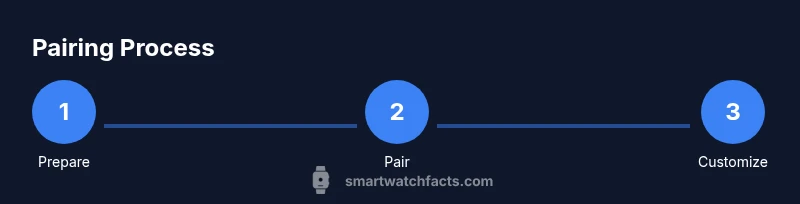
Pairing your Android smartwatch is a one-time setup that kicks off the entire experience. Start by charging both devices and turning on Bluetooth. Then install the recommended companion app on your Android phone (for Wear OS devices, this is the Wear OS app; other brands use their own). The app will guide you through the pairing process, which typically involves selecting your watch from a list, confirming a code, and granting a few permissions. The Smartwatch Facts Team notes that consistent sign-in helps with faster first-sync and better notification delivery. After pairing, take a few minutes to review which features are turned on by default (notifications, alarms, weather, music controls). If you opt for a model with GPS or cellular, you may be asked to enable location services and carrier setup. Finally, complete a quick tutorial that demonstrates common actions (saying “OK Google,” dismissing a notification, and starting a workout) to build muscle memory. If anything fails, restart both devices, reattempt pairing, and check that the watch’s firmware is up to date.
Tips:
- Have your Google or manufacturer account credentials handy.
- Place the watch within a few inches of the phone during pairing for a smooth connection.
- If pairing fails, try a fresh start: forget the watch on the phone, reboot both devices, and retry.
For best results, perform the initial setup in a quiet environment to test voice input and notifications without distractions.
Installing apps and granting permissions
To get the most from your Android smartwatch you’ll want the right apps and proper permissions. Open the companion app on your phone, browse the app store, and install core apps for notifications, messaging, weather, music, and health tracking. On Wear OS, you’ll want to enable permissions for notifications, location, microphone, and storage as soon as prompted. Some watches require you to grant permissions on the phone’s side, while others push prompts directly on the watch. Review the watch’s settings to ensure notifications are not silenced for important apps; you can customize per app which alerts you receive on your wrist. The Smartwatch Facts analysis shows that consistent permission management improves reliability and reduces wasted battery by preventing background apps from waking the watch unnecessarily. After installation, organize your apps so you can access essential actions from quick access menus. Consider enabling voice input and default replies for messaging, so you can respond to messages directly from your wrist. Finally, ensure you’ve enabled automatic app updates to keep your ecosystem secure and up to date.
Notes:
- Prioritize apps that truly add value on a wrist-based interface.
- Regularly review permissions to protect your data.
- Use a single app store for consistency and to simplify updates.
Everyday tasks and customization
With everything connected, you’ll use your smartwatch for a wide range of daily tasks. The core experiences include glanceable notifications, quick replies, music control, and fitness tracking. On Android, you can tailor watch faces, customize complication data (like weather or steps), and set Do Not Disturb rules to match your schedule. You’ll learn to switch between apps using the watch’s side button or gesture, and you can use voice commands for hands-free tasks. Also, explore the watch’s health features: heart rate monitoring, sleep tracking, and guided breathing are common across most platforms. The key is to align the watch’s capabilities with your day-to-day needs—if you commute by bike, enable workout detection and GPS tracking; if you focus on sleep insights, keep night-mode features active. For frequent call or message responses, enable quick replies, consider a smartwatch keyboard or handwriting input, and test the results with a friend. This is where you’ll discover what truly saves time: the combination of a clear notifications strategy and meaningful app shortcuts. Remember to check battery usage after a week of regular use and fine-tune settings to keep you powered through the day.
Pro tips:
- Use always-on display sparingly to save energy.
- Add a small number of high-use apps to the watch companion’s home screen.
- Test notifications during a real day to calibrate sensitivity.
Troubleshooting and common issues
Problems can happen, but most are quick to fix. If notifications aren’t arriving on time, check Bluetooth connection, ensure the watch is not in battery saver mode, and verify that the companion app has permission to run in the background. If the health sensors lag or misreport, confirm the watch is snug on your wrist and that the sensor is clean. Firmware updates can improve performance, so check for updates on both the phone and watch; apply them when available. If apps crash on the watch, try reinstalling them from the store and re-pairing if necessary. For GPS and location features, ensure location services are enabled on the phone and watch. Finally, consider resetting the watch to factory settings as a last resort and re-pairing from scratch if issues persist. By following these steps you’ll usually regain a smooth, responsive experience without losing data or settings.
Red flags:
- Recurrent battery drain after updates.
- Misbehaving sensors despite clean surfaces and proper fit.
- Apps that repeatedly fail to install or update.
Privacy, security, and power tips
Privacy and power are the two biggest ongoing considerations when using a smartwatch with Android. Review app permissions regularly and disable those that aren’t essential. Use a screen lock and biometric authentication on the watch if available, and be mindful of what data your apps access (health, location, contacts). To extend battery life, use the watch’s power-saving modes, reduce always-on display brightness, and limit background syncing for less-critical apps. If you use cellular connectivity, disable roaming and only enable data for certain apps to minimize data usage. Finally, keep your watch and phone updated to the latest firmware; security patches improve resilience against attackers trying to access health or location data. The Smartwatch Facts team emphasizes that staying informed about privacy settings and battery management helps preserve trust and ensures you get the most value from your Android smartwatch.
Practical privacy checks:
- Review connected apps quarterly and revoke unused permissions.
- Use device-level passcodes and biometric unlock on both devices.
- In settings, prefer encrypted backups and avoid storing sensitive data unencrypted.
Final thoughts and best practices
A thoughtful setup translates into a more productive day. Start with a clean pairing, install essential apps, and tailor notifications so you’re not overwhelmed on your wrist. Regularly update both devices, review permissions, and keep battery life in mind by choosing appropriate display settings and power modes. The goal is a dependable, secure, and enjoyable Android smartwatch experience that complements your phone—not competes with it. As you grow more confident, you can experiment with advanced features like GPS-driven workouts, multi-device calendars, and offline music playback. Remember that the most valuable insights come from your own usage data, so revisit your settings after a couple of weeks and adjust to fit your routine better.
Tools & Materials
- Android smartphone(Ensure it runs a supported Android version for your watch platform.)
- Smartwatch compatible with Android(Prefer watches with official Wear OS support or strong Android app integration.)
- Charging cable/charger for watch(Keep a dedicated charger on your desk or nightstand.)
- Stable Wi-Fi or cellular data(Helpful for initial setup and updates.)
- Access to Google or manufacturer account(Needed for syncing, voice services, and app installation.)
Steps
Estimated time: 30-45 minutes
- 1
Prepare devices and charge
Fully charge both the Android phone and the smartwatch. Bring them close to each other and ensure Bluetooth is disabled for none. This ensures the initial pairing won’t be interrupted by low power.
Tip: Charge to at least 50% on both devices before starting to avoid mid-pairing shutdown. - 2
Enable Bluetooth and location services
Turn on Bluetooth on the phone and watch. If prompted, enable location services since many watch features rely on precise positioning for fitness and maps.
Tip: Keep location services on only for apps that truly need it to preserve battery life. - 3
Install the official companion app
Download and install the official watch companion app from the Google Play Store (e.g., Wear OS) or the watch brand’s app. Open the app and sign in with your Google or brand account.
Tip: Use a single ecosystem to avoid fragmented settings and data syncing. - 4
Pair the devices
In the watch app, initiate pairing, select your watch from the list, and confirm the pairing code on both devices. Grant essential permissions (notifications, contacts, location) when prompted.
Tip: If pairing fails, reboot both devices and retry; keep Bluetooth visibility on during setup. - 5
Customize notifications
Choose which apps can push notifications to the watch and configure quick replies. Test alerts by sending a message to your phone and checking the wrist notification.
Tip: Limit alerts to high-priority apps to reduce wrist distraction. - 6
Explore health and fitness settings
Enable heart rate monitoring, exercise tracking, and sleep analysis if available. Calibrate sensors by wearing the watch snugly and performing a few basic activities.
Tip: Adjust wear fit and sensor placement for accuracy; a loose strap can skew readings. - 7
Update firmware and apps
Check for watch and phone updates and install any available firmware or app updates. Updates fix bugs and improve battery efficiency.
Tip: Enable automatic updates if you prefer hands-off maintenance.
People Also Ask
Do I need Wear OS to use a smartwatch with Android?
No—many watches can pair with Android via Bluetooth, and some features work with proprietary OS. However, Wear OS offers the most consistent experience and broader app support on Android.
No, Wear OS is not strictly required, but it provides the most reliable Android experience.
Can I use any smartwatch with Android?
Most Android phones work with many watches, but feature availability varies by OS and app compatibility. Check the manufacturer’s app list to confirm supported features.
Most watches will pair with Android phones, but features vary by OS and apps.
Will notifications sync to my watch?
Yes, after pairing and granting the necessary permissions, most notifications can appear on the watch. Customize per-app alerts to avoid overload.
Yes. Once paired, notifications can appear on your watch with per-app control.
How do I extend battery life while using a smartwatch with Android?
Use power-saving modes, reduce always-on display brightness, and limit background syncing for non-essential apps. Regular firmware updates can also improve efficiency.
Enable power-saving modes and limit background syncing to save battery.
Can I reply to messages from my watch?
Many watches support quick replies or voice dictation. Availability depends on the watch OS and messaging apps you use.
Yes, many watches let you reply using quick replies or voice.
Is offline use possible for smartwatches on Android?
Some features work offline if the watch has built-in apps and storage, but most functions rely on the connected phone for data and connectivity.
Some features work offline, but many rely on the phone for data.
Watch Video
Key Points
- Pair with official apps for the best Android experience
- Customize notifications to stay informed without overload
- Review permissions to protect privacy
- Keep firmware and apps updated for reliability