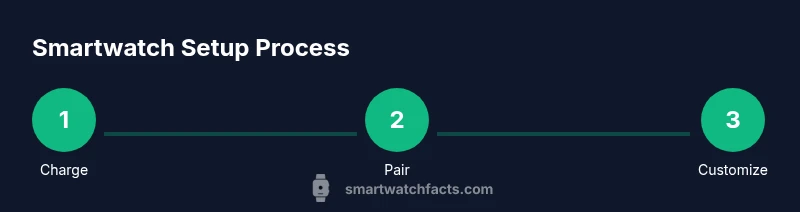
How to Set Up a Smartwatch: Quick Start Guide
Step-by-step instructions to set up your smartwatch, from charging and pairing to notifications, health features, and apps. Learn best practices for Android and iPhone ecosystems, privacy, and maintenance with practical tips from Smartwatch Facts.


Learn how to set up a smartwatch from power-on to daily use. This guide covers compatibility, charging, pairing, and basic personalization. Whether you use Android or iPhone, follow these steps for reliable performance and a personalized watch experience. It also highlights common pitfalls, recommended settings, and privacy considerations to help you start smoothly and stay secure.
Getting Started with Smartwatch Setup
Setting up a smartwatch begins with understanding your device's ecosystem and ensuring you have the essentials ready. Today’s wearables work best when you confirm compatibility with your phone’s operating system, have a recent backup, and a stable internet connection for updates. According to Smartwatch Facts, starting with the right pairing app and an up-to-date phone OS reduces setup time and minimizes post-pairing hiccups. This block delves into why choosing the correct model for your needs—health tracking, notifications, or fitness goals—matters most, and how initial setup decisions influence daily reliability and battery life.
The newest watches typically run on two major families: Wear OS and the platform tied to iOS devices. If you own an iPhone, you’ll likely benefit from tighter continuity with apps and features; Android users often enjoy broader customization and app variety. Matching hardware to software can prevent feature gaps, such as sleep tracking or ECG sensors, from appearing during first use.
When you’re ready, gather your phone, charger, and any included charging dock. Have your account credentials handy to sign into the companion app, which is where most personalized settings, health data, and notifications will live. The initial setup session also sets privacy defaults and security measures that protect your data from the moment you start using the device.
Verifying Compatibility and Preparing Your Phone
Compatibility checks save time and prevent feature mismatches. Start by verifying your watch’s OS family against your phone: Wear OS-based watches pair best with Android devices, while Apple Watch models are designed for iPhone users. If you’re using a mixed ecosystem (e.g., Android phone with a hybrid smartwatch), ensure the model supports essential features you rely on most, such as heart-rate monitoring or GPS.
Next, update both devices to the latest firmware and operating system versions. Updates often include bug fixes, new features, and security patches that improve stability during setup and beyond. If you’re migrating from an old watch, back up your data beforehand; this makes it easier to restore settings and health history later. Smartwatch Facts analysis shows that people who perform these prep steps are more likely to have a smoother first week with fewer glitches.
Powering On, Charging, and Initial Health-Sensor Calibration
Powering on the device and charging it fully is a small step with big payoff. Place the watch on its charger and let it top up while you prepare the companion phone. A full charge helps ensure the initial pairing session isn’t interrupted by low power warnings. After charging, allow the watch to run through the first boot setup, which may include agreeing to terms, enabling emergency SOS, and calibrating motion sensors.
Many watches perform automatic health-sensor calibration during the first use. This often includes heart-rate sensor initialization, skin temperature estimates, and activity recognition training. Calibrating these sensors correctly improves accuracy for workouts and health metrics. As you go, verify that permission prompts (location, motion, health data) align with your privacy preferences and don’t grant more access than necessary. Smartwatch Facts emphasizes balancing convenience with privacy during the setup phase.
Installing and Signing into the Companion App
The companion app is the cockpit for your smartwatch experience. Install the official app from the device’s app store, then sign in with your account or create a new one. The app will typically guide you through pairing, enabling notifications, and selecting preferred features. If you’re transferring data from another wearable, use the app’s migration feature to import steps, workouts, and health metrics.
During this step, personalize notifications so you don’t get overwhelmed by alerts. Choose which apps may push badges, previews, or silent alerts. For security, enable two-factor authentication where available and configure a screen-lock or passcode for the watch. Smartwatch Facts notes that strong authentication reduces the risk of unauthorized access while the wearables ecosystem remains highly connected with your phone.
Bluetooth Pairing and Initial Connectivity
Pairing the watch with your phone is the moment your devices begin to speak to each other. Ensure Bluetooth is enabled on the phone, then follow the watch prompts to discover the device. In most cases, you’ll see a code match or a quick scan to confirm pairing. If pairing fails, try toggling Bluetooth off and back on, restarting both devices, or temporarily deactivating power-saving modes that can block the connection.
Once connected, allow the app to request permissions for notifications, location, and health data, then review the telemetry-sharing preferences. This is a good moment to decide what data you’re comfortable syncing and to which cloud services. A clean initial pairing typically yields smoother message delivery and more accurate health metrics from day one.
Firmware Updates and App Permissions
Firmware updates are common after the initial setup. These updates can unlock new features or resolve known issues that affect performance. Check for updates in the watch settings or within the companion app, and apply them before you begin heavy usage. During updates, avoid charging interruptions or disconnecting the device.
Review app permissions one more time after updates. Refreshing permissions can fix occasional notification delays or data syncing issues. Smartwatch Facts recommends keeping essential permissions (notifications, health data access, and app foreground activity) enabled, while disabling non-essential access to maintain privacy and battery efficiency.
Personalization: Watch Faces, Shortcuts, and Notifications
Personalization is what turns a smartwatch from a gadget into a daily companion. Browse and select watch faces that align with your style and readability preferences. Add shortcuts for quick actions (like starting a workout, paying with a card, or replying to a message) to reduce taps during busy moments. Adjust notification banners, do-not-disturb schedules, and app badges to strike a balance between visibility and distraction.
If your watch supports hyper-filtration of health data, consider enabling only the metrics you care about most (heart rate, SpO2, sleep tracking). Customization should feel intuitive, not overwhelming. The more you tailor, the more you’ll benefit from a streamlined, personalized experience.
App Ecosystem, Privacy, and Security Best Practices
A robust app ecosystem expands a smartwatch’s usefulness, but it can also introduce privacy concerns. Install only trusted apps, review their permissions, and regularly audit installed software. Use app categories like fitness, productivity, and payments to create a practical but not cluttered experience. Enable automatic backups so health data and settings are preserved if you switch devices.
Security should be ongoing. Enable a strong screen lock, review which apps can access location or health data, and periodically update your privacy preferences. Smartwatch Facts recommends enabling device-wide encryption and keeping your phone’s OS updated to maintain end-to-end security as you use the watch every day.
Tools & Materials
- Smartphone with Bluetooth and internet access(Ensure it's up-to-date and has the official companion app installed.)
- Watch charging cable or dock(Have a compatible charger on hand for a full first charge.)
- Official companion app for the watch(Download from the device's app store.)
- Stable Wi-Fi or cellular data(Helpful for initial data sync and app updates.)
- Card or phone authentication information(Needed for some payment or account features.)
- Optional spare band or tool kit(Use for band sizing and comfort adjustments.)
Steps
Estimated time: 30-60 minutes
- 1
Charge and inspect
Place the watch on its charger and verify the charging indicator appears. Inspect the band and sensors for any visible damage. A full initial charge supports a smooth setup session and ensures ongoing reliability.
Tip: Leave the charger connected for at least 30 minutes to get a solid baseline charge before pairing. - 2
Install the companion app
Download the official companion app from your device’s store and sign in or create an account. The app will guide you through the initial setup and pairing process, and it stores your preferences.
Tip: Turn on notifications for the app during setup to receive progress prompts. - 3
Enable pairing mode
Put the watch into pairing mode as directed by the on-screen prompts. This makes your device discoverable by the phone’s Bluetooth scanner.
Tip: If pairing fails, restart both devices and retry once more before seeking support. - 4
Pair with the phone
Follow the on-screen instructions in the app to complete pairing. Confirm the code matches on both devices and grant necessary permissions for notifications and health data.
Tip: Keep Bluetooth enabled and avoid energy saver modes during pairing. - 5
Update firmware
Check for and install any available firmware updates. Updates may unlock new features and improve sensor accuracy.
Tip: Charge to 80-100% before applying updates to prevent mid-update interruptions. - 6
Personalize settings
Choose watch faces, organize quick actions, and configure notification preferences. Tailor the interface to your daily routines and readability needs.
Tip: Align font size and brightness with typical outdoor or indoor use. - 7
Configure health and safety features
Set up heart-rate monitoring, sleep tracking, and activity goals. Review privacy controls for data sharing and permissions.
Tip: Limit data sharing to essential apps to protect privacy while keeping useful metrics. - 8
Install essential apps and sync data
Install core apps (fitness, messaging, payments) and sync historical data if migrating from another device. Confirm that step counts, workouts, and sleep data appear in the app.
Tip: Test a quick sample workout and a message notification to verify everything runs smoothly.
People Also Ask
Do I need a phone to set up a smartwatch?
Most smartwatches require a companion phone to complete the initial setup and sync data. Some features may work standalone, but pairing provides full functionality.
Most watches need a phone to start, but pairing gives you full access to notifications and health data.
Can I set up a smartwatch without internet access?
Initial setup and updates typically need internet access. After pairing, some features work offline, but data syncing and app updates require connectivity.
You’ll need internet access for setup and updates, but basic usage can work offline once configured.
Which app should I use for setup?
Use the official companion app provided by the watch manufacturer. It guides pairing, updates, and settings, and stores your health data securely.
Use the official companion app to pair and configure your watch.
Is it safe to share health data with apps?
Only grant permissions to trusted apps. Review data-sharing settings regularly and enable privacy features like encryption where available.
Be selective with health data access and keep privacy settings updated.
How long does setup typically take?
A typical setup takes 20-45 minutes depending on device, updates, and how much customization you choose.
Usually about 20 to 45 minutes, depending on your customization.
Can I migrate data from an old watch?
Yes, many watches support data migration through the companion app, including workouts and health history.
Migration is usually supported via the official app.
Watch Video
Key Points
- Connect your watch with the official app for reliability
- Charge fully, update firmware, and calibrate sensors
- Tailor notifications and privacy settings before use
- Test core features with a quick workout and message
- Regularly back up health data and app configurations