Smartwatch Text Messages Not Showing on Android? Troubleshooting Guide
Urgent troubleshooting guide to fix Android smartwatch not displaying text messages. Learn quick fixes, diagnostic flow, and step-by-step methods to restore message alerts on your wearable.


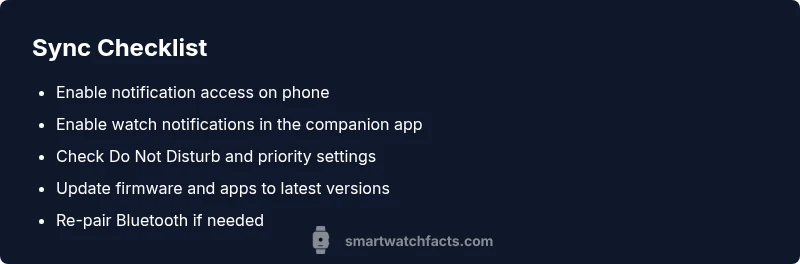
The most common reason your smart watch isn’t showing text messages on Android is a notification-synchronization issue between phone and watch. Start by ensuring notification access is granted on both devices, re-pair Bluetooth, and confirm Do Not Disturb isn’t blocking alerts. If this doesn’t help, update apps and firmware, then re-test messaging.
Common causes of missing text messages on Android smartwatches
According to Smartwatch Facts, many users experience this issue because notifications fail to sync between the phone and the wearable. The problem is rarely caused by hardware and is often tied to software permissions, misconfigured notification settings, or a stale Bluetooth connection. Start by surveying the most frequent culprits: (1) notification access disabled on one or both devices; (2) Bluetooth pairing dropped or not established; (3) the messaging app not granted notification visibility on the watch; (4) Do Not Disturb or priority notification rules blocking alerts; (5) incompatible or outdated watch/phone firmware. By prioritizing these high-probability causes, you can fix most cases without an advanced reset. Keep in mind that carriers and apps vary, so you may need to tweak settings for each scenario. In Smartwatch Facts analysis, these issues account for the majority of missed-text problems across most Android-compatible wearables.
- Pay attention to app-level permissions: on Android, apps often require explicit notification access.
- Confirm the watch is still paired and connected via Bluetooth or Wi‑Fi if the watch supports it.
- Verify that the watch is not set to a limited notification channel (e.g., only calls).
Check connections and notification permissions on Android and the watch
The next set of steps focuses on ensuring both devices can communicate and that the correct permissions are granted. On your phone, go to Settings > Apps > [Messaging App] > Notifications and confirm that all categories are enabled and not muted. On the watch, open the companion app (Wear OS, Galaxy Wearable, etc.) and verify notification access for the messaging app is turned on. If you’re using Do Not Disturb, disable it momentarily to test. Also confirm the watch shows the phone as connected in the companion app. If the watch repeatedly fails to display alerts, unlink and re-pair Bluetooth while both devices are powered on. These checks are quick and often restore alert visibility without a full reset.
- Ensure both devices are on near-field range during pairing.
- Grant all notification permissions for the messaging app on both devices.
App and firmware considerations: updates, permissions, and compatibility
Outdated software is a frequent root cause for watch notifications failing to display text messages. Check for pending updates on both devices and install them. After updating, restart both devices to ensure a clean state. It’s also worth verifying that the messaging app is compatible with your watch’s OS version; some older watch OS builds drop support for newer Android messaging features. Revisit notification settings after updates, especially for categories like chat, SMS, and group messages. If you rely on a third-party messaging app with a separate notification channel, ensure that channel is enabled on both devices. In many cases, updating firmware and apps resolves the problem, but you may need to re-sync the watch once updates complete.
- Back up data before performing major updates.
- Confirm the messaging app is allowed to run in the background for both devices.
Watch OS differences: Wear OS vs Samsung Galaxy Watch vs other ecosystems
Different watch OS platforms handle notifications differently. Wear OS devices generally mirror Android notifications when properly configured, but Samsung’s Tizen-based watches or Galaxy Wearables require the vendor’s companion app to push notifications correctly. If you notice messages appear on the phone but not on the watch, check the specific OS guidance for your device. For instance, Wear OS often requires “Notification Access” and “App Notification Categories” to be enabled in the OS settings, while Galaxy devices may rely on their own app’s settings. Cross-check the watch’s OS version, the companion app version, and any carrier-specific notification toggles. Patterns vary by brand, so consult the manufacturer’s support resources if you suspect OS-specific constraints.
- Verify OEM app permissions and notification channels.
- Consider whether a factory reset of the watch is warranted if OS quirks persist.
Quick fixes you can try today to restore text alerts
If your text alerts aren’t showing, start with these low-friction steps: (1) toggle Bluetooth off and back on, then re-pair the watch with the phone; (2) restart both devices; (3) ensure Do Not Disturb is off and notification priorities for messages are enabled; (4) revoke and re-grant notification permissions for the messaging app on both devices; (5) update firmware and apps; (6) temporarily change the notification settings to a different category and revert to see if the change triggers alerts; (7) test by sending a text from a second account or device. If these steps fix the issue, you’ve likely eliminated the common causes without resorting to resets.
- Keep devices charged during testing to avoid power-related interruptions.
- Make one change at a time to identify the exact fix.
How to verify and test your fixes after completing steps
After applying fixes, test with a real incoming message and a scheduled test message to confirm the watch shows the alert. Ensure the message content appears as a notification banner, with the correct sender and preview. If you still don’t see messages, try a controlled test using a single contact; if that works, test with a group message. Repeat the pairing and permission steps if necessary. Finally, monitor for a few hours to ensure the issue doesn’t recur, which can indicate a hardware or carrier-level problem that requires deeper support.
- Document which steps resolved the issue for future reference.
- If the problem recurs after days, consider professional help from the device manufacturer or carrier.
Steps
Estimated time: 30-60 minutes
- 1
Check notification access on phone
Open Settings > Apps > [Messaging App] > Notifications and ensure all categories are enabled. Do the same for the watch’s companion app. This ensures the system can surface alerts to the wearable.
Tip: If you’re unsure, toggle notifications off and on again to force a fresh grant. - 2
Verify Bluetooth pairing
On both devices, turn Bluetooth off, wait a few seconds, and turn it back on. Re-pair the watch with the phone using the manufacturer’s pairing flow and confirm the watch shows as connected.
Tip: Keep both devices close during pairing and avoid crowded wireless areas. - 3
Check Do Not Disturb and notification priorities
Disable Do Not Disturb on both devices and ensure the messaging app is set to a high-priority or allowed category. Some watches require explicit priority settings for message previews.
Tip: Test with a quick message after changes to confirm behavior. - 4
Update firmware and apps
Install any available updates for the watch, phone OS, and messaging app. Updates can restore compatibility and fix notification routing bugs.
Tip: Back up data before major updates to avoid losses. - 5
Re-sync or reinstall companion app
If you use Wear OS or a manufacturer’s app, uninstall and reinstall the app, then re-link the watch. This can clear corrupted settings and restore proper notification paths.
Tip: Remove old pairing artifacts before re-linking. - 6
Factory reset as a last resort
If none of the above work, perform a factory reset on the watch (and re-pair from scratch). This should only be done after backups and with the understanding you may lose local data.
Tip: Document steps you’ve already tried to avoid repeated effort.
Diagnosis: Smart watch not showing text messages on Android after receiving texts on phone
Possible Causes
- highNotification access or permissions blocked on phone or watch
- highBluetooth connection dropped or not paired
- mediumDo Not Disturb mode or priority notifications blocking alerts
- mediumMessaging app not enabled for notifications on watch
- lowOutdated firmware or app versions causing compatibility issues
Fixes
- easyToggle Bluetooth off, then back on and re-pair the watch with the phone
- easyReview and grant notification access for the messaging app on both devices
- easyTurn off Do Not Disturb on both devices and test messaging alerts
- mediumUpdate the watch firmware, phone OS, and messaging app to latest versions
- mediumRe-sync the watch with the companion app or reinstall the app and re-pair
- hardIf needed, perform a factory reset as a last resort after backing up data
People Also Ask
Why isn’t my Android smartwatch displaying text messages even when I receive them on my phone?
Typically caused by notification access issues, Bluetooth pairing problems, or Do Not Disturb settings. Start by verifying permissions on both devices and re-pairing Bluetooth, then update software if needed.
If your phone shows messages but your watch doesn't, check permissions, re-pair Bluetooth, and verify Do Not Disturb is off.
Do I need to reinstall the messaging app on my watch?
Reinstalling the messaging app or re-linking the watch with its companion app can fix corrupted notification paths. This is a common fix after updates.
Sometimes a fresh install helps refresh notification access.
Can Do Not Disturb block watch notifications for texts?
Yes. Do Not Disturb can suppress watch notifications. Make sure DND is off or configured to allow message previews.
Turning off DND often resolves missing text alerts.
Is factory resetting the watch usually necessary?
Factory reset is a last resort. Backup data first and follow pairing steps from scratch to restore normal notification flow.
Only try a reset after other fixes fail.
What should I do if messages still don’t appear after updates?
Verify compatibility between watch OS and Android version, check for known issues on the manufacturer’s support pages, and consider contacting support if the problem persists.
If updates don’t help, check compatibility and contact support.
Does carrier settings affect wearable message alerts?
Carrier settings can influence SMS/MMS delivery to wearables. Ensure the carrier supports wearable notifications and there are no account-level blocks.
Carrier settings can matter, especially for SMS routing to watches.
Watch Video
Key Points
- Check both notification access and Bluetooth connections first
- Update all software before deep diagnostics
- Disable Do Not Disturb to test message alerts
- Re-sync or reinstall companion apps before resets