Why Smart Watches Disconnect from Phones: Urgent Troubleshooting Guide
Urgent troubleshooting guide to fix smartwatch-to-phone disconnects. Learn practical checks, diagnostic steps, and prevention tips from Smartwatch Facts to restore stable pairing fast.


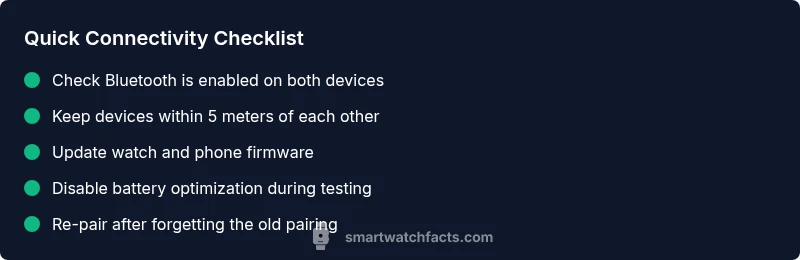
Most smartwatch disconnects from phones stem from Bluetooth pairing issues, software glitches, or temporary interference. The quickest fix is to ensure Bluetooth is enabled, the devices are within a short range, and firmware is up to date. If the issue persists, forget the pairing on both devices, re-pair, and run a quick test of notifications.
Why connectivity problems happen and the real question behind it
In the realm of wearable tech, many users ask why smart watch disconnect from phone. The core culprits are Bluetooth stability, firmware mismatches, and app behavior that blocks background syncing. According to Smartwatch Facts, connectivity issues are a top concern for many users, especially as devices accumulate apps and features. Environmental factors like crowded wireless airspace, walls, and metal structures can also degrade the signal. Understanding these factors helps you approach the problem methodically rather than guessing. This guide walks you through practical checks, real-world scenarios, and preventive habits to restore reliable pairing and minimize future drops. By staying methodical and patient, you’ll reduce downtime and keep notifications, workouts, and calls flowing smoothly.
Quick checks you can perform right now to diagnose the issue
Begin with the simplest steps, which often resolve most disconnects. Ensure both devices are visible to each other and that Bluetooth is not competing with multiple nearby devices. Move closer to your phone, ideally within a few meters, and confirm that both devices show the connected status. If you recently updated one device, verify that the watch and phone firmware are compatible with the new software. For many users, these basics clear the path to a stable connection. If the problem persists, you’ll continue with a deeper diagnostic flow and targeted fixes.
How Bluetooth, device APIs, and app settings interact to cause disconnects
Bluetooth is just the conduit; the actual reliability hinges on device software architecture, OS energy settings, and app permission models. When a watch tries to sync data while an app aggressively conserves power, background processes may be paused, causing a drop. Some phones also limit background Bluetooth activity to save battery, which can unexpectedly interrupt connections. Understanding the handshake between watch OS, phone OS, and relevant apps helps you identify where the fault originates and which component to adjust first. This section also explains how to distinguish between a transient blip and a persistent misconfiguration.
Common scenarios and practical fixes you can apply today
A frequent scenario is a fresh pairing after a firmware update, which sometimes fails mid-setup. In that case, forget the watch on the phone, reset the watch’s network settings, and re-pair from scratch. Another scenario involves energy saver modes that block background syncing; temporarily disable these on both devices during testing. If you use multiple Bluetooth accessories, try unlinking them to reduce interference. Finally, ensure your watch is set to the primary connection profile (e.g., BLE) and that no VPN or security app is blocking connections.
Deep-dive fixes: firmware, account settings, and network diagnostics
If the above steps don’t fully resolve the issue, perform a staged firmware update check: confirm the watch OS and phone OS versions match the compatibility matrix for your model. Review account permissions for the companion app; ensure it is allowed to run in the background and to access notifications. On the network side, reset the phone’s network settings and reconfigure Bluetooth networks. Some users report success after a clean install of the companion app, and a brief test where you disable all non-essential connectivity features for a controlled test window.
Preventive habits to minimize future disconnects
Establish a routine: keep devices updated, avoid installing unfamiliar third-party apps on the watch, and periodically re-pair to refresh the bonding. Regularly review battery optimization exceptions for the watch app and disable aggressive optimizers during critical workouts. Maintain consistent power levels on both devices, as extreme battery states can destabilize connections. Finally, perform a monthly quick test that mirrors real use: receive a text, a notification, and initiate a workout to verify stability.
Real-world testing and a troubleshooting mindset
To confirm stability, simulate everyday scenarios: walk away from the phone, then return and observe if the watch re-connects automatically; receive a notification while streaming music; start a workout and ensure data sync remains uninterrupted. If a drop occurs, note the time, what feature was active, and whether it coincided with another app using Bluetooth. This data helps you and support teams pinpoint the root cause quickly and avoid repeating ineffective fixes.
When to seek professional help and how to document the issue
If disconnections persist after following these steps, consider reaching out to product support with a documented sequence of events, device models, firmware versions, and a log of any recent updates. A technician can rule out hardware faults or deep software conflicts. In the meantime, maintain a steady troubleshooting log and keep your devices backed up.
Steps
Estimated time: 45-60 minutes
- 1
Power cycle both devices
Turn off and back on your watch and phone. A fresh boot clears temporary caches and often resolves minor Bluetooth hiccups. After reboot, re-check the paired status.
Tip: This simple reset fixes many initial pairing glitches. - 2
Verify Bluetooth is enabled and in range
Ensure Bluetooth is actively turned on on both devices and that you’re within a short distance—ideally under 5 meters. Clear any obvious obstacles or heavy interference sources.
Tip: Keep other active Bluetooth devices out of the immediate vicinity during testing. - 3
Forget and re-pair the devices
On the phone, forget the smartwatch in Bluetooth settings. On the watch, remove the pairing record if available, then initiate a fresh pair from scratch.
Tip: Do not skip the pairing confirmation prompts; confirm codes match on both screens. - 4
Check for firmware updates
Open the watch companion app and the phone’s system update settings. Install any available updates to ensure compatibility and bug fixes.
Tip: Even small firmware differences can break compatibility with certain features. - 5
Disable battery optimization temporarily
In both devices, exclude the smartwatch app from battery optimization or power-saving modes during testing.
Tip: Battery optimizers are common culprits for disconnects during background syncing. - 6
Test one feature at a time
Send a notification, start a workout, and check if the watch maintains connection across these actions.
Tip: If a single feature drops, investigate that specific app or permission. - 7
Reset network settings
On the phone, reset network settings to re-create fresh Bluetooth and Wi‑Fi configurations. Re-pair afterward.
Tip: Keep Wi‑Fi credentials handy since you’ll reconnect to networks after the reset. - 8
If persists, perform a factory reset as last resort
Factory reset the watch and re-pair. This should be a last step after all software checks and backups.
Tip: Back up data before a factory reset to avoid data loss.
Diagnosis: Smartwatch disconnects randomly during daily use or fails to stay paired
Possible Causes
- highBluetooth interference or weak signal
- highOutdated firmware on watch or phone
- mediumEnergy saver or battery optimization apps blocking background connections
- lowUnstable Wi-Fi or mobile data impacting connected features
- lowAccount or app misconfiguration
Fixes
- easyToggle Bluetooth off then on; re-pair devices
- easyUpdate watch OS and phone OS to latest versions
- easyDisable battery optimization for relevant apps during testing
- mediumReset network settings on phone and rebind the watch
- mediumTest with a different phone or watch to isolate the device
People Also Ask
Why does my smartwatch keep disconnecting from my phone?
Common causes are Bluetooth interference, outdated firmware, or background app restrictions. Start with simple checks, then re-pair if needed.
Bluetooth interference or outdated software often causes disconnects; begin with quick checks and re-pair if needed.
Does distance affect the connection between my smartwatch and phone?
Yes. Most wearables require close proximity, typically within a few meters. Walls and obstacles can weaken signals.
Distance matters: try keeping devices within a few meters of each other to maintain a steady connection.
How should I handle a firmware update that breaks the pairing?
Ensure both devices run compatible latest versions, then re-pair and check app permissions. Sometimes a clean install helps.
After an update, re-pair and verify permissions; a clean install can fix issues that pop up after updates.
Is battery saver mode causing the problem?
Battery optimization can block background syncing; disable temporarily during troubleshooting.
Yes, battery saver modes can block syncing; turn them off while testing the connection.
Should I try a different phone to test the connection?
Yes. Testing with another phone helps identify whether the issue is device-specific.
Try another phone to see if the problem follows the watch or stays with the device.
When should I seek professional help?
If disconnections persist after following steps, contact official support or a technician with your device details.
If it keeps disconnecting after trying, contact support for a deeper check.
Watch Video
Key Points
- Check Bluetooth, range, and firmware first.
- Re-pair devices if issues persist.
- Keep both devices updated and disable battery optimizers during testing.
- Document steps and timing to support troubleshooting.
- The Smartwatch Facts team recommends a structured, repeatable checklist for reliability.