Why is My Smartwatch Screen Not Working? A Practical Troubleshooting Guide
Urgent, practical troubleshooting for a smartwatch screen that won’t respond. Step-by-step checks, safe fixes, and when to seek professional help. Learn with Smartwatch Facts.


Most likely, the screen issue stems from a power problem, a software glitch, or moisture ingress. Start by charging the watch fully, performing a soft reset, and inspecting for obvious damage. If the screen stays unresponsive after these quick checks, back up your data and consider a factory reset or professional service.
Why is my smart watch screen not working? A practical quick start
If you're wondering why is my smart watch screen not working, this guide will help you diagnose and fix the issue fast. According to Smartwatch Facts, screen problems on wearables are often rooted in power, software, or environmental factors. This quick start focuses on the fastest checks you can perform at home, while protecting your data and device warranties. Start with a calm, systematic approach: verify power, perform a soft reset, and inspect for obvious damage. If the screen remains unresponsive after these steps, you’ve got a clear signal to back up data and consider a factory reset or professional inspection. Smartwatch Facts analysis shows that most home fixes resolve the majority of screen issues without servicing.
By following these steps, you’ll know whether the problem is a simple glitch or a hardware fault that needs expert attention. The key is to act quickly but safely, so you don’t lose data or void your warranty. This section lays the groundwork for effective troubleshooting and gives you confidence that you can handle common screen problems on your own. Remember: these checks are designed to be quick and non-destructive, preserving your device’s integrity while you diagnose the issue.
Common culprits behind unresponsive displays
There are several frequent reasons a smartwatch screen stops responding. Smartwatch Facts analysis shows that power issues (low battery or charging problems) and software glitches are among the top culprits. Moisture exposure, sweat, or liquid ingress can also affect touch responsiveness, especially in moisture-prone environments. A dropped device or a protective screen can physically compromise the digitizer. Finally, faulty touchscreen hardware or a corrupted OS can cause persistent unresponsiveness. Understanding these categories helps you target fixes without unnecessary steps.
Common causes to consider first include power and charging faults, followed closely by software crashes. If you notice inconsistent touch response or ghost touches, the issue is often software-related or a screen calibration problem. In the next sections, you’ll find practical checks to distinguish between these scenarios and decide the best fix quickly.
Quick checks you can do in minutes
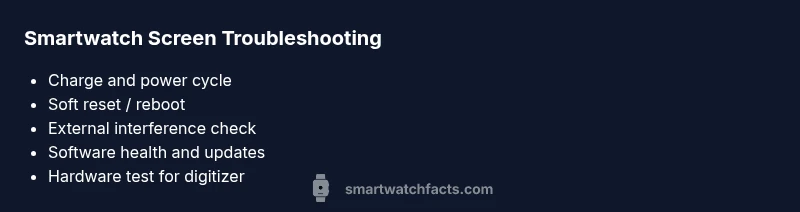
To fix many screen issues, you can perform a handful of quick checks in just a few minutes. The fastest fixes usually address power, software, and external interference. First, ensure the watch is charged to 100% using a known-good charger and cable. If possible, try a different charger or outlet to rule out a power issue. Next, perform a soft reset or reboot as described in the watch manual. Remove any case, screen protector, or accessories that may press on the screen, then wipe the display with a microfiber cloth to remove oil or residue. If your watch has a moisture indicator, check it for signs of exposure. These small steps solve many unresponsive screen problems and protect your data in the process.
If you find the screen still unresponsive, back up your data to the cloud or a computer and proceed with a deeper software or hardware diagnosis. These quick checks avoid unnecessary service calls and help you preserve your device’s warranty. Always ensure you follow safety precautions when handling electronic devices and avoid exposing the watch to water during testing.
How to test the touchscreen and display hardware
Testing the touchscreen thoroughly helps determine whether the issue is with the digitizer or the software. Start by running any built-in touchscreen diagnostics if your watch offers them in Settings > Diagnostics. Gently tap multiple regions in a grid pattern to see if the digitizer consistently detects input. If the screen responds in some areas but not others, it suggests a hardware fault rather than a software glitch. Try a screen calibration test if available and compare results with a known-good calibration profile. Also pay attention to brightness and color accuracy, as a misconfigured display can feel like a non-responsive screen even when touch input works. These hardware checks are essential to rule out physical damage before moving on to software fixes.
If you observe dead zones or erratic input, document the affected areas and timeframes. This documentation helps when communicating with support or a service center. Remember that hardware issues often require professional repair, especially if the digitizer or LCD is damaged.
Software issues: OS updates, apps, and bugs
Software problems are a frequent source of screen unresponsiveness. Check for available OS updates and install them, as manufacturers frequently fix touchscreen bugs in new versions. Review recently installed apps; some third-party apps may consume resources or cause conflicts that affect touch input. A safe-mode or clean-boot test can isolate software conflicts: if the screen works in safe mode, the culprit is likely a recently installed app or setting. If your watch supports a software reset or reset to factory defaults, weigh the benefits of preserving data versus achieving a clean software slate. Always back up first to avoid data loss.
If updating or app auditing resolves the issue, you’ve ruled out a hardware malfunction. If not, move to deeper hardware testing or professional assistance. Smartwatch Facts recommends documenting the steps you took so support teams can reproduce your issue quickly.
Connectivity and power: charging cables, power modes, and accessories
Value often hides in the basics: battery health, charging accessories, and power modes. Confirm you’re using the original charger or a certified alternative, and verify that the charging connector is clean and free of debris. Some watches have hardware power-saving modes that reduce sensitivity to preserve battery life; ensure such modes are disabled during testing. If you’ve recently enabled new Bluetooth devices or paired apps, temporarily disconnect them to rule out interference that might affect display responsiveness. Poor battery health can also manifest as a delayed or unresponsive screen when attempting to wake the device. Assess battery status and try a full recharge to see if responsiveness returns.
This step is about ruling out charging and power infrastructure before suspecting hardware faults. Document any changes you make so you can revert if needed. If the screen remains unresponsive after all power checks, the issue may be deeper hardware or software-related, requiring escalation. Smartwatch Facts notes that consistent testing helps you avoid false positives and unnecessary repairs.
When to seek professional help and safety considerations
If the screen remains unresponsive after all quick and software-based fixes, professional inspection is warranted. Check your warranty status and service options; many manufacturers offer screen or digitizer repairs under warranty for devices with documented moisture exposure or manufacturing defects. Avoid opening the watch yourself; attempting DIY repairs can void warranties and increase damage risk. When seeking service, provide the diagnostic notes you collected, including when the issue started, recent updates, and steps you’ve tried. Safety first: never charge a visibly damaged device or operate it in wet conditions. Smartwatch Facts emphasizes that prompt professional evaluation often saves time and protects data integrity.
In severe cases, a screen that won’t respond could indicate a failed digitizer or LCD, which typically requires component replacement. Even if the device seems out of warranty, a certified repair technician can often offer a cost-effective solution and preserve your data. Consider whether replacement might be more economical if the repair burden outweighs the device’s value.
Prevention: best practices to avoid future screen issues
Prevention is better than solution when it comes to smartwatch screens. Establish a regular software update routine, keep apps to trusted sources, and avoid exposing the watch to moisture or extreme temperatures. Use a high-quality screen protector and case that don’t press on the screen. Establish a backup habit so you never risk data loss if a reset becomes necessary. Monitoring battery health and charging habits can prevent power-related screen issues from developing. Finally, schedule periodic checks with official support or service centers to catch potential hardware degradation before it becomes a failure. By implementing these practices, you’re less likely to encounter a non-responsive screen in the future.
Steps
Estimated time: 60-90 minutes
- 1
Charge and verify power
Connect the watch to a reliable charger and let it reach full 100% charge. If it won’t charge, try another charger or cable and a different outlet. Ensure the charging pins align correctly and there is no debris obstructing contact.
Tip: Use the original charger when possible to avoid power issues. - 2
Soft reset / reboot
Perform a soft reset by holding the power button (or a combination defined by the brand) until the watch restarts. This clears temporary glitches that can cause the screen to freeze or respond slowly.
Tip: Don’t interrupt the reset; wait for the reboot to complete before testing input. - 3
Inspect for external interference
Remove any case, screen protector, or accessories that might press on the display. Wipe the screen with a clean microfiber to remove oils or residues that can affect touch sensitivity.
Tip: A misaligned protector can mimic unresponsive touch. - 4
Check for moisture or water damage
Inspect moisture indicators and avoid charging in a damp environment. If indicators show intrusion, dry the device with appropriate methods or seek professional guidance.
Tip: Moisture is a common silent culprit; never ignore signs. - 5
Software health check
Update the OS and apps to the latest versions. If a recent app is suspected, uninstall it temporarily to see if touch input returns.
Tip: Back up data before uninstalling apps or performing resets. - 6
Calibrate and test the touchscreen
Run any available calibration tests in Settings and perform a grid touch test to identify dead zones. Calibrating ensures input is mapped correctly across the screen.
Tip: Some devices require a reboot after calibration. - 7
Factory reset consideration
If nothing else works, back up data and perform a factory reset to restore software to a clean state. This often resolves persistent software issues that cause unresponsiveness.
Tip: A factory reset clears data—ensure you have backups. - 8
Professional assessment
If the screen still misbehaves after resets, schedule a repair assessment with an authorized service provider. Hardware repair may be required.
Tip: Warranty coverage can influence the best next step.
Diagnosis: Screen is unresponsive or flickers
Possible Causes
- highPower/battery issue
- highTouchscreen hardware fault (digitizer)
- mediumSoftware crash or OS bug
- lowMoisture ingress/liquid damage
Fixes
- easyCharge the watch with a known-good charger and ensure a solid power connection
- easyPerform a soft reset or reboot
- mediumBack up data and perform a factory reset if software issues are suspected
- hardConsult a service center for potential digitizer replacement or motherboard check
People Also Ask
What is the first thing I should check when the screen stops responding?
Start with a power check and soft reset. Ensure it’s charged and reboot the device. If it still doesn’t respond, proceed to software checks.
First, check power and perform a soft reset. If it still doesn’t respond, move on to software checks.
Can a software update fix screen unresponsiveness?
Yes. Updates often include touch input stability fixes and bug patches. Make sure you’re on the latest version before exploring other fixes.
Yes, updates can fix touch issues. Ensure your OS is up to date before deeper fixes.
Is it safe to factory reset my smartwatch?
A factory reset can resolve deep software issues but erases data. Back up first, then follow the device’s reset procedure.
A factory reset can fix software problems but will erase data, so back up first.
Why does the touchscreen register taps in the wrong places?
Often caused by calibration drift or a loose screen connection. Recalibrate if available, and check for hardware issues if misalignment persists.
If taps are misaligned, recalibrate the screen and check for hardware issues if it continues.
When should I seek professional repair?
If software fixes fail or the digitizer is damaged, professional repair is needed. Check warranty options and service plans.
If fixes don’t help, seek professional repair. Check your warranty.
Will moisture damage the screen permanently?
Moisture can cause corrosion and touch failure. Get it checked promptly if moisture exposure is suspected and avoid charging in damp conditions.
Moisture exposure can permanently damage the screen; seek assessment promptly.
Watch Video
Key Points
- Back up data before resets
- Charge and soft reset solve most issues
- Update software to fix bugs affecting the display
- Seek professional help for hardware faults