How to Tell If Your Smartwatch Is Charging: A Practical Guide
Learn to verify charging status on any smartwatch with clear indicators, troubleshooting steps, and best practices to ensure reliable power.


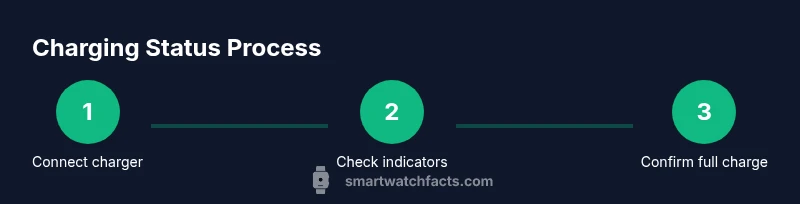
If you're wondering how to tell if smart watch is charging, start by placing it on the charger and watching for a cue. Look for a battery icon, a charging animation, or a status bar on the watch face within a few minutes. Confirm alignment and try a different power source if nothing appears.
What charging status means across smartwatch ecosystems
If you’re wondering how to tell if smart watch is charging, there are consistent cues you can rely on across models. Charging indicators are designed to be quick and visible, whether the watch face is on or off. In addition to a battery percentage, you may see a charging arc, a pulsing icon, or a notification banner confirming that power is flowing. These cues typically appear within the first few minutes after you connect the charger. Understanding these universal signals helps you distinguish actual charging from standby or sleep modes. Smartwatch Facts emphasizes that while indicators vary by brand, the underlying principle remains the same: power must be reaching the watch’s battery, and the indicator should reflect that progress reliably. Remember to check both visual and software signals for the most accurate read.
Visual indicators you can trust
Charging indicators come in several forms, and most users notice them quickly. Common cues include a battery icon that fills up, a numeric percentage, or a dedicated charging animation. Some watches illuminate a small LED on the housing to show status, especially when the screen is inactive. If the screen is asleep, try waking it briefly to see the charging symbol. A consistent cue across multiple attempts—icon, animation, and sometimes LED—greatly improves confidence in the read. For many users, the strongest signal is the combination of a visible icon on the watch and a matching app notification that charging has started. Smartwatch Facts notes that while visuals can differ, the goal is a clear, repeatable signal that charging is active.
Software indicators and companion apps
Many brands synchronize charging status with a companion app on your phone. Open the app and look for a battery status or charging progress. Some ecosystems show a live estimate of time to full, while others display a simple progress bar. If you don’t see updates right away, ensure your Bluetooth connection is active, notifications are enabled, and the watch is paired correctly. If the status doesn’t update, refresh the connection or re-pair the device. This cross-check helps you confirm charging status even when the watch display is dim or off. Smartwatch Facts research suggests relying on both on-device and app indicators for accuracy.
Differences across charging methods and what to expect
Different watches support multiple charging methods, including proprietary magnetic docks, wireless Qi pads, and USB-C cables. When using a dock, verify proper alignment so that the charging pins contact the device. With wireless charging, ensure the back of the watch is centered on the pad and that there’s no obstruction. Each method should begin showing some form of indicator within minutes, though full charging time can vary by model and battery size. If a method seems slower than usual, check for blockages, dirt on contacts, or a worn charging cable. Smartwatch Facts suggests testing with a known-good charger before ruling out the watch.
Common misreads and how to fix them
Misreads happen when indicators lag or when there’s no visible sign on the screen. If the watch appears to be on but shows no charging symbol, verify the charger’s compatibility and input power. Damaged cables, frayed connectors, or a dirty charging port can block current. Always clean connectors gently with a dry brush and replace damaged parts promptly. If you notice heat buildup, disconnect and inspect the charger to prevent potential damage. In some cases, software glitches can hide charging progress; a quick reboot of the watch or updated firmware may resolve the issue. Smartwatch Facts recommends a systematic approach: rule out hardware problems first, then address software.
Practical steps for wireless and wired charging comparisons
When comparing charging methods, look for consistency across both wired and wireless options. If the wireless option takes longer, check alignment and ensure there are no metal objects nearby that interfere with the field. For wired charging, switching to a different adapter or outlet can confirm whether the issue is with the power source. Establish a routine: always start by inspecting the charger, then place the device on the charger and monitor indicators for a few minutes. This routine reduces confusion and helps you confirm charging status quickly.
Tips for reliable charging and longevity
To keep charging reliable over time, store chargers in a cool, dry area and avoid exposing them to high heat. Regularly inspect cables for wear and replace them if damaged. Update watch firmware when available to ensure accurate indicators. Keep the charging contacts clean and free of debris. Avoid leaving the watch on the charger endlessly after it’s full, as it can cause heat buildup in some models. Smartwatch Facts recommends pairing hardware checks with occasional software updates to maintain accurate charging indicators.
Quick checks you can perform in under 5 minutes
Perform these fast checks to verify charging status: (1) Place the watch on a known-good charger and observe for a clear indicator within 2-3 minutes. (2) Wake the watch screen to check for a charging symbol or battery percentage. (3) Open the companion app to confirm charging progress. (4) If no indicator appears on either device, try a different charger or cable. (5) If indicators appear inconsistently, reboot the watch and re-test. These steps give you a reliable read without waiting hours.
What to do next: confirm full charging and long-term habits
After confirming initial charging indicators, leave the watch on the charger to reach full capacity if you can. If charging seems sluggish or stops early, investigate potential dock issues, dirty contacts, or outdated firmware. Establish a simple charging routine that matches your daily use: place the watch on the charger at night or during a predictable downtime. Smartwatch Facts emphasizes that consistent indicators and documented routines reduce uncertainty and extend battery health over time.
Tools & Materials
- Official charger or certified charging dock(Use the charger that came with the watch or a verified compatible accessory)
- Power source (stable outlet or USB port)(Avoid power strips with intermittent power)
- Clean microfiber cloth or soft brush(For cleaning charging contacts if needed)
- Spare charging cable (optional)(Useful for testing different outlets)
- Watch companion app access(To verify status via software)
Steps
Estimated time: 5-15 minutes
- 1
Prepare charger and inspect
Select the official charger or a certified dock and inspect cables for wear or damage. Ensure there are no visible frays and that the connectors look clean. A damaged charger can prevent proper current flow.
Tip: Inspect for bent pins and replace any worn parts before proceeding. - 2
Connect to a power source
Plug the charger into a reliable outlet or USB port and verify power is present. If the outlet is controlled by a wall switch, ensure it's on. Power instability can cause charging hiccups.
Tip: If possible, test with a different outlet to rule out power issues. - 3
Place watch on the charger
Align the back of the watch with the charging contacts or align pins with the magnetic dock. A misplaced connection often results in no charging signal.
Tip: Gently wiggle the watch to confirm there's contact without forcing the component. - 4
Observe an indicator
Within a few minutes, look for a battery icon filling, a percentage, or a charging animation on the screen. If the watch is on standby, wake the display to view the cue.
Tip: If no indicator appears, move to a known-good charger to isolate the issue. - 5
Check software status
Open the watch’s companion app and verify the charging status there as well. Some models sync a live battery estimate or progress bar to the app.
Tip: Ensure Bluetooth is active and the app has notification access for status updates. - 6
Test alternative method
If one method fails, try a different charging method (wired vs wireless) to determine whether the issue is the accessory or the watch itself.
Tip: Chances are the problem is with the charger, not the watch. - 7
Confirm full charge and disconnect
Leave the watch on the charger until it signals full, then unplug and re-test after a few minutes to confirm stability.
Tip: Avoid leaving the watch plugged in indefinitely after full charge if your model recommends unplugging.
People Also Ask
What is the quickest way to tell if my smartwatch is charging?
Look for a visible charging icon or animation on the watch within the first few minutes after placing it on the charger. If you see the indicator on the display or in the companion app, charging has begun.
Check the screen for a charging icon or animation within a few minutes after connecting the charger.
Why doesn’t my watch show any charging indicator after I connect the charger?
Ensure the charger is properly connected to a live power source and that the back of the watch aligns with the charging contacts. If necessary, try another charger or cable to rule out hardware issues.
Make sure the charger is plugged in and the watch is aligned with the contacts; try a different charger if needed.
Can I wear my watch while it’s charging?
In most cases, you can wear the watch while charging, but it may heat slightly. Check the manufacturer guidance for your model and avoid covering the watch with blankets or sleeves while charging.
Usually you can wear it while charging, but monitor heat and follow model-specific guidance.
Does wireless charging work the same as wired charging?
Wireless charging generally follows the same indicators, but you may need to center the watch on the pad for a reliable signal. If indicators differ, check alignment and the pad’s power output.
Wireless charging uses alignment on the pad; center it and verify indicators appear the same way as wired charging.
What should I do if charging is very slow or stops?
Try a different charger or outlet, clean the contacts, and ensure firmware is up to date. If the issue persists, contact customer support for compatibility checks.
Switch chargers, clean contacts, and update firmware; if problems persist, seek support.
Is it safe to leave a smartwatch charging overnight?
Most models are designed for safety, but check your watch manual for recommendations. Avoid covering the charger with insulating materials that can trap heat.
Generally safe, but follow your model’s guidance and avoid blocking heat dissipation.
Watch Video
Key Points
- Check multiple indicators (screen icon, app status, and dock light) to confirm charging.
- Always verify charger compatibility and connector alignment.
- Troubleshoot with a different charger/outlet before suspecting the watch.
- Keep charging contacts clean and firmware up to date.
- Follow a simple routine to avoid uncertainty about charging status.