Why Do Smartwatches Have Short Battery Life? Causes & Fixes
Explore why smartwatches drain quickly and learn practical steps to extend battery life, including display tweaks, sensor management, and software updates.


The most common reason a smartwatch dies fast is active display and sensors running in the background. The quickest fix is to reduce display wake time, lower brightness, and trim background tasks. Disable always-on, limit GPS and heart-rate checks, and silence nonessential notifications; then monitor battery for a day to confirm improvement.
Why Battery Life Differs Across Smartwatches
Battery life across smartwatch models varies widely due to hardware choices, display technology, and software optimization. According to Smartwatch Facts, two watches with similar battery capacities can behave very differently in real-world use because one prioritizes a high-refresh-rate display and active sensors while the other leans toward efficiency. The Smartwatch Facts team found that model differences—such as panel type, processor efficiency, and firmware optimization—play a big role in overall stamina. If you’re comparing wearables, don’t rely on rating labels alone; check independent testing and real-world usage reports to gauge longevity across daily routines. In 2026, the gap between best and worst performers can still be substantial, especially when feature-packed models push many features at once.
What Drains Battery Most: Display, Sensors, and Connectivity
The largest drains usually come from the display and sensors working in tandem. Bright screens consume more power, and always-on displays keep a portion of the panel active at all times. GPS usage for maps or workouts, continuous heart-rate monitoring, and SpO2 sensing also pull power quickly. Background tasks like constant app refresh, data syncing, and frequent notifications wake the processor and antenna, drawing current even when you don’t actively interact with the watch. Connectivity (Bluetooth, Wi‑Fi, and cellular) can add another layer of drain when the watch remains connected to a phone and frequently exchanges data. If you routinely use many features at once, battery life will naturally shorten.
The Role of Software: OS, Apps, and Background Tasks
Software efficiency is a major factor in battery life. An optimized OS schedules light background work and puts idle apps into low-power modes. Conversely, poorly optimized apps or recent OS updates can introduce background indexing, frequent location checks, or aggressive notifications that spike energy use. In some ecosystems, the system will also try to maintain high accuracy for health metrics, GPS, or weather updates, which drains power more quickly. Regular firmware updates often include optimizations that improve battery life, so keeping software current is a simple yet effective step.
Practical Settings to Extend Battery Life
Power savings begin with small adjustments you can apply in minutes. Start with the display: reduce brightness, shorten wake duration, and disable always-on if available. Next, limit GPS usage to workouts and disable continuous health monitoring if you don’t need real-time data. Turn off nonessential notifications, background app refresh, and background data syncing. Consider using a focused watch face with fewer animated elements. Finally, enable a battery saver mode when you’re away from a charger, especially during travel or long days out. These tweaks typically offer noticeable improvements without sacrificing essential functionality.
Diagnostic Considerations: When Drain Feels Unusual
If your watch suddenly drains faster after a software update or a new app install, there may be a culprit among settings or background tasks. Start with a quick diagnostic checklist: check brightness and always-on status, review recent apps for background activity, ensure location services are off when not needed, and verify that the watch has the latest firmware. A reset or re-pair can resolve stubborn issues if a software glitch is at fault. If the drain persists after sensible fixes, it could indicate aging hardware or battery health decline.
Battery Health and Hardware: When to Repair or Replace
Battery health naturally declines with time and charge cycles. When degradation becomes noticeable—watch OS drains unusually fast, charging takes longer, or performance seems inconsistent—it’s worth evaluating battery health via built‑in diagnostics or visiting a service center. For some watches, battery replacement is feasible; for others, the unit may be designed as a sealed device with limited repair options. If battery capacity has dropped significantly, it may be more cost-effective to upgrade to a newer model with improved efficiency and longer life.
Real-World Scenarios and Quick Wins
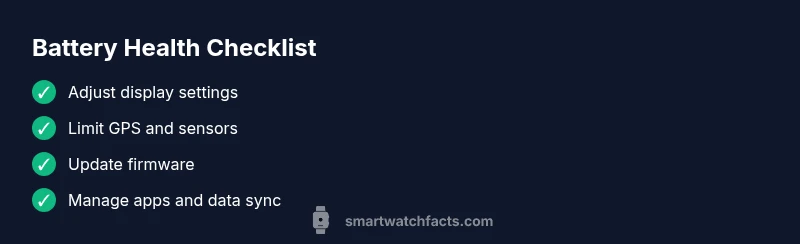
In everyday life, many users see meaningful gains from a handful of changes: 1) turn off always-on, 2) reduce brightness, 3) limit GPS and continuous heart-rate checks, 4) disable nonessential apps, and 5) keep firmware up to date. If you rely on health monitoring, consider scheduling data syncs and critical measurements to occur less frequently. Finally, avoid leaving the watch unused for long periods on a charger, as this can contribute to battery wear over time. With consistent adjustments, you can often stretch daily usage without compromising safety or convenience.
Steps
Estimated time: 20-40 minutes
- 1
Review display and wake settings
Open your watch settings and reduce the time the screen stays awake after interaction. Disable always-on, choose a dimmer watch face, and test for a full day to gauge impact on battery life.
Tip: Take notes of any noticeable changes in usability vs. battery performance. - 2
Evaluate sensors and connectivity
Limit GPS usage to workouts and disable continuous heart-rate checks when resting. Review Bluetooth/wifi behavior and disable auto-sync when not needed.
Tip: Turn on flight mode or disable data syncing during heavy usage days if you don’t need live updates. - 3
Update software and manage apps
Install the latest firmware and app updates. Remove or disable apps with heavy background activity. Reboot after updates to solidify changes.
Tip: Only keep essential apps; unused ones are often quietly draining power. - 4
Assess battery health and plan next steps
If the watch continues to drain abnormally, check battery health in settings if available, and consider a professional service or replacement if capacity is low.
Tip: Back up data before any reset or service.
Diagnosis: Smartwatch battery drains quickly despite minimal use
Possible Causes
- highAlways-on display enabled or high brightness
- highFrequent GPS/location tracking
- mediumBackground health sensors (HR, SpO2) continuously active
- mediumBackground app refresh and data syncing
- lowAging battery with reduced capacity
Fixes
- easyDisable always-on display and lower brightness; set wake to shorter intervals
- easyTurn off GPS when not exercising and reduce background data use
- easyLimit continuous health sensors and review app permissions
- easyUpdate the device firmware and review active background apps
- mediumIf battery health is degraded, seek professional service or consider replacement
People Also Ask
Why does OS update sometimes increase battery drain?
Software updates can temporarily raise power usage due to feature indexing and new background tasks. Most users see improvement after subsequent cycles and refinements in the next updates.
Software updates can temporarily use more battery, but improvements usually come in later updates or with further tweaks.
Does always-on display really kill battery life?
Yes. Always-on keeps part of the display active and continuously uses power. Turning it off or reducing wake time can dramatically improve battery life.
Yes, the always-on display uses more power; turning it off helps extend life.
How can I measure my watch's battery health?
Many watches offer a built-in battery health readout in settings. If not, monitor performance over several cycles and consult a service professional if you notice rapid degradation.
Check the battery health in settings if available, or watch for faster-than-normal charging and shorter run times.
Is battery saver mode worth using?
Battery saver mode can significantly extend life by limiting features, but it reduces functionality. Use it when you’re away from a charger and need to last longer.
Battery saver helps when you’re low on power, but it limits features.
Should I replace the battery or upgrade the watch?
Some watches support battery replacement, others do not. If replacement isn’t feasible or cost-effective, upgrading to a more efficient model may be the better option.
If replacement isn’t feasible, consider upgrading to a newer model with better efficiency.
Would turning off continuous HR help without losing health data?
Disabling continuous HR tracking reduces power use but also reduces ongoing health data. Use intermittent monitoring if you don’t need constant readings.
Turning off continuous HR saves power but reduces ongoing health data.
Watch Video
Key Points
- Reduce display wake time and brightness to save power
- Limit GPS, HR, and app background activity
- Keep firmware updated for efficiency improvements
- Monitor battery health and plan replacements when needed
- Use power-saving mode during extended days away from a charger