Why Smart Watch Battery Drains Fast: Troubleshooting Guide
A practical, step-by-step troubleshoot for why your smartwatch battery drains fast and how to recover life with proven, easy fixes.


Here's the quick answer: The most common causes of rapid smartwatch battery drain are high screen brightness or always-on displays, GPS/location tracking running in the background, and a flood of background apps and notifications. Start by lowering brightness, disabling always-on, turning off background refresh, and updating firmware. If the drain persists, review battery health and consider professional help or replacement. Follow this guide for a step-by-step fix.
Why the Battery Drains Fast on Your Smartwatch
If you're asking why are smart watch battery draining so fast, you're not alone. The issue is usually not a single culprit but a combination of display settings, sensors, and background activity. According to Smartwatch Facts, battery drain on wearables is rarely caused by one problem—it’s a mix of factors that stack up over a day. In this guide, we unpack the main offenders, explain how to measure impact, and share practical steps you can take today to reclaim battery life. This approach is built for real-world use—no jargon, just actionable guidance you can apply during your routine. By understanding these contributors, you can tailor settings for workouts, commutes, and notifications, so you keep essential features without sacrificing all-day reliability.
Common culprits behind rapid battery drain
- Brightness and always-on display: A bright screen and an always-on mode can constantly draw power. Reducing brightness and turning off the always-on option during non-critical periods makes a noticeable difference.
- GPS and location tracking: Location services, especially when left running in the background, consume significant energy during workouts or route tracking. Limiting continuous GPS use can extend life substantially.
- Background apps and sensors: Apps that refresh in the background, along with continuous heart-rate monitoring and other sensors, keep the device waking and drawing power even when you aren’t actively using it.
- Notifications and connectivity: A high volume of notifications and frequent Bluetooth data exchanges wake the screen and keep radios active. Streamlining alerts reduces wake-ups.
- Battery health and age: Like all batteries, smartwatch cells degrade with time. An older device may drain faster even with optimized settings. This is less of a fix and more a sign to reassess long-term value or plan a replacement.
OS, firmware, and the role of background processes
Modern smartwatches rely on compact operating systems designed for efficiency, but they still juggle many tasks: app synchronization, health data sampling, and wireless communication all happen in the background. If the software isn’t optimized or if there are poorly written apps, background activity can spike battery usage. Keeping the OS and apps up to date is crucial since updates often include battery-number optimizations and bug fixes that reduce drain. In addition, some devices allow you to review a battery-usage screen that shows which apps or services consume the most power, helping you target the biggest culprits first. Smartwatch Facts analysis suggests keeping background activity lean is typically the fastest win for most users.
How to gauge battery health and remaining life
Battery health is not just a single percentage; it’s the overall health of the cell, its charge capacity, and how quickly it loses charge under typical use. Start by checking the device’s built-in battery health indicator if available, and compare it to the expected full-charge time you notice in daily use. If you notice a drastic drop over a week or two, it could indicate battery wear or a firmware quirk that needs addressing. Documenting your charge times, screen-on time, and GPS usage during a typical day helps you quantify changes and decide when it’s time to seek professional service or a replacement. Smartwatch Facts analysis emphasizes that the best action is a guided review rather than guessing, especially on devices with limited access to battery diagnostics.
Quick fixes you can implement today
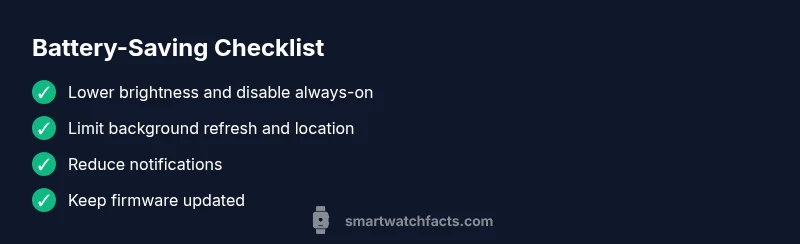
Even if you’re not sure which factor is at fault, you can try these fixes in order. Each fix is designed to be easy to implement and test for impact. If one fix doesn’t yield results within a day, move to the next item in the list. This approach avoids overwhelming changes and helps you observe a direct cause-and-effect relationship. Always ensure you’re on the latest firmware before making changes.1. Lower screen brightness and disable always-on display when the watch isn’t actively used. This is often the fastest win and requires no extra apps. 2. Limit background refresh and restrict location permissions for nonessential apps. This reduces wake-ups and radio activity. 3. Reduce nonessential notifications; configure Do Not Disturb during workouts or sleep windows. 4. Update firmware and essential apps to the latest version to benefit from energy optimizations. 5. Use the official charger and avoid exposing the watch to heat during charging; a cool, stable charging environment helps sustain battery health. 6. If the watch is older, consider a battery health check or replacement option from the manufacturer or authorized service provider.
Power-saving modes and how to configure them
Power-saving modes compress functionality to extend remaining charge. Enable these modes during long days when you don’t need full smartwatch capabilities. Many watches offer a programmable schedule: a daily wake window, reduced sensor sampling, and limited notification access. Even with limited functionality, you can still track steps, basic health metrics, and time. The idea is to preserve the essentials while reducing energy usage, especially during commutes or workouts when you don’t need full app performance.
App management and notifications for efficiency
A common drain is too many apps running in the background and aggressive syncing schedules. Review installed apps and remove or disable nonessential ones. Disable auto-sync and background check features for services you rarely use. For notifications, prune what gets pushed to the watch and set a rule: only important alerts should wake the screen or require attention. This reduces screen-on time and keeps the device in sleep mode longer. If you’re using a connected phone, ensure the watch isn’t duplicating notifications; this duplication wastes energy.
Firmware updates and hardware health checks
Firmware updates often include battery-life improvements and bug fixes that can significantly affect drain. Check for and install updates on both the watch and any companion phone app. If you’ve tried all software adjustments and still see rapid draining, run a battery health check with the manufacturer’s tool or a certified service center. In some cases, reduced battery performance is due to hardware wear, which may require battery replacement. This is particularly true for older models where the cell’s capacity has diminished after many cycles.
When to consider replacement or professional help
If you’ve exhausted all software-led optimizations and the battery still drains quickly, it’s time to evaluate the value of repair versus upgrade. Some watches support battery replacement, but the service cost may be similar to purchasing a newer model with better efficiency. Consider your daily usage, feature needs, and long-term cost. Smartwatch Facts recommends a structured diagnosis and a cost-benefit check before making a final decision. A professional assessment can reveal issues like accelerated wear, degraded cells, or faulty charging hardware that aren’t obvious in day-to-day use.
Steps
Estimated time: 30-60 minutes
- 1
Charge and observe baseline
Fully charge the watch and note the screen-on time and performance during typical daily use. This establishes a baseline to compare after changes. Check that you are using the official charger and a safe charging environment.
Tip: Use a known-good charger and place the watch on a cool, dry surface while charging. - 2
Reduce display power draw
Turn down brightness and disable the always-on display when you don’t need it. Test the impact by using the watch in a darker setting for a day and comparing battery usage.
Tip: Set a schedule to switch off always-on after workouts or at night. - 3
Tighten location and sensor usage
Limit continuous GPS usage and restrict location access for nonessential apps. You can often customize which apps can access location in the watch’s settings.
Tip: For workouts, enable GPS only during activity and switch off when finished. - 4
Trim background activity
Review apps that refresh in the background and disable auto-sync for nonessential services. Consider uninstalling or restricting permissions for unused apps.
Tip: Turn off background refresh for apps you don’t actively use. - 5
Optimize notifications
Reduce the number of alerts that wake the screen. Opt for important notifications only and silence non-critical apps.
Tip: Use Do Not Disturb during sleep or meetings to prevent unnecessary wake-ups. - 6
Update firmware and apps
Install the latest firmware and app updates. Updates can include energy efficiency improvements that significantly cut drain.
Tip: Check for updates weekly as a maintenance habit. - 7
Assess battery health and charging habits
If the baseline performance doesn’t improve after software fixes, check battery health and confirm you’re not exposing the device to heat or extreme temperatures during charging.
Tip: If health is poor, plan for replacement or professional service. - 8
Make a go/no-go decision
Decide whether to keep the device as-is, perform a battery replacement if supported, or upgrade to a newer model with better efficiency.
Tip: Cost vs. benefit: weigh watch usage, features, and life-span before buying a new device.
Diagnosis: Smartwatch battery drains quickly after a full charge
Possible Causes
- highAlways-on display and high screen brightness
- highGPS/location services active in the background
- mediumBackground apps and continuous syncing
- lowBattery health degraded with age
Fixes
- easyLower screen brightness and disable always-on display during non-use
- easyLimit background app refresh and restrict location permissions for nonessential apps
- easyDisable nonessential notifications and reduce wake-ups
- easyUpdate watch firmware and essential apps to the latest version
- easyUse the official charger and avoid heat exposure during charging
- mediumIf the watch is aging or battery health is poor, consider replacement or professional service
People Also Ask
How quickly should I expect my smartwatch battery to drain during a normal day?
Battery drain varies by model and usage, but most watches should last a full day with moderate use. If you see rapid drop, check display settings, GPS usage, and background apps. Monitor changes after each adjustment.
Most watches should last a day with normal use. If it drains faster, adjust display and apps, then recheck.
Does the always-on display ruin battery life more than other features?
Yes, always-on display typically consumes more power because the screen stays active. If you don’t need it, turning it off or limiting its use can significantly extend battery life.
Yes, leaving Always-On on uses more battery. Turn it off when you don’t need it.
Can I replace my smartwatch battery, or should I upgrade?
Some models support battery replacement through official service. If your watch is older or the replacement is costly, upgrading to a newer model with better efficiency may be more economical.
Battery replacement is possible on some models, but compare costs with a newer device.
Do notifications always wake the screen and drain power?
Frequently waking the screen for notifications increases energy use. Limit nonessential alerts and use Do Not Disturb during sleep or meetings.
Yes, notifications can wake the screen and drain power. Trim alerts to essential ones.
When should I seek professional help for battery issues?
If you’ve tried software fixes and the battery still drains quickly, consult official support or a certified service provider to check hardware health or battery replacement options.
If fixes don’t help, seek professional testing to rule out hardware problems.
Watch Video
Key Points
- Identify top drains (display, GPS, background apps) and disable where possible
- Use power-saving modes during long days or workouts
- Keep firmware up-to-date for energy optimizations
- If drain persists, assess battery health and consider replacement or upgrade