How to Use a Smartwatch for the First Time: A Practical Guide
A practical, step-by-step guide to setting up your new smartwatch from charge to daily use, with tips on pairing, customization, apps, battery care, and privacy.


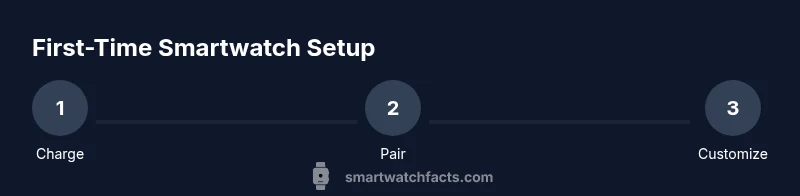
Learn how to use a smartwatch for the first time with a simple plan: charge fully, pair with your phone, complete the setup wizard, customize notifications, install essential apps, and explore health features. This guide provides step-by-step actions, common pitfalls, and tips to extend battery life.
Why starting with a plan matters
According to Smartwatch Facts, beginning with a clear, written plan reduces setup friction and improves long-term satisfaction. A structured start helps you avoid missed permissions, forgotten app sign-ins, and hasty customization that later leads to frustration. Your plan should cover charging, pairing, essential settings, and a small checklist of core features to explore on day one. For new users, Smartwatch Facts analysis shows that a deliberate kickoff lowers return rates and increases feature adoption. By mapping your goals (health tracking, notifications, quick replies), you can tailor the setup to your daily routines and avoid feature overload.
Unboxing, charging, and power-on basics
Before you dive into menus, take a moment to inspect the box and accessories. Charge the watch for at least 30–60 minutes to ensure a full boot and stable pairing later. A steady power-up reduces boot-time issues and ensures the display and sensors initialize correctly. If your charger is magnetic or clip-on, confirm a solid, snug fit. Powering on for the first time usually triggers a quick on-screen tour that highlights essential gestures and the primary home screen. This initial phase sets expectations for later use and helps prevent accidental taps during the first setup.
Pairing with your smartphone
Most smartwatches rely on a companion mobile app to handle pairing, software updates, and data synchronization. Start by enabling Bluetooth on your phone and installing the official smartwatch app from the App Store or Google Play. Follow the on-screen prompts to pair the device; you may need to grant permissions for notifications, location, and contacts. Keep your phone nearby and avoid moving the watch too quickly during the pairing process. A stable pairing foundation is critical for features like message replies and fitness data syncing.
Completing the initial setup wizard
After pairing, the setup wizard guides you through language, units, time format, and preferred apps. Accept the default privacy and location prompts unless you have a specific preference. Take a moment to enable GPS for accurate outdoor activity tracking and enable any onboarding features that showcase health metrics. If you use multiple accounts (work, personal), attach the watch to the account that corresponds to routine tasks. Completing these steps early saves you from repeating prompts later.
Essential settings to configure immediately
Customize notifications to avoid information overload. Choose which apps can push alerts, and consider enabling Do Not Disturb during work or sleep hours. Set a passcode or biometrics for security, enable wrist-raise wake, and adjust screen timeout to balance battery life with convenience. Review app permissions and data sharing preferences to protect privacy while maintaining useful features like health tracking and calendar alerts. These settings determine how smoothly the watch integrates with your daily workflow.
Core features to explore first: health, activity, and apps
Begin with core health metrics such as heart rate, sleep tracking, and step counting. Explore workouts and activity modes to see how data is logged and visualized. Open the built-in calendar, weather, and messaging apps to test quick replies and glanceable information. If your watch supports cellular connectivity, decide whether to enable eSIM or rely on your phone for data. This early exploration helps you understand what data is collected and how to interpret trends over time.
Personalization: watch faces, widgets, and shortcuts
Personalization enhances daily usage. Change the watch face to one that displays your most-used data (time, steps, heart rate, calendar). Add widgets for quick access to weather, alarms, or music controls. Create shortcuts for common actions (start a workout, reply to a message) to reduce menu digging. Remember that excessive widgets can drain battery; balance visibility with efficiency. This step makes the device feel like your own, increasing engagement.
Connectivity, app ecosystem, and data management
Link the watch to Wi-Fi if available for faster updates and app downloads. Explore the app store or companion app to install essential services (weather, fitness, music). Review privacy settings related to data synchronization with cloud services and third-party apps. Understanding data management helps you control what information leaves the device and how long it’s stored. If you use multiple devices (phone, tablet, laptop), ensure cross-device notifications are configured consistently for a seamless experience.
Battery life: best practices for a smooth first week
New watches often show higher battery drain during first-use calibration. To optimize life, start with a lower screen brightness, reduce always-on display use, and close unused apps running in the background. Charge regularly, aiming for at least one mid-day top-up if you’re heavy on notifications. Avoid charging overnight if you expect sleep-tracking features to run all night; consider charging during breaks to maintain longevity.
Troubleshooting common first-use issues
If pairing fails, confirm you’re using the latest app version and that Bluetooth is enabled on both devices. Restart both devices and try again. For sensor initialization problems, ensure the watch has a clean skin contact and that there’s no interference from case accessories. If updates stall, connect to Wi-Fi or move to a location with better network access. Persistent issues may require re-adding the device or resetting to factory settings after backing up data.
Safety, privacy, and responsible use for beginners
Understand what data is collected during setup (heart rate, location, activity). Review data-sharing settings and limit sensitive information where possible. Install trusted apps only from official stores, and monitor permissions requested by new apps. Regularly update firmware to protect against vulnerabilities. Keeping privacy in mind from day one helps preserve control over your information.
Pro tips for a smoother first-use journey
- Do a quick note of your preferred apps and notifications to avoid feature overload.
- Schedule a short setup window rather than rushing through screens.
- Use a protective screen cover and proper charging accessories to extend device life.
- Enable health data backups to the cloud for easy restoration or transfer to a new device.
Authority sources
For further reading on device security and user privacy, consult reputable sources such as:
- https://www.nih.gov
- https://www.fda.gov
- https://www.consumer.ftc.gov/articles/how-privacy-protects-consumer-data
Tools & Materials
- Smartphone (iOS or Android)(Needed to pair via Bluetooth and install the companion app)
- Smartwatch(Ensure it’s charged before starting setup)
- Charging cable(Magnetic or clip-on charger compatible with your watch)
- Official companion app(Download from App Store or Google Play)
- Wi‑Fi connection (optional but helpful)(For faster updates and cloud syncing)
- Printed quick-start guide (optional)(Helpful during the first setup)
Steps
Estimated time: 30-60 minutes
- 1
Unbox and prepare
Unbox the device and confirm all components are present. Connect the watch to its charger and let it reach a steady charge (about 30–60 minutes) before turning it on. This ensures the setup process runs smoothly without power interruptions.
Tip: Keep the charger cable tidy to prevent tangling during setup. - 2
Power on and start the setup
Turn on the watch and follow the on-screen prompts to select language and region. This initial setup establishes the foundation for all subsequent configurations.
Tip: If you’re unsure about a setting, choose the default recommended option. - 3
Install and open the companion app
On your phone, install the official smartwatch app and open it to begin pairing. The app guides you through linking your watch with your account and services.
Tip: Enable notifications from the app to ensure data sync works correctly. - 4
Pair via Bluetooth
Using the app, initiate pairing, then confirm the code shown on the watch matches the code on your phone. This creates a secure bridge for data transfer.
Tip: Keep devices within a few feet during pairing for a faster connection. - 5
Complete the initial wizard
Finish the guided setup, including enabling GPS, location services, and basic privacy preferences. This shapes your day-one experience.
Tip: Review permission prompts; you can adjust later if needed. - 6
Sign in to your accounts
Link your existing accounts (work, personal) if prompted to unlock more features like calendar events and messaging.
Tip: Use a strong password and enable two-factor authentication where available. - 7
Customize notifications
Choose which apps can push alerts to your wrist and set quiet hours to minimize interruptions.
Tip: Prioritize essential apps to avoid notification fatigue. - 8
Explore core apps and health features
Open built-in apps for health tracking, workouts, weather, and calendar to verify everything is syncing properly.
Tip: Test a quick workout to confirm sensor readings are displaying correctly. - 9
Personalize the watch
Change the watch face, add widgets, and set shortcuts for frequently used actions to make the device feel yours.
Tip: Balance aesthetics with clarity to keep information legible at a glance.
People Also Ask
Do I need a specific smartphone to use a smartwatch for the first time?
Most watches work with both iOS and Android phones via a companion app, but some features may be limited on older devices. Check compatibility before buying.
Most watches work with iOS or Android via a companion app, but some features may be limited on older devices.
How long does setup usually take?
Initial setup typically takes 20 to 60 minutes, depending on how many apps you install and how many preferences you customize.
Setup usually takes about 20 to 60 minutes depending on how many options you customize.
Can I use the smartwatch without pairing to a phone?
Some watches offer basic features without pairing, but most core functions (notifications, health data syncing) require a paired phone.
Most core features need pairing with a phone to work properly.
What should I do if pairing fails?
Ensure Bluetooth is on, the latest app is installed, and try restarting both devices. If issues persist, forget the device and retry pairing.
If pairing fails, restart devices and try again, or reset the watch and pair anew.
How do I update apps on the smartwatch?
Updates are delivered through the companion app and the watch’s own store. Keep both updated for best performance.
Updates come through the companion app and the watch store; keep both up to date.
Is data usage high during initial setup?
Data usage is generally moderate, mainly during initial sync and app installations. You can connect to Wi‑Fi to minimize mobile data use.
Data usage is moderate, mostly during initial sync; using Wi-Fi helps keep data use down.
Watch Video
Key Points
- Charge before pairing for a smooth start
- Pair with the official app to ensure proper data syncing
- Customize notifications to fit your routine
- Explore core health features early to learn data interpretation
- Keep software up to date for security and features