WhatsApp on Smartwatch: Setup, Tips, and Practical Usage
Learn how to use WhatsApp on a smartwatch with practical setup steps, messaging options, privacy tips, and platform nuances for Android and iOS.


This guide shows you how to use WhatsApp on a smartwatch, covering setup, messaging options, and platform nuances for Android and iOS. You’ll learn what features are realistically available, how to pair devices, and how to manage notifications and replies without reaching for your phone. Practical, hands-on steps help you decide when a watch-based workflow makes sense.
What this guide covers about smart watch whatsapp
This guide explains what "smart watch whatsapp" means in everyday use, detailing how notifications are delivered, what you can actually reply with from a wearable, and what remains on your phone. According to Smartwatch Facts, wearable messaging features have matured as OS ecosystems evolve, and this guide focuses on real-world setup and everyday use across Android and iOS. You’ll learn what’s feasible now, what isn’t, and how to optimize your experience on popular platforms.
WhatsApp on wearable messaging: core capabilities
In practical terms, you’ll typically see notifications on your wrist (new messages, previews, and read receipts) and you can respond using quick replies, preset phrases, or voice dictation. Some platforms support concise, canned replies, while others rely on your phone for full-text messages. This section sets expectations and clarifies what features are common versus limited, so you don’t expect a full-blown WhatsApp client on every watch.
Device compatibility: OS and watch ecosystems
WhatsApp on a watch doesn’t require a native app on every device. On Apple Watch paired with an iPhone, you’ll usually receive notifications and can respond via Quick Replies or dictation. On Wear OS and many Android watches, you can mirror WhatsApp notifications and use voice or preset replies if the watch supports it. Smartwatch Facts analysis shows that user experiences vary by OS and watch model, so it’s worth checking your specific device for supported interactions.
How messaging works on watch: notifications, replies, voice input
Watch-based messaging works by mirroring your phone’s WhatsApp notifications to the wrist. When a new message arrives, you’ll see a concise snippet and a reply option. You can respond with voice dictation, pre-defined replies, or short text depending on platform. Battery impact is generally modest for occasional replies, but continuous messaging can affect watch battery life over a day.
Prerequisites: what you need before you start
Before you begin, verify you have a compatible smartwatch (Apple Watch or Wear OS), a paired smartphone (iPhone or Android) with WhatsApp installed, and an active internet connection on both devices. Keep your devices updated to the latest OS versions, and ensure notifications are enabled for WhatsApp on your phone. Having the official companion app installed on your watch can simplify setup.
Android Wear OS flow: setup and tips
If you’re using Wear OS, start by ensuring WhatsApp notifications are allowed to reach the watch through the phone’s notification settings. In some devices, you’ll enable notification access for WhatsApp and confirm the watch is paired and syncing notifications. Then tailor your watch’s quick-reply options to suit your frequent phrases and consider enabling DND during meetings to avoid unintended replies.
Apple Watch flow: setup and tips
With an Apple Watch, ensure your iPhone is connected and WhatsApp notifications are allowed in the iPhone’s notification settings. The watch will mirror these alerts, and you can respond using Scribble, dictation, or predefined replies. Check that WhatsApp is allowed to work with Watch app permissions, and review privacy settings to minimize previews on the watch face if needed.
Privacy, security, and battery considerations
Privacy considerations include message previews visible on the watch and potential exposure in public spaces. If you’re concerned about exposure, disable previews or use discreet replies. Battery efficiency improves when you limit continuous notifications and use short replies rather than long conversations on the wrist. Always review permission settings for both the phone and watch to ensure only desired data is shared.
Troubleshooting common issues
If you don’t see WhatsApp notifications on the watch, check that the phone’s notifications are enabled for WhatsApp, confirm the watch is properly paired, and ensure the watch app isn’t on mute. If replies don’t appear, verify language input settings, ensure compatibility with your watch OS, and test with a new message. Restarting devices often resolves transient syncing problems.
Authority sources and further reading
Authority sources include official platform guidance and coverage from major publications. For Wear OS and Android-related messaging guidance, see The Verge, Wired, and Android’s official support pages for wearable notifications. These sources help you understand platform nuances and best practices for smartwatch messaging.
wordCount”:null},
Tools & Materials
- Smartwatch (Apple Watch or Wear OS)(Must support notifications and quick replies; ensure it’s updated to the latest OS.)
- Paired smartphone (iPhone or Android) with WhatsApp installed(WhatsApp should be updated and linked to the watch companion app if required by your device.)
- Stable internet on both devices (Wi‑Fi or cellular)(Notifications and replies depend on network availability.)
- Updated OS on phone and watch(Keep devices current to maximize compatibility.)
- Watch charging accessories(Useful for testing sessions or long review periods.)
Steps
Estimated time: 20-40 minutes
- 1
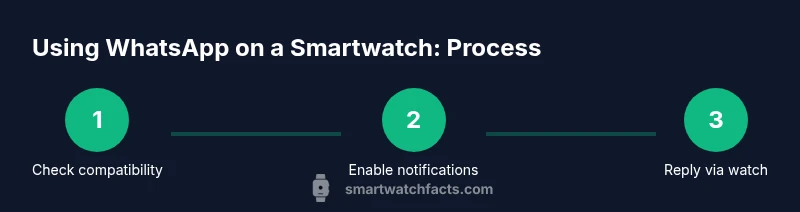
Check compatibility and prerequisites
Verify your smartwatch OS (Wear OS or watchOS) and ensure WhatsApp is installed on your paired phone. Confirm both devices have active internet and Bluetooth/Wi‑Fi connections. This upfront check prevents wasted steps later.
Tip: Consult the official device docs if you’re unsure whether your exact model supports wearable WhatsApp interactions. - 2
Update apps and OS
On the phone, update WhatsApp and the watch companion app. Ensure the phone’s OS is current, and the watch OS has the latest cumulative updates. This reduces compatibility issues and ensures the latest notification behaviors.
Tip: Run updates in a controlled environment so you can troubleshoot if something goes wrong. - 3
Enable WhatsApp notifications on your phone
In your phone’s notification settings, locate WhatsApp and allow banner notifications, sounds, and badges. If applicable, ensure “Show previews” is enabled or disabled per your privacy preference.
Tip: If you’re privacy-conscious, disable previews on watch while keeping notifications visible. - 4
Configure watch notification settings
Open the watch companion app and confirm that WhatsApp is selected for notifications. Turn on reply options (quick responses or dictation) and set notification reminders if needed.
Tip: Limit notifications to avoid watch fatigue by only enabling essential alerts. - 5
Test a message from watch to phone
Have a friend send a WhatsApp message and observe whether the notification appears on the watch and if you can open and reply from the watch.
Tip: If not visible, re-check notification permissions and re-pair devices if necessary. - 6
Respond using watch options
Try a quick reply, a preset phrase, or voice dictation from the watch. Confirm that the response appears on the phone and the conversation thread is updated.
Tip: Practice with a few common phrases to improve speed and accuracy. - 7
Evaluate privacy and visibility
Assess whether previews are too revealing in public settings. Adjust watch settings or reply methods to preserve privacy as needed.
Tip: Consider using discreet voice input in public spaces. - 8
Troubleshoot common problems
If notifications fail, check the connection status, re-enable permissions, and restart both devices. If issues persist, consult official help resources for your OS.
Tip: Document steps you’ve tried to save time when seeking support.
People Also Ask
Can I reply to messages directly from my smartwatch?
Yes, many watches support quick replies, voice dictation, or preset phrases. The exact options depend on your watch OS and app permissions. You’ll typically be able to respond without pulling out your phone.
You can usually reply from your watch with voice input or preset replies, depending on your device.
Does WhatsApp on a smartwatch require a constant phone connection?
Most setups mirror phone notifications, so a working phone connection or internet is needed for real-time messaging. The watch typically acts as an extension, not a standalone client.
Usually you need the phone nearby or connected for live messages.
Which devices support WhatsApp messaging on a smartwatch?
Apple Watch with an iPhone and Wear OS watches with Android phones typically support watch notifications and responses. Full messaging features vary by OS and model.
Apple Watch and Wear OS devices generally support watch notifications and replies.
Can I read WhatsApp messages on a smartwatch without my phone?
In most cases, you need the phone for message data. Some watches may show limited previews, but full content typically requires the phone connection.
Usually you need the phone connected for full message access.
What about privacy and security when using WhatsApp on a watch?
Watch notifications can reveal previews. If privacy is a concern, disable previews or adjust how replies are composed on the watch.
Be mindful of previews and adjust settings to protect your privacy.
Troubleshooting tips if watch notifications aren’t appearing
Check notification permissions on the phone, confirm the watch is paired, and ensure the watch app has access to WhatsApp. Restarting devices can fix many issues.
Check permissions, re-pair if needed, and restart devices to fix problems.
Watch Video
Key Points
- Master watch notifications by enabling them on both devices
- Use quick replies to save time and preserve battery
- Privacy controls are essential; adjust previews as needed
- Platform differences mean you may have varying capabilities across OS
- Regularly update apps and OS to maintain compatibility