Why Is My Smart Watch Vibrating Continuously? A Troubleshooting Guide
Learn practical steps to stop a smartwatch that vibrates continuously. Diagnose causes, apply quick fixes, and prevent future issues with smart wearables.


If you’re asking why is my smart watch vibrating continuously, the most likely causes are notification overload, misconfigured haptic settings, or a stuck sensor. Start by checking haptics, alerts, and Do Not Disturb modes, then reboot and update the software. If it still vibrates, disable nonessential alarms and guard against accidental taps; seek support if needed.
Understanding Why Your Smartwatch Vibrates Continuously
If you’ve ever asked yourself why is my smart watch vibrating continuously, you’re not alone. In many cases the culprit isn’t a hardware failure but how the device handles alerts, gestures, and health cues. The smartwatch ecosystem leans on haptics to convey information without sound, but when vibrations become persistent, it can feel alarming. According to Smartwatch Facts, most continuous vibrations start with software-level triggers—think alerts set to repeat or a misconfigured haptic pattern—and only rarely point to a faulty motor. Understanding the line between a normal alert and a nuisance vibration helps you fix the issue quickly and safely.
Smartwatches rely on a few core signals: notification alerts, reminders, and health cues. When the device interprets a repeated or conflicting instruction, the motor may enter a loop that feels relentless. Recognizing whether the issue aligns with a routine notification or a rogue app is the first step toward resolving it without unnecessary resets. The Smartwatch Facts team emphasizes that software misconfigurations are far more common than hardware faults in these scenarios, especially on devices that frequently update and synchronize with your phone.
To proceed effectively, note when the vibration occurs, which apps are active, and whether you’ve recently changed settings. Keeping a small log can help you spot patterns fast. This approach aligns with practical troubleshooting that prioritizes user experience and device safety.
Steps
Estimated time: 15-25 minutes
- 1
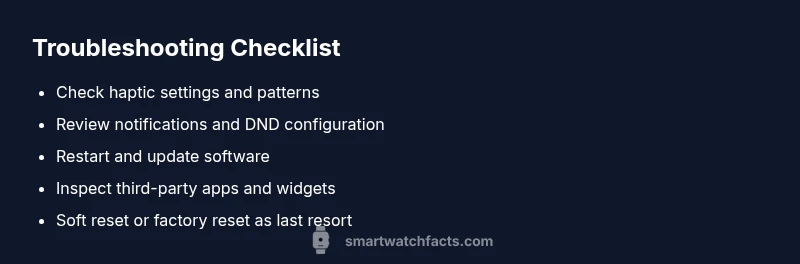
Open Haptics & Alerts
Navigate to Settings and locate the Haptics or Vibration section. Review vibration intensity and any patterns that repeat. Disable any auto-repeat or new-pattern triggers. Test with a built-in vibration sample.
Tip: Use a controlled test vibration to confirm changes work as expected. - 2
Check Notifications & Alarms
Inspect each app’s notification settings and alarm rules. Disable redundant alerts, silence non-essential reminders, and ensure Do Not Disturb is configured for your current focus. If a particular app keeps vibrating, temporarily disable its alerts.
Tip: One noisy app can drive the entire device wild; start there. - 3
Restart & Update
Restart the watch to clear temporary glitches. Check for OS updates and install any pending patches, as vendors often fix vibration-related bugs.
Tip: Updates can resolve mismatched haptic patterns and improve stability. - 4
Review Third-Party Apps & Faces
Some apps or watch faces can trigger unexpected haptics. Remove recently installed apps or switch to a stock watch face to see if vibrations stop.
Tip: Back up data before removing or changing apps. - 5
Perform a Soft Reset
If the issue persists, perform a soft reset or reboot according to your device’s procedure. This clears minor firmware hiccups without erasing data.
Tip: Keep your important data synced before a reset. - 6
Seek Professional Help
If the vibration continues after these steps, contact support with your device model, OS version, and a brief description of the issue. Persistent vibration may require hardware evaluation.
Tip: Provide logs or screenshots to aid diagnostics.
Diagnosis: Watch vibrates continuously even when no notifications or interactions occur
Possible Causes
- highSoftware misconfiguration or stuck haptic pattern
- mediumExcessive or misconfigured notifications
- lowFaulty haptic motor or hardware fault
- lowGesture or wrist-detection input triggering vibrations
Fixes
- easyReview and disable repeating alerts or patterns in settings
- easyTurn off notifications from non-essential apps or enable Do Not Disturb during focused time
- easyRestart the watch and check for system updates
- hardReset to factory settings after backing up data; if vibration persists, contact support
People Also Ask
Why does my smartwatch vibrate when there are no notifications?
This is often caused by misconfigured haptic patterns or a stuck input. Review the haptic settings, disable any repeating patterns, and test with a controlled vibration. If it continues, check for apps that might trigger vibrations.
Sometimes it’s just a misconfigured setting. Review patterns and test a vibration to confirm if an app or pattern is causing it.
Can I disable vibration entirely on my smartwatch?
Yes, you can usually turn off vibration or adjust its intensity in the settings. Consider using Do Not Disturb mode for extended quiet periods to avoid missing important alerts.
You can turn off or reduce vibration in Settings; use Do Not Disturb for focused times.
Should I reset my watch to fix continuous vibrations?
A soft reset is often a first step and safe, but a factory reset should be a last resort after backing up data. If vibration persists after resets, it may be a hardware issue.
Try a soft reset first; a factory reset is a last resort after backing up data.
Does OS type (iOS vs Android) affect vibration issues?
Vibration behavior can vary by OS integration and app permissions. Check platform-specific guides for iOS or Android watches to ensure compatible notification handling.
Yes, OS differences can influence how vibrations are managed.
Could moisture or sweat cause the vibration issue?
Moisture can affect sensors or the haptic motor. Dry out the device and check for moisture indicators; if you suspect water ingress, contact support.
Moisture can trigger unexpected vibrations; dry and inspect the device.
How can I prevent this problem in the future?
Keep software updated, review notification settings regularly, and avoid installing apps from untrusted sources. Use a routine maintenance check monthly.
Keep software updated and review alerts regularly to prevent repeats.
Watch Video
Key Points
- Check haptic settings first and test changes.
- Prioritize disabling repeating alerts over hardware replacement.
- Back up data before resets and seek support if unresolved.