How a Smart Watch Works with Your Phone
Learn how a smart watch connects to your phone, syncs notifications and health data, and how to optimize pairing and everyday use for reliable wearable integration.


Smartwatches connect to phones primarily through Bluetooth Low Energy, with occasional use of Wi‑Fi or cellular data to sync larger datasets. The pairing process establishes a secure bond, after which notifications, health metrics, and app data flow between devices. Once linked, you’ll see calls, messages, and app alerts on your wrist, while the phone remains the central hub for processing and control. how smart watch works with phone
How the core communication stacks work
Smartwatches communicate with phones using a layered approach that begins with a physical connection, typically Bluetooth Low Energy (BLE), supplemented by Wi‑Fi or cellular data when available. BLE is designed for low power consumption, enabling the watch to wake up briefly, exchange small packets of data, and return to sleep. On both platforms, a set of standard profiles (like notifications, health data, and music controls) defines what information can be shared and how it’s requested. The phone runs companion software that exposes an API surface for the watch to read notifications, receive health metrics, and issue commands (e.g., play/pause music). The watch then presents this data to the user in a compact, glanceable interface. To protect privacy, pairing creates a secure bond that uses encryption keys and mutual authentication, making passive eavesdropping difficult. The result is a responsive experience where you can see messages on your wrist without pulling out your phone, while the phone remains the primary data hub and control center.
How pairing actually happens: a step-by-step overview
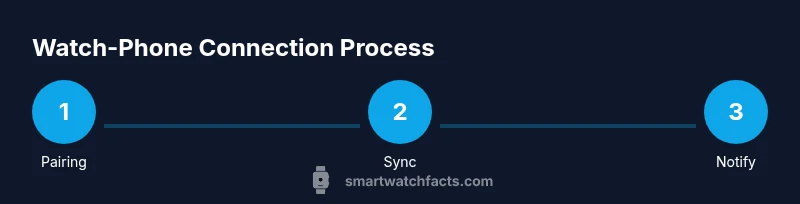
Pairing a smartwatch with a phone is a guided process, but it helps to understand the general flow. Start with both devices charged and nearby. Turn on Bluetooth on the phone and open the official companion app, which will prompt you to start pairing. Put the watch into pairing mode as directed by your model's on‑screen instructions. A on‑screen code or pattern should appear on one device and be confirmed on the other. The devices exchange capabilities and decide which features to enable by default, such as notifications, health data syncing, and location services. After pairing, grant the necessary permissions for notifications, background activity, and data access. Finally, run a quick test by sending a message or starting a workout to ensure data flows smoothly and alerts appear on the watch. This process typically takes 5–15 minutes depending on device models.
Notification delivery: what travels over Bluetooth and the cloud
Notifications are the most visible benefit of watch-phone pairing. When the phone receives an alert, the companion app can push it to the watch so you can read it without pulling out the phone. Some data, like weather, calendar events, or health metrics, may sync directly through the cloud when the devices are on Wi‑Fi or cellular data. If the watch and phone lose temporary connectivity, most recent notifications are stored locally and re-sent once the connection is restored. This design keeps you informed without draining either device’s battery. Understanding this flow helps explain occasional delays in non‑essential alerts, especially in crowded environments or places with poor Bluetooth signal.
Data synchronization and app ecosystems
A smartwatch acts as a lightweight data surface that mirrors select information from the phone. Health metrics from sensors on the watch or phone can be consolidated in a common health platform, with apps offering workouts, reminders, and media control. App ecosystems differ by platform, but the core idea remains: keep the most useful data on your wrist while letting the phone handle heavy processing. You’ll generally see steps, heart-rate, sleep data, and notifications on the watch, while apps on the phone handle more complex analytics. Data privacy and permissions govern what information travels between devices; tweaking these settings can improve reliability and battery life.
Battery life and performance: balancing the scales
Running a constant Bluetooth link and background syncing can impact battery life on both devices. Most smartwatches optimize power by delivering essential notifications when the wrist is awake and limiting ongoing data streams when idle. You can adjust display settings, such as turning off always‑on display or increasing screen timeout, to extend battery life. Turning off nonessential features like continuous heart-rate monitoring or long‑term GPS tracking when not needed can also help. If you notice rapid drain, ensure both devices run the latest firmware and that the companion app isn’t duplicating notifications or syncing data excessively in the background.
Privacy, permissions, and security basics
Privacy controls for smart watch connections center on who can read notifications, access location data, and pull health metrics. During setup, grant only the permissions you truly need and periodically review them in the phone’s settings. Use device unlock as an additional security measure to prevent unauthorized access if the watch is lost or stolen. Remember to enable a PIN or biometric lock on the watch itself. Regular firmware updates address security vulnerabilities and improve overall reliability, so keep both devices current. If you ever suspect a compromise, unpair, reset, and re‑pair the devices using the official app to reestablish a trusted connection.
Troubleshooting common pairing issues
If pairing fails, start with the basics: ensure Bluetooth is enabled, the devices are in pairing mode, and there is no interference from nearby devices. Restart both devices and retry the pairing sequence. Check that the official companion app has the required permissions and is up to date. If alerts aren’t syncing, verify notification settings and confirm the watch is within range. For persistent issues, unpair and re‑pair, or consult the manufacturer’s troubleshooting guide. By following a methodical approach, most problems resolve quickly without professional support.
What to expect across different phone ecosystems
While the core concept remains the same, watch-phone interactions vary by platform. On iPhones, certain features rely on Apple’s ecosystem and may require specific apps or services; on Android, you’ll often find broader customization options via the companion app and Google services. The quality of pairing, notification reliability, and access to health data can differ with device age and OS version. In all cases, keeping devices updated and using the official apps is the best path to a stable and enjoyable wearable experience.
Tools & Materials
- Smartphone(iOS or Android with the latest OS version and Bluetooth enabled)
- Smartwatch(Must be charged and within pairing range during setup)
- Charger for watch(Keep the charger handy during setup in case the watch needs charging)
- Official companion app installed on phone(Install from App Store or Google Play before you begin)
Steps
Estimated time: 15-25 minutes
- 1
Prepare your devices
Charge both devices to at least 50%, connect to a stable power source if needed, and update to the latest firmware. This minimizes interruptions during pairing and ensures compatibility with the latest features.
Tip: Have both devices close together to avoid encountering connection drops during setup. - 2
Enable pairing on the phone
Open the official companion app and navigate to the pairing section. Ensure Bluetooth is on and that any energy‑saving features are temporarily disabled so the app can discover the watch.
Tip: If you don’t see the watch, toggle Bluetooth off and back on, then retry from the app. - 3
Put the watch in pairing mode
Follow the watch’s on‑screen prompts to enter pairing mode. This typically involves selecting a pairing option or holding a button for a few seconds until the watch becomes discoverable.
Tip: Some watches require you to confirm a code on both devices for security. - 4
Confirm pairing and grant permissions
On the phone, confirm the pairing and grant permissions for notifications, location, and background activity. These permissions are essential for timely alerts and accurate health data syncing.
Tip: Review each permission individually; deny any that aren’t needed for basic functionality. - 5
Test notifications and features
Send a test message or call to verify that alerts appear on the watch. Try a quick workout to confirm health data syncing and app control works as expected.
Tip: If a notification is delayed, check both devices’ network connections and app settings. - 6
Customize settings and apps
Install essential apps and configure notification preferences, do‑not‑disturb schedules, and health‑tracking settings to suit your daily routines.
Tip: Keep apps to a necessary minimum to reduce background processing and improve battery life. - 7
Maintain and troubleshoot
Set a periodic reminder to check for firmware updates and re‑pair if you notice unstable behavior. Regular maintenance keeps the pairing robust.
Tip: If problems recur, consider a factory reset of the watch and a fresh pairing attempt.
People Also Ask
Can I pair a smartwatch with any phone?
Most smartwatches support both iOS and Android, but feature availability can vary by model. Check compatibility in the watch’s official documentation or app store listing.
Most watches pair with both iOS and Android, though features may vary by model.
Do I need Bluetooth always on for pairing?
Yes, Bluetooth is usually required for ongoing pairing, but many devices allow limited activity when Bluetooth is off by using Wi‑Fi for syncing data when available.
Bluetooth is typically required for ongoing pairing, with occasional Wi‑Fi syncing when available.
Why am I not receiving notifications on my watch?
Check that the companion app has permission to post notifications, confirm the watch is within Bluetooth range, and ensure the phone is not in a power‑saving mode that blocks background data.
Ensure app permissions are granted, the watch is nearby, and power settings aren’t blocking background data.
Can the watch use GPS without the phone?
Some watches have built‑in GPS and can track locations offline, but many rely on the phone for precise location data and maps; feature availability varies by device.
Some models have built‑in GPS, but many rely on the phone for precise location data.
What should I do if pairing keeps failing?
Unpair and re‑pair after restarting both devices, verify firmware and app updates, and ensure there’s no interference from other devices. If issues persist, consult official troubleshooting guides.
Restart devices, re‑pair after updating software, and check for interference; contact support if it continues.
Is it safe to share health data with apps?
Health data is typically stored locally and synced to the cloud with user consent. Review each app’s privacy policy and use the minimum necessary permissions.
Health data is shared only with consented apps; review privacy settings to limit access.
Watch Video
Key Points
- Pairing relies on BLE with occasional Wi‑Fi backup
- Grant essential permissions for reliable notifications
- Regularly update firmware for security and stability
- Tailor notifications and apps to balance usability and battery life