How to Pair a Smart Watch: Your Complete Guide 2026
Learn how to pair a smart watch with your phone, covering compatibility checks, app setup, permissions, and troubleshooting for a reliable daily-connected experience.


Learn how to pair a smartwatch with your phone in these simple steps. You'll confirm compatibility, enable Bluetooth, install the companion app, grant essential permissions, and complete the pairing setup. This quick answer highlights common pitfalls and how to troubleshoot connection drops, ensuring you can start syncing health data, notifications, and apps right away.
Understanding the pairing concept
Pairing a smart watch with a phone creates the bridge that enables notifications, health data syncing, GPS, and app access. When you pair, the watch will typically request permission to access contacts, notifications, and sensor data. For many users, the simplest path to success is to use the official companion app and follow the on-screen prompts. According to Smartwatch Facts, a clean pairing experience hinges on keeping devices updated, within Bluetooth range, and having sufficient battery life. This article on how to pair smart watch will cover the baseline steps, platform-specific nuances, and practical tips for smooth everyday use.
Compatibility you should verify
Before you begin how to pair smart watch, verify compatibility across devices. Apple Watch models typically pair with iPhones, while most Wear OS and Fitbit devices pair with Android phones; some brands offer limited cross-compatibility. Check OS versions, available features, and whether you need the manufacturer app to unlock notifications, health metrics, and voice assistant access. Smartwatch Facts analysis shows that the majority of early pairing failures stem from mismatched OS versions or unsupported Bluetooth profiles. If you know your platform (iPhone vs Android) and the watch model, you can anticipate feature availability and avoid frustration during setup.
Prepare your devices for pairing
Charge both devices so power loss won’t interrupt the process. Enable Bluetooth on your phone and ensure the watch has sufficient battery life. Connect to a stable Wi‑Fi or cellular network if prompts require account authentication or app updates. Update the watch and phone OS to the latest version, then reopen the pairing flow. A clean start reduces conflicts from old Bluetooth connections and ensures you can complete the initial pairing without interruptions.
Choosing the right companion app and permissions
Most smart watches rely on a dedicated companion app to drive pairing and ongoing data syncing. Install the official app from your device's app store, then sign in or create an account if required. The app will request permissions for notifications, contacts, activity data, and location in some cases. Grant only what the app asks for to minimize privacy concerns, but don’t skip essential permissions needed for calls, messages, or activity tracking. If you skip required permissions, you may hinder core features and future updates. This step is critical for how to pair smart watch successfully and for long term reliability.
The platform-agnostic pairing flow
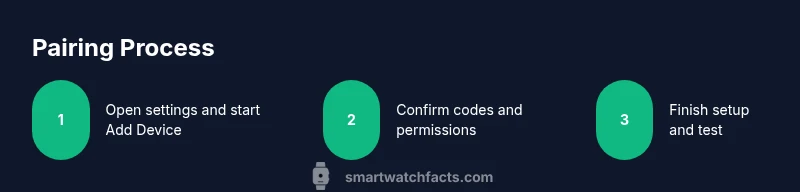
While specifics vary by brand, most pairing flows share a core sequence: open the app or Bluetooth settings, select Add Device, choose the watch from the nearby devices list, confirm a code if shown, grant requested permissions, and finish by syncing initial data like time, prompts, and health metrics. Keep both devices close during this process. If the UI requests a pair code, verify that the code on the watch matches the one on the phone before confirming. This flow ensures a reliable initial connection and sets up ongoing updates and notifications.
Troubleshooting common pairing problems
If your watch does not appear in the devices list, move closer, turn Bluetooth off and on again, or restart both devices. Ensure the watch is in pairing mode and not in sleep. If pairing fails repeatedly, unpair any existing connections, reset Bluetooth settings, or perform a soft reset on the watch. Check for app updates and reinstall the companion app if necessary. Sometimes a temporary outage or firmware bug can block pairing; waiting a few minutes and retrying usually resolves the issue.
Practical tips for smoother daily use after pairing
After a successful pair, customize notification settings, health data sharing, and activity tracking to avoid alert fatigue. Enable automatic syncing during workouts and ensure the watch has access to location data where needed for GPS features. Keep the companion app installed and updated, as features and permissions can change with firmware updates. Regularly review app permissions to protect privacy while maintaining full functionality. Remember how to pair smart watch again if you ever need to reconfigure connections.
Security and privacy considerations when pairing
Pace and precision matter, but so does privacy. Only grant essential permissions, review which data the app can access, and use built-in privacy controls to limit data sharing with third parties. Some watches offer on-device processing for sensitive health data; if available, enable this to minimize data transfer. Always sign out of accounts on shared devices and disable auto-pairing on public or borrowed phones to protect your information.
Battery life expectations during pairing
Pairing can consume additional battery on both devices, especially if location, GPS, or continuous health monitoring is active. To minimize drain, begin pairing when both devices are near power sources, then disable nonessential features after setup. If you notice abnormal battery drain after pairing, check for firmware updates, reduce the watch’s screen brightness, and limit background activity in the companion app. Properly managed, pairing shouldn’t meaningfully impact daily battery life.
When re-pairing or resetting is appropriate
If the connection becomes unstable after updates or a new phone is introduced, consider re-pairing from scratch. Remove the watch from the phone’s Bluetooth settings, unpair in the companion app, then restart both devices before attempting to pair again. A factory reset is usually a last resort and may erase saved data; consult the manufacturer’s guidance before proceeding. Re-pairing can resolve stubborn pairing issues without losing critical metrics.
How to unpair and re-pair efficiently
Unpairing and re-pairing should be quick if you follow a clean sequence: disable Bluetooth on the phone, unpair the watch in both the system settings and the app, reboot both devices, re-enable Bluetooth, and start the pairing flow anew. Make sure the watch is awake and not in sleep mode while initiating the process. Having a fresh pairing reduces future misconfigurations and streamlines feature syncing like notifications and activity data.
Tools & Materials
- Smartphone with Bluetooth(Ensure Bluetooth is on and the OS is updated to the latest version)
- Smartwatch charged to at least 20%(Power reliably to prevent mid-pairing shutdown)
- Official companion app installed(Download from App Store or Google Play)
- Stable internet connection (optional but helpful)(Used for account setup and updates if prompted)
Steps
Estimated time: 25-40 minutes
- 1
Check compatibility
Verify that your watch model supports pairing with your phone's operating system. Look up supported devices and required app versions before starting.
Tip: If unsure, visit the official support page for your watch model. - 2
Charge devices
Charge both the smartwatch and phone to at least 20% to avoid interruptions during pairing.
Tip: Keep a charger handy in case pairing takes longer than expected. - 3
Enable Bluetooth
Turn on Bluetooth on your phone and wake the watch so it is discoverable.
Tip: If the watch isn’t visible, toggle Bluetooth off and on again on the phone. - 4
Install and open the companion app
Install the official app and sign in or create an account if required. The app drives the pairing flow.
Tip: Update the app to the latest version before pairing. - 5
Start pairing in the app
In the app, select Add Device or Pair New Watch and choose your watch from the list.
Tip: Keep the watch close to the phone during discovery. - 6
Confirm codes and permissions
If a code appears on both devices, confirm it. Grant essential permissions requested by the app.
Tip: Denying required permissions may limit features like notifications. - 7
Complete initial setup
Follow on-screen prompts to finish the pairing and sync initial data (time, notifications, health metrics).
Tip: Ensure location is enabled if GPS features are required. - 8
Test critical features
Send a test notification, start a workout, and check health data syncing.
Tip: If something doesn’t sync, try restarting both devices. - 9
Review permissions and settings
Open the app and adjust notification, health, and privacy settings for daily use.
Tip: Limit data sharing to what you’re comfortable with. - 10
Document and store results
Note any model-specific quirks and keep a quick reference for future re-pairing.
Tip: Store steps for future device upgrades or resets.
People Also Ask
Do I need the manufacturer app to pair a smartwatch?
Most watches require the official companion app to pair and access features; some may offer basic Bluetooth pairing without the app.
Usually you need the official app to complete pairing and access features.
What should I do if the watch won't appear in the Bluetooth list?
Ensure both devices are awake, Bluetooth is on, and the watch is in pairing mode. Move closer and retry, sometimes restarting helps.
Make sure both devices are awake, in range, and try restarting Bluetooth.
Can I pair a watch with multiple phones?
Some watches support multiple devices but notifications may be limited. Unpair from old devices before pairing a new one.
Some watches can pair with more than one device, but you’ll usually unpair first.
How long does pairing typically take?
Most pairings complete within a few minutes, depending on device models and app versions.
Usually just a couple of minutes.
What if I forgot to grant notifications?
Adjust notification permissions in the app and phone system settings, then re-sync if needed.
Check app and system notification settings and re-sync.
Watch Video
Key Points
- Verify compatibility before starting how to pair smart watch.
- Keep devices charged and updated for a smoother setup.
- Grant essential permissions to unlock full features after pairing.
- If problems arise, re-pair or reset Bluetooth to resolve issues.