How to Adjust a Smartwatch: A Practical Everyday Guide
Learn how to adjust a smartwatch for a comfortable fit, accurate sensors, and optimized notifications. This step-by-step guide covers strap tweaks, screen brightness, orientation, and health-tracking settings.


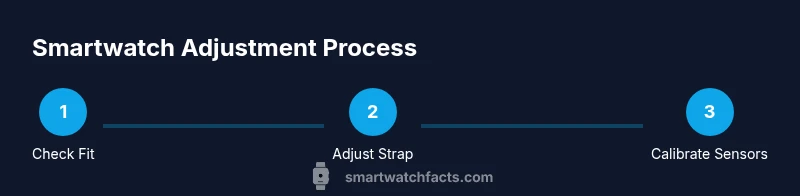
Goal: learn how to adjust a smartwatch for comfort and accurate readings. You’ll adjust the strap, calibrate orientation, tweak display settings, and tailor notifications. Before you start, have your watch, charger, and phone ready, and ensure the device is updated. According to Smartwatch Facts, proper fit improves wear-time and sensor accuracy.
Why Adjusting Your Smartwatch Matters
According to Smartwatch Facts, a comfortable and well-aligned wearable is not only more pleasant to wear but also yields more reliable sensor readings. When the strap is too tight, circulation can be restricted; when too loose, movement degrades heart-rate and activity data. A proper fit also reduces skin irritation from friction. This quick look at why fit matters helps you approach adjustments with intention rather than guesswork. In addition, consistent fit supports better sleep tracking, more accurate step counts, and steadier heart-rate data across daily activities.
Tools You’ll Need and Prep
Before you start, assemble a few items to make adjustments smooth and safe. A properly charged smartwatch and a smartphone with its companion app are essential. If you’re adjusting metal bands, a small band pin remover or precision screwdriver can make the job easier. Keep a clean microfiber cloth handy to wipe the screen and a charger nearby in case you need a quick top-up during the test. A calm environment helps, too, so you can focus on the fit rather than distractions. Smartwatch Facts analysis shows that a deliberate prep phase reduces trial-and-error and speeds up results.
Step-by-Step: Strap Fit
The strap is the first line of comfort and sensor reliability. Start by identifying the hole that yields the best compromise between tightness and breathability. After you adjust, wear the watch for a few minutes to evaluate pressure points. If you wear it all day, consider trying a different strap material for climate comfort and skin sensitivity. Remember to check both wrists if you switch activities or if your routine changes with seasons. A well-fitted strap minimizes sweat pool and chafing while stabilizing the sensors.
Step-by-Step: Orientation and Sensor Calibration
Next, ensure the watch face sits correctly and sits flat on the wrist; many sensors read best when the device is oriented with the watch crown up and the screen facing you. Use the on-device prompts or your health app to re-calibrate the accelerometer and gyroscope, especially after a strap adjustment or OS update. Calibrations improve step counting, heart-rate accuracy, and sleep tracking. If you use multiple watch faces, choose layouts that don’t obstruct the sensors or block ventilation. A stable orientation also helps GPS and activity tracking stay consistent.
Step-by-Step: Display Brightness and Always-On Settings
Set brightness to a comfortable level for indoor and outdoor use. Consider enabling auto-brightness to adapt to lighting; if you’re sensitive to battery drain, you may prefer disabling always-on display and using a short screen timeout instead. Experiment with color themes if your watch supports them; high-contrast modes often improve legibility in bright sun. Good brightness management reduces eye strain and ensures notifications are visible at a glance, especially during workouts or night runs.
Step-by-Step: Notifications and App Management
Limit notifications to essential apps so you can see important alerts without scrolling. Arrange quick replies and toggles to mirror your daily routines. Remember that some apps may schedule or batch notifications, saving power while keeping you informed. If you frequently miss critical alerts, revisit notification priorities and consider enabling haptic feedback for silent environments. Streamlining apps also improves battery life and reduces distraction during work or study sessions.
Step-by-Step: Activity-Specific Fit
If you frequently exercise, re-test fit with typical activity attire (wrist movement, sweat, and temperature). A looser fit can cause erratic sensor readings during workouts, while a too-tight strap can become uncomfortable over extended sessions. Use adjustable bands or quick-release mechanisms to switch between modes easily. For swimming or water-based activities, verify water resistance and secure any buckles or clasps to prevent water ingress. Smartwatch Facts notes that sport-specific adjustments can significantly improve data fidelity during training.
Comfort, Skin Health, and Hygiene
Regularly clean the watch underside and strap to prevent buildup that irritates skin. Rotate straps to prevent dermatitis from constant contact with the same material. If you notice redness or itchiness, loosen the strap or switch to a breathable material and rinse the area after workouts. Wearing a clean strap reduces odors and skin irritation and helps maintain a stable sensor contact with the skin. A simple care routine keeps your device comfortable for daily wear.
Troubleshooting After Adjustment
If readings drift after a change, recalibrate sensors and re-check fit. Ensure there’s no obstruction between the sensor and skin, and confirm the watch is worn level on the wrist. If issues persist, test with a factory reset only after backing up data. Keep firmware up to date, since software updates often optimize sensor calibration and energy management. Regular checks prevent small misalignments from becoming long-term data issues.
Maintenance, Battery Life, and Longevity
Keep your band and screen clean; check pins and clasps for wear; store the watch away from magnetic fields to preserve sensor accuracy. Regularly review comfort and sensor performance, especially after weather changes or new activities, and update software to maintain compatibility with health-tracking features. Proactive maintenance extends the life of the device and ensures consistent measurement quality. Smartwatch Facts recommends scheduling a quarterly fit check alongside software updates to sustain reliability.
Tools & Materials
- Smartwatch(Any model; ensure it's charged before making adjustments)
- Smartphone with companion app(iOS or Android; Bluetooth enabled)
- Band pin remover or small screwdriver(Useful for metal link adjustments)
- Charger(Have nearby in case the watch needs charging mid-testing)
- Cleaning cloth(Wipe the screen before brightness tests)
Steps
Estimated time: 15-25 minutes
- 1
Identify the correct strap hole
Wear the watch loosely and assess which hole provides a snug but comfortable fit. You should be able to slide a finger under the strap with some resistance. If the strap uses links, plan to adjust them after the initial fit.
Tip: Start with the hole you use most during daily wear. - 2
Move to a closer hole
Relocate the buckle to the next-hole position that offers a tighter, yet comfortable fit. Re-test by placing the watch and checking finger clearance.
Tip: Make small incremental changes and test after each adjustment. - 3
Secure the buckle and tidy excess strap
Fasten the buckle securely and tuck any excess strap under the band to prevent movement against the skin.
Tip: A tidy strap reduces chafing during activity. - 4
Center the watch on your wrist
Position the watch so it sits centered over the wrist bone with the face on the top side. This improves comfort and sensor alignment.
Tip: If your watch has a curved case, align with your wrist curvature. - 5
Calibrate orientation for sensors
Open the device or app settings and follow prompts to calibrate accelerometer and gyroscope orientation for accurate activity data.
Tip: Calibrations are most effective after a reset or OS update. - 6
Adjust display brightness and always-on settings
Set brightness to a comfortable level for indoor and outdoor use; decide whether to enable always-on display based on battery needs.
Tip: Lower brightness saves battery; use auto-brightness if available. - 7
Configure essential notifications
Limit notifications to essential apps to reduce distraction and ensure important alerts are visible at a glance.
Tip: Disable non-essential apps to improve battery life. - 8
Test the fit during daily activities
Wear the watch for 5–10 minutes during walking, typing, or desk work to confirm comfort and sensor readiness.
Tip: If you notice rubbing, pause and re-adjust.
People Also Ask
What is the best way to adjust a smartwatch strap for comfort?
Start with the strap hole that provides a snug but comfortable fit. Wear the watch and slide a finger under the band to test. If needed, adjust to a nearby hole and retest.
Start with the closest comfortable strap hole and retest for comfort.
Can I adjust a smartwatch without taking it off my wrist?
Some bands allow tiny micro-adjustments or tool-free changes; for more precision, remove and adjust off-wrist using proper tools.
Some adjustments can be done without removing the watch, but for precision, off-wrist adjustment is best.
How do I recalibrate sensors after adjusting?
Open the health or device app and follow the prompts to recalibrate accelerometer and heart-rate sensors.
Recalibrate sensors in the app after any major fit change.
Why does the fit feel looser in hot weather?
Wrist swelling with heat can loosen bands; re-check and adjust fit as the day progresses.
Heat can cause swelling, so check fit later in the day.
Is it safe to remove metal links myself?
Only if you have the right tools and instructions; otherwise seek a professional service.
Be careful removing links; use proper tools or consult a professional.
How often should I check the fit?
Check fit weekly or after changes in activities, weather, or wrist size.
Check the fit regularly, especially after changes in activity or weather.
Watch Video
Key Points
- Check strap fit with a finger-width clearance.
- Center and secure the watch for comfort and accuracy.
- Calibrate sensors after adjustments.
- Test the fit during common activities.
- Revisit fit regularly as wrists vary with weather and activity.