How to Know If Your Smartwatch Is Working: A Troubleshooting Guide
Learn practical, urgent steps to verify your smartwatch is functioning correctly—screen, sensors, battery, connectivity, and apps. Quick fixes, diagnostic flow, safety tips, and when to seek help.


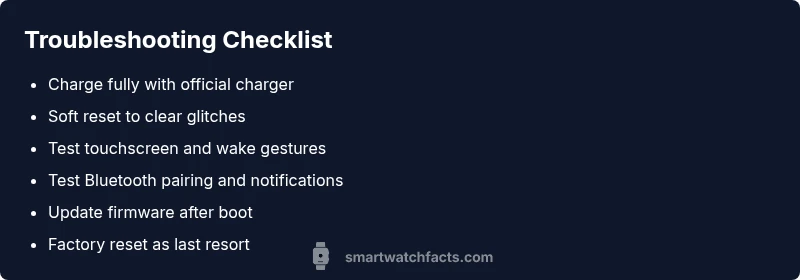
1) Charge your watch fully and confirm the charger/outlet work. 2) Soft-reboot the device to clear glitches. 3) Verify Bluetooth pairing with your phone and check notifications. 4) Test core sensors (heart rate, accelerometer) for responsiveness. 5) Update firmware if available. See the full guide for steps.
Quick checks you can perform today
If you’re wondering how to know if your smart watch is working, start with these quick checks. According to Smartwatch Facts, most issues boil down to power, connectivity, or software glitches, not a dead device. Begin by confirming the battery is charged, the charger and outlet are functioning, the touchscreen responds, and the watch and phone are paired properly. Keep the watch in view while testing notifications, taps, and wake gestures; a responsive system is usually clear within minutes. These checks require no tools and often save a trip to support.
For context, a working smartwatch should wake reliably, reflect touch input, and surface notifications with consistent vibrations or taps when expected. If any of these fail, the problem is likely within power, software, or connectivity channels. This is where following a structured troubleshooting path pays off and reduces frustration for you and your device.
According to Smartwatch Facts, many users fix issues by reseating chargers, restarting apps, and updating software. If you find yourself stuck, return to these basics before moving on to more involved steps.
What “working” means for a smartwatch
A healthy smartwatch should deliver timely screen responses, accurate sensor readings, stable Bluetooth or Wi‑Fi connections, and dependable notifications. Core systems to watch include the display (touch, brightness, and wake behavior), sensors (heart rate, SpO2, motion), connectivity (pairing with your phone, GPS), and power management (battery life and charging behavior). If any subsystem behaves inconsistently, document when it happens and what actions precede it. This data helps you isolate causes and communicate clearly with support if needed.
Connections matter: a watch can feel “working” in some areas while failing in others. For example, it may track steps but not display notifications. In such cases, separate the issue by subsystem and test in isolation. This approach saves time and helps you decide whether the problem is user-level (settings), device-level (hardware), or software-level (firmware).
When testing sensors, compare readings with a known baseline (e.g., heart rate during rest and activity) and note discrepancies. If readings drift or lag behind your activity, the watch may need calibration or software updates. The goal is to confirm consistent, repeatable results across typical daily tasks rather than perfect precision in every scenario.
Common failure points by category
- Power and charging: degraded battery, faulty charger, or damaged charging contacts often cause false non-responsiveness. Test with the official charger and a different outlet if possible.
- Display and touchscreen: unresponsive taps, delayed wake, or dim visibility signal display issues or a worn-out screen.
- Sensors and health features: inconsistent heart rate or sleep-tracking suggests calibration needs or sensor obstruction (watch not snug, skin contact issues).
- Connectivity: Bluetooth pairing failures, intermittent notifications, or GPS lock problems usually point to software settings or pairing disputes.
- Apps and notifications: misconfigured permissions, disabled alerts, or background activity limits can hide expected behavior.
- Battery life: rapid drain can mirror multiple root causes including background processes, worn battery, or firmware inefficiencies.
If you notice a problem in one category, test related areas to confirm scope. This helps you decide whether a quick setting change is enough or you should seek deeper support.
Diagnostic flow overview
The diagnostic flow helps you map symptoms to likely causes and remedies in a logical sequence. Start with the simplest checks (power, charger, reboot) and move toward more involved actions (firmware updates, reset, or professional service). A well-documented flow minimizes back-and-forth with support teams and speeds up resolution.
Key idea: isolate by symptom cluster (power-related, display-related, sensor-related, connectivity-related). For each cluster, list likely causes with estimated likelihood and apply the corresponding fixes from easy to harder. If a fix doesn’t resolve the symptom, progress to the next step. Always consider safety and warranty terms before more drastic actions.
This approach mirrors professional troubleshooting, but you can perform it at home with basic tools and clear notes about each step and outcome. Smartwatch Facts analyses show that structured flows reduce time-to-fix and reduce the chance of duplicating steps.
Step-by-step fixes for the most common issues
-
Charge fully and verify the charger and outlet are working. Leave it connected for at least 30 minutes and attempt a wake/restart.
- Tip: Use the original charger and cable; third-party accessories can hinder charging.
-
Soft reset or reboot the watch. Hold the power button or perform the specific gesture for your model to reboot without data loss.
- Tip: If the watch is frozen, a forced restart may be necessary.
-
Check charging contacts and clean them gently with a dry cloth. Ensure cables sit snugly and there’s no obstruction.
- Tip: Dirt or oils can prevent proper charging; avoid liquids.
-
Test screen responsiveness and wake gestures. Tap, swipe, and raise-to-wake in different lighting to confirm behavior.
- Tip: If the screen fails only under bright light, brightness or ambient light sensor calibration could help.
-
Verify Bluetooth pairing with your phone and ensure notifications are enabled. Re-pair if needed.
- Tip: Remove old pairs on both devices before re-pairing to avoid conflicts.
-
Check for firmware updates and install if available. A fresh update can fix known bugs and improve stability.
- Tip: Back up data if the update process might reset settings.
-
If issues persist, perform a factory reset as a last resort and reconfigure from scratch. Restore from a backup afterward.
- Tip: Factory resets erase data; ensure you’ve saved important information.
Estimated total time: about 45–90 minutes for a thorough run-through, depending on device and internet speed.
Safety, maintenance, and when to seek professional help
Safety first: avoid using damaged charging docks or exposed cords. If you smell heat, see swelling on the battery, or notice exposed wiring, stop using the device and seek professional service immediately. Do not attempt to disassemble a smartwatch; lithium-ion batteries can be hazardous.
Maintenance is simple but effective: store the watch within the recommended temperature range, keep the charging contacts clean, and update firmware regularly to minimize glitches. Use official accessories and avoid exposing the watch to liquids beyond its rated resistance.
If you’ve followed the diagnostic flow and step-by-step fixes but the watch still doesn’t behave consistently, it's time to involve professional support. Warranty terms may cover hardware issues or battery replacement. Document symptoms, steps taken, and any error messages to help technicians diagnose quickly.
Prevention and maintenance habits
- Schedule monthly checks of power, sensors, and connectivity to catch drift early.
- Keep firmware up to date and review app permissions so notifications stay reliable.
- Ensure a proper fit on your wrist to optimize sensor function and comfort.
- Clean the charging area regularly but carefully to maintain steady power transfer.
- Create a simple troubleshooting checklist to reuse whenever problems arise.
By adopting these practices, you’ll minimize recurring issues and keep your smartwatch running smoothly over time. Smartwatch Facts recommends keeping a short log of changes and results to track what helps most.
Steps
Estimated time: 45–90 minutes
- 1
Charge and verify power
Connect the watch to its original charger and ensure the outlet works. Let it charge for at least 30 minutes and observe if the screen lights up when connected. If it still doesn’t respond after a full charge, proceed to a soft reset.
Tip: Use a known-good outlet and avoid damaged chargers. - 2
Soft reset and reboot
Perform a soft reset by holding the power button or using the device-specific gesture. This clears minor software glitches without erasing data. After reboot, check screen responsiveness and basic functions.
Tip: If unresponsive, try a forced restart per your model’s instructions. - 3
Check charging contacts and cables
Inspect the contact points on both the watch and charger. Clean any dirt with a dry microfiber cloth and ensure cables sit firmly. A poor connection can mimic a dead device.
Tip: Avoid moisture and liquids near electronics. - 4
Test connectivity and notifications
Pair the watch with your phone again and confirm notifications appear. Test calls, messages, and app alerts. If alerts are missing, adjust app permissions and notification settings.
Tip: Remove and re-add the Bluetooth pairing if needed. - 5
Update firmware and apps
Check for available firmware updates and install them. Updates fix known bugs and improve stability. After updating, re-test core features.
Tip: Back up important data if the update may reset settings. - 6
Consider a factory reset (last resort)
If issues persist, perform a factory reset to restore default settings and reconfigure from scratch. Restore essential data from backup afterward.
Tip: Factory resets erase data; ensure you’ve saved key information.
Diagnosis: Watch won’t wake or respond reliably; battery drains quickly; Bluetooth pairing fails or notifications are delayed
Possible Causes
- highBattery is discharged or degraded
- highSoftware glitch causing UI unresponsiveness
- mediumLoose charging contacts or faulty charger
- lowOutdated firmware causing compatibility issues
- lowHardware fault with display or internal components
Fixes
- easyCharge the watch fully using the official charger and a functioning outlet
- easyPerform a soft reboot to clear temporary glitches
- easyInspect and clean charging contacts; reseat the charger
- easyUpdate firmware after successful boot
- mediumIf it still fails, contact official support or service center
People Also Ask
What should I do first if my smartwatch doesn’t turn on?
Start by charging the watch with the official charger and a known-good outlet for at least 30 minutes. If it still won’t wake, perform a soft reboot following your model’s instructions. If issues persist, check for a firmware update.
First, charge it fully and try a soft reboot. If it still won’t wake, update the firmware.
How can I tell if the sensors are functioning properly?
Test the heart rate sensor and accelerometer by tracing a consistent activity (rest, walk, light jog) and noting readings. If values seem off or lag behind activity, recalibrate if the watch allows it or update software.
Test sensors during different activities and compare readings for consistency.
Why won’t my watch pair with my phone?
Verify Bluetooth is enabled on both devices, try forgetting the watch and re-pairing, and ensure the watch is within range. If problems persist, reboot both devices and check for software updates.
Make sure Bluetooth is on, re-pair, and restart both devices if needed.
Is a factory reset always necessary?
A factory reset is usually a last resort after other fixes fail. It clears data and settings, so back up important information first. If possible, attempt resets in a controlled, stepwise manner.
Only use a factory reset after other fixes fail and you’ve backed up data.
How often should I recharge my smartwatch?
Most smartwatches require daily charging with typical usage, but this varies by model and activity. Monitor battery drain over a few days to establish a personal charging routine.
Charge when the battery gets low, and check for abnormal drain during daily use.
What if I suspect hardware damage?
If you suspect hardware damage (screen, battery, charging port), contact support or a service center, especially if the device is under warranty. Do not attempt internal repairs.
Contact support if you suspect hardware damage, don’t open the device yourself.
Watch Video
Key Points
- Verify power and charging first
- Test core sensors and connectivity in isolation
- Use firmware updates to fix bugs
- Reserve factory reset as last resort
- Seek professional help when hardware faults are suspected