What to do if smart watch display is not working
Urgent guide to troubleshoot a smartwatch display not working: quick checks, safe resets, software fixes, and when to seek professional help for reliable recovery.


Common causes include a drained battery, a frozen screen, faulty display cable, or software glitch. Start by forcing a restart, then check the charger and charging port, ensure screen brightness is not zero, and rule out a faulty app or recent update. If it persists, contact support. Have your model and serial handy. Keep warranty options in mind.
Why your smartwatch display may fail
According to Smartwatch Facts, display issues are a frequent reason users seek help, and many are fixable with simple steps. If you're facing a screen that won’t wake, shows artifacts, or stays blank, you’re not alone. This section breaks down why such failures happen—from power problems and software glitches to hardware faults—and how to distinguish between them. Understanding the root cause helps you pick the right fix quickly. The most common culprits are power-related issues (battery, charging port), software glitches (crashes, updates), or a stuck UI from apps. Knowing that context equips you to triage safely and avoid risky fixes that could void warranties. Throughout, remember this: quick, gentle steps beat aggressive tinkering when a device is under warranty or still within support coverage.
Quick checks you can do safely
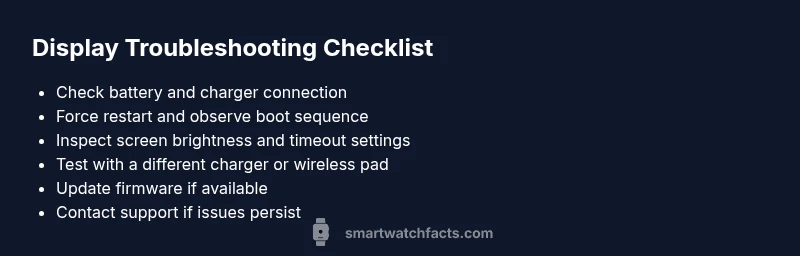
Before diving into complex steps, run through a checklist that often resolves the issue without professional help. These checks are designed to be safe and straightforward:
- Ensure the watch is powered on or charging; verify the charging cables and adapters are functional
- Increase brightness and verify screen timeout is not set to a very short duration
- Force restart or soft reset following your model’s procedure
- Try a different charger or charging pad if wireless charging is supported
- Remove recently installed apps or revert a recent update if the display glitch appeared after changes
- Check for available software updates and install if possible
If you see no improvement after these steps, proceed to deeper software checks or professional diagnostics. Smartwatch Facts recommends documenting model, serial number, and firmware version to speed up support calls.
Software vs hardware: how to diagnose
A display issue can stem from software or hardware, and the distinction guides your next move. Software problems often present as a frozen UI, unresponsive touch, or irregular brightness changes. Hardware problems may show as persistent black screen, screen bleed, dead pixels, or failure to wake despite power. Start with non-invasive actions: reboot, update software, and reset preferences. If the screen remains non-functional after these steps, the fault could be hardware-related, requiring diagnostics from a technician. Tracking firmware release notes can also help determine if a known bug caused the symptom.
Common culprits and fixes
Here are the most frequent reasons a smartwatch display stops working, with practical fixes you can attempt safely:
- Battery or charging issue: clean the charging contacts, use a known-good charger, and avoid charging through a computer USB hub if it provides unstable power. Difficulty resolving after a full charge suggests deeper power problems.
- Frozen UI or crash: perform a forced restart and clear any pending apps that may be causing a freeze.
- Screen brightness or display settings: check brightness, always-on display, and auto-brightness settings; reset to default if needed.
- Software update glitch: install the latest update or roll back to a previous version if the option exists.
- Physical damage: look for cracks, dead pixels, or touch sensor damage; avoid applying force to the screen and seek professional service if you notice damage.
Note the symptoms as you test each potential cause; this creates a clear path for support if the problem persists.
Safe reset, backup, and data protection
If the issue remains unresolved after software updates and resets, consider a safe reset to restore factory settings—while ensuring you back up data first. Depending on your watch, you can back up health metrics, apps, and contacts to the cloud or companion phone. After a reset, re-pair the device with your phone and reinstall apps gradually to identify if a specific app triggers the issue. Always verify that your data is securely saved before performing resets.
Prevention tips to avoid future display problems
Preventive steps reduce the chance of future display failures. Keep your device updated with the latest firmware, avoid extreme temperatures, and protect the display from impact. Use a quality screen protector if offered for your model and avoid third-party screens that aren’t certified. Regularly clean the charging contacts with a dry, lint-free cloth and store the watch in a cool, dry place. Periodically review app permissions and disable background apps that cause excessive resource usage, which can lead to overheating or glitches.
When to seek professional help
If none of the above steps restore the display, professional diagnostics are warranted. Contact the manufacturer’s support or a certified service center, especially if your watch is under warranty. Document the steps you’ve taken, your device’s serial number, and firmware version to expedite service. A technician can evaluate internal cables, the display module, or the main board for faults that aren’t user-serviceable.
Steps
Estimated time: 25-45 minutes
- 1
Power cycle the watch
Charge the watch for at least 30 minutes with a known-good charger. Then perform a forced restart following your model’s instructions. This often resolves minor software glitches that prevent the display from waking.
Tip: Note if you used any non-certified chargers; compatibility matters for reliable power delivery. - 2
Check display settings
Increase brightness, disable auto-brightness temporarily, and ensure the screen timeout isn’t set to a very short duration. A misconfigured setting can make the screen appear off or too dim.
Tip: Take a quick photo or test app to verify touch input after changes. - 3
Test charging and reboot
Plug in the charger and observe if the watch shows the charging indicator. If the device responds to power but not after boot, this points to a software issue rather than a power fault.
Tip: If you see a battery icon with a flash of boot animation, the device power system is responding. - 4
Update or roll back software
If updates were recently installed and the display started failing afterwards, apply any newer patch or revert to the previous version if the option exists. This can fix bugs affecting the display.
Tip: Back up data before any major software change. - 5
Factory reset (last resort)
Back up health data, apps, and settings; perform a factory reset. After reset, re-pair with your phone and re-check the display functionality before restoring data.
Tip: Only reset if all other steps fail and you have a reliable backup.
Diagnosis: Screen remains black/unresponsive or shows persistent artifacts
Possible Causes
- highPower issue (battery or charger)
- highSoftware crash or freezing UI
- mediumDisplay hardware fault (screen, cable, connector)
Fixes
- easyTest with a known-good charger and inspect charging contacts
- easyPerform a forced restart and check for software updates or a rollback if available
- mediumReset display settings and brightness; back up data before factory reset if needed
- hardIf hardware fault is suspected, contact professional service or warranty provider
People Also Ask
What should I try first when my smartwatch display goes black?
Start with a forced restart and charge the device using a known-good charger. Check brightness and screen timeout settings. If the screen remains black, proceed to software updates or a factory reset if needed.
Start with a forced restart and verify charging. Then check brightness and timeout settings. If it stays black, try software updates or a factory reset if available.
How can I tell if the problem is hardware or software?
If the device responds to power but never shows the boot screen after a restart, you may have a hardware issue. If the device boots but the display glitches, it could be software.
If it powers on but won’t display, it might be hardware; if it boots with glitches, it could be software.
Is a factory reset safe for data?
A factory reset erases data. Back up health metrics, apps, and settings if possible before proceeding.
Yes, but back up data first; a factory reset will erase everything on the watch.
When should I contact support?
If none of the above steps restore the display, contact the manufacturer’s support or a certified service center, especially if the device is under warranty.
If the screen still won’t wake after all steps, reach out to support or a certified service center.
Can third-party chargers cause display issues?
Yes, unstable power from non-certified chargers can cause charging problems and affect the display. Use the recommended charger when possible.
Using uncertified chargers can cause power issues that affect the display, so stick with the recommended charger.
Does warranty cover display repairs?
Warranty coverage varies by brand and model. Check your documentation or contact support to confirm if the display fault is eligible for repair or replacement.
Warranty may cover display faults; check your terms or contact support to confirm.
Watch Video
Key Points
- Identify if issue is power-related first
- Differentiate software vs hardware symptoms
- Back up data before resets
- Use certified chargers for reliable power
- Seek professional help for hardware faults