Why Do Smart Watches Stop Working: A Practical Troubleshooting Guide
Urgent, practical guide to diagnose why smart watches stop working, covering battery life, software glitches, charging issues, connectivity, and when to seek help.


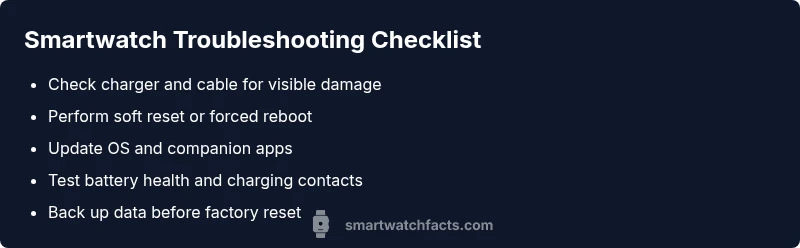
Common issues—like battery drain, software glitches, and faulty charging accessories—are usually the culprits when a smartwatch stops working. Start with the simplest checks: ensure the charger is working, perform a soft reset, and install any available OS updates. If these basic fixes don't help, continue with the diagnostic flow below for deeper troubleshooting.
Why smart watches stop working: common culprits
Smart watches can behave badly for many reasons, from aging batteries to software glitches. When you ask why do smart watches stop working, the simplest explanation is that one core function—power, software, or connectivity—has degraded. In many cases, problems originate at the battery: a worn-out cell can't hold a charge, leading to unexpected shutdowns or failure to boot. The second most common cause is a software issue: a stuck OS, conflicting apps, or corrupted cache can freeze the interface. Environmental factors, such as heat or moisture, can also trigger intermittent failures. Finally, faulty charging hardware—worn cables, dirty contacts, or a dodgy wireless charger—enables sporadic charging that makes the watch seem dead. By starting with these core areas, you can quickly isolate the root cause and avoid unnecessary steps. This approach aligns with Smartwatch Facts analysis, which finds battery health, software integrity, and charging reliability are the most frequent fault domains. In practical terms, you’ll test power, perform resets, check for updates, and inspect the charging setup before diving deeper.
Software glitches and resets: what to try first
Software issues are often the culprit when a watch becomes unresponsive or slow. Before you blame the hardware, perform safe software maintenance: restart the watch (soft reset) following your manufacturer’s instructions; force a reboot if available; and clear unneeded apps or caches if the OS supports it. After restarting, check for updates to the OS and essential apps, as developers frequently fix compatibility bugs that cause boot loops or delays. If the watch still misbehaves, try pairing it with your phone again, re-establishing Bluetooth connections, and re-syncing data. Some manufacturers offer a recovery mode or a temporary OS reinstall; use these options only if you’ve backed up important data. Remember: avoid aggressive factory resets unless you’ve exhausted softer options, since a reset erases personal data. If the issue persists, it may be due to deeper hardware problems that require professional service.
Power, battery, and charging: diagnosing wear and tear
Battery life is a leading indicator of watch health. If your watch dies quickly, or refuses to turn on after charging, the battery may be aging or damaged. Begin by testing with a known-good charger and cable; verify the charger’s LED indicator and try wireless charging if available. Calibrate the battery if your model supports it: fully discharge, then fully charge to 100%. Look for signs of swelling, overheating, or leakage, which indicate a replacement is needed. Battery health checks may be accessible in the devices’ settings or via your phone companion app. If the watch won’t boot even when plugged in, the issue could be a defective battery or charging port. In some cases, replacing the battery is a service task and should be handled by authorized technicians. Finally, consider that lithium-ion cells have finite lifespans; if your watch is several years old, plan for battery replacement as part of long-term ownership.
Connectivity and apps: why features stop working
Even if the watch powers on, features like call notifications, weather, and downloaded apps can stop working due to connectivity problems. Start by testing Bluetooth pairing with your phone; remove and re-pair if necessary. Check that the watch is connected to a stable Wi‑Fi network for app updates and cloud sync. Review permission settings for installed apps and ensure background activity isn’t blocked by battery saver modes. If apps crash or freeze, uninstall and reinstall those apps or reset app preferences. Some issues stem from out-of-date companion apps on your phone, so update both devices. If a specific sensor (GPS, heart-rate, SpO2) isn’t reporting data, verify sensor calibration and ensure the watch has proper access to motion and location services. When these steps fail, a full OS update or factory reset on the watch may fix corrupted configurations, but always back up data first.
Environmental factors: temperature, moisture, and physical damage
Extreme temperatures and moisture can degrade performance and shorten battery life. Avoid exposing your watch to high heat, direct sunlight, or freezing conditions, and dry yourself thoroughly after sweating or swimming. Moisture intrusion can trigger short circuits, especially if the watch is not water-resistant or the seals are compromised. Physical damage from drops can loosen internal connectors or crack displays, resulting in intermittent operation. Regular cleaning of ports and speakers helps prevent buildup that can interfere with charging and audio. If you suspect water ingress, dry the device promptly and run a diagnostic test if supported by the firmware. In environments with heavy dust or sand, use a protective case and avoid exposing the watch to abrasive particles that can scratch screens or clog sensors.
Data safety and when to escalate to repair
Before performing any invasive troubleshooting, back up data to avoid loss. If the watch continues to fail after software resets and battery checks, contact the manufacturer’s support or a licensed service provider. Some issues require hardware repair, battery replacement, or sensor recalibration that only trained technicians can safely perform. If your model is under warranty, check the coverage terms, as many common failures are included. To prevent future problems, keep firmware updated, use a quality charger, avoid extreme temperatures, and regularly inspect charging contacts for debris.
Steps
Estimated time: 60-90 minutes
- 1
Gather tools and safety checks
Collect the charger, cable, and a known-good power source. Make sure your device is in a safe, dry area away from liquids. Confirm you have any required accessories (charger cradle, magnetic puck) that fit your model. This preparation reduces the chance of repeating steps and helps you stay organized.
Tip: Have a charged phone nearby to reference model-specific reset instructions. - 2
Perform a soft reset or forced reboot
Follow your watch’s official procedure to perform a soft reset. If available, perform a forced reboot to clear any unresponsive state without erasing data. This step often resolves temporary software hiccups that prevent startup.
Tip: Avoid during critical data write operations to prevent data loss. - 3
Check OS and app updates
Connect to a stable network and verify the watch OS is up to date. Update essential apps on the watch and, if your model supports it, update the companion phone app as well. Updates fix known bugs that can cause boot problems or unresponsiveness.
Tip: Back up data before major updates whenever possible. - 4
Assess battery health and charging setup
Test with a different charger and cable, ideally a known-good unit. Inspect charging contacts for debris, corrosion, or damage. If available, run a battery health check in the settings or companion app to gauge degradation.
Tip: Clean contacts gently with a dry brush or microfiber. - 5
Backup data and consider a factory reset
If software problems persist, back up all data and perform a factory reset. This restores the device to default settings, removing corrupted configurations while preserving user data on a linked account (where supported).
Tip: Ensure cloud backups are enabled before resetting. - 6
Seek professional repair if needed
If the watch still won’t power on or shows hardware faults (battery swelling, display damage, moisture ingress), contact an authorized service provider. Professional repair is recommended especially for warranty-covered devices or when battery replacement is required.
Tip: Check warranty status before paying for repairs.
Diagnosis: Smartwatch won't turn on or starts up intermittently
Possible Causes
- highBattery is deeply discharged or failing
- highFirmware/software crash causing boot loop
- mediumCharger, cable, or wireless charging pad malfunction
- lowWater damage or corrosion in charging contacts
Fixes
- easyInspect charging accessories for damage and try a known-good charger
- easyPerform a soft reset or forced reboot per manufacturer guidelines
- easyUpdate to the latest OS and app versions, then restart
- mediumIf the watch still won't boot, back up data if possible and consider factory reset
- hardSeek professional service for battery replacement or hardware repair
People Also Ask
Why won't my smartwatch turn on after charging?
If it won’t power up after charging, start with a soft reset and try a different charger. Check for any signs of battery swelling or heat. If the device remains unresponsive, review recent OS updates or perform a factory reset after backing up data.
Try a soft reset and a different charger; if it still won’t turn on, check for battery signs and consider a reset after backing up data.
Can software updates fix a non-responsive smartwatch?
Yes. Software updates can fix boot loops and unresponsiveness caused by bugs. Ensure your watch and its companion app are both updated, then restart the device.
Yes, update both the watch and the companion app, then restart.
How can I tell if the battery needs replacement?
Indicators include rapid battery drain, failure to hold a charge, or swelling. If you notice swelling or overheating, stop using the device and seek professional service.
Look for rapid drain, swelling, or overheating—these mean battery replacement may be needed.
Is it safe to factory reset a smartwatch to fix issues?
Factory resets can fix corrupted settings but erase data. Back up first, then reset only if softer fixes fail. Restore your data after the reset.
You can reset, but back up first; it erases data, so only use it after softer fixes fail.
What should I do if water damage occurs?
If exposure to water is suspected, power off (if possible) and dry the watch carefully. Avoid heat sources and seek professional help if the device shows signs of corrosion or improper operation.
If water got in, power off and dry it, then consult a pro if it still misbehaves.
When should I seek professional help for a smart watch problem?
If basic resets, updates, and battery checks don’t fix the issue, professional repair or battery replacement may be necessary. Check warranty terms before paying.
If simple fixes fail, it’s time to get professional help, especially for battery or hardware faults.
Watch Video
Key Points
- Back up data before resets
- Test with known-good charger and cable
- Update OS and apps first
- If hardware issue is suspected, seek professional service
- Battery health degrades with age—plan for replacement