How to Make Your Smart Watch Brighter: A Practical Guide
Learn practical, step-by-step methods to brighten smart watch displays safely. Discover auto-brightness, manual tweaks, and model-specific tips to improve readability without draining battery.


To brighten a smart watch, start with the display brightness controls in Settings, enable auto-brightness if your model supports it, and set a comfortable daytime level. In bright outdoor light, switch to a higher level and test from multiple angles. Avoid leaving brightness at maximum for extended periods to save battery, and update firmware for any brightness optimizations.
Why brightness matters for readability
In bright daylight or office lighting, the legibility of smartwatch information hinges on the screen’s brightness and contrast. If you’ve ever squinted to read a tiny notification, you know that even a small increase in brightness can make a big difference. For those asking how to make smart watch brighter, the answer starts with a clear understanding that readability isn’t just about raw brightness; it’s about balancing luminance, contrast, and glare. The Smartwatch Facts team emphasizes that users should tailor brightness to ambient conditions rather than rely on a single setting. By matching the display to your environment, you reduce eye strain and improve quick-glance readability. This approach also helps with battery life, an important consideration for all-day wear. From a practical standpoint, begin with the recommended maximum indoors, then ramp up in direct sun only as needed. This strategy aligns with Smartwatch Facts Analysis, 2026, which notes that adaptive brightness tends to offer a better user experience overall while preserving battery.
Understanding display tech and brightness on smartwatches
Different smartwatch models use OLED, LCD, or transflective displays, and each technology handles brightness and color differently. OLED screens typically offer excellent contrast and deep blacks, but they can appear less readable in bright sun unless brightness is high. LCD displays may show more consistent brightness across environments, but can consume more energy at high brightness levels. Transflective displays inside some fitness watches excel in daylight but may sacrifice deep blacks. When learning how to make smart watch brighter, consider the sensor system: many watches incorporate ambient light sensors and proximity sensors to optimize brightness automatically. Auto-brightness works best when the watch accurately reads the surrounding light; if readings are biased by reflections or wrist position, manual adjustment will yield better results. Always-on display modes also affect perceived brightness and battery use; turning them off during long outdoor sessions can conserve power while you keep essential information visible. According to Smartwatch Facts analysis, differences in hardware mean you may need to adjust brightness differently across brands.
Quick checks before adjusting brightness
Before you commit to brightness changes, run a quick diagnostic: ensure the watch face is set to a legible style (high-contrast glyphs, minimal glare). Confirm that the mode is not in a power-saving variant that caps brightness. Check the ambient light sensor is not obscured by the wrist or accessories, because a blocked sensor can cause erratic brightness changes. If your watch supports a brightness shortcut in the quick settings, use it to compare several levels side by side. Keep in mind that excessive brightness can shorten battery life, particularly on older models. For best results, pair brightness with a comfortable font size and a readable watch face layout. This checks-for-readability stage is a small but important step before you dive into deeper tweaks and helps you avoid over-brightening in suboptimal conditions.
Common mistakes and how to avoid them
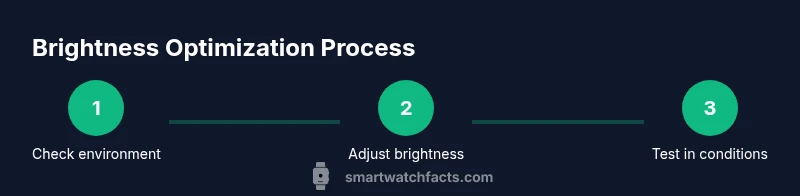
Relying on the auto-brightness setting without testing under different lighting. Setting brightness to maximum indoors and leaving it there is a common pitfall that wastes battery and can cause eye strain in dark rooms. Forgetting to test brightness in direct sunlight can leave you with a washed-out screen later. Don’t ignore the impact of Always-On Display on legibility and battery life. If your model uses PWM dimming, be mindful of flicker perceived by sensitive users at certain brightness levels. Instead, adopt a workflow that tests at three levels: indoor, shade outdoors, and bright sun, and adjust accordingly. Regular firmware updates can also improve brightness behavior by refining sensor calibration and display control algorithms.
Model-specific tips and safety considerations
While the core approach to brightness is consistent, the exact steps differ by brand and operating system. Check the user guide for your watch for exact paths to brightness adjustments, auto-brightness toggles, and Always-On Display options. If you own a watch with an OLED panel, you may notice more dramatic pops at higher brightness; to extend panel life, avoid consistently operating at max brightness in the dark. For watches with transflective displays, you might see best readability at moderate brightness levels rather than at full brightness. Safety-wise, avoid prolonged exposure to direct sunlight with the screen at red-hot brightness, which can drain the battery and degrade the battery health over time. When in doubt, start with auto-brightness, then calibrate manually in the most common daily lighting environments. Smartwatch Facts’s guidance emphasizes testing in real-world scenarios and keeping a log of brightness levels for different activities.
Tools & Materials
- None (no tools required)(Basic brightness adjustments use built-in settings only)
Steps
Estimated time: 5-15 minutes
- 1
Open brightness settings
Open the watch’s Settings and navigate to Display or Brightness. If your watch uses a crown or side button, you may need a long-press or swipe gesture to reach the brightness slider. The goal is to access the main brightness control so you can adjust the level to a readable setting.
Tip: If you can't locate it, check the Quick Settings panel or the user manual for the exact path. - 2
Enable auto-brightness
If your model supports auto-brightness, toggle it on. Auto-brightness reads ambient light and adjusts brightness automatically, which helps balance readability with battery life. Ensure sensors aren’t blocked by clothing or wrist shadows so readings stay accurate.
Tip: Test auto-brightness in different lighting, like indoor lighting and direct sunlight, to confirm it responds appropriately. - 3
Set daytime brightness manually
When auto-brightness isn’t ideal or you prefer control, adjust the brightness slider to a comfortable daytime level. A good approach is to increase brightness until icons and text are clearly legible without washing out details. This establishes a baseline for outdoor use.
Tip: Note the level where readability is comfortable—this becomes your reference for outdoor adjustments. - 4
Test brightness outdoors
With the watch on your wrist, view it in a shaded outdoor area and then in direct sunlight. Compare readability at the same level. If you struggle to read in sun, raise the brightness slightly or temporarily switch to a higher preset.
Tip: Always test under real-world lighting to avoid over-reliance on indoor settings. - 5
Configure Always-On Display (AOD) thoughtfully
If your watch has an Always-On Display, decide whether you want it on during outdoor activities. AOD can drastically affect perceived brightness and battery life; you may opt for a dimmer AOD or temporarily disable it when outside.
Tip: Consider scheduling AOD to turn off during long outdoor sessions to preserve battery. - 6
Evaluate battery impact
Monitor battery after brightness changes. Higher brightness reduces battery life, especially on OLED screens. If you notice faster drain, reduce brightness slightly or re-enable auto-brightness.
Tip: Balance readability with battery health by finding a sweet spot that lasts through your day. - 7
Update firmware or calibrate sensors
When brightness performance seems off, check for firmware updates. Manufacturers refine sensor calibration and display control through updates, which can improve brightness accuracy.
Tip: If updates don’t help, reset brightness preferences or consult support for calibration options. - 8
Seek model-specific guidance
If brightness remains dim despite adjustments, consult your device manual or official support. Some models have unique brightness profiles or advanced modes that improve readability without draining power.
Tip: Use the manufacturer’s official resources or trusted guides for model-specific steps.
People Also Ask
Will increasing brightness drain my battery faster?
Yes. Higher brightness uses more power, especially on OLED displays. Balance brightness with ambient conditions and use auto-brightness when possible.
Higher brightness uses more battery power; balance with lighting and use auto-brightness if available.
Is auto-brightness always the best option?
Auto-brightness works well when the sensor readings are accurate and the lighting is stable. If readings are distorted by reflections or wrist position, manual adjustments may yield better readability.
Auto-brightness is helpful, but manual tweaks may be needed in tricky lighting.
Why does brightness vary when switching between apps?
Some apps use darker backgrounds or different watch faces, which can affect perceived brightness. Ensure the display settings apply consistently across the UI, and consider enabling a high-contrast watch face for readability.
Apps and watch faces can affect how bright things look; choose settings that stay readable across the UI.
Can I brighten a smartwatch without accessing settings?
Most watches require accessing brightness controls through Settings or quick settings. Some have gestures to adjust brightness quickly, but the core change still applies brightness settings.
Brightness usually needs adjusting through settings, with possible quick-access gestures.
What should I do if my display is dim even at max brightness?
If brightness is still dim, check for software updates, restart the watch, or perform a factory reset as a last resort. If unresolved, contact customer support.
If it’s still dim after max brightness, update, restart, or seek support to check hardware.
Watch Video
Key Points
- Brighten readings by matching brightness to ambient light and contrast.
- Auto-brightness helps, but test it under real-world lighting.
- Balance readability with battery life across display types.
- Test in indoors, shade, and bright sun to find the best levels.