Why Is My Smart Watch Dying So Fast? Practical Battery Fixes
Facing rapid smartwatch battery drain? This Smartwatch Facts guide helps you diagnose causes, optimize power use, and extend battery life with practical, tested steps.


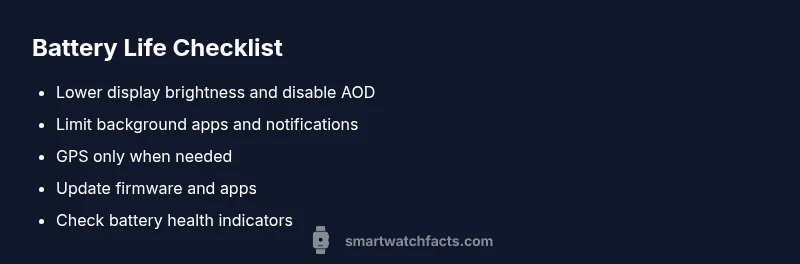
If your smartwatch is dying fast, the most common culprits are bright screens, always-on display, and too many background tasks. Start by lowering brightness, turning off the always-on feature, and closing unused apps. Check battery health in settings and install any available firmware updates. These quick fixes often restore hours of use without replacing the device.
Understanding smartwatch battery drain
If you're asking why is my smart watch dying so fast, you're not alone. Battery drain on modern wearables happens when hardware, software, and usage collide. According to Smartwatch Facts, the most predictable drivers are screen brightness, always-on display, GPS and continuous sensors, and aging batteries. In everyday use, a combination of notifications, frequent heart-rate checks, and background syncing can steadily chip away at charge. This section explains how power flows through a watch and how different settings push the battery harder. By understanding the interplay of display, radios, and sensors, you’ll spot the low-hanging fixes that deliver immediate relief. The goal is to create an actionable framework you can apply to any smartwatch, whether you’re on Wear OS, watchOS, or a Samsung platform. Remember: small adjustments add up fast, especially when you combine several improvements. Smartwatch Facts emphasizes practical tweaks over dramatic changes, so you can keep features you rely on while extending your daily life between charges.
Common culprits and quick tests
Power drain rarely stems from a single issue. The most common culprits include high display brightness, Always-On Display (AOD), GPS use during workouts, continuous heart-rate monitoring, and battery health that has aged. To test quickly:
- Dim the screen and disable AOD; monitor changes over 24 hours.
- Review battery usage by feature in Settings to identify energy hogs.
- Disable nonessential background apps and minimize notification load.
- Turn off GPS when not needed and limit continuous tracking.
- Install firmware updates, as they often include power-management improvements. If life remains short after these steps, consider deeper diagnostics or professional service for a battery health assessment or replacement options.
Measuring usage and health
Measuring power usage is the key to narrowing down the root cause. Most watches include built‑in tools such as battery dashboards, health metrics, and diagnostic apps. Start by checking:
- Battery usage by app and feature: screen, radios (Bluetooth, GPS, cellular), sensors (heart-rate, SpO2).
- Screen-on time versus total daily usage to gauge whether you’re using more energy than expected.
- Battery health indicators: cycles, capacity, wear level (if the watch supports it). If your device lacks explicit health metrics, rely on real-world testing: note how long a full charge lasts under typical conditions and compare how long it lasts after making each change. Commonly, reducing screen brightness, enabling power-saving modes, and limiting background heart-rate monitoring yield immediate relief. After adjustments, re‑test for a couple days to verify improvement.
Quick wins you can try today
Some fixes require only minutes and can yield noticeable gains. Start here and then proceed to deeper changes if needed:
- Lower brightness or enable adaptive brightness; turn off always-on display when not necessary.
- Limit push notifications and reduce widget refresh rates.
- Close unused apps and restrict background activity for fitness trackers.
- Disable GPS, or set it to “while using” rather than always on for apps that don’t need constant tracking.
- Update to the latest watch OS and companion phone apps to benefit from refined power management. These quick wins are safe for most users and offer a good balance between functionality and longevity. Smartwatch Facts frequently observes that even small adjustments can extend daily life substantially for a wide range of models.
Diagnostic flow: symptom to solution
Use a simple, repeatable decision flow to isolate root causes. Symptom: rapid drain after a full charge.
- Cause: Bright screen and AOD enabled — likelihood: high — fix: lower brightness; disable AOD; observe for 1–2 days.
- Cause: Background apps — likelihood: high — fix: close apps; review background settings.
- Cause: Continuous GPS or HR monitoring — likelihood: medium — fix: limit tracking; adjust workout mode.
- Cause: Aging battery — likelihood: medium — fix: assess health indicators; plan replacement if needed.
- Cause: Firmware bug — likelihood: low — fix: update to latest version. If none of these fixes resolve the issue, consider a factory reset after backing up data, and retest. If the problem persists, professional service may be required for a battery replacement or hardware check.
Step-by-step fixes you can implement now
- Reduce display brightness; enable adaptive brightness or set a lower fixed level. Tip: Test at medium brightness during the day for a balance of readability and power.
- Turn off Always-On Display or shorten wake duration. Tip: Choose a legible watch face that works well at lower brightness.
- Close background apps and restrict background activity. Tip: Clear cached data for apps that seem persistent or drain power in the background.
- Turn off GPS when not in use and optimize workout settings. Tip: Use approximate routes when indoors or workouts with minimal tracking.
- Update firmware and apps to the latest version. Tip: Back up data before updating to avoid loss.
- Check battery health in Settings/Diagnostics. Tip: If health shows wear, plan a replacement or consult a service provider.
- Reset to factory settings if issues persist after other fixes. Tip: Perform a backup to protect personal data.
- Consider professional battery replacement if your model supports it. Tip: Use authorized service to protect water resistance and warranty.
Maintenance habits to extend life over time
Long-term care matters as much as immediate fixes. Practice these habits to reduce the frequency of deep battery drains:
- Charge smartly: avoid overnight charging; aim to keep the battery between roughly 20% and 80% when possible.
- Temperature matters: avoid leaving the watch in hot cars or direct sun, which can accelerate wear.
- Software updates: enable automatic updates to ensure efficient power management and bug fixes.
- Screen and haptics: reduce haptic intensity and select simpler watch faces to save energy.
- Regular checks: periodically review battery health and usage patterns to catch issues early. Smartwatch Facts emphasizes that small, consistent tweaks add up over weeks and months, helping you maintain usable battery life without sacrificing essential features." ,
Steps
Estimated time: 25-40 minutes
- 1
Assess current usage
Review when the battery drains fastest. Note screen-on time, GPS usage, and notifications to identify the primary culprits.
Tip: Use the built‑in battery dashboard for quick insights. - 2
Tweak display settings
Reduce brightness and disable Always-On Display. Observe changes for 24–48 hours to confirm impact.
Tip: Test readability at a lower brightness level. - 3
Limit background activity
Close or restrict background apps, and disable nonessential syncing.
Tip: Restart the watch after changes to clear cached processes. - 4
Optimize location and sensors
Set GPS to 'while using' and limit continuous heart-rate tracking when not needed.
Tip: Use workout modes that optimize power usage. - 5
Update software
Install the latest firmware and app updates to benefit from power-management fixes.
Tip: Back up data before major updates. - 6
Check battery health
Open Diagnostics (if available) to review battery wear and estimated capacity.
Tip: If wear is high, plan for replacement. - 7
Test with a reset
If issues persist, perform a factory reset after backing up data and re-test.
Tip: Only reset when necessary to preserve data. - 8
Seek professional replacement
If the battery cannot hold a charge, consider authorized replacement.
Tip: This preserves water-resistance and warranty where applicable.
Diagnosis: Smartwatch battery drains quickly after a full charge
Possible Causes
- highPower-hungry display settings (high brightness or always-on)
- highExcessive background activity and notifications
- mediumPersistent GPS/HR monitoring
- mediumAging battery or battery-health decline
- lowFirmware bugs or inefficient power management
Fixes
- easyLower screen brightness and disable always-on display
- easyClose or restrict background apps and reduce notifications
- easyLimit GPS usage and adjust workout settings
- easyCheck battery health indicators and consider replacement
- easyUpdate firmware and apps to latest versions
People Also Ask
What are the most common causes of rapid battery drain on smartwatches?
The main culprits are bright screens, always-on display, GPS usage, and continuous heart-rate monitoring. Checking battery usage in settings helps identify the biggest drains.
Common causes are a bright screen and background apps. Check battery usage in settings to find the biggest drains.
How can I test my smartwatch battery health?
Many watches offer a battery health report in Diagnostics. If not, compare daily wear with a consistent charging routine and look for quicker drops over time.
Look for a battery health report in diagnostics or compare daily usage over several days to gauge wear.
Will firmware updates help battery life?
Firmware updates can fix bugs and enhance power management. Keeping the watch up to date improves efficiency and longevity.
Yes, updates often improve power efficiency; keep your device current.
Is Always-On Display always bad for battery life?
AOD typically consumes more power because the display stays active. Disabling it or shortening wake time reduces drain.
Yes—turning off Always-On Display can save a lot of energy.
When should I replace my battery or watch?
If battery capacity declines significantly and fixes don’t help, replacement or upgrading may be more cost-effective in the long run.
If the battery won’t hold enough charge after fixes, replacement is worth considering.
Watch Video
Key Points
- Lower brightness and disable AOD to save power
- Close unnecessary background apps and limit notifications
- Keep firmware updated for power optimizations
- Check battery health before considering replacement
- Use power-saving modes during extended use