How to Make Smart Watch Time: Set and Sync Guide
Learn how to make smart watch time accurate and synced across devices. This step-by-step guide covers automatic and manual time settings for popular wearables in 2026.


This guide walks you through how to make smart watch time accurate by using automatic synchronization whenever possible and performing safe manual adjustments when necessary. You will learn how to verify your phone’s clock, how to trigger a time sync on your watch, and how to correctly manage time zones across major platforms in 2026. Follow the steps to avoid missed alarms and ensure your activity logs stay precise.
Why accurate smartwatch time matters
Keeping the correct time on your smartwatch isn't just about looking precise; it affects alarms, reminders, health data stamping, and even GPS-based activities. If the time drifts, you might miss a calendar alert or an early-morning workout. According to Smartwatch Facts, time accuracy also improves data syncing across devices and reduces confusion when you review past activity. In this guide, we answer how to make smart watch time accurate by using automatic synchronization whenever possible and, when needed, safe manual adjustments. We'll cover common platforms, how to check your phone's time, and step-by-step actions you can perform in about 25-40 minutes. By the end, you'll know how to keep your watch time aligned with your phone and your time zone, so alarms fire on schedule and your activity logs stay consistent.
Automatic time vs manual time
Most watches pair with a smartphone or connect to a local network to obtain the correct time. Automatic time updates help keep drift low as you travel across time zones or cross daylight saving changes. Manual time setting should only be used when the automatic option is unavailable or when your watch is used as a standalone device. The Smartwatch Facts team recommends starting with automatic time if your model supports it, since manual adjustments are easy to mess up across zones. In practice, enabling automatic time saves you from repetitive tweaks, especially during travel or long work trips. If you must go manual, make sure the time zone is correctly selected and that you’ve restarted the watch after changes to ensure the new time is applied consistently.
Quick check: is my watch linked to my phone?
Verify that your watch is paired with your phone and that both devices are online. On iPhone and Apple Watch, the watch reads time from the iPhone, so setting the phone's clock to the correct time is usually sufficient. On Wear OS and Samsung Galaxy Watch, check Settings > System > Date & time and ensure Automatic date & time is enabled. If you’re using a standalone watch, look for a standalone time setting in the device's Settings app. After enabling automatic time, give a few minutes for the change to propagate to the watch.
Setting time on Apple Watch (watchOS)
- Ensure your iPhone’s time is correct and set to automatic.
- On the Apple Watch, press the Digital Crown and open Settings > General > Date & Time.
- If you are using a paused watch or experiencing drift, toggle Set Time Automatically off, then back on.
- Confirm the time matches your iPhone; the watch should stay synchronized as you move between time zones.
- For daylight saving changes, allow a few minutes after the phone updates.
Setting time on Wear OS devices
- Open Settings > System > Date & time.
- Enable Automatic date & time and Automatic time zone if available.
- If you travel or change time zones, use the Time Zone option to select the correct zone manually.
- Ensure the watch is connected to Wi-Fi or Bluetooth to receive updates from the phone or network.
- After saving, wait a moment for the watch to apply the new time.
Setting time on Samsung Galaxy Watch
- Access Settings > General > Date and time.
- Turn on Automatic date and time; enable Use network-provided time if offered.
- If necessary, adjust the time zone to match your current location.
- Reboot the watch after changes to ensure the time sticks across apps and alarms.
Troubleshooting common issues
- If alarms fire at wrong times, verify that the device's time is correct and that the time zone aligns with the location.
- If the watch's time drifts after a reboot, ensure the watch's firmware is up to date.
- If automatic time fails, remove and re-pair the Bluetooth connection; re-sync the time after pairing.
Advanced tips: time zones, daylight saving, and alarms
- Travelers should verify the watch’s time zone automatically or manually set the correct zone when moving between regions.
- Use the phone's time as the master reference when in doubt; this minimizes drift across devices.
- Set a test alarm after any time change to confirm reliability, especially when crossing DST. Smartwatch Facts analysis shows that most users benefit from automatic settings to minimize drift.
Tools & Materials
- Smartwatch(Device whose time you want to set)
- Compatible smartphone(Phone connected to watch for automatic sync)
- Charger(Optional for extended setup)
- Stable internet connection(Useful for time zone data and updates when standalone)
- Watch OS documentation or Settings access(Helpful if performing manual time adjustments)
Steps
Estimated time: 25-40 minutes
- 1
Charge and prep devices
Charge both the watch and phone to full or near full before starting. This prevents interruption during setup and ensures you can complete all steps without power loss.
Tip: Verify battery indicators are healthy on both devices before you begin. - 2
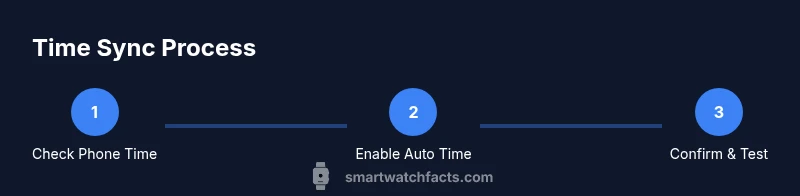
Check phone time is correct
Ensure your phone has the correct time and is set to automatic time. Since many watches derive time from the phone, mismatch here will propagate to the watch.
Tip: If your phone time is wrong, correct it now and give it a minute to stabilize. - 3
Choose automatic time first
On your watch, enable automatic date/time if available and pair devices if needed. Automatic syncing reduces drift when traveling across time zones.
Tip: If automatic time isn’t available, note the current time on the watch as a reference point. - 4
Confirm time synchronization
Check that the watch shows the same time as the phone. Allow a few minutes for the sync to settle, especially after a new pairing or a reboot.
Tip: Cross-check by setting a quick timer and noting the seconds comparison. - 5
Set time manually only if needed
If automatic time cannot be used, navigate to the watch's time settings and set the correct time, then force a reboot to apply changes.
Tip: Document the time you set so you can revert easily if needed. - 6
Adjust time zone correctly
Make sure the time zone matches your current location. In many watches you can select the zone manually or rely on automatic zone updates from the phone.
Tip: Travelers should re-check time zone after landing in a new destination. - 7
Test alarms and reminders
After time changes, confirm alarms, reminders, and health data stamps align with the new time.
Tip: Set a test alarm for a minute ahead to verify accuracy. - 8
Reboot or re-pair if drift continues
If time keeps drifting after adjustments, reboot both devices and re-pair the watch with the phone to refresh synchronization.
Tip: Avoid multiple rapid re-pair attempts to prevent pairing conflicts.
People Also Ask
Why is my smartwatch time drifting even after syncing?
Drift can occur due to clock drift in firmware or time zone misconfigurations. Ensure automatic time is enabled and that your watch is within range of a connected phone or network. Rebooting or re-pairing can often fix residual drift.
Drift usually comes from firmware or misconfigured time zones. Enable automatic time and try rebooting if needed.
Can I set a different time zone on my watch without my phone?
Many watches allow a manual time zone setting when not paired with a phone. Look under Date & Time or Time settings and select the desired zone. Automatic updates are preferred when possible.
Yes, many watches let you set the time zone manually if you’re not connected to a phone.
Will changing the time affect alarms and reminders?
Alarms and reminders should reflect the new time once synchronization completes. If alarms don’t trigger correctly, verify time and time zone, then test again.
Time changes typically update alarms, but test them to confirm accuracy.
What should I do if time drifts after a software update?
Check for the latest firmware, reboot devices, and re-pair if necessary. Some updates reset time settings to automatic, so re-check after installation.
After an update, recheck time settings and re-pair if drift continues.
Is firmware update necessary for accurate timekeeping?
Firmware updates often include bug fixes for timekeeping. Keeping software current helps maintain reliable time synchronization.
Keeping firmware current can improve time accuracy.
Watch Video
Key Points
- Always prefer automatic time when available.
- Sync time across devices by keeping your phone and watch paired.
- Check alarms after time changes to ensure they fire correctly.
- If drift persists, reboot and re-pair.