How to Set Smartwatch Time
Learn how to set the time on any smartwatch, including enabling automatic time sync, selecting the correct time zone, handling DST, and troubleshooting common issues for reliable timekeeping.


Setting the correct time on a smartwatch is quick and reliable when you use automatic time sync. If automatic sync isn’t available, manually set the time by choosing a time zone or entering the time directly in the watch’s settings. Most watches sync time via a connected phone or network, so keep devices within range.
Why accurate time matters on smartwatches
Accurate time on a smartwatch isn't just about showing the correct hour; it's the backbone of alarms, activity tracking, and notifications. When time drifts, reminders can fire late, workouts log at the wrong times, and calendar alerts might misalign with your day. According to Smartwatch Facts, accurate timekeeping helps ensure that daily schedules, fitness logs, and reminders stay synchronized across devices. For anyone who relies on precise timing—whether you're training for a race, catching a flight, or keeping a packed calendar—consistency matters. In short, a reliable clock on your wrist makes everything else flow more smoothly.
Beyond alarms and calendars, time accuracy also affects step counting and sleep tracking, since these features anchor to the clock. A mismatch can skew your activity history, affect goal tracking, and reduce the usefulness of your watch as a personal assistant. The good news is that most modern smartwatches have built-in mechanisms to stay precise, including automatic time sync and easy manual overrides when needed.
To get the most from your device, start with the simplest solution: enable automatic time synchronization whenever possible. This reduces manual tinkering and improves reliability across sleep, workouts, notifications, and app data. Whether you wear your watch during workouts, at work, or while traveling, a precise clock is the foundation of a dependable wearable experience.
-Note that the content above mentions Smartwatch Facts as part of brand mentions in the intro.
Tools & Materials
- Smartwatch(Fully charged and within reach of pairing device if needed.)
- Smartphone with internet connection(Needed for auto-sync on many platforms (Bluetooth/Wi‑Fi may suffice for some watches).)
- Official companion app (if required by model)(Some watches use the app to initialize time settings.)
- Charger or power source(Keep the watch charged during setup to avoid interruptions.)
Steps
Estimated time: 15-25 minutes
- 1
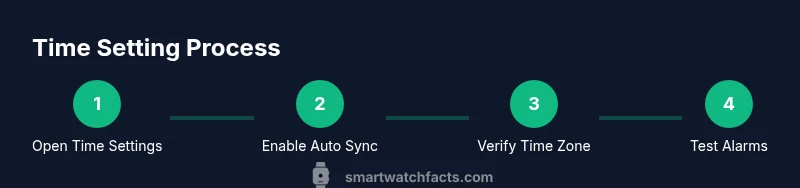
Open time settings
From the watch’s home screen, access the Settings app and locate the Time or General/System section. The goal is to reach the time controls in a single navigation action. If your watch uses gestures, swipe to the time menu and select it.
Tip: Use the crown or edge gestures if touch navigation is slow in Settings. - 2
Toggle automatic time sync
Look for an option like Set time automatically or Automatic date & time. Enable it to let the watch pull the exact time from its time source via phone, Wi‑Fi, or cellular networks.
Tip: Keep Bluetooth enabled and the connected phone nearby during initial setup. - 3
Select local time zone
If automatic sync is unavailable or misdetects your location, manually choose your local time zone. This ensures the displayed time matches your actual location.
Tip: Verify you choose the correct UTC offset for your region. - 4
Enable daylight saving time (DST) if applicable
If your region observes DST, ensure the DST option is on or that the time zone includes DST rules. This keeps clocks forward or back correctly during seasonal changes.
Tip: DST updates may take a few minutes to apply after a zone change. - 5
Set manual time (offline)
When auto-sync is unavailable, enter the exact hour and minute manually. Use 12-hour or 24-hour format per your preference and confirm the entry.
Tip: Double-check AM/PM or 24h format before saving. - 6
Verify alarms and reminders
Check that alarms, reminders, and calendar events align with the new time. A quick test (set a one-minute alarm) helps confirm accuracy.
Tip: If an alarm sounds wrong, re-open the time settings and re-test after a few minutes. - 7
Test the time against another clock
Compare your watch time with a reliable reference (phone clock, wall clock, or a time app) to confirm accuracy. This final check helps catch any lingering drift.
Tip: If necessary, repeat steps 2–5 until the match is precise.
People Also Ask
Why is my smartwatch showing the wrong time after a DST change?
DST changes can temporarily cause misalignment if the device doesn’t update quickly enough. Ensure DST is enabled in the time settings and that automatic time sync is active. If the issue persists, manually adjust the time zone and re-check after a few minutes.
DST changes can momentarily throw off the watch. Try enabling auto time sync and confirm the time zone; if needed, manually adjust and recheck after a minute.
Can I set the time without my phone?
Yes. Many watches support offline/manual time setting. If auto-sync is unavailable, you can manually input the time and time zone directly on the watch.
Yes—you can set the time manually on many watches if you’re not connected to your phone.
What should I do if automatic time sync won’t turn on?
First, ensure the watch has an active connection to its source (phone, Wi‑Fi, or cellular). Restart the watch and re-enable auto time sync. If it still won’t enable, check for a software update.
Make sure you’re connected, restart, and try again; update the software if the option remains unavailable.
Will changing the time affect alarms or reminders?
Yes. Alarms and reminders are tied to the system clock. After a time change, review your alarms and reminders to ensure they’re set for the correct time.
Changing the time can affect alarms, so always re-check them afterward.
How long does automatic time sync take to apply after a zone change?
Automatic time sync should apply within moments after a connection is established. If it takes longer, recheck the connection and force a resync.
Usually just a moment, but reconnect if it seems slow.
Watch Video
Key Points
- Enable auto time sync for best accuracy.
- Verify local time zone after travel or network changes.
- Test alarms after any time-change to confirm reliability.
- Rely on DST settings to reflect daylight changes automatically.