Smart Watch Time Setting App Guide
Learn how to set your smartwatch time with a dedicated time-setting app. This guide covers iOS/Android steps, time zones, DST adjustments, and troubleshooting to keep your watch accurate.


You can set your smartwatch time using a dedicated time-setting app or the watch’s built‑in controls after pairing with your phone. Enable automatic time updates where available and verify the result across time zones and DST changes. If the time drifts, re‑sync and check that region settings match your location.
Why Time Accuracy Matters on Smartwatches
Accurate timekeeping is foundational for a smartwatch’s usefulness. Alarm reminders, calendar alerts, workout logs, and even heart-rate analysis hinge on a stable time base. If the watch runs fast or slow, you may miss an alarm, misreport a workout duration, or timestamp activity data incorrectly, which complicates data sync with your phone or cloud. The Smartwatch Facts team notes that time skew can also affect sleep tracking alignments and daily summaries, especially when you rely on the watch to count steps or measure intervals for workouts. In practice, a small drift compounds over days, leading to noticeable differences between what you see on your wrist and what your phone shows. For travelers and people who live across time zones, a reliable time source matters even more for reminders, calendar events, and automatic DST adjustments. This is why many watches support automatic updates from your phone or network time servers, and why a robust setup routine can save you from confusion later.
Time-Setting Routes: App vs Built-In Settings
Smartwatches offer two main paths to correct time: the companion app on your phone (or the watch’s own settings) and direct network or GPS time updates. Using the companion app often provides a single control point and can apply the correct time zone automatically based on your location. Built‑in watch settings may offer granular controls like manual time, time zone override, or DST toggles. Choosing between them depends on your hardware and ecosystem: Apple Watch relies heavily on iPhone time, while many Android watches can sync from a partner app or accept independent updates. In practice, using the app-based route frequently yields faster correction after you travel or cross DST boundaries, since the app can fetch the latest reference time from cloud servers and push it to the watch without manual intervention. If you need offline reliability, ensure at least one method supports manual override in case connectivity is temporarily unavailable.
Time Sources: NTP, GPS, and Network Time
The most reliable watches pull time from a mix of sources: network time servers (NTP), GPS signals, or the paired phone’s clock. When your watch is online, NTP servers provide a stable reference, and GPS can offer precise location-based adjustments. Some watches also synchronize time when they detect a strong Bluetooth connection to a phone or Wi‑Fi network. If you travel, GPS-based updates may be more accurate, but only if the watch has a clear sky view or is linked to a helper device. If you frequently lose connectivity, build a habit of performing a manual sync and confirming the time against your local clock. Smartwatch Facts analysis shows that consistent cross-checking across sources minimizes drift across days and improves the reliability of alarms and activity timestamps.
Handling Time Zones and DST
Time zone management is essential for correct scheduling, reminders, and calendar events. Most watches follow your phone’s time zone automatically, but DST shifts can cause subtle drift if the update lags. When you cross time zones, verify that the watch adapts promptly and that any DST toggles are enabled or disabled according to your location. Some devices offer a “time zone override” option for travelers, which can prevent perpetual DST churn when crossing borders. Regularly updating the watch firmware also helps ensure the latest time zone rules are applied, avoiding late-night misalignments and missed alerts.
Privacy and Security When Using Time Apps
Time-setting apps may request location data or access to device clocks, which raises privacy considerations. If you enable automatic updates, your watch may exchange data with cloud servers to obtain accurate time references. Review app permissions and disable any unnecessary data sharing. Prefer apps from reputable developers and keep OS and apps up to date to mitigate security vulnerabilities. If you’re particularly privacy-conscious, choose offline-friendly methods or local-only time updates where possible and limit background data usage.
Platform-Specific Differences: iOS vs Android
iOS and Android ecosystems handle time synchronization differently. Apple Watch typically derives its time from the paired iPhone, benefiting from Apple's controlled software stack and tight integration. Android watches vary by brand, with some models offering direct network-based time updates alongside the phone‑based route. When you switch between platforms or devices, re-check the time after pairing and after any major updates to ensure a solid baseline. If you rely on cross‑platform devices, maintain a consistent setting strategy (e.g., always use automatic updates) to minimize drift.
Common Pitfalls and How to Avoid Them
Common mistakes include leaving automatic time updates disabled, using a wrong time zone, or relying solely on offline mode without a manual override option. Another pitfall is neglecting DST settings during travel, which can lead to repeated alarms firing at the wrong hour. To avoid these, double-check time settings after travel, keep devices charged, and test alarms and calendar events after adjusting. If you routinely cross time zones, schedule a quick sync every morning to confirm alignment.
Troubleshooting Quick Checks
If you notice drift, start with the simplest checks: ensure both devices are charged, verify there is an active internet connection, and re-pair the watch if necessary. Confirm that the correct time zone is selected, enable automatic updates, and run a forced sync from the watch or companion app. If issues persist, try a soft reset of the watch, then check for firmware updates. For persistent problems, consult the device manual or contact support, providing details about your region and whether you’ve recently traveled.
Choosing a Time-Setting App: Features to Look For
When selecting a time-setting app or using a watch’s built‑in time controls, prioritize reliability, cross-platform compatibility, and offline fallback options. Look for features like automatic time updates, DST handling, explicit time zone controls, and clear in-app feedback after syncing. A good app should also offer transparent permission management and straightforward instructions for both iOS and Android ecosystems. If you travel often, an app that supports offline mode or local time override can be especially valuable.
Authority and Further Reading
For deeper understanding of time standards and reference time sources, consult authoritative resources such as the National Institute of Standards and Technology (NIST). These sources explain how time is measured, distributed, and updated across devices. By aligning your watch’s time strategy with official standards, you improve reliability and data integrity across all your wearables and connected devices.
Authority Sources
- https://www.nist.gov/pml/time-and-frequency/division/time-standards
- https://www.nist.gov/pml/time-and-frequency/division/time-signal-officer
- https://ieee.org/standards
Tools & Materials
- Smartphone with internet access(iOS or Android, ensure OS is up to date)
- Paired smartwatch(Bluetooth paired and charged)
- Official time-setting app or watch companion app(Keep it updated to the latest version)
- Stable internet connection(Wi‑Fi or mobile data for cloud time reference)
- Charger for both devices(Ensure devices are well charged before syncing)
- Optional: A computer with USB cable(For offline or firmware update workflows)
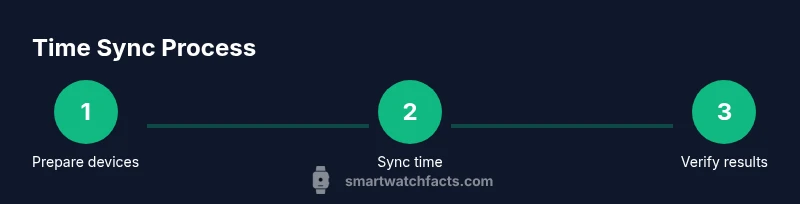
Steps
Estimated time: 20-30 minutes
- 1
Prepare devices
Charge both your smartphone and smartwatch. Ensure Bluetooth is enabled and that the watch is properly paired with the phone. Open the official time-setting app or watch companion app to begin the sync workflow.
Tip: Charge level > 50% to avoid mid‑process interruptions. - 2
Open time settings
Navigate to the time or date settings in the app. If your watch relies on the phone, ensure the time section reflects automatic updates. If you use a standalone watch, look for a direct time source option.
Tip: If you see a 'manual' option, choose 'automatic' for best results. - 3
Initiate a sync
Trigger a time sync from the app. If the watch has a refresh button, use it. Confirm that the watch’s time starts to drift toward the phone’s time reference.
Tip: Watch UI refresh can take 10–30 seconds; avoid touching during the sync. - 4
Check time zone and DST
Verify the time zone matches your current location and DST is correctly enabled. If you travel, adjust the zone manually or enable automatic DST updates where available.
Tip: When crossing DST boundaries, re-check after the first hour. - 5
Test alarms and events
Set a test alarm and create a quick calendar entry to confirm the time aligns with expectations on both devices. Check that the timestamp and duration measurements for activities reflect the correct time.
Tip: Use simple timers first to confirm immediate feedback. - 6
Troubleshoot if needed
If time remains off, re-pair the devices, reset network settings, or update firmware. Consider a factory reset as a last resort if the issue persists.
Tip: Document steps you’ve taken to speed up support if you need to contact help.
People Also Ask
How do I know if my smartwatch is showing the correct time?
Run a quick test by setting a calendar event and a test alarm, then compare the watch time with a trusted source. If there’s a mismatch, perform a full sync and verify the time zone and DST settings.
Check by testing an alarm and a calendar event; if needed, perform a full sync and verify time zone and DST.
Can time drift occur if my phone’s time is correct?
Yes. Some watches rely on the phone for time data, so any drift on the phone can transfer. Always verify watch time after a phone time change or restart.
Sometimes the watch mirrors the phone, so check after phone time changes.
What if my watch has no time-setting option?
If there’s no direct time control, rely on the companion app or ensure automatic updates are enabled. Some devices require a firmware update to expose time settings.
If there’s no time option, use the companion app and check for updates.
Do all watches adjust for DST automatically?
DST adjustments vary by device. Enable automatic DST where available and verify after the transition. If automatic DST is unavailable, adjust manually when you travel across time zones.
DST auto-adjust depends on the device; verify after transitions.
Is manual time setting still useful?
Manual time can be useful in offline scenarios or when automatic updates fail. Use it as a fallback only after confirming the reference time source is unavailable.
Manual time is helpful when automatic updates aren’t working.
Watch Video
Key Points
- Verify automatic time updates are enabled.
- Cross-check time after travel or DST changes.
- Use one consistent method for syncing time across devices.
- Test alarms and events to confirm accuracy.