How to Remove Watch Face from Fastrack Smart Watch
Learn how to remove the watch face from Fastrack smart watches with a safe, step-by-step approach. Covers software changes, hardware access where needed, safety tips, and warranty considerations for a confident face swap or removal.


According to Smartwatch Facts, this guide teaches how to remove the watch face from Fastrack smart watch safely, covering both software changes and hardware access. You’ll learn the fastest, non-destructive methods to switch or remove a face, plus when to seek professional help. You’ll need minimal tools for software changes and basic safety steps for hardware access.
Fastrack watch face: hardware vs software
If you’re wondering how to remove watch face from fastrack smart watch, start by distinguishing software-based face changes from hardware face plate access. Fastrack devices generally offer a software-driven method to switch faces directly from the watch or companion app. In some models, you may encounter modular hardware components that allow physical face removal or replacement. The goal is to identify which route your model supports and proceed with care to avoid damage. According to Smartwatch Facts, understanding the distinction between software-driven customization and hardware-face access helps you choose the safest path and reduces the risk of warranty issues. This section lays the groundwork for choosing the right method and sets expectations for results across Fastrack models.
Safety first and data considerations
Before you touch the device, power down fully and disconnect any charging accessories. If you pursue a software-face swap, ensure your data is backed up via the official app or cloud service, and note the current face you’re using in case you want to revert. For hardware removal, prepare a clean, static-free workspace and avoid metal tools that could scratch the screen or housing. Static discharge can damage sensitive components, so consider using an anti-static mat or wrist strap. If your Fastrack model is still under warranty, remember that opening the case could affect coverage; consult the warranty terms or contact support if you’re unsure. This guidance emphasizes safety, preserves warranties where possible, and minimizes the chance of accidental damage.
Model variations and what to expect across Fastrack lines
Fastrack ships a range of smart watches that vary in how faces are managed. Some models support effortless software changes from the watch face picker, while others require navigating to a companion app and selecting a new face. A few premium variants may have hardware-backed face modules that are not intended for end-user removal. Knowing your exact model will determine whether the removal is purely software-based or if hardware access is involved. Always check the user manual for your model and read any model-specific cautions. Smartwatch Facts’ analysis highlights that the most common task—the swap to a new face—occurs entirely within software for most consumer Fastrack devices, minimizing risk.
Software-based face changes: how to swap or remove a face
Software changes are the safest and fastest way to modify your Fastrack watch face. Start by waking the watch and pressing and holding the current face to enter edit mode. From there, swipe or scroll to browse available faces, and select a new one or choose the option to remove the current face if supported. Some models offer the option to delete a face from the watch itself, while others require a companion app on your phone. Ensure the new face meets your aesthetic and legibility needs—contrast, legibility, and battery impact are common considerations. If you don’t see a delete option, this likely means the face is part of the built-in set and cannot be permanently removed, only swapped.
Hardware-face access: when it might be needed and how to proceed
If your Fastrack model has a removable face module, hardware access should only be attempted if software changes are not available. Remove the band or rotate the device to expose the back casing, then use a non-metal plastic pry tool to gently lift the back cover. Do not pry with metal tools or apply excessive force. If the face module is integrated, do not attempt disassembly unless the official manual explicitly allows it. This section reinforces caution: hardware modifications carry higher risk and can void warranties if performed improperly. When in doubt, consult a professional technician or customer support.
Post-removal testing and care after changing the face
Once you’ve completed the face change, reattach any components you moved, such as the wrist band, and power the device back on. Verify that the new face loads correctly, calibrates with ambient lighting, and responds to taps and swipes smoothly. Check brightness and readability under different lighting conditions. If you removed a face to clean the display, inspect for any smudges or scratches and wipe with a microfiber cloth. Proper testing ensures you’ve achieved a clean swap without performance or display issues.
Troubleshooting common issues after removing or swapping a face
If the new face doesn’t load, return to the face picker and try re-selecting it, or perform a soft reset as allowed by your model. Some users report brief lag after a face change; this is typically resolved by rebooting the device. If the screen remains unresponsive after a hardware face removal, stop further disassembly and contact Fastrack support. Remember to document your model number, firmware version, and the steps you took; this information helps support diagnose issues quickly.
Warranty, service, and when to seek help
Removing or swapping a Fastrack watch face can influence warranty status depending on the method used. Software changes performed through official channels are generally safe, but hardware disassembly often falls outside standard warranty coverage unless performed by authorized service. If you’re unsure, reach out to Fastrack support before attempting hardware modifications. The Smartwatch Facts team recommends prioritizing software-based customization when possible to preserve warranty protections and simplify future updates.
Best practices for future face changes and long-term care
Keep your device firmware up to date, as new faces and customization options are frequently added through official updates. Store a backup of your current face configuration in the companion app when available, so you can revert quickly if a new face isn’t to your liking. Use high-contrast, legible faces for readability, and avoid cluttered designs that hinder quick time checks. Regularly clean the screen with a soft cloth and avoid harsh chemicals that can degrade the display.
Final note from Smartwatch Facts on Fastrack face management
The Fastrack ecosystem is designed to be user-friendly for most software-based face changes. Hardware access remains optional and model-specific, with potential warranty implications if performed improperly. By following the recommended steps and choosing software-based changes when possible, you can customize your Fastrack smart watch safely and efficiently. The Smartwatch Facts team stands by practical guidance and model-aware best practices.
Tools & Materials
- Plastic pry tool(Non-metal to prevent scratching; use gentle levering)
- Precision screwdriver set(Small bits (PH00/PH0) for screws if hardware removal is applicable)
- Soft microfiber cloth(For cleaning the display without leaving fibers)
- Anti-static wrist strap(Optional for hardware work to reduce static risk)
- Replacement face or protective film(Only if you plan to change or protect the display area)
Steps
Estimated time: 15-30 minutes
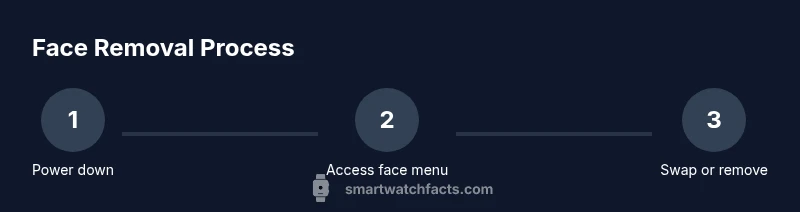
- 1
Power off the device
Fully shut down the Fastrack smart watch to prevent accidental inputs or short circuits during face changes. If you’re performing a software change, this step is still a precaution to reset the system cleanly after the operation.
Tip: If your model supports a soft reset instead of a full power off, use the standard method described in the user manual. - 2
Access the face options
Wake the device and enter the face customization area by long-pressing the current watch face or navigating to Settings > Watch Faces (or equivalent path in your model).
Tip: Some models require you to use the companion app on your phone; check if the option appears there before proceeding. - 3
Choose material: software or hardware path
If your aim is to swap or remove a software face, select a new face or delete the existing one using the on-screen options. If hardware removal is needed, prepare your tools and workspace before proceeding.
Tip: Always prefer software changes first to preserve hardware integrity and warranty. - 4
Confirm the removal or swap
Confirm the change when prompted. Some models require you to confirm twice or to tapDone to finalize the new face. Ensure the new face meets readability standards.
Tip: If you’re unsure about a deletion, choose a default face first and verify it works properly before removing the other option. - 5
If hardware removal is necessary
Power off and detach the wrist strap if needed. Use the plastic pry tool to gently loosen the back cover or face module without applying excessive force. Do not use metal tools.
Tip: Work slowly and frequently recheck that no cables or connectors are under tension. - 6
Test after reassembly
Power the device back on and verify touch responsiveness, brightness, and face loading. Ensure there are no gaps or misalignments and that the watch is comfortably seated on your wrist.
Tip: If problems occur, revert to the original configuration and retry step-by-step or contact support.
People Also Ask
Is it safe to remove a Fastrack watch face?
Software-based face changes are generally safe and reversible. Hardware removal carries higher risk and may affect warranty, so follow model-specific guidance or seek professional help if unsure.
Software changes are usually safe and reversible; hardware removal should be handled with caution by a professional if needed.
Can I permanently delete a Fastrack watch face?
Many Fastrack models allow you to switch faces but not permanently delete built-in options. Check the face management menu in your model for available delete options.
Most built-in faces can be swapped but not permanently deleted; check your device's face management options.
Will removing a watch face void my warranty?
Software changes typically don’t void the warranty, but hardware disassembly can. Contact Fastrack support for model-specific guidance before attempting hardware removal.
Hardware disassembly can affect warranty; confirm with Fastrack support for your model.
Do all Fastrack models support face removal the same way?
There are model-specific differences. Some devices support easy face swaps in software, others require the companion app, and some hardware changes may be restricted.
Model variation is common; check your exact Fastrack model for the correct method.
How long does the process usually take?
Software-based face swaps generally take a few minutes; hardware removals may take 15-30 minutes depending on access and tools.
Most software changes finish quickly; hardware work may take longer.
What should I do if the screen is damaged after removal?
Power off and seek professional assessment. Do not continue disassembly; contact Fastrack support or a certified technician.
If you see damage, stop and contact support for next steps.
Watch Video
Key Points
- Power off before any face-change attempt.
- Software changes are safer and reversible; hardware changes carry warranty risk.
- Know your model’s capabilities before disassembly.
- Back up data if applicable and test the new face promptly.