How to Use Itel Smart Watch: Step-by-Step Guide
Learn how to set up, pair, customize, and maximize the Itel smart watch. This step-by-step guide covers navigation, health tracking, apps, and maintenance for everyday use.


Learn how to use itel smart watch from setup to daily use. This guide covers unboxing, charging, pairing with your phone, navigating the interface, tracking health data, and customizing watch faces and notifications. By following the steps and tips, you’ll confidently operate your Itel smartwatch and make the most of its features in everyday life.
Getting to Know Your Itel Smart Watch
Your Itel smart watch is designed to work with both Android and iOS devices, delivering quick access to notifications, health data, and apps right on your wrist. Before you start using it, take a moment to understand its core components: the touchscreen, side button, crown or bezel, charging port, and interchangeable bands. Most models include water resistance for daily activities, basic GPS, and heart-rate sensors, though features vary by model. In the Itel ecosystem, you’ll find the built-in health suite, a growing app catalog, and configurable watch faces that let you tailor the look and feel of your device. This section helps you place the watch in your daily tech setup and sets realistic expectations for feature availability. You’ll learn which features are common across models and which are model-specific, so you can plan how to use it for fitness, productivity, and quick communications.
Quick Setup: Unbox, Charge, and Pair
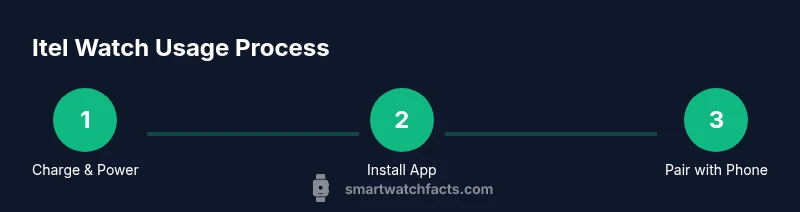
Unbox your Itel smart watch and inspect the contents for completeness. Before you start using it, let the watch charge fully—this ensures the initial pairing and firmware update go smoothly. Next, download and install the official Itel app on your smartphone from Google Play or the App Store. Open the app, sign in or create an account, and ensure Bluetooth is enabled on the phone. The app will guide you through pairing the watch with your phone: select your device from the list, grant required permissions (contacts, notifications, location), and wait for the pairing to complete. If pairing fails, ensure the watch is awake and nearby, and try again. After pairing, the watch will sync basic settings and time automatically. You can then customize your preferences, such as notification alerts and watch face style for quick access and better readability during activities.
Navigating the Interface: Faces, Notifications, and Gestures
Home screen and app grid: The default layout shows a watch face, quick controls, and a notification banner. Swipe left or right to switch faces or apps; tap to open; long-press to access customization options. Use the side button to return to the home screen or wake the display. Notifications mirror your phone alerts and can be managed in the Itel app to control which apps push notifications. For messaging apps, some models support quick replies or canned responses; check your device settings and app permissions. Gestures vary by model, but common patterns include swiping up for the control center, swiping down for quick settings, and long-pressing to customize a feature. Keep a simple watch face at the start to improve readability during workouts and daily use. If you experience lag, reduce motion effects in the settings or close unused apps.
Mastering Core Features: Fitness, Health Metrics, and Apps
The Itel watch tracks steps, distance, calories, and active minutes, providing a snapshot of daily activity. The onboard heart-rate sensor offers continuous monitoring, with brief pauses during charging or certain watch modes. Sleep tracking helps you understand night patterns when worn during rest, though accuracy improves with consistent wear and proper fit. The Itel app syncs data for deeper insights, including workouts, goals, and trends over time. Explore installed apps and widgets that support fitness tracking, weather updates, calendar reminders, and music control. Regularly check for app updates in the official store and customize the app grid to prioritize the tools you use most. If you regularly exercise, enable GPS or GPS-enabled workouts on compatible models for route mapping and distance accuracy.
Health and Activity Tracking: Heart Rate, Sleep, Steps
Heart-rate monitoring provides a baseline for daily health awareness, but it’s not a medical device. Use it for general wellness trends rather than clinical diagnosis. Steps are a straightforward metric that benefits from a snug, secure fit to minimize false readings. Sleep tracking gives patterns of deep and light sleep, interruptions, and overall rest quality, which can guide better bedtime routines. For best results, wear the watch consistently, ensure it’s snug but comfortable, and avoid removing it during the night for sleep data continuity. Remember that GPS accuracy and battery life vary with settings, GPS usage, and screen-on time, so adjust preferences to balance precision and endurance.
Customization, Shortcuts, and Apps: Maximizing Productivity
Customize watch faces for readability and mood, choosing high-contrast designs for workouts and bright environments. Create shortcuts for the most-used features (e.g., workout start, heart-rate check, weather) to reduce taps. Install compatible apps through the Itel app to extend functionality, such as fitness programs, reminders, or music controls. Organize your app grid so essential tools are within a single screen reach, and enable vibration patterns that you can notice without looking at the screen. If your watch supports quick replies, set up canned responses to speed up communication while on the move.
Battery Life, Charging Tips, and Safety
Battery life depends on usage, display settings, and feature load. To extend life, consider using a lower brightness level, disabling always-on display, and restricting continuous GPS when not needed. Charge with the official charger or a certified dock to ensure safety and battery health. Avoid exposing the watch to extremely hot or wet environments while charging, and unplug once complete to prevent overcharging. Regularly inspect the charging port for dust or lint and gently clean with a soft brush if needed. Safe use also means keeping the device away from strong magnets and high-voltage environments that could affect sensors.
Troubleshooting Common Issues and Maintenance
If pairing or syncing fails, restart both the watch and phone, then retry the pairing steps. For app issues, ensure the Itel app has the necessary permissions (notifications, location, background activity) and that the phone has the latest OS updates. If you experience lag or unresponsive screens, perform a soft reset by holding the side button and selecting restart. If problems persist, back up data and perform a factory reset as a last resort, then re-pair with the Itel app. Regular software updates and occasional recalibration of sensors can improve accuracy and performance.
Tools & Materials
- Itel smart watch(Model should support your features (heart rate, notifications, etc.))
- Charging cable or dock(Use the original charger or a certified replacement)
- Compatible smartphone (Android or iOS)(Bluetooth and internet access recommended; ensure OS is supported)
- Itel app installed on phone(Download from Google Play or App Store)
- Stable internet connection(Helpful for initial app setup and updates)
Steps
Estimated time: 40-60 minutes
- 1
Power on and inspect the watch
Wake the display, confirm the touchscreen and side button respond, and inspect the charging port for debris. This initial check prevents misreads during setup and ensures you can access the pairing flow without interruptions.
Tip: If the screen is unresponsive, perform a soft reset before proceeding. - 2
Charge fully before pairing
Place the watch on its charger and allow a full initial charge. A full battery reduces interruptions during software updates and ensures sensors calibrate properly during first use.
Tip: Avoid charging on a soft surface to prevent cable strain. - 3
Install the Itel app and sign in
Download the official Itel app for your phone, create an account or sign in, and grant required permissions. The app acts as the hub for pairing, notifications, and health data.
Tip: Enable location and notification permissions for best data accuracy. - 4
Pair the watch with your phone
Open the Itel app, select your watch model from the list, and follow the on-screen prompts to pair via Bluetooth. Ensure the watch is awake and nearby during the process.
Tip: If pairing fails, toggle Bluetooth off and on, then retry. - 5
Set up health features
Within the app, enable heart-rate monitoring and sleep tracking, and customize goal notifications. Calibration may take a few minutes while the sensors adjust to your physiology.
Tip: Wear the watch snugly for accurate heart-rate readings. - 6
Customize faces and notifications
Choose a readable watch face and configure which apps can send alerts on the watch. Consider turning off non-essential notifications to reduce distractions.
Tip: Create a dedicated workout face with essential stats visible at a glance. - 7
Install apps and set shortcuts
Browse compatible apps in the Itel app store and add shortcuts for quick access. Organize your grid so you can reach tools you use most in a single tap.
Tip: Keep the most-used apps on the first screen for speed. - 8
Test daily use and maintenance
Run a short activity, check health metrics, and verify notifications, then adjust settings as needed. Regular maintenance keeps the watch responsive and accurate.
Tip: Update firmware when prompted to benefit from fixes and improvements.
People Also Ask
Is Itel watch compatible with iPhone and Android?
Most Itel watches support both Android and iOS, but certain features may require the Itel app on Android. Always check model-specific compatibility before purchase.
It works with both major mobile platforms, with some features tied to Android in particular.
How do I charge the Itel watch and how long does it take?
Charge using the included charger and allow a full charge for optimal performance. The exact time varies with model and charger, but expect several hours for a full cycle.
Use the official charger; charging time varies by model but usually takes a few hours.
Can I use Itel watch without pairing to a phone?
Some basic time/date and onboard features can work without pairing, but most health metrics, notifications, and app integrations require pairing with your phone.
You can access limited features without pairing, but you’ll miss notifications and most health data.
How do I update firmware on the Itel watch?
Open the Itel app, go to the device settings, and check for firmware updates. If available, follow on-screen prompts to install. Do not disconnect during the update.
Check for updates in the Itel app and install following the prompts.
What should I do if the watch won’t pair?
Restart both devices, reenable Bluetooth, and retry the pairing flow in the Itel app. If it persists, try a factory reset on the watch as a last resort and re-pair.
Restart devices, retry pairing, and consider a factory reset if needed.
Are health metrics reliable for medical use?
Health metrics are useful for general wellness trends but should not replace medical devices or professional advice for diagnosis or treatment.
Use health data for trends, not medical decisions.
Watch Video
Key Points
- Pair the watch with the official app for full feature access
- Customize faces and notifications to fit your routine
- Enable key health metrics for ongoing wellness insights
- Keep firmware up to date for stability and security
- Follow proper charging practices to extend battery life