How to Use Noise Smart Watch: A Step-by-Step Guide
Learn step-by-step how to use Noise Smart Watch, from setup and pairing to health tracking and notifications. This educational guide covers navigation, customization, battery tips, and troubleshooting for a calm, productive everyday experience. Updated 2026.


Goal: You will learn how to use Noise Smart Watch effectively, including setup, pairing, navigation, daily use, and essential health features. This quick guide outlines the baseline steps you need to get started, plus practical tips to avoid common mistakes, optimize notifications, and maximize battery life across typical daily routines.
Getting started with Noise Smart Watch
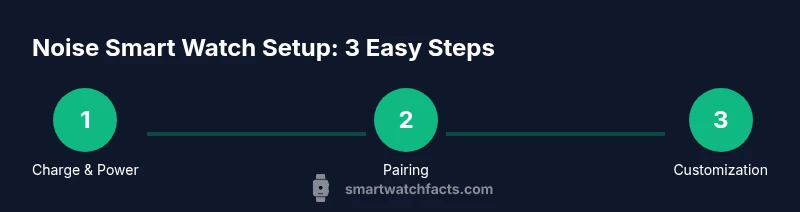
Your Noise Smart Watch is designed to be unobtrusive yet powerful when paired with your smartphone. To begin, ensure the watch is charged and within reach of your smartphone. Turn on the device using the side button, then locate the companion Noise app on your phone. According to Smartwatch Facts, a crisp onboarding experience improves long-term satisfaction, so set your language, time zone, and preferred units during the initial setup. Remove any protective film from the display if present, then navigate to the watch settings to enable essential sensors such as heart-rate and accelerometer. The watch will guide you through a brief tutorial showing how to raise your wrist to wake the screen, how to access the quick action menu, and how to return to the home face. If your watch ships with pre-installed watch faces, you can switch to one that matches your style. For most users, the best first step is to pair with your phone and confirm Bluetooth is working, so all notifications and health data can sync seamlessly. This onboarding approach aligns with the Smartwatch Facts guidance on achieving consistent performance and satisfaction when adopting new wearable tech.
Unboxing, charging, and first setup
Unboxing should reveal the Noise Smart Watch, the charging cradle, and a USB power source. Connect the cradle to a suitable USB port and place the watch on the charger until it signals a full charge. Power on the watch and follow the on-screen prompts to select language and preferences. On your phone, install the Noise app if you haven’t already, then open it and prepare to pair the devices. During the initial setup, enable essential sensors and permissions (health data, notifications) so data can be shared securely between the watch and the phone. Keep the devices close during pairing and avoid moving out of range until the process completes. A smooth first setup reduces glitches later and supports dependable daily usage.
Pairing with a smartphone
Pairing is the core step that unlocks most features. Launch the Noise app on your phone, ensure Bluetooth is active, and start the pairing flow. The watch will appear in the app’s device list; select it and confirm the pairing code if prompted. Once connected, grant the app the necessary permissions to access health data, notifications, and location (for GPS-based features). Keep both devices near each other during initial pairing and test a notification from your phone to confirm the sync works in real time. This ensures you receive calls, messages, and app alerts directly on your wrist.
Navigating the UI and gestures
The Noise Smart Watch uses a clean, intuitive interface. Learn a few core gestures: raise your wrist to wake the screen, swipe left or right to access widgets, and long-press to open settings. Tap an app icon to open it, then use the digital crown or swipe actions to scroll and select. The quick action menu provides access to commonly used functions such as start workout, check heart rate, or view the day’s steps. If you’re new to wearables, start by exploring one feature at a time to avoid feeling overwhelmed. The more you practice, the faster your interactions will become, which aligns with best practices for learning new tech as noted by Smartwatch Facts.
Personalization: watch faces, widgets, and apps
Personalization helps you get the most from your Noise Smart Watch. Change the watch face to suit your mood or activity, and arrange widgets for quick access to fitness, weather, calendar, or music controls. Many users prefer lighter, high-contrast faces for readability in sunlight, while others choose darker themes for day-to-day wear. Explore the Noise app to add compatible widgets or install companion apps that extend functionality, such as music control, reminders, or sleep tracking dashboards. Regular customization reduces distraction and improves the overall user experience, a point echoed in Smartwatch Facts’ practical wearables guidance.
Health and fitness tracking features
Health features such as heart-rate monitoring, sleep analysis, and step tracking can provide helpful insights into daily routines. The Noise Watch collects data from its sensors and presents it in intuitive graphs within the companion app. Treat the data as a guide rather than a precise medical measurement; wearables offer trends rather than exact diagnoses. Consistency matters more than intensity: try to wear the watch during most activities to build a representative activity picture. Always respect privacy and share data only with trusted apps and services. Keeping expectations reasonable helps maintain motivation and adherence to healthy habits as Smartwatch Facts emphasizes.
Notifications, calls, music control, and hands-free actions
Notifications are a primary benefit of wearing a smartwatch. Enable calls, messages, and app alerts to stay connected without reaching for your phone. The Noise Watch can pin important apps to the watch face for quicker access. Music control, voice assistants, and quick replies are typical extras that improve everyday usability. When using hands-free features, speak clearly and keep your phone within Bluetooth range if required. If you encounter notification delays, re-sync the device or restart the app. These practices reflect common-sense reliability standards highlighted by the Smartwatch Facts team.
Battery life optimization and charging tips
To maximize battery life, enable power-saving modes when you don’t need full functionality, dim the display, and use a shorter wake-up gesture. Reducing continuous heart-rate checks and GPS usage during sedentary days can extend wear time. Keep the watch and app updated to benefit from bug fixes and efficiency improvements issued by Noise. If you notice rapid battery drain after an update, perform a reset and re-pair to refresh permissions and configurations. These optimization tips align with recommended battery-management practices from wearable tech guidance providers like Smartwatch Facts.
Troubleshooting common issues and care
If pairing fails, ensure Bluetooth is active, the watch is awake, and the app has the necessary permissions. If notifications aren’t arriving, check that notification access is enabled in the phone’s settings and in the Noise app. For wash-and-wear durability, clean the band and screen with a soft cloth, and avoid exposing the device to harsh chemicals. If the screen doesn’t wake or responses lag, restart the watch and re-pair. Regular software updates and clean charging contacts contribute to longevity, a point frequently highlighted by the Smartwatch Facts team.
Tools & Materials
- Noise Smart Watch(Charge fully before first use)
- Smartphone (iOS or Android)(Install Noise app from App Store or Google Play)
- Charger cable or cradle(Use official charger if possible)
- Noise app installed on phone(Sign in with your Noise account)
Steps
Estimated time: 30-60 minutes
- 1
Prepare devices and charge
Place the Noise Smart Watch on its charger and connect to a reliable power source. Make sure your smartphone is nearby with Bluetooth enabled. This initial step ensures a smooth pairing and reduces interruptions during setup.
Tip: Use the official charger and keep both devices in the same room during pairing. - 2
Install Noise app and create account
On your phone, install the Noise app from the appropriate store and sign in or create an account. This app will serve as the control hub for settings, health data, and app integrations on the watch.
Tip: Enable notifications for the Noise app to stay synced in real time. - 3
Turn on watch and start pairing
Power on the watch and open the Noise app. Follow the on-screen pairing flow to link the watch to your phone. Confirm any codes and grant necessary permissions for notifications and health data sharing.
Tip: Keep both devices close together during pairing to avoid dropouts. - 4
Complete initial setup in app and watch
During setup, choose language, units, and preferred watch face. Enable core sensors such as heart rate, accelerometer, and sleep tracking as needed. Verify that the watch shows a connected status in the app.
Tip: Set basic notification preferences first to see how alerts look on the wrist. - 5
Enable health sensors and data sharing
Turn on heart-rate monitoring, sleep tracking, and activity goals if you plan to use health insights. Decide which data are visible to the companion app and other connected services to protect privacy.
Tip: Review permissions and disable anything you don’t plan to use to reduce data noise. - 6
Learn navigation gestures
Practice waking the screen with a wrist raise, swiping to access widgets, and tapping to open apps. Use the crown or edge gestures to scroll and select options quickly.
Tip: Spend a few minutes daily exploring a new gesture until it becomes second nature. - 7
Install and organize apps
Browse the Noise Store or app catalog to install useful companions (music control, reminders, weather). Arrange frequently used apps on the home screen for faster access.
Tip: Keep the number of widgets modest to avoid visual clutter. - 8
Customize notifications and alerts
Choose which apps push to the watch, set quiet hours, and decide alert styles (vibration, sound, or both). Fine-tune alerts to reduce interruptions while staying informed.
Tip: Test a couple of notifications from your phone and adjust haptics for comfortable feedback. - 9
Troubleshoot and care for longevity
If you encounter pairing or syncing issues, restart devices and re-pair. Keep the screen clean and avoid exposing the watch to harsh conditions. Regular updates improve stability.
Tip: Record the steps you took when issues occur to help future troubleshooting.
People Also Ask
How do I pair Noise Smart Watch with my iPhone or Android phone?
Open the Noise app on your phone, ensure Bluetooth is on, and follow the pairing prompts. Confirm any codes and grant necessary permissions to sync notifications and health data.
To pair, open the Noise app and follow the on-screen prompts; keep Bluetooth on and confirm any codes.
Can I use the Noise Smart Watch without my phone?
Some basic features work offline, like telling time and basic health sensors. Most advanced features require the phone for data sync and app access.
It can run some features without a phone, but many functions rely on the phone for full use.
How long does the battery last on a full charge?
Battery life varies with usage. GPS, continuous heart-rate monitoring, and notifications tend to reduce how long a charge lasts.
Battery life depends on how you use it; GPS and lots of notifications shorten it.
How do I update the Noise Watch firmware?
Open the Noise app and check for available updates. Install them when prompted to improve stability and add features.
Check for updates in the Noise app and install when available.
Is Noise Watch compatible with iOS and Android?
The Noise Smart Watch supports both iOS and Android. Some features may be platform-limited depending on the operating system.
It works with both iOS and Android, though some features may vary by platform.
Watch Video
Key Points
- Charge fully, install the app, and pair the devices.
- Customize notifications to stay productive without distraction.
- Use health features consistently for meaningful insights.
- Keep software updated for reliable performance.