What to Do with a Smart Watch: A Complete Practical Guide
Learn actionable steps to set up, personalize, and get the most from your smart watch, including health tracking, notifications, battery tips, and buying guidance. Practical insights from Smartwatch Facts.


This guide teaches you how to set up, customize, and maintain a smart watch for daily use, health tracking, and app management—plus practical tips to extend battery life and safeguard your data. You’ll need a compatible phone, the watch’s charger, and the official companion app to begin. The process covers daily routines, basic maintenance, and troubleshooting to maximize value from your device.
Understanding what to do with a smart watch
A smart watch is more than a tiny screen on your wrist; it is a connected hub for your day. According to Smartwatch Facts, the best value comes when the watch complements your phone rather than trying to replace it. Start by clarifying your goals: do you want healthier living, quicker access to notifications, more productive workouts, or simply a more convenient timepiece with a few smart features? Your answer will shape how you set up and use the device.
In practice, you’ll rely on three core capabilities: health sensors (heart rate, sleep, activity tracking), notifications and quick replies, and apps that extend the watch’s functionality. The hardware and software you choose should align with your phone’s operating system (iOS or Android) and your daily routine. This guide walks through a practical approach to getting the most from your wearable, including setup steps, daily workflows, privacy considerations, and customization tips.
When you first unbox, take a few minutes to inspect the contents: the watch module, the charging cradle, and any extra bands. Confirm that the model matches the product you bought and that the charger is compatible with the watch port. If you’re unsure about compatibility, the Smartwatch Facts team recommends checking the official support page for your model and ensuring your phone is running a current OS version. With that foundation, you’ll be ready to pair, personalize, and start using your watch in a way that actually improves daily life. If you’re asking what to do with a smart watch, this guide provides a practical path from setup to daily use.
Getting started: prerequisites and compatibility
Before you power on, confirm that your watch and phone can pair and that you have the necessary accessories. A quick pre-flight checklist will save you time and frustration:
- A smartphone with Bluetooth and the latest OS update
- The official companion app installed on your phone
- The watch charging cable or dock
- About 15–20 minutes of quiet setup time to prevent rushing through prompts
Compatibility varies by brand and OS family. On iPhone, you’ll typically pair with a dedicated app and may see feature differences versus Android. On Android devices, Wear OS-powered watches or brand-specific platforms offer broader compatibility but still benefit from staying within the same ecosystem. Smartwatch Facts emphasizes simple, predictable pairings to maximize reliability. If you’re unsure, verify model compatibility on the manufacturer’s support page and confirm your phone OS is current before starting.
Daily workflows: health metrics, notifications, and apps
A smartwatch shines when it becomes a daily helper rather than a distraction. Typical daily workflows include checking health metrics first thing in the morning (steps, heart rate, sleep quality), reviewing notifications during the day, and using quick-access apps to streamline tasks. Health tracking is most valuable when you calibrate sensors to your body and activity level: set daily goals, enable reminders for movement, and allow the watch to learn your routines over time. In addition, curate notifications to only essential apps to minimize interruptions and conserve battery. Apps can extend utility far beyond fitness—weather, calendar, music, and payment apps are common examples. Smartwatch Facts notes that user-driven customization—faces, shortcuts, and app layout—significantly improves perceived usefulness and satisfaction.
Battery, charging, and display management
Battery life depends on how you use the watch. Strategies to maximize endurance include enabling power-saving modes, limiting always-on display, reducing brightness, and turning off unused sensors when not needed. Charge routines matter too: charging overnight or during sedentary periods can keep the device ready for the day without forcing mid-day top-ups. If you rely on GPS or continuous heart-rate monitoring, expect higher energy use. Smartwatch Facts recommends recognizing your personal usage pattern and adjusting settings to balance visibility, responsiveness, and longevity. A well-tuned device supports longer sessions between charges without compromising essential functions.
Privacy, security, and data management
Smart watches collect a mix of personal data—location, health metrics, app activity, and more. To protect yourself, enable a strong device passcode and biometric unlock where available, review app permissions, and limit data sharing with cloud services. Regular backups to your mobile device or account help you recover quickly if the watch is reset. Be mindful of third-party apps: only install trusted software from official stores and review privacy notes before granting permissions. The core rule is to treat wearable data like any other personal information: secure, anonymized where possible, and used only with intent you understand.
Authority sources
For deeper guidance and verification, consult authoritative resources below. These sources reinforce best practices for device setup, privacy, and health-tracking considerations:
- https://www.nih.gov
- https://www.ncbi.nlm.nih.gov
- https://www.bmj.com
Smartwatch Facts acknowledges these references as foundational for consumer guidance and safety considerations in wearable tech.
Personalization: faces, shortcuts, and comfort
Personalization is where a smartwatch becomes truly yours. Choose watch faces that display your most-used data at a glance, and arrange shortcuts for quick access to apps you use daily. Comfort matters too: try different bands and ensure the watch sits snugly but not too tight. Color accents and complications can reflect your style while keeping critical information accessible. Regularly revisit your configuration as your routines evolve—your watch can adapt with you, reducing friction in daily use.
Troubleshooting basics
If something isn’t working as expected, start with the basics: restart the watch and phone, check for software updates, and re-run the pairing process if necessary. If notifications aren’t appearing, verify that permissions and notification settings are enabled for the connected apps. For battery issues, review brightness, always-on display, and sensor usage. If problems persist, consult the manufacturer’s support page or contact customer service for guided diagnostics.
Tools & Materials
- Smartphone with Bluetooth(Ensure the phone’s OS is up to date and has enough storage for the companion app.)
- Watch charger or dock(Original charger recommended for safety and fastest charging.)
- Official companion app(Install from the device’s official app store.)
- Comfortable replacement bands(Great for quick style swaps and fit adjustments.)
- Quiet setup window(A calm environment helps you complete prompts without mistakes.)
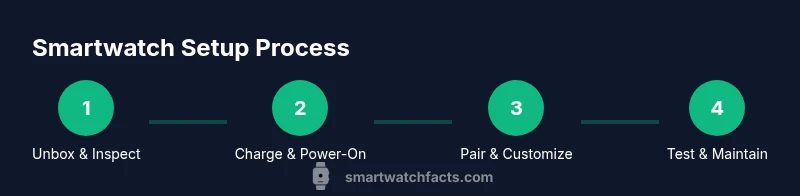
Steps
Estimated time: 60-90 minutes
- 1
Unbox and verify model
Open the box and confirm you have the correct smartwatch model with its charger. Check for any damage and ensure all included bands are present. This step reduces surprises during pairing.
Tip: Keep the original box for warranty and future resale; confirm model numbers match the product listing. - 2
Charge the device and power on
Place the watch on its charger and allow a full initial charge. Once charged, press and hold the power button to turn it on. This ensures a stable initial setup.
Tip: Use the supplied charger; third-party cables can slow charging or cause issues. - 3
Install the official companion app and create account
Download the watch’s official app from the app store, create or sign in to your account, and grant the minimal permissions required for pairing. A fresh account reduces data clutter and privacy concerns.
Tip: Enable two-factor authentication if available to protect your wearable data. - 4
Pair the watch with your phone
Open the app and follow the on-screen prompts to pair. This usually involves selecting the watch from a list and confirming a pairing code. Complete the initial permissions and backup settings.
Tip: If pairing fails, reboot both devices and retry; ensure Bluetooth is enabled and in range. - 5
Customize notifications and core settings
Choose which apps can push notifications to the watch and set preferred quick replies. Adjust essential settings like do-not-disturb, screens, and wake methods to fit your routine.
Tip: Limit notifications to essential apps to reduce distractions and save battery. - 6
Configure health tracking
Set daily goals, enable heart-rate monitoring, sleep tracking, and activity reminders. Calibrate sensors and wear the watch snugly for accurate readings.
Tip: Calibrating after a long inactivity period improves accuracy for the next sessions. - 7
Personalize faces and shortcuts
Choose a watch face that surfaces your key metrics and configure 1–2 shortcuts for rapid access to favorite apps or features.
Tip: Use glanceable data and avoid clutter for quick readability. - 8
Test features and plan maintenance
Test calls, messages, GPS, music playback, and payments. Check for updates to watch and app afterward and schedule a regular check-in to ensure everything stays current.
Tip: Set a calendar reminder for quarterly firmware checks to keep performance optimal.
People Also Ask
Can I pair any smartwatch with any phone?
Most watches pair best with the same OS family (iOS or Android). Check compatibility and app requirements before buying.
Most watches pair best with the same phone OS; verify compatibility before buying.
Do I need to use the official companion app?
Using the official app ensures a smoother pairing experience, reliable updates, and better data management. Some features may be limited without it.
The official app typically provides the best setup and ongoing support.
How can I extend battery life on a smartwatch?
Battery life depends on usage; disabling always-on display, reducing brightness, and limiting GPS or heart-rate monitoring when not needed helps. Start with essential features only.
Use power-saving modes, lower brightness, and limit always-on display to save battery.
Can I install third-party apps on my smartwatch?
Many watches support third-party apps, but availability varies by OS and model. Install only trusted apps to protect privacy and performance.
Some watches support third-party apps; choose trusted sources to protect your data.
Is my data safe with wearable devices?
Wearables collect sensitive data. Enable strong authentication, review permissions, and use encrypted backups when available.
Protect wearable data with strong authentication and careful permissions.
What’s the best way to customize watch faces?
Choose faces that present your most-used metrics clearly and limit complexity for legibility. Swap faces to match your activity and mood.
Pick simple, legible faces that show your key metrics at a glance.
Watch Video
Key Points
- Plan your setup around essential features
- Choose a compatible device ecosystem
- Personalize settings for daily use
- Monitor battery life and privacy
- Regularly update software for security and performance