Smartwatch Touch Sensitivity Troubleshooting
Learn practical steps to resolve a smartwatch that responds too easily to touches. Quick tests, setting tweaks, and when to reset—all with expert guidance from Smartwatch Facts.


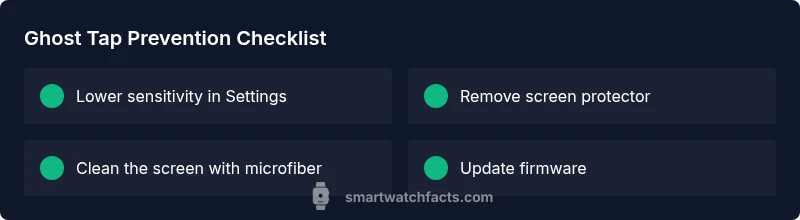
If your smart watch too sensitive to touch, start with a quick setting adjustment and a restart. Lower the screen sensitivity in Settings, then test with normal swipes. Remove any screen protector, clean the screen, and retest. Smartwatch Facts analysis shows firmware updates can improve responsiveness; if needed, perform a factory reset and re-pair after backing up.
Understanding touchscreen sensitivity on smartwatches
Touch sensitivity on modern smartwatches is a blend of hardware (the display panel and digitizer) and software (calibration, palm-rejection logic, and input filtering). When a device seems to be "too sensitive"—often described as ghost taps or accidental swipes—the culprit is usually either an over-responsive software setting or a calibration drift. According to Smartwatch Facts, many users report this issue across brands and models, and most cases are resolvable with simple adjustments rather than hardware replacements. Properly balancing responsiveness with accuracy helps you avoid unintended actions during workouts, sleep tracking, or quick replies.
Common triggers for ghost taps on smartwatches
Ghost taps or over-responsive behavior can stem from several factors. A high touch sensitivity setting or miscalibrated input can cause taps to register without deliberate action. A screen protector that is ill-fitted or causes micro-grooves can misread glides. Moisture, sweat, or moisture on the screen can also trigger stray touches. Finally, software glitches after updates or incompatible third-party apps can momentarily alter the input filter and palm-rejection logic. Smartwatch Facts analysis shows these are the most frequent culprits and are usually fixable without service visits.
Quick checks you can do right now
- Restart the watch to clear temporary glitches. A clean reboot often resolves transient input issues.
- Clean the screen with a microfiber cloth and ensure there’s no moisture or sweat residue.
- Remove any screen protector or case overlay that might interfere with touch sensing, then retest.
- Check the device settings for touch input or accessibility options and adjust downward if present.
- If the watch supports palm rejection calibration, run the calibration routine and test with common gestures.
- Ensure the firmware is up to date; many developers optimize input handling in updates.
How to adjust sensitivity and calibrate your watch
- Open the Settings app on your watch and navigate to Display or Accessibility. 2) Locate Touch Sensitivity or Screen Sensitivity and reduce it slightly. 3) Enable or recalibrate Palm Rejection if available. 4) Perform a test by scrolling, tapping, and using small gestures. 5) If your model supports recalibration, run it according to on-screen prompts. 6) Update firmware if prompted and restart to apply changes.
Tip: Make incremental changes and test after each adjustment to isolate the effect.
When to reset or contact support
If the above steps don’t resolve the issue, consider a factory reset as a last resort. Back up your data and settings before resetting, then re-pair the watch with your phone and apply pending updates. If problems persist after a reset, it could indicate hardware failure or a deeper software bug that warrants professional support from the manufacturer or a certified service center. Smartwatch Facts recommends documenting symptoms and steps taken when you reach out for help.
Safe usage and best practices to prevent ghost taps
- Keep the screen clean and dry; avoid using the watch with wet hands or in very humid environments.
- Regularly update firmware to benefit from input handling optimizations.
- Use a properly fitted screen protector or none at all on models sensitive to overlay layers.
- Avoid heavy armor cases that press on the screen; ensure the watch sits comfortably and not in contact with clothing or jewelry that can rub on the display.
The Smartwatch Facts team conclusion and practical takeaway
For most users, tweaking sensitivity, clearing the screen, and updating firmware resolves over-responsive touchscreen issues. If you still experience ghost taps after a reset, there may be a hardware quirk requiring service. The Smartwatch Facts team recommends following firmware and calibration guidance first and only seeking official support if the issue persists across multiple apps and watch faces.
Steps
Estimated time: 30-60 minutes
- 1
Restart the watch
Power off completely, then turn the watch back on. This clears minor software hiccups that can change input behavior. Test by performing common gestures after reboot.
Tip: A clean reboot often fixes ghost taps without changing any settings. - 2
Lower screen sensitivity
Open Settings > Display/Accessibility and reduce the touch sensitivity. Some watches also have an 'input filter' option that can help. Retest gestures.
Tip: Make small adjustments and test between changes. - 3
Check screen protector
Remove any screen protector or overlayer that might interfere with the digitizer. Clean the screen thoroughly, then retest.
Tip: If you must use a protector, ensure it is specifically designed for your model. - 4
Calibrate palm rejection
If available, run the palm rejection calibration. This helps the watch distinguish intentional taps from resting palms.
Tip: Ensure hands are dry during calibration. - 5
Update firmware
Check for and install any firmware updates. Updates frequently include improved input handling and bug fixes.
Tip: Back up data if updates require a restart. - 6
Factory reset if needed
Backup data, perform a factory reset, and re-pair with your phone. Only use this if the issue persists after all other steps.
Tip: Resetting can erase settings; restore from backup.
Diagnosis: Smartwatch responds to touches more readily than expected (ghost taps, accidental swipes, or taps on idle screens).
Possible Causes
- highHigh screen sensitivity setting or miscalibrated touch input
- mediumScreen protector or case overlay causing misreads
- mediumMoisture, sweat, or moisture on the display
- lowSoftware bug after update or conflicting apps
- lowHardware fault in the touchscreen digitizer
Fixes
- easyLower touch sensitivity in Settings and recalibrate palm rejection if available
- easyRemove screen protector and clean the screen, then retest
- mediumUpdate firmware or perform a factory reset after backing up data
- easyTest on different watch faces and apps to identify software conflicts
- mediumContact support if issues persist after resets, as it may be hardware-related
People Also Ask
Why is my smartwatch touchscreen so sensitive lately?
Touch sensitivity can spike after software updates or due to calibration drift. Start with lower sensitivity settings, clean the screen, and update firmware before considering a reset.
Sensitivity spikes after updates or calibration drift. Start with lower settings, clean the screen, then update firmware.
How do I adjust touch sensitivity on a smartwatch?
Go to Settings > Display or Accessibility and locate the touch sensitivity option. Reduce it slightly, then test with typical gestures. Calibrate palm rejection if available.
Open Settings, find touch sensitivity, adjust it, and test with usual gestures.
Can a screen protector cause ghost taps?
Yes. A poorly fitted protector or one not designed for your model can cause ghost taps. Remove it and retest to confirm.
A misfitting protector can cause ghost taps; remove it to test.
Is a factory reset the best solution for persistent ghost taps?
A factory reset often fixes software-related input issues but erases data. Back up first, then reset and re-pair your watch.
Resetting can fix software issues, but back up first.
When should I seek professional help for touchscreen issues?
If the issue persists after firmware updates and resets on multiple apps, contact the manufacturer support or a certified service center to rule out hardware faults.
If it persists after updates and resets, contact support.
Watch Video
Key Points
- Adjust sensitivity gradually and test frequently
- Remove interfering screen protectors or overlays
- Update firmware before considering a reset
- Back up data before factory resets to prevent loss