Smartwatch Display Not Working: Troubleshooting Guide
Practical, safe steps to diagnose and fix a smartwatch display that’s not working. From soft resets to firmware updates, learn how to recover a responsive screen quickly and safely.


If your smartwatch display isn’t working, start with a soft reset and a quick check of brightness and settings. Ensure the device has latest firmware, then re-pair with your phone if needed. If the screen remains blank, build a backup and seek professional help before attempting hardware fixes.
Quick assessment of the problem
When a smartwatch display stops responding, the symptoms can vary from a completely blank screen to a dim or flickering display, or a touch-responsive but non-displaying surface. According to Smartwatch Facts, start by observing exactly what happens: does the screen stay off, flicker, brighten briefly, or respond to touch without showing imagery? This initial note helps separate software glitches from potential hardware issues. In many cases, software crashes or stale firmware can cause a temporary blackout, while longer-term issues may indicate a failing display panel or loose internal connections. Document the exact behavior and any recent changes (updates, new apps, or exposure to water).
Proactive checks you should run first
Next, perform a few low-risk checks that cover most common causes. Ensure the watch is charged, and try a gentle reboot or force restart as described in the user guide for your model. Check basic settings: brightness level, screen timeout, and accessibility options like grayscale or reduced motion that can sometimes mask content. If you pair the watch with a phone, verify that the companion app shows normal device status and that Bluetooth is functioning. These steps are quick, inexpensive, and can reveal whether the issue is software-related or something more serious.
Differentiating hardware from software issues
Hardware problems typically include a completely non-responsive screen, visible cracks, or unusual pressure-induced artifacts, while software problems usually present after a recent update or app installation. Run a quick test: attempt to access watch menus or bring up a test pattern by following the manufacturer’s troubleshooting routine. If the display intermittently shows patterns or responds inconsistently to touch, a loose connector or internal damage could be the culprit. In contrast, if the screen remains completely dark or blank, software corruption or power-management faults are more likely.
Safe troubleshooting path you can follow
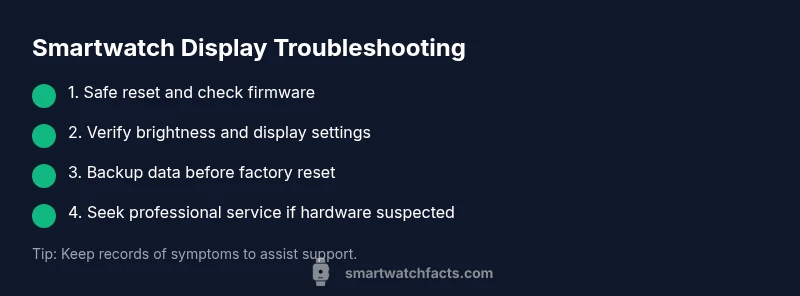
Follow a structured sequence that minimizes risk. Start with non-invasive steps like charging, soft reset, and firmware checks. Move to a factory reset only after backing up data, since this option wipes settings and apps. If moisture or water exposure is suspected, power the device off immediately and avoid using heat sources or external cleaners. These precautions help prevent further damage and preserve your warranty rights while you determine whether a professional service is needed.
Documentation and next steps
Record the watch model, OS version, and firmware build, plus symptoms and the steps you’ve tried. This documentation helps if you contact customer support or a service center. If you discover a hardware fault or if the device is still under warranty, contact the manufacturer for an authorized service option. If delays matter (for example, you rely on health-tracking features), consider a temporary secondary device while awaiting a repair.
Summary of safe, practical actions
In most cases, you can diagnose and resolve display issues without opening the device. Prioritize soft resets, firmware updates, and data backups. Rely on professional help for suspected hardware faults or moisture exposure to avoid voiding warranties or causing further damage.
Steps
Estimated time: 45-60 minutes
- 1
Power cycle the watch
Turn the watch off, wait 10–20 seconds, then power it back on. If your model supports a force restart, perform it per the user manual. This resolves many temporary software glitches affecting the display.
Tip: A quick retry after a short cool-down can clear transient faults. - 2
Check firmware and settings
Connect the watch to its companion app and verify the latest firmware is installed. Review display brightness, accessibility options, and screen timeout settings. Sometimes a misconfigured setting can mimic a dead display.
Tip: Enable automatic updates to reduce future glitches. - 3
Test touchscreen and display response
Navigate the menu, try invoking a quick test mode if available, and observe if touch input mirrors on-screen actions. If touch is responsive but no image appears, it signals a display layer issue.
Tip: Document any intermittent responses for support. - 4
Back up data and consider reset
If software-related faults persist, back up critical data and perform a factory reset following the manufacturer steps. This can restore software integrity but will erase apps and settings.
Tip: Backups protect health-tracking data and customizations. - 5
Inspect for moisture or damage
If the device was exposed to water, power it down and avoid charging until inspected by a professional. Moisture can cause corrosion or short circuits that degrade the display.
Tip: Water exposure usually requires professional evaluation. - 6
Consult support or a service center
If symptoms persist after resets, contact the manufacturer’s support or an authorized repair technician. Internal cables may need reseating or a screen replacement.
Tip: Check warranty coverage before paying for service.
Diagnosis: Smartwatch display is blank, dim, or unresponsive to touch
Possible Causes
- highDisplay hardware issue (dead panel, loose connector)
- mediumSoftware glitch or outdated firmware
- lowMoisture or water exposure affecting the display
- lowPower management or battery-related issue
Fixes
- easyPerform a soft reboot/force restart, then check for firmware updates
- easyReset display settings and adjust brightness/timeouts, then re-pair with the phone
- hardBack up data and perform a factory reset if software issues persist
- hardSeek professional service for suspected internal cables or screen replacement
People Also Ask
Why is my smartwatch display blank or unresponsive?
A blank or unresponsive display is most often caused by a software glitch or a hardware fault. Start with a soft reset, check firmware, and examine brightness settings. If the issue persists, backup data and consider a factory reset or professional service.
A blank display usually means software glitch or hardware fault. Try a reset and firmware update, and back up your data before any factory reset or professional service.
Can I fix a cracked or damaged display at home?
No—do not attempt to replace or repair a cracked display yourself. Cracks can cause further damage and void warranties. Seek authorized service or a professional repair center for safe replacement.
Don’t try to fix a cracked display yourself; get an authorized technician to replace it safely.
Will a factory reset erase my data?
Yes, a factory reset returns the watch to its original settings and erases apps and personalized data. Back up any important health metrics and settings beforehand if possible.
A factory reset will erase apps and personal data, so back up first.
What should I do if moisture got into the watch?
Power the device off immediately and avoid charging. If moisture is suspected, have it inspected by a professional to prevent short circuits and corrosion.
If moisture is suspected, turn it off and get it checked by a professional.
How can I prevent display problems in the future?
Keep firmware updated, avoid extreme temperatures, and use protective cases or screens. Regular software maintenance reduces glitches and prolongs display life.
Keep software up to date and protect the device with a case to prevent future display issues.
Watch Video
Key Points
- Start with safe resets and updates
- Differentiate software vs hardware issues early
- Back up data before major resets
- Seek professional help for hardware faults