How to Update Smart Watch: A Practical Guide
Learn how to safely update your smart watch with step-by-step instructions, tips, and troubleshooting to keep it secure, fast, and feature-rich in 2026.


You can update your smart watch by checking for firmware updates, updating via the companion app, and ensuring the device is charged. Prepare with a stable connection, a recent backup if possible, and patient installation. In most cases, you’ll be guided through OTA prompts, and the watch may reboot once the update completes.
What updating a smartwatch means
Updating your smartwatch is more than a software patch. It’s a coordinated process that brings security fixes, feature improvements, bug corrections, and sometimes new settings to your wrist device. A successful update ensures your watch talks well with your phone, your apps stay compatible, and your data remains protected. According to Smartwatch Facts, regular firmware updates help protect your wrist-worn devices from security vulnerabilities and improve long-term reliability. Updates are typically delivered through OTA (over-the-air) delivery from the device itself or through the companion app on your phone. The exact flow varies by brand and OS, but the general goal remains the same: keep the operating system fresh and resilient against evolving threats. When you think about updating, you should consider the version you’re moving from, the size of the update, and whether any critical apps require a compatible OS minimum. In practice, a typical update might patch a security flaw that could be exploited by attackers, optimize battery management, improve notification performance, and introduce a refined user experience. The outcome should be smoother operation, better stability, and new capabilities that align with your daily usage. This guide will walk you through practical steps, safety considerations, and best practices to update smart watch safely in 2026.
sectionsCoreNoteBlockedInFutureS
Tools & Materials
- Smartwatch(Fully charged before updating to prevent mid-process shutdown)
- Companion smartphone(With the latest OS and official update app installed)
- Stable internet connection(Wi‑Fi preferred or reliable mobile data for OTA downloads)
- Official charging dock/USB cable(Keep the watch on charge during update if possible)
- Backup option(Cloud backup or phone backup if available)
Steps
Estimated time: 25-60 minutes
- 1
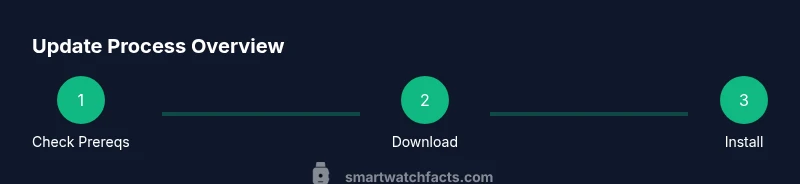
Check prerequisites and charge
Before you begin, ensure your watch has at least 50% battery and is connected to its charger. Verify you have the latest version of the companion app on your phone and a stable internet connection.
Tip: Keep the charger plugged in through the entire process to prevent interruptions. - 2
Open the update channel
On the watch or in the companion app, navigate to Settings > System > Software Update (or equivalent). Confirm you’re using the official app and not a third‑party tool.
Tip: Using official channels reduces the risk of corrupted updates. - 3
Download the update
Initiate the download of the available firmware. Ensure the connection remains stable and avoid moving devices between Wi‑Fi networks during the transfer.
Tip: If on cellular data, switch to Wi‑Fi to avoid data interruptions. - 4
Install the update
Allow the device to install and restart as prompted. Do not interrupt the process once it begins, and keep the charger connected if possible.
Tip: Avoid turning off the device mid‑install to prevent bricking. - 5
Verify installation
After reboot, check the software version in Settings > About or similar. Test core features like notifications and health sensors to confirm proper function.
Tip: If something seems off, retry the update from the official channel. - 6
Post‑update health check
Review app permissions, re‑pair with the phone if needed, and monitor battery life over the next 24 hours to catch any anomalies early.
Tip: Take notes of any new features you want to explore.
People Also Ask
Why should I update my smartwatch regularly?
Regular updates patch security vulnerabilities, fix bugs, and improve reliability and compatibility with apps and phones.
Regular updates patch security issues and improve reliability and app compatibility.
What should I do if an update fails?
First, ensure the watch is charged, reconnect to a stable network, and retry from the official app. If it still fails, consult the support page for your brand.
If an update fails, check battery, retry on a reliable network, and use official channels.
Will updates affect battery life?
Updates can temporarily affect battery life as new features initialize. Over time, many updates optimize power management for better efficiency.
Updates may change battery life temporarily as new features settle in; often they improve efficiency later.
Do I need a specific app to update?
Most updates are delivered via the watch itself or a companion app provided by the manufacturer. Always use official apps and channels.
Updates usually come through the official app or the watch’s own settings.
Should I back up data before updating?
Yes. If the watch supports backups, back up important data to cloud or your phone to prevent data loss during upgrades.
Backing up before updates is a smart safety step.
Is it safe to update over mobile data?
Updating over mobile data is possible but may be slower and riskier if the connection drops. Use Wi‑Fi when available.
It’s safer to use Wi‑Fi for updates, especially if the file is large.
Watch Video
Key Points
- Check for updates regularly and ensure device is charged.
- Use official channels (watch settings or companion app) to update.
- Avoid interruptions; keep charger connected and network stable.
- Back up data when possible before major updates.
- Test core features after installation to confirm success.