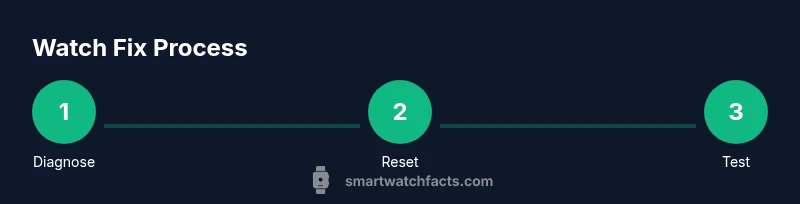
How to Fix Smart Watch: Safe, Step-by-Step Troubleshooting
Discover practical steps to fix common smartwatch problems—from charging and connectivity to unresponsive screens—using safe software resets, firmware updates, and basic hardware checks. A Smartwatch Facts guide for reliable DIY repairs.


Learn how to fix smart watch problems with safe, practical steps you can perform at home. This guide covers common issues, from charging and connectivity to unresponsive screens, plus when to seek professional help. Start with basic resets, software updates, and verifying your charger before moving to hardware checks.
Common smartwatch issues and why they happen
Smartwatches bundle a wide range of features into a compact device, which makes software stability and charging habits common sources of trouble. According to Smartwatch Facts, many smartwatch issues stem from software glitches rather than hardware faults. When software misreads sensor data, lags appear, apps crash, or the display becomes responsive inconsistently. Battery-related issues often arise from charging habits or background processes that drain power even when idle. Water exposure, dust, and sweat can affect touch sensitivity or sensor accuracy, especially if a device isn’t fully sealed or cleaned regularly. In practice, expect the most frequent problems to fall into these buckets: unresponsive screens, rapid battery drain, connectivity drops (Bluetooth or Wi‑Fi), misbehaving apps, and charging faults. While it’s tempting to jump to conclusions about hardware failure, the majority of fixes are software-oriented or related to charging and pairing. Understanding the root cause is the first step toward an effective fix.
- Unresponsive touchscreen: often caused by firmware quirks or lingering background tasks. A reboot can clear temporary glitches.
- Battery drain: background processes, bright displays, and recent updates can accelerate discharge.
- Connectivity drops: pairing and permissions problems may appear after software updates.
- App crashes: corrupted caches or outdated versions are common culprits.
- Charging faults: dirty contacts, incompatible chargers, or damaged cables are frequent offenders.
Practical takeaway: start with software and charging checks before assuming hardware failure.
Quick safety check before you troubleshoot
Before you dive into fixes, ensure you take basic safety steps to protect your device and data. Power down the watch if it’s safe to do so, or perform a soft restart if the screen is unresponsive. Remove the watch from the charger if you suspect a short or overheating issue, and never attempt to open the unit yourself. Keep the device away from household liquids during troubleshooting, and use manufacturer-approved chargers to prevent damage. If your watch is water resistant, dry hands and surfaces thoroughly before handling hardware or connectors. If you wear a medical or safety-sensitive app, back up data first to avoid loss during resets. Finally, verify that you are using the correct charging cradle and cable designed for your exact model to prevent charging faults.
Safety first: do not continue troubleshooting if you observe heat, unusual smells, or swollen components. Seek professional help promptly if you suspect a hardware fault.
Step 1: Soft reset and basic reboot
A soft reset is the safest first action for most smartwatch issues. If the screen is responsive, navigate to Settings > System > Restart. If the display is frozen, perform a long press of the power button for 10–15 seconds until the watch reboots. This clears temporary cache, stops errant processes, and often restores normal operation. After reboot, observe device behavior for 5–10 minutes to confirm stability. If the watch still misbehaves, proceed to firmware updates or the next steps.
Tip: Always back out of any in-app changes before rebooting to avoid losing recent data. If your watch uses a paired phone, you can test connectivity after reboot by trying to launch a built-in app or activity.
Step 2: Update firmware and apps
Software updates fix bugs, improve performance, and resolve compatibility issues that cause instability. Check both the watch firmware and any installed companion apps on the phone. Install any available updates, then reboot again to apply changes. After updating, test core functions (timekeeping, notifications, and a couple of apps) for 10–15 minutes. If problems persist, the issue may lie deeper in the app data or hardware.
Smartwatch Facts analysis shows that up-to-date software is one of the most effective fixes for a surprising number of issues, especially around battery efficiency and app stability. If you cannot update over the air, connect to the manufacturer’s desktop software if available and follow their instructions.
Step 3: Check charging setup and battery health
Charging problems are among the most common smartwatch issues. Start by inspecting the charger or docking cradle for wear, loose connectors, or damaged cables. Clean charging contacts on both the watch and charger with a dry microfiber cloth. Ensure the watch sits perfectly on the charger with proper alignment. If possible, try a different official charger to determine whether the issue lies with the accessory. Battery health declines over time; if the watch only holds a charge for a short period after a full night of charging, the battery may be aging and require service or replacement. If the device runs hot during charging, discontinue use and seek professional guidance.
Smartwatch Facts analysis shows that using the original charger improves charging reliability and reduces heat buildup, especially after firmware updates. Consider scheduling a battery health check with the manufacturer when issues persist.
Step 4: Bluetooth, pairing, and connectivity
Connectivity problems often masquerade as app or display issues. On the watch, turn Bluetooth off and back on, forget the watch from the phone’s Bluetooth settings, and re-pair it fresh. Ensure both devices have the latest OS versions and that permissions are granted for notifications, location, and background activity. If the watch connects intermittently, try turning off energy-saving modes that restrict background updates. For some watches, toggling Airplane Mode on and off can reset radio hardware without a full reboot. If pairing fails, consult the official support site for model-specific steps.
Pro tip: perform a test with a single app (like the stock health tracker) to see whether the problem is app-specific or system-wide.
Step 5: App data and storage management
A crowded app environment can slow a smartwatch and cause crashes. Clear cache for problematic apps, manage storage by removing unused data, and regularly back up information to the phone or cloud. If an app behaves poorly after an update, uninstall and reinstall it. In some cases, culprit data leaks into system logs, which a factory reset can help clear. Before you reset, export critical health data or workout history when possible. After cleaning up storage, reintroduce apps gradually to identify any flaky software.
Remember: extensive data purges should be avoided unless you’ve backed up important information. When unsure, perform a partial reset that preserves user data while refreshing apps and settings.
Step 6: Factory reset and last-resort recovery
A factory reset restores the device to its original state and can fix stubborn software faults, but it erases user data and requires re-pairing. Back up essential information first, then use the watch’s reset option (Settings > System > Reset) or the companion app. If your device supports a wipe-and-restore option, use it with a stable Wi‑Fi connection. After the reset, set up the watch anew and install only essential apps to test baseline performance. If issues reappear after a clean install, the problem is likely hardware-related or tied to a service account.
Caution: Do not reset if you are unsure about data availability or if you rely on work-critical configurations. When in doubt, contact support before proceeding.
Step 7: Post-fix testing and documentation
After any fix, perform a structured test: check timekeeping accuracy, heart-rate sensors, GPS, notifications, and at least two third-party apps. Monitor battery behavior for 24–48 hours and note any recurring anomalies. Document the steps you took and the observed results so you can share them with support if needed. Keep track of firmware versions and any observed improvements or regressions. A clear test record helps technicians diagnose issues more quickly if professional help becomes necessary.
Final reminder: if problems persist after all steps, you should consider warranty or repair options. The Smartwatch Facts team recommends coordinating with the manufacturer’s support channels for service eligibility and next steps.
Total time: 60-90 minutes
Tools & Materials
- Official charger or charging dock(Use the original charger designed for your exact model)
- Soft microfiber cloth(For cleaning contacts and screen gently)
- Soft brush or cotton swabs(For dust around charging contacts and speaker grills)
- Isopropyl alcohol 70%(Optional for stubborn grime on contacts; use sparingly)
- User manual or official support links(Helpful for model-specific steps)
- Backup method (phone or cloud)(Back up data before factory reset)
Steps
Estimated time: 60-90 minutes
- 1
Perform a soft reset
If the screen responds, follow Settings > System > Restart. If unresponsive, press and hold the power button for 10–15 seconds until the watch reboots. This clears temporary glitches and often restores normal function.
Tip: If your watch has a dual-button reset, use the designated button combo to avoid data loss. - 2
Check for firmware updates
Open the watch settings or companion app and look for available firmware updates. Install updates and restart to apply changes. Updates fix known bugs and improve stability.
Tip: Keep the watch connected to Wi‑Fi during updates to prevent interruption. - 3
Assess charging and battery health
Inspect the charger, cable, and contacts; clean with a microfiber cloth. Try another official charger if available. If the battery drains quickly after full charge, the battery may be aging.
Tip: Avoid charging on heat-emitting surfaces and discontinue use if the device overheats. - 4
Reset Bluetooth and re-pair
On the phone, turn Bluetooth off and back on. Forget the watch in Bluetooth settings, then re-pair it as a new device. Ensure permissions are granted and both devices run current software.
Tip: Test with a single app after pairing to confirm stable connectivity. - 5
Manage app data and storage
Clear caches for problematic apps, uninstall and reinstall when needed, and delete unused data. If issues follow updates, a partial data reset may help without discarding everything.
Tip: Back up health data before performing storage-heavy resets. - 6
Factory reset if necessary
Back up essential data, then reset via Settings > System > Reset or via the companion app. Reinstall only essential apps to test baseline performance.
Tip: Only perform if you are prepared to reconfigure your watch from scratch. - 7
Test and document results
After fixes, test timekeeping, sensors, GPS, and notifications. Record outcomes for future reference and share results with support if issues recur.
Tip: Create a short test log to speed up future troubleshooting.
People Also Ask
What should I do first when my smartwatch won't turn on?
First try a soft reset or forced reboot. If the watch still doesn’t respond, check the charger and battery health. If the problem persists, consult the manufacturer’s support page for model-specific guidance.
Try a soft reset first; if it still won’t turn on, check charging and battery health, and reach out to support if needed.
Can I fix charging problems at home?
Yes, start by inspecting the charger, cable, and contacts; clean them gently and ensure proper alignment. Try a different official charger if available. If charging still fails, the battery or charging hardware may require professional service.
Check the charger and contacts, clean gently, and try another official charger if you can.
How often should I update smartwatch software?
Check for updates regularly and install when available. Updates fix bugs and improve stability, but ensure you have sufficient battery and a stable connection during installation.
Install updates when available; they fix bugs and improve stability.
What if factory reset doesn’t fix the issue?
If a reset doesn’t resolve the problem, the issue may be hardware-related or tied to service account settings. Contact manufacturer support or wallet warranty options for next steps.
If reset fails, hardware or account issues are likely; contact support.
Is water damage repairable on a smartwatch?
Water exposure can damage internal components. If you suspect water ingress, power off and seek professional inspection. Do not attempt to dry or power the device aggressively.
Water damage needs professional assessment; power off and seek help.
Are there risks to opening the smartwatch yourself?
Yes. Opening a smartwatch often voids warranties and can cause irreversible damage. Always rely on manufacturer guidance or authorized service centers for hardware repairs.
Opening the watch can void warranties and cause damage; seek professionals.
Watch Video
Key Points
- Start with software and charging checks before hardware testing
- Keep firmware and apps updated to fix bugs
- Back up data before resets and factory restores
- If issues persist, seek professional repair or warranty support
- Follow documented steps to reproduce and monitor results