Why Is My Smart Watch Not Tracking My Sleep? A Practical Troubleshooting Guide
Urgent guide to fix sleep-tracking issues on smartwatches. Learn quick wins, diagnostic steps, and prevention tips to restore accurate sleep data fast.


Sleep tracking on smartwatches can fail for several common reasons. The most likely fix is to update the firmware, ensure sleep mode is enabled, and verify that your wrists are tracked properly. If problems persist, check sensor permissions and battery health. This quick, step-by-step answer helps you restore reliable sleep data fast.
Why Sleep Tracking Fails on Smartwatches
Sleep tracking relies on a combination of accelerometer data and photoplethysmography (PPG) to determine when you’re asleep. If anything disrupts these signals—poor watch fit, excessive movement, bright lighting, low battery, or software issues—the sleep data can become inaccurate or stop recording. If you’re asking why is my smart watch not tracking my sleep, start with the basics: confirm wear comfort, charge level, and the latest software. This section explains the root causes and how each factor alters your results, so you can target the right fix quickly. Throughout, you’ll find practical, brand-agnostic guidance to apply to most devices. Smartwatch Facts analysis shows that small changes in daily use dramatically improve data reliability.
Common Sensors and What They Do
Most wearables combine accelerometers, optical heart-rate sensors (PPG), and sometimes gyroscopes to infer sleep stages. The accelerometer detects stillness, while the PPG sensor measures blood flow to estimate heart rate variability. When these signals sync well, the device can distinguish light from deep sleep with reasonable accuracy. However, if you wear the watch loosely, in low-signal conditions, or during intense activity before bed, results can skew. Expect some variance across brands, but systematic issues usually point to fit, software, or permission problems rather than true sleep anomalies. For consistent data, know which sensors your model relies on and how they interact with your routine.
Quick Checks You Can Do Right Now
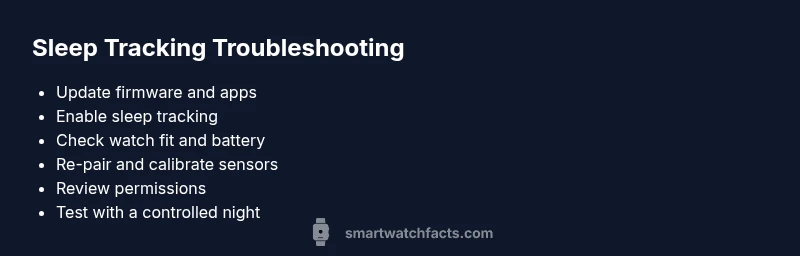
- Confirm Sleep Tracking is enabled in the watch and companion app settings. - Ensure the watch is snug but comfortable on your wrist, with skin contact near the sensor. - Check battery level; most devices perform best above 20-30%. - Restart the watch and, if needed, re-pair with your phone. - Review app permissions (health data access, background activity) on both the watch and phone. - Verify that do-not-disturb or battery saver modes aren’t silencing sensors at night. Applying these checks often resolves the common causes of missing or blurry sleep data. If the issue persists, proceed to re-calibration steps.
How to Recalibrate and Re-Pair
Calibrating sleep data often requires a fresh pairing between the watch and its app. Start by deleting the device from the companion app, then re-add it and run through any on-screen calibration prompts. This makes sure the watch and phone exchange the correct signal types and time stamps. After re-pairing, perform a short night’s sleep trial to see if data accuracy improves. If you still see inconsistencies, move to firmware and permissions checks. Regular recalibration helps prevent gradual drift in sleep estimates.
Firmware, Apps, and Permissions
Outdated firmware is a frequent culprit. Update your smartwatch OS and the companion app to the latest version. Some brands also require you to grant background activity and health data access explicitly; missing permissions lead to gaps in tracking. If you notice overnight resets or abrupt data drops after a software update, a clean reinstall of the app can resolve lingering conflicts. Always back up data before a reset. Firmware and app integrity are essential for reliable sleep analytics.
Battery Life and Its Impact on Sleep Data
Low battery can disable sensors during the night or cause the watch to switch into power-saving modes, which reduces data capture. Charge the watch before bedtime and avoid overnight firmware updates that force the device into downtime. If you routinely drain the battery in the evening, consider enabling extended battery modes during sleep or calibrating with a daytime wake period to ensure consistent data. A healthy charge level keeps sensors active for the full cycle.
Environment and Habits That Skew Data
Temperature, lighting, caffeine late in the day, alcohol, and late exercise can alter sleep patterns and confound a wearable’s readings. Even room noise and movement from a snoring partner can trigger false wake periods in some algorithms. To improve accuracy, establish a consistent pre-sleep routine, keep electronics away from the bed, and log routines in the app so the smartwatch can learn your typical patterns. Remember that wearables estimate sleep, not diagnose it, so look for trends over weeks rather than nightly precision.
Step-by-Step Troubleshooting Pathways
If the problem persists, follow a structured diagnostic path: confirm hardware basics, test software, calibrate sensors, and verify data flow to the phone. Each step narrows the cause range, from simple fit issues to complex app conflicts. Always document changes you make so you can revert if needed. If data still fail to track after these steps, you may need professional support from the device manufacturer or a healthcare provider who can interpret the data in context.
Preventing Future Gaps and Ensuring Reliable Sleep Data
Set a regular sleep schedule, wear the device consistently, and keep software up to date. Periodically review permissions and sensor settings, especially after updates. Calibrate after major changes to your routine (e.g., travel across time zones) and perform a quick overnight test after each major update. Aggregated trends are more meaningful than a single night’s result, so aim for at least two weeks of data to make informed conclusions.
Data Privacy and Sleep Data Interpretation
Sleep data is highly personal. Be aware of where it’s stored and who can access it. Review privacy settings and data-sharing options in both the watch and the companion app. Remember that most sleep metrics indicate patterns rather than precise hours, and any interpretation should be used in conjunction with personal well-being insights rather than as a medical diagnosis.
Steps
Estimated time: 1 hour
- 1
Check basic settings
Open the watch app and verify sleep tracking is turned on. Confirm the device is properly connected and not in a restricted battery mode.
Tip: Restart the app if you see stale data. - 2
Assess wear and fit
Make sure the watch is snug on your wrist with the sensors contacting skin. A loose fit reduces signal quality significantly.
Tip: Try wearing it on the non-dominant wrist for a few days to compare results. - 3
Charge and optimize
Keep the device above 30% overnight and disable aggressive power-saving unless necessary. Low power can mute sensors during sleep.
Tip: Avoid overnight firmware updates if you can, as they can reset preferences. - 4
Update software
Install the latest firmware and companion app. After updating, restart both devices and re-check sleep tracking.
Tip: If updates fail, try a manual update via the manufacturer’s desktop tool. - 5
Re-pair and calibrate
Remove the watch from the phone’s Bluetooth list, then re-pair. Run any built-in sleep calibration prompts.
Tip: Keep a backup of your data before a full reset. - 6
Check permissions
Ensure the health data permission is granted on both devices. Disable any conflicting apps that might override data.
Tip: Review privacy settings to avoid accidental data blocking. - 7
Test with a controlled night
Create a consistent sleep window for several nights and compare results. Track variables like room temperature, caffeine, and activity.
Tip: Use a regular pattern to see if data stabilize over time.
Diagnosis: Sleep data is incomplete, missing, or inaccurately rated on the smartwatch.
Possible Causes
- highOutdated firmware or app version
- highSleep tracking not enabled in settings
- highPoor watch fit or skin contact with sensors
- mediumBattery saver or power optimization interfering with sensors
- lowPermissions or data-sharing restrictions on phone/watch
Fixes
- easyUpdate firmware and companion app to the latest version
- easyRe-enable sleep tracking in settings and ensure watch is worn snugly
- mediumRe-pair the watch with the phone and recalibrate sensors
- easyDisable battery saver for nighttime or adjust power settings
- easyReview and grant necessary app permissions for health data
People Also Ask
Why does my sleep data differ so much from night to night?
Sleep data can vary due to nightly environment, movement, and measurement noise. Look for overall trends over two weeks rather than a single night, and ensure the device is worn consistently and updated. If variance persists, perform the troubleshooting steps above.
Sleep data often varies night to night because of small measurement differences. Track trends over two weeks and follow the troubleshooting steps if the data stays inconsistent.
Is it okay to reset my device to fix sleep tracking?
A factory reset can resolve deep software conflicts, but back up your data first. After reset, re-enable sleep tracking and re-pair the device. Use this as a last resort if updates and re-pairing do not fix the issue.
Factory resets can fix stubborn issues, but back up first. Re-pair the device after reset and re-enable sleep tracking.
Should I trust sleep data from third-party apps?
Some third-party apps can supplement data, but reliability varies. Prefer built-in sleep tracking first, then compare with secondary apps to identify anomalies. Always verify permissions and data sources.
Third-party sleep apps can help, but reliability varies. Start with the built-in tracker and check permissions.
What if sleep tracking still fails after following the guide?
If issues persist after all steps, contact the device manufacturer’s support with your diagnostic steps and logs. There may be a known hardware issue or a need for a software patch.
If problems persist after trying everything, reach out to support with your steps and data logs.
Can poor sleep data indicate actual sleep problems?
Wearable data is an estimate, not a medical diagnosis. If you have serious sleep concerns, consult a healthcare professional. Use trends as a general guide, not a diagnostic tool.
Wearable sleep data is an estimate, not medical advice. See a doctor if you’re worried about sleep problems.
Watch Video
Key Points
- Know your device’s sensor basics and what can disrupt data
- Keep firmware and apps updated for accuracy
- Wear the watch properly and mind battery levels
- Calibrate after changes to routine or updates
- Aim for trend data over time, not a single night