How to Pair a Smart Watch with iPhone: A Step-by-Step Guide
Learn how to pair a smart watch with iPhone, verify compatibility, set up permissions, and customize notifications. A step-by-step guide to reliable syncing and healthier wrist-based insights in 2026.


By pairing a compatible smartwatch with your iPhone, you gain seamless notifications, quick access to health data, and smoother app integration. The setup is straightforward for most popular watches, and you can complete it in under 20 minutes with your iPhone nearby. This guide walks you through verification, setup, and personalized settings.
Why a smart watch pair with iphone matters
A well-paired smartwatch turns your iPhone into a more capable wearable experience. When the watch stays in sync with the phone, you get timely notifications, faster access to health metrics, and quicker responses to messages without reaching for your phone. According to Smartwatch Facts, the benefits extend beyond convenience: better integration with apps and more consistent data sharing across devices can improve daily wellness routines. This guide focuses on practical, privacy-conscious setup that works with most popular models while preserving your iPhone’s battery life and safety. By understanding the core reasons to pair, you’ll be prepared to choose a device that fits your lifestyle and budget, and you’ll enjoy a smoother user experience overall. If you’re wondering how to keep the connection reliable, this guide answers that question with tested steps and common-sense tips. The Smartwatch Facts team emphasizes patience and deliberate permissions during setup to protect your data while you explore new features.
Compatibility and prerequisites
Not all smart watches work with every iPhone, so the first step is to confirm compatibility. In general, most modern watches offer iPhone pairing via a dedicated companion app and Bluetooth; however, some features may require newer iOS versions or specific hardware capabilities. Before you begin, make sure your iPhone is running a reasonably recent iOS release and that the watch model supports iPhone pairing. Also check storage availability on both devices, since the pairing process can require temporary installations of apps and updates. Remember that a successful pair depends on following the intended workflow rather than improvising with generic Bluetooth connections. The aim is a stable, two-way link that keeps notifications and health data synchronized across devices.
Prerequisites and apps you’ll need
To smart watch pair with iphone effectively, you’ll generally need access to the iPhone’s ecosystem and the watch’s companion app. Install the official app from the App Store, ensure Bluetooth is enabled, and sign in with your Apple ID if required by the watch vendor. If your model supports cellular connectivity or extra sensors, you may need additional setup steps within the app. In this section, we outline practical checks and preparations that prevent common issues such as failed pairing or missed notifications. From this point, you should have a clear roadmap for a clean, privacy-respecting connection that leverages the strengths of both devices.
Quick setup overview
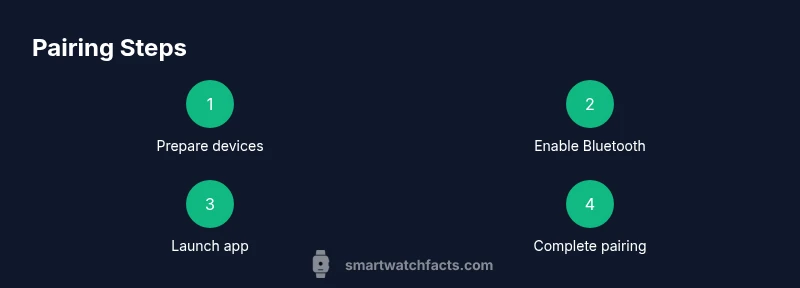
The goal here is to provide a concise, actionable overview of the steps to pair a smart watch with iphone. Start by charging both devices, then verify that the watch supports iPhone pairing and that the companion app is available. After enabling Bluetooth, you’ll launch the app and initiate pairing from the watch or the phone. Permissions prompts should be reviewed carefully, granting only what is necessary for the watch to function. With the right settings, you’ll enjoy smooth notifications, health data synchronization, and better control over how you receive information on your wrist. This overview is designed so you can quickly prepare and proceed with confidence when you are ready to begin the official steps.
Troubleshooting common issues
If you encounter delays or failures during pairing, consider common culprits: out-of-date software, weak Bluetooth signals, or conflicting apps. Ensure both devices are on stable power, restart them, and retry the pairing process in a quiet environment with minimal interference. If notifications aren’t appearing, revisit permissions for notifications, health data, and contacts in the companion app and iPhone settings. For persistent problems, unpair and re-pair the watch using the app’s reset flow, then reattempt the pairing from scratch. The goal is a resilient link that preserves user privacy while providing reliable access to essential information on your wrist.
Tools & Materials
- iPhone with compatible iOS version(Ensure Bluetooth is enabled and you have an active internet connection for app installation)
- Smartwatch with charged battery(Have at least 50% battery before starting to minimize mid-process shutdowns)
- Official companion app for the smartwatch(Download from App Store; this is how you initiate pairing and manage permissions)
- Charger for each device(Keep devices powered if you expect a prolonged setup)
- Stable Wi‑Fi or cellular connection(Helpful for app updates or firmware upgrades during setup)
Steps
Estimated time: 15-25 minutes
- 1
Prepare devices
Charge both the iPhone and smartwatch, and bring them close together. Update the iPhone to a recent iOS version if possible, and confirm the watch has sufficient battery. With devices ready, you reduce the chance of mid-pairing interruptions.
Tip: Have the watch near the iPhone and avoid starting with low power mode active on either device. - 2
Check compatibility
Verify that your watch model supports pairing with iPhone and that the companion app lists iPhone compatibility. If you’re unsure, check the manufacturer’s official specifications or support pages. Compatibility ensures a smooth feature set after pairing.
Tip: If you’re pairing a third-party watch, ensure the app explicitly mentions iPhone compatibility. - 3
Enable Bluetooth and initial permissions
Turn on Bluetooth on the iPhone and make sure the watch is set to discoverable mode. You’ll likely see prompts requesting permission to access notifications, health data, and contacts. Grant only what’s necessary to operate the watch features.
Tip: Do not bypass notifications permission; it’s essential for timely wrist alerts. - 4
Install or open the companion app
Launch the smartwatch’s companion app and sign in if required. The app will guide you to begin pairing and will typically present a list of nearby devices. Select the correct watch and proceed with the pairing flow.
Tip: If you already have the app installed, check for updates before starting the pairing process. - 5
Initiate pairing from watch or iPhone
On the watch, choose the pairing option, or in the app, select the iPhone from the discovered devices. The two devices will establish a secure link. If a QR code or numeric code appears, follow the on-screen prompts to complete verification.
Tip: Be patient during the initial handshake; it can take a minute for devices to recognize each other. - 6
Grant permissions and sync data
Approve prompts to share notifications, health data, and other needed information. Allow the watch to access relevant iPhone features and ensure data syncing is enabled in both the app and iPhone settings.
Tip: Review privacy prompts and customize data-sharing levels to suit your comfort. - 7
Customize settings
Configure notification preferences, watch faces, and glancable info. Set Do Not Disturb behavior, app shortcuts, and health-tracking preferences to align with your daily routine.
Tip: Tailor alerts to avoid notification fatigue while staying informed. - 8
Test and confirm
Send a few test messages, check call alerts, and verify health data transfers. If something isn’t syncing, retry the pairing or consult the troubleshooting tips in the app’s help center.
Tip: Test both incoming and outgoing notifications to ensure end-to-end functionality.
People Also Ask
Will any watch pair with iPhone?
Most watches designed for iOS pairing will work with iPhone, often via a dedicated companion app. Always verify the model's specifications before purchase or setup.
Most watches designed for iPhone pairing work with iPhone via their companion app. Check the model specs before you start.
Why won’t pairing start after installing the app?
There might be a software update pending, Bluetooth disabled, or a mismatch in device compatibility. Recheck OS versions and try restarting both devices before retrying the pairing flow.
If pairing won’t start, check for updates, ensure Bluetooth is on, and reboot both devices before trying again.
Can I pair multiple watches to one iPhone?
Some iPhone-compatible watches support switching between devices, but most pairs are one-to-one. To switch, unpair the current watch and pair the new one following the same steps.
You usually pair one watch at a time; to switch, unpair the current watch and pair the new one.
Do I need cellular service on the watch for basics?
For basic notification and health-tracking features, cellular service is not required; Bluetooth pairing with the iPhone is typically enough. Some advanced features may need a cellular plan.
No cellular service is needed for basic use; Bluetooth with iPhone covers most features, though some extras may require cellular.
How do I unpair and reset the watch if something goes wrong?
Use the companion app or the watch’s settings to unpair, then re-enter pairing mode. Factory reset only if the watch won’t pair after multiple attempts.
Unpair via the app, then retry pairing. If needed, reset the watch to factory settings and start again.
Watch Video
Key Points
- Prepare both devices before starting
- Confirm compatibility to avoid feature gaps
- Grant necessary permissions with awareness
- Test notifications and health data after pairing