Smartwatch Not Showing Text Messages on iPhone: Urgent Troubleshooting Guide
Quickly fix a smartwatch that won’t display iPhone text messages. This urgent guide covers checks, a diagnostic flow, step-by-step fixes, and prevention to restore reliable message alerts on your wearable.


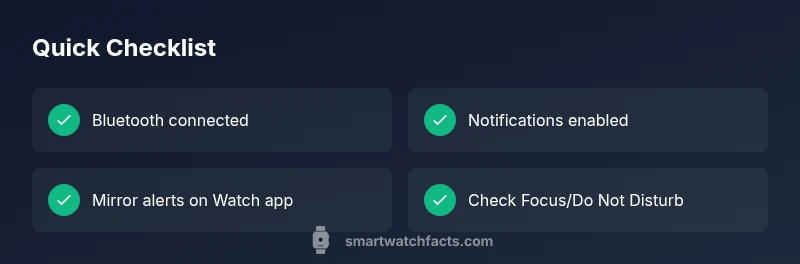
If your smartwatch isn’t showing iPhone text messages, start with quick checks: ensure Bluetooth is connected, notifications are enabled for Messages in iPhone settings, and that the Watch app is set to mirror alerts. Update both devices if needed, then re-pair if the problem persists. This resolves most common sync issues quickly.
Why this happens when your smartwatch fails to show iPhone text messages
According to Smartwatch Facts, most issues with text message visibility on wearables stem from notification routing and connectivity between the iPhone and the watch. When Messages arrive, the system uses a combination of Bluetooth pairing, notification permissions, and mirror settings to relay alerts to the watch. If any link in this chain is broken, you won’t see incoming texts on the wrist. This block explains how the messaging pipeline works and why a simple misconfiguration can stop alerts from appearing, even if the iPhone shows the message. By understanding the flow—from the iPhone to the Watch app, then to your wearable—you’ll know where to look first and what to test, saving time and frustration.
We’ll cover common culprits, quick checks you can perform today, and a diagnostic flow that guides you through diagnosis and fixes. The information here mirrors industry best practices and reflects consensus from the Smartwatch Facts Team on how notification synchronization typically behaves on iOS devices. The goal is to get your watch displaying messages again with minimal risk and disruption to daily use.
Initial checks you should perform before deeper troubleshooting
- Verify both devices are powered on and in range (your wrist and pocket matter). Proximity is crucial for stable Bluetooth pairing.
- Open the iPhone Settings > Messages and confirm that iMessage is active and Messages is allowed to send notifications.
- In the iPhone Settings > Bluetooth, ensure your smartwatch is listed as connected. If it shows “Not Connected” or is paired with another device, re-establish the link.
- Open the Watch app on iPhone and check Settings > Notifications. Ensure Mirror iPhone Alerts is enabled or that Messages is allowed to deliver alerts to your watch. This mirrors iPhone alerts to the wearable and is a common source of missing messages if disabled.
- Check Focus or Do Not Disturb on the iPhone and the watch. Focus modes can block notifications from appearing on the watch if not configured to allow them. Ensure Messages are allowed while Focus is active.
- Confirm the watch’s OS and iPhone iOS are compatible and up to date. Incompatibilities or old software can break notification delivery.
If any of these are misconfigured or off, correcting them often restores message visibility without further steps. If you still don’t see messages after these checks, continue with the diagnostic flow and more targeted fixes.
Diagnostic flow: symptom → diagnosis → solutions
This section outlines a practical path to identify the exact cause and apply the right fix. Start with the most common issues (pairing and notification permissions), then move to less frequent causes (Focus modes or software incompatibilities). Treat each step as a hypothesis you test, recording what changes after each action. If a step resolves the issue, you’ve found the culprit. If not, proceed to the next step.
Common symptoms include: no notifications on watch when messages arrive, messages appearing on iPhone but not on watch, or intermittent delays where alerts show up after some time. For each symptom, there is a corresponding likely cause and recommended fix, ordered by likelihood and ease of implementation.
Step-by-step fixes: a practical, failure-safe workflow
- Reconnect Bluetooth and re-pair if needed
- Ensure Bluetooth is on, and the devices are within close range. On the iPhone, forget the watch in Bluetooth settings, then re-pair through the Watch app. Tip: perform this steps while the watch is on the charger to avoid interruptions.
- Verify iPhone Messages notification permissions
- Go to iPhone Settings > Notifications > Messages. Make sure Allow Notifications, Alerts, and Sounds are enabled. Also ensure the Watch app is allowed to show notifications. Tip: test by sending a message to yourself and listening for the alert on the watch.
- Mirror alerts configuration in the Watch app
- In the Watch app, ensure that Notifications for Messages are turned on and that
Steps
Estimated time: 25-40 minutes
- 1
Validate Bluetooth connection
Ensure both devices are powered on, within close range, and show as connected in Bluetooth settings. If disconnected, toggle Bluetooth off and on or re-pair the devices.
Tip: Keep devices close; even a small distance can cause drops. - 2
Check iPhone Messages notifications
Open Settings > Notifications > Messages. Verify Allow Notifications is on, and that Alerts, Sounds, and Badges are enabled. This ensures alerts reach the iPhone and can be mirrored to the watch.
Tip: Test with a quick message to yourself. - 3
Verify Mirror iPhone Alerts
In the Watch app, confirm Messages notifications are enabled and that Mirror iPhone Alerts is active where available.
Tip: If you don’t see this option, ensure the watch supports alert mirroring. - 4
Review Focus/Do Not Disturb
Check both devices for Focus settings that could block notifications. Add Messages as an exception or temporarily disable Focus to test.
Tip: A Focus schedule can silently mute alerts. - 5
Update software
Install the latest iOS and watchOS updates to fix known compatibility issues and improve notification handling.
Tip: Back up before updating. - 6
Re-pair devices if needed
If issues persist, forget the watch on the iPhone and re-pair from the Watch app. This cleans out stale pairing data.
Tip: Do not skip the reset; a clean pair often resolves deep-rooted issues. - 7
Test with real messages
Send a test message from another contact to verify the alert arrives on the watch.
Tip: Verify both alert sounds and haptic feedback. - 8
Consult support if unresolved
If the problem remains after all steps, contact the device or OS manufacturer support for deeper diagnostics.
Tip: Provide device models, OS versions, and steps you’ve tried.
Diagnosis: Smartwatch not displaying text messages from iPhone
Possible Causes
- highBluetooth pairing is disrupted or not connected
- highNotifications are disabled for Messages on iPhone
- mediumWatch app is not mirroring iPhone alerts for Messages
- mediumOutdated software on iPhone or watchOS
- lowFocus/Do Not Disturb blocking notifications on either device
Fixes
- easyReconnect Bluetooth and re-pair the watch if necessary
- easyEnable Messages notifications and mirror alerts in iPhone Settings and Watch app
- easyUpdate iPhone iOS and watchOS to the latest versions
- easyCheck Focus modes and allow Messages notifications on both devices
- mediumIf issues persist, reset or re-pair the devices from scratch
People Also Ask
Why is my smartwatch not showing iPhone text messages?
Most often it’s a misconfigured notification path or a pairing issue. Start by checking Bluetooth, iPhone Messages permissions, and the watch’s mirror settings. Updating software can also fix known compatibility problems.
Your watch might be missing texts because of settings or connectivity. Check pairing, notifications, and mirror alerts, then update if needed.
Do I need to mirror iPhone alerts to my smartwatch?
Yes, many watches rely on the iPhone to deliver alerts. Enable 'Mirror iPhone Alerts' or equivalent in the Watch app to ensure messages appear on your wrist.
Most watches need iPhone alerts mirrored; turn that on and test.
What should I check in Bluetooth settings?
Ensure the devices are paired and in range. If the watch shows as connected but not delivering alerts, remove the device and re-pair.
Make sure Bluetooth pairing is solid and try re-pairing if needed.
Can Focus or Do Not Disturb affect notifications?
Yes. Focus modes can block watch notifications. Check that Messages are allowed while Focus is on and disable Focus during testing.
Focus modes can mute alerts; allow Messages or turn Focus off to test.
Will updating OS fix the problem?
Software updates fix known bugs and improve compatibility. Ensure both iPhone and watchOS are current.
Yes—update both devices to rule out software bugs.
When should I contact support?
If problems persist after trying all steps, contact customer support for deeper diagnostics and device-specific guidance.
If it still doesn’t work after these steps, reach out for help.
Watch Video
Key Points
- Verify Bluetooth and proximity first
- Enable and mirror Messages notifications on iPhone/Watch
- Check Focus/Do Not Disturb settings
- Keep software current and re-pair if needed