Smart Watch Won't Show Messages: Essential Troubleshooting Guide
Urgent, practical steps to fix a smart watch won't show messages. Diagnose common causes, fix quickly, and prevent recurrence with clear actions, examples, and expert tips from Smartwatch Facts.


Most message-display failures on smart watches come from syncing glitches, outdated software, or notification settings. Start by checking Bluetooth connection, rebooting the watch, and ensuring notifications are enabled for your messaging app. If it persists, update firmware and re-pair with your phone. Also verify Do Not Disturb and power-saving modes aren’t masking alerts.
Why the issue happens when a smart watch wont show messages
When you notice that a smart watch wont show messages, youre likely facing a mix of connectivity and software hurdles rather than a broken display. According to Smartwatch Facts, most message-display problems originate from two broad buckets: device-to-phone synchronization issues and software/gating settings on the watch or phone. You will often be able to resolve the problem with a few careful checks rather than a factory reset. The phrase "smart watch wont show messages" is a practical cue that guides you to investigate both network and software layers first, before assuming a hardware fault. The goal is rapid restoration of reliable alerts so you dont miss important chats, reminders, or alerts from trusted apps.
- Common early clues: notifications appear intermittently, only for some apps, or after an OS update.
- The type of watch (Wear OS, watchOS, or a proprietary OS) influences where settings live, but the core logic stays the same: confirm connection, confirm permissions, and confirm that alerts are allowed.
- Prepare for the deeper checks by charging both devices so you dont be interrupted mid-troubleshooting.
Check your Bluetooth pairing and device connection
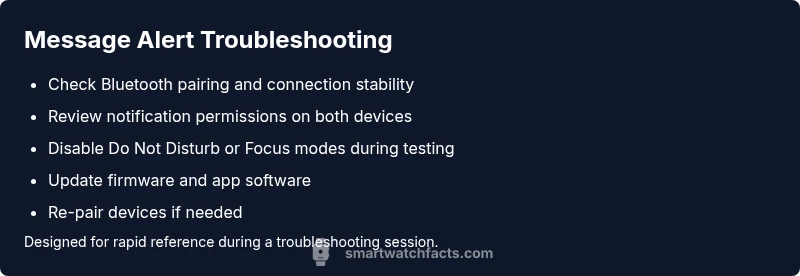
A first step in troubleshooting is to verify a stable link between the watch and the phone. A stubborn pairing issue can block message delivery even when the app is configured correctly. In many cases, a fresh pairing solves the problem and reduces churn. On iPhone or Android, navigate to Bluetooth settings, forget the watch, then re-pair from the watch companion app. If you notice a fluctuating Bluetooth icon or frequent disconnects, move closer to the phone, disable other Bluetooth devices temporarily, and test messaging after a clean reconnect. Remember, a weak or unstable link often lies at the heart of the problem.
- Ensure the watch shows as connected in both the phone and watch companion apps.
- Avoid interference from Wi-Fi-only or low-energy gadgets within a short range.
- After reconnecting, perform a quick test by sending a message to the watch and confirming notification appearance.
Verify notification access and permissions on both devices
Notifications must be permitted on both the phone and watch for messages to display. A common pitfall is granting permissions during setup and then forgetting to confirm them after an OS update or app reinstall. On Android, you typically grant notification access within the app's settings and in Androids system notification menu. On iOS, make sure the watch app, messaging app, and system notifications are all allowed to show alerts. If a particular messaging app never shows alerts, check its in-app settings for notification channels and align them with the watch notifications channel. After adjusting permissions, force-close the apps and reopen to apply changes.
- Confirm that each involved app has permission to display notifications.
- Check notification banners, sounds, and badges to ensure visibility.
- If you use Do Not Disturb or Focus modes, temporarily disable them to test alerts.
Update firmware and app software to the latest version
Software updates often include fixes for notification delivery and improved compatibility between watch and phone. If your watch or companion app hasnt update automatically, trigger a manual check. Firmware updates may require your phone to be connected, and sometimes a reboot of both devices is necessary after installation. Updates not only fix bugs but can also improve energy management for notifications, reducing missed messages. Remember to back up any important data before updating.
- Check for updates on both the watch and the phone companion app.
- Perform updates during a stable power state; avoid mid-operation updates.
- After updating, restart both devices and test message delivery again.
Do Not Disturb, Focus, and power-saving modes can hide alerts
If Do Not Disturb (DND), Focus, or power-saving modes are enabled, alerts may be silenced or shown only intermittently. This is a frequent but overlooked cause of the problem. On many devices, DND masks all notifications, while Focus modes can limit certain apps to reduce distractions. Review the watch and phone settings for any active DND/Focus configurations and temporarily disable them to run a test. If the alert appears during the test, gradually re-enable modes to identify which setting is causing the issue.
- Look for DND or Focus icons on both devices and switch them off for testing.
- Be mindful of battery saver modes that may disable background tasks responsible for delivering alerts.
- After testing, re-enable essential modes with selective app exceptions.
Common causes: app-specific vs system-wide issues
Some problems are isolated to one app, while others are system-wide across all messaging apps. A single app-specific issue could be caused by a permissions change, a bug in the app, or a recently installed update. In contrast, system-wide issues usually involve the OS, a shared service (like notification listeners), or a broader pairing issue. By differentiating app-specific from system-wide, you can target the fix more efficiently and avoid unnecessary resets. Smartwatch Facts analysis shows that most persistent issues are rooted in misconfigurations rather than hardware faults.
- If only one app fails, reset that app notification settings or reinstall the app.
- If multiple apps fail, focus on OS-level notification channels and pairing.
- When in doubt, a clean reboot often clears stale notification listeners without data loss.
Advanced steps for stubborn cases: reset, re-pair, or factory reset (last resort)
When basic checks fail, advanced steps can help, but they carry risk of data loss. Start with a soft reset (reboot) of both devices. If the issue persists, unpair and re-pair the devices, ensuring youve backed up important data. As a last resort, perform a factory reset on the watch, after exporting your settings and apps. This clears quirks caused by old caches or corrupted profiles. If you choose factory reset, you will typically need to re-install your apps and reconfigure notifications from scratch.
- Always back up data before factory resets.
- After a reset, test messaging before restoring apps.
- If youre uncomfortable with resets, seek professional support.
Preventing future message-display issues: best practices
Proactive steps reduce the likelihood of this issue reappearing. Keep devices within range for reliable syncing, maintain up-to-date software, and periodically audit notification settings. Regularly restarting devices and clearing app caches where appropriate can also prevent stale notification listeners from causing delays. Consider enabling selective app reminders to ensure critical messages always surface. Lastly, monitor battery health, because low power can suppress background tasks that handle alerts.
iPhone vs Android: platform-specific tips that matter
The process varies by platform, but the core troubleshooting flow is universal: verify pairing, permissions, updates, and Do Not Disturb settings. On iPhone, ensure the Apple Watch is paired correctly and that iMessage and notification routing are configured to pass to the watch. On Android, confirm that Googles notification access and effective Bluetooth management are in place. In both ecosystems, a clean re-pair often resolves stubborn issues quickly.
Final thoughts: next steps and what to do if the issue persists
If you still encounter the problem after following the steps above, consider contacting the product support line or your retailer for hands-on diagnostics. Document the steps you performed and the results to share with support. The Smartwatch Facts team recommends keeping your devices software up to date, maintaining a healthy pairing link, and periodically reviewing notification settings to prevent future interruptions. A concise recovery approach minimizes downtime and keeps you connected with essential messages.
Steps
Estimated time: 30-45 minutes
- 1
Check basic connectivity
Ensure both devices are powered on and within close proximity. Check Bluetooth icons on both devices and confirm the watch shows as connected to the phone. If not connected, attempt a fresh pairing.
Tip: A simple reboot of both devices can clear minor Bluetooth glitches. - 2
Audit notification permissions
Open the notification settings on the phone and the watch companion app. Confirm that the messaging app has permission to show banners and sounds, and that notification access is enabled for the watch receiver. Close and reopen apps after changes.
Tip: Toggle permissions off and on again after saving to force a fresh grant. - 3
Test Do Not Disturb and battery-saving modes
Turn off Do Not Disturb, Focus, and power-saving modes on both devices. Send a test message to verify alerts appear. If alerts return, re-enable modes gradually with app exceptions.
Tip: Even short power-saving periods can mute background alert tasks. - 4
Update firmware and apps
Check for and install any available updates for the watch firmware and the messaging apps. Reboot after installation to ensure changes take effect.
Tip: Updates often fix notification routing bugs that cause display issues. - 5
Re-pair and reboot
If problems persist, forget the watch in Bluetooth settings and re-pair from scratch. Restart both devices after pairing to clear stale listeners.
Tip: Keep a backup of watch settings before re-pairing if possible. - 6
Consider a factory reset as last resort
If all else fails, perform a factory reset on the watch after backing up data. Reconfigure from scratch and test messaging before reinstalling apps.
Tip: Factory resets erase data; use only when other fixes fail.
Diagnosis: Smart watch won't show messages
Possible Causes
- highBluetooth pairing or connection issues
- highNotification permissions disabled or misconfigured
- mediumDo Not Disturb/Focus mode is active
- mediumFirmware or app bugs requiring update
Fixes
- easyRe-pair the watch with the phone after forgetting the device in Bluetooth settings
- easyReview and restore notifications permissions on both watch and phone, then restart both devices
- easyDisable Do Not Disturb/Focus mode and test messaging, then re-enable with exceptions
- easyUpdate watch firmware and messaging apps, then reboot and test again
People Also Ask
Why doesn't my smartwatch show messages after a software update?
Software updates can reset or change notification settings. Check app permissions, re-pair the watch, and verify that messaging alerts are enabled. If still failing, roll back to a previous version if available or contact support.
Software updates can reset notification settings; re-check permissions and re-pair the devices before contacting support.
Is it necessary to reset my watch to fix this problem?
Factory resets should be a last resort because they erase data. Try re-pairing, updating software, and adjusting notification permissions first. Only reset if everything else fails and you have a recent backup.
Only reset if other fixes fail and you have a backup; resets erase data.
Can this be caused by a faulty notification app on the phone?
Yes. If a specific messaging app isnt delivering alerts to the watch, check in-app notification settings, reinstall the app, and ensure it integrates with the watch notification system.
A misbehaving messaging app can block alerts; reinstall or adjust its settings.
What should I test first if alerts are quiet or delayed?
Test with a new message from another contact, verify the watch shows a toast or banner, and observe whether alerts appear on both watch and phone. If not, move to permissions and pairing checks.
Test messaging from a different contact and check both devices for alerts.
How do I know if this is an OS issue vs. hardware?
If multiple apps fail to deliver alerts and a reset or update fixes some symptoms, it is likely OS-related. If a single app or the display remains inconsistent, it could be hardware or app-specific. Consulting support is advised for hardware doubts.
If many apps fail after updates, it is probably OS-related; hardware issues need professional help.
Watch Video
Key Points
- Verify pairing and permissions first
- Update firmware to fix notification bugs
- Disable DND/Focus during testing
- Re-pair and reboot before factory reset