Smart Watch Won’t Connect: Troubleshooting Guide
Struggling with a smart watch that won’t connect to your phone? This urgent guide covers fast Bluetooth checks, firmware updates, and re-pair steps to restore a reliable link.


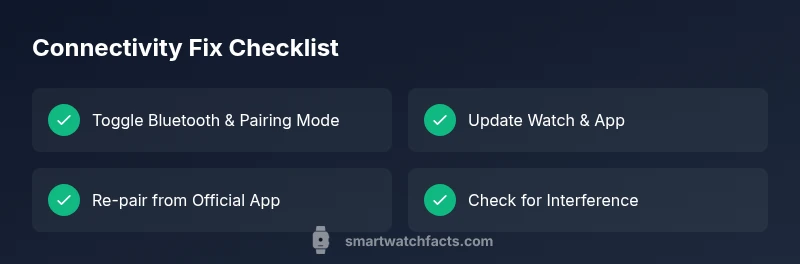
If your smart watch won’t connect, start with the two easiest fixes: confirm Bluetooth is on and the watch is in pairing mode, then reboot both devices. Update the watch firmware and the companion app, and try pairing again within close range. If the problem persists, check for interference or reset networking settings.
Why smart watches won’t connect
A disconnect between a smart watch and a phone can feel urgent, but most issues stem from simple misconfigurations or outdated software. Common culprits include Bluetooth being turned off, the watch not in pairing mode, or a firmware/app mismatch. Proximity also matters; when devices are too far apart, the initial handshake can fail. Security settings, recent resets, or recent OS updates can introduce minor compatibility quirks as well. By understanding the typical flow—Bluetooth, pairing, app handshake, and firmware compatibility—you can quickly identify the bottleneck and fix it without guesswork. This guide focuses on practical steps you can take today to restore a reliable connection for the long term, with tips for Android and iPhone users alike. Throughout, you’ll see references to the Smartwatch Facts guidance as you navigate common pitfalls and best-practice fixes.
Quick checks you can do in 60 seconds
Before diving into deeper troubleshooting, run these fast checks. First, ensure Bluetooth is enabled on your phone and the watch is awake. Move both devices within a few feet and verify the watch is in pairing mode (often shown with a visible status or blinking LED). If Bluetooth is on and pairing mode is active but no connection occurs, restart both devices. This simple restart clears minor software glitches that block handshakes. Finally, confirm the companion app is up to date and that the watch firmware isn’t pending an update. These immediate checks catch most human errors and temporary glitches.
How pairing works: Bluetooth, apps, and firmware
Pairing involves a multi-layer handshake: the phone’s Bluetooth radio negotiates with the watch, the companion app authenticates the device, and the watch negotiates its firmware version compatibility. If any layer is out of date or misconfigured, the pair can fail at the initial handshake or during the app validation step. Firmware mismatches between the watch and its app on the phone are a frequent cause of persistent disconnects. Keeping both sides updated reduces risk. In practice, you should update the watch, then update the app, and finally re-initiate pairing to ensure clean synchronization.
Platform-specific tips: Android vs iPhone
Android devices often require you to grant location and background activity permissions for Bluetooth pairing to succeed, and some OEM versions add extra steps or security prompts. iPhones typically leverage the Watch app (or Health) for management, and iOS updates can alter pairing behavior. If you’re cross-platform (e.g., Android watch with iPhone), verify cross-compatibility in the latest release notes. In all cases, avoid third-party apps for core pairing; use the official companion app and trusted firmware sources to minimize conflicts.
Step-by-step restoration flow: when simple fixes don’t stick
If basic checks fail, follow a structured restoration flow: (1) restart both devices; (2) forget the watch in the phone’s Bluetooth settings and restart again; (3) ensure the watch is in pairing mode and start the pairing process from the official app; (4) perform any available firmware update on both devices; (5) re-attempt pairing with the phone within close proximity; (6) if still failing, reset network settings on the phone and attempt again; (7) as a last resort, factory reset the watch and re-setup from scratch. This step-by-step approach minimizes data loss while maximizing success probability.
Prevention and maintenance: keep it connected long-term
Regular maintenance reduces future disconnects. Keep firmware and apps updated, periodically re-pair to refresh trust settings, and avoid environments with heavy Bluetooth interference (dense crowds, certain wireless devices). Charge devices fully before attempting pairing, and maintain stable power from both ends. If you rely on automations, test them after every update. Smartwatch connectivity benefits from a routine check every few weeks to confirm continuity and compatibility.
Steps
Estimated time: 20-30 minutes
- 1
Check Bluetooth and proximity
Verify Bluetooth is enabled on the phone and the watch is awake. Bring both devices within a few feet of each other to ensure the initial handshake isn’t blocked by distance.
Tip: Keep devices within line of sight during pairing. - 2
Restart devices
Power off both devices, wait 10 seconds, then power them back on. A fresh boot clears stuck processes that can block pairing attempts.
Tip: Restarting is faster than a full reset and fixes most transient issues. - 3
Update firmware and app
Install the latest firmware on the watch and the latest version of the companion app on your phone. Updates address known compatibility issues and bug fixes.
Tip: Charge devices to at least 50% before updating. - 4
Re-pair from scratch
In the phone’s Bluetooth settings, forget the watch. Re-enable pairing mode on the watch and start a fresh pairing from the official app.
Tip: Avoid pairing with other devices during this process. - 5
Check permissions and settings
Ensure the app has location/background access (Android) and that notifications/sensors aren’t restricted during pairing.
Tip: Disable any VPNs or firewalls that might block device communication. - 6
Interference check
Move away from other active Bluetooth or Wi‑Fi devices if possible and retry pairing. Crowded radio environments can disrupt the handshake.
Tip: Turn off unused Bluetooth devices nearby during setup. - 7
Advanced reset options
If all else fails, perform a factory reset on the watch or a full network settings reset on the phone, then re-pair from scratch.
Tip: Backup important data before performing resets.
Diagnosis: Smartwatch won't connect to phone via Bluetooth
Possible Causes
- highBluetooth disabled on phone
- highWatch not in pairing mode
- mediumOutdated firmware on watch or phone
- lowInterference or crowded radio environment
- lowWatch already connected to another device
Fixes
- easyTurn on Bluetooth on the phone and ensure the watch is in pairing mode
- easyRestart both devices to clear transient software glitches
- easyUpdate watch firmware and phone companion app to the latest versions
- easyForget the watch in Bluetooth settings and re-pair from the official app
- easyCheck for interference and move closer to the phone during pairing
- mediumIf needed, reset network settings on the phone or perform a factory reset on the watch
People Also Ask
Why won't my smartwatch pair with my Android phone?
Most pairing problems come from Bluetooth being off, outdated firmware, or incorrect pairing mode. Ensure both devices are nearby, credentials are correct, and the watch is in pairing mode. If it still fails, reset Bluetooth settings on the phone and retry.
Most pairing problems come from Bluetooth being off, outdated firmware, or incorrect pairing mode. Ensure both devices are nearby and retry after re-enabling pairing.
What should I do if I get 'pairing failed' after approving the request?
First, forget the watch in Bluetooth settings and restart both devices. Then ensure the watch is in pairing mode and retry the pairing from the official app. If the message persists, check for app permission conflicts or OS updates that affect Bluetooth behavior.
First forget the watch in Bluetooth, restart, and retry pairing from the official app. If it keeps failing, check permissions and OS updates.
Can a factory reset fix connectivity problems?
Factory resets are a last resort and can clear saved preferences. They often restore the original pairing behavior, but back up data first. Only perform a factory reset if all other steps fail.
Factory resets can fix stubborn issues, but back up first since data will be erased.
Do I need to update both devices to stay connected?
Yes. Keeping both the watch and the phone app updated minimizes compatibility issues and improves security. Check for updates on both devices before attempting a new pairing.
Keeping both devices updated helps prevent compatibility problems when pairing.
Will turning off power-saving features help with pairing?
Disabling aggressive power-saving modes on the phone during pairing can help. These modes sometimes restrict background activity needed for the watch to communicate with the phone.
Disable aggressive power-saving modes during pairing for a smoother connect.
Is it safe to use third-party software to fix connectivity?
Stick to official apps and updates. Third-party software can introduce security risks or cause further compatibility issues. If you’re ever unsure, contact the device manufacturer support.
Avoid third-party repair tools; use official apps and support.
Watch Video
Key Points
- Start with Bluetooth and proximity checks.
- Keep firmware and apps updated for compatibility.
- Forget and re-pair if needed to refresh trust.
- If persists, check interference and consider resets.